Scan to Shared (Cloud)
Last Updated: October 02, 2026
Scan to Shared (Cloud) requires a connection to a supported storage provider and at least one preset scan location.
Key Points
Review the following key points:
- Configure the Storage Default Settings, and review the requirements in Scan to Storage before configuring these features.
- The Vasion Admin Console has a 15 minute inactivity timeout. Be aware that this timeout applies to the Global Scan Settings.
- The Scan to Storage Guide includes instructions for using this feature on the Control Panel Application (CPA).
Process Overview
You perform these high-level procedures:
- Create the Storage Connection.
- Configure Preset Scan Locations.
- Install Scan to Storage.
1. Create the Storage Connection
Scan to Shared (Cloud) supports the following storage providers. Follow the steps in the appropriate link to continue configuring this feature.

You also need to create storage folder locations prior to configuring the Global Scan Settings. When you connect your provider, you assign a unique name, which appears in the Preset Scan Locations section.
2. Configure Preset Scan Locations
You can set up multiple connections to your preferred storage provider, but you can configure a connection to a folder only once. When you connect a preset scan location, you assign a unique name, which appears in the Preset Destination menu on the Scan to Storage screen. For Mobile Scan the unique name appears in the Export options for users.
To configure a folder destination, you must have already created the folder in the cloud storage location.
You can set up a destination folder only once. If you try to configure multiple scan locations to the same folder, Scan to Shared (Cloud) does not function as expected.
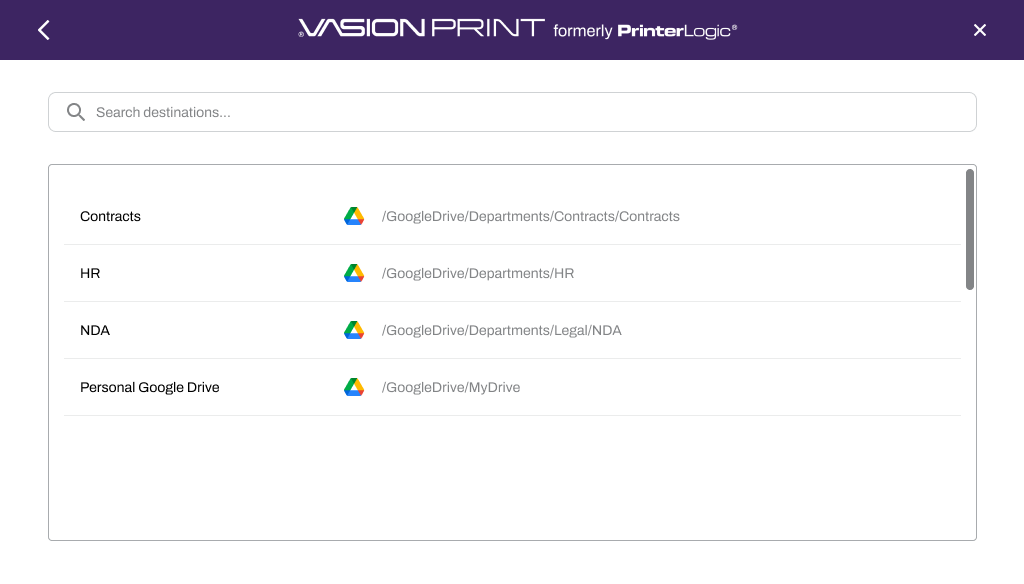
Preset Scan Locations
Follow these steps:
- In the Admin Console, go to Tools
 Settings Scanning.
 - Select Preset Scan Locations.
- Select the Storage Drive tab.
- Select Add Configuration.
-
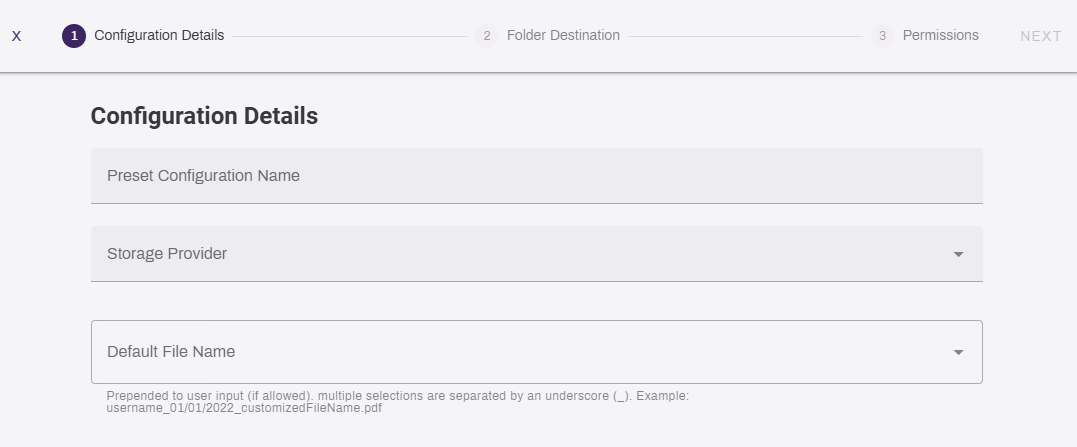
On the Configuration Details page, complete the following:
- Preset Configuration Name: Enter a name to identify the scan destination.
- Storage Provider: From the dropdown menu, select the storage provider that contains the folder.
- Default File Name: You can define which name is applied to the file when it is scanned. Select from the following:
- Select one or more options from the list. If you select more than one, they appear in the order that you selected.
- Manually enter a default file name. You can enter a manual input and preset selections.
- Leave the field blank. The end user can enter or modify this name at the CPA.
- Select Next.
-
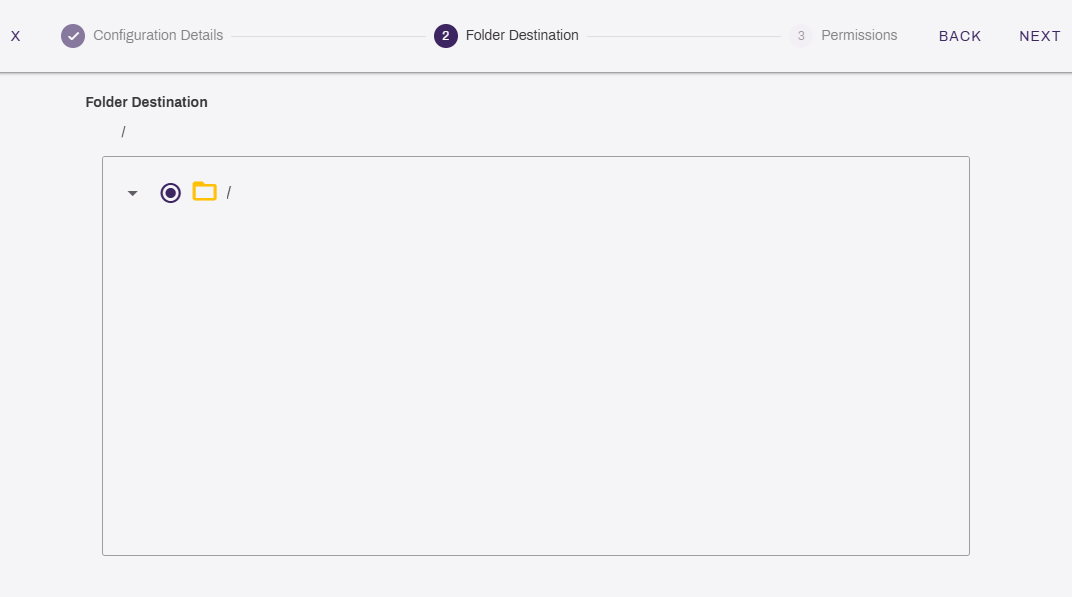
On the Folder Destination page, select the folder that you want to use for the preset location. You can also search to locate the folder.
- Select Next.
-
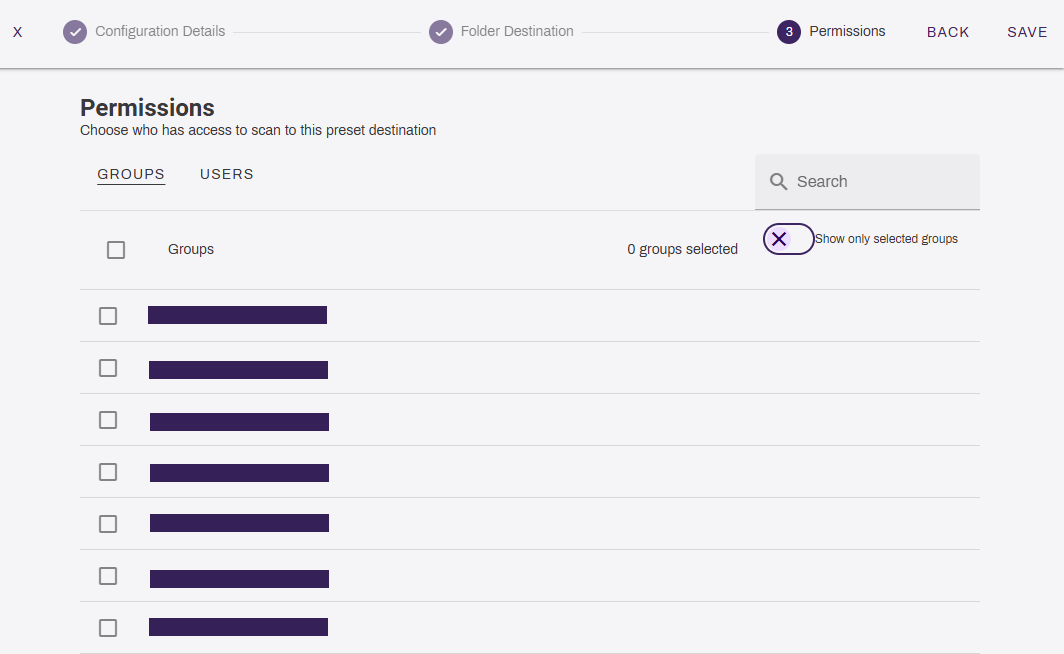
On the Permissions page, select the users and groups that should have access to the preset destination.
- Select Save.
After you configure the storage location and preset scan location, the storage location appears on the end user's mobile device when they use the Export option.
3. Install Scan to Storage
The following steps are only for customers using the Scan to Storage features, including Scan to Shared (Cloud) and Scan to Network, for the CPA. The printer object's Apps tab allows for single installation. For bulk installation refer to CPA Manager.
Follow these steps:
- In the Admin Console, go to the printer on which you want to install Scan to Storage.
- Select the Apps tab.
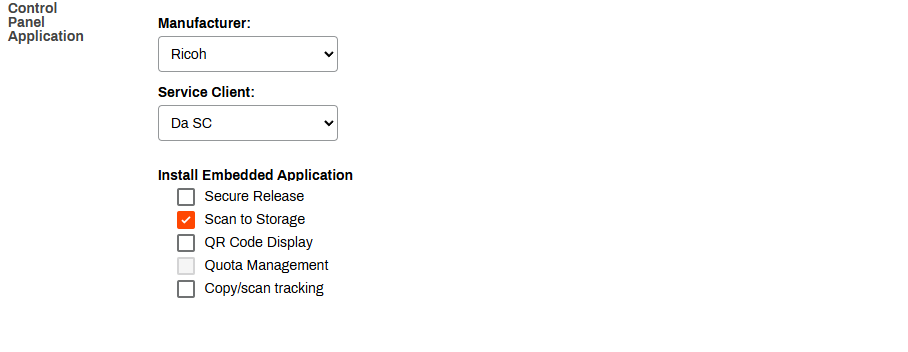
- Ensure that the correct manufacturer, CPA version, and Service Agent are selected.
-
In the Install Embedded Application section, select the Scan to Storage option.
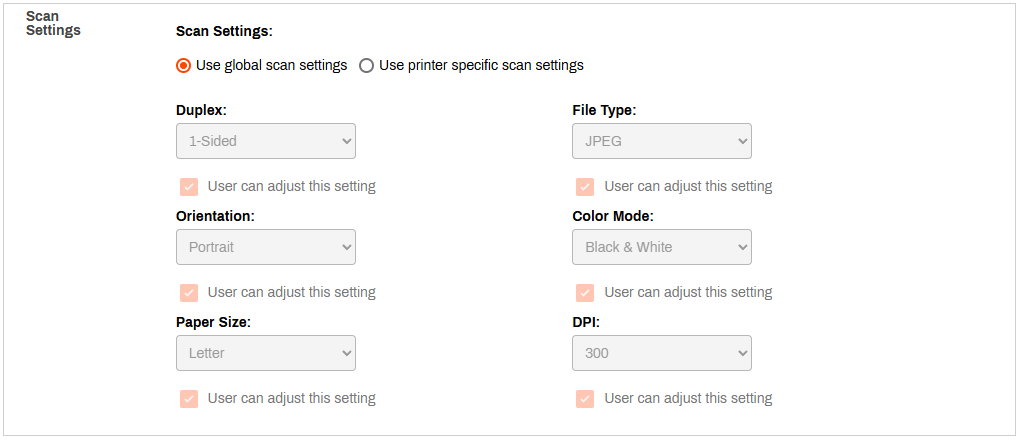
- In the Scan Settings section, select from the following:
- Use global scan settings: This option is the default. You configure these settings in the Global Scan Settings.
- Use printer specific scan settings: This makes the dropdown menus available so that you can adjust the printer-specific settings as needed.
- Select Save in the upper-right corner.
Next Steps
In this topic:
Scan to Storage currently integrates with OneDrive, SharePoint, Google, and Box. Within those providers, you can set preset file destinations for specific departments or user groups based on their typical scanning needs. Your end users can simply scan to the exact folders they need. For example, a Legal team can scan NDAs, legal forms, contracts, and client information to specific folders assigned that are visible to only their team.
Not yet. OCR functionality will be supported in a future release of Simplified Scanning. At that time, users can convert their scanned documents into searchable and editable text to improve the searchability and accessibility of documents saved in cloud storage locations
There is no maximum file size set when scanning. However, if the file exceeds the amount of storage space available in the cloud storage folder or exceeds the limits set by the administrator, the file will not upload. Check the maximum file size for the cloud storage provider you use.
After you have scanned your document(s), wait a few minutes. You will receive an email from Vasion letting you know the file was scanned successfully, with an attachment of the file ready to download.