CPA PIN Authentication
Last Updated: August 06, 2026
PIN authentication adds an additional authentication method for the Control Panel Application (CPA). PIN authentication is helpful when you want end users to enter one set of credentials to sign in to the Agent and another set of credentials to sign in to the printer CPA. You can store PINs in the PrinterLogic database, the Active Directory (AD), or an identity provider (IdP).
If you use an IdP, the Control Panel Application (CPA) supports only badge and PIN authentication.
PIN Authentication Support
The following manufacturers and IdPs are supported:
Supported Manufacturers
- Canon.
- Fuji Xerox.
- HP.
- Konica Minolta.
- Kyocera.
- Lexmark.
- Ricoh.
- Sharp.
- Toshiba.
- Xerox.
Supported IdPs
- Active Directory (AD).
- Entra ID (Azure AD).
- Google Identity Sync.
- Lightweight Directory Access Protocol (LDAP) domains.
- Okta.
Requirements
The following are required:
- Configure your IdP
- If you use an IdP with mapped PIN attributes, refer to Print Release Methods and its subtopics for steps to create IdP PIN attributes and self-register PINs.
PIN Storage Details
Note the following:
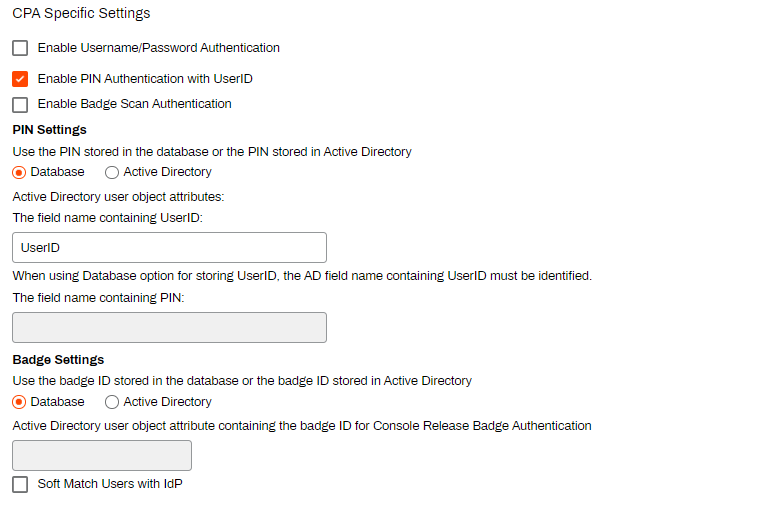
- If PINs are stored in the PrinterLogic database, the end user can self-register their PIN. The PIN must be between 4 and 10 digits and is limited to numbers. You must specify the Active Directory (AD) UserID field name in the Admin Console.
- For PINs stored in the Active Directory (AD), you must configure them in the Active Directory (AD). You must specify the field name containing the PIN in the Admin Console.
- For PINs stored in and mapped from an IdP, you must configure them in the IdP. Turn on the Enable self registration of PIN for IdPs option only when the PINs are not mapped.
About the PrinterLogic Database
PrinterLogic stores a hashed version of the PIN. The user ID is checked against the hashed version of the PIN, and the user can log in to the CPA if the two hash values match.
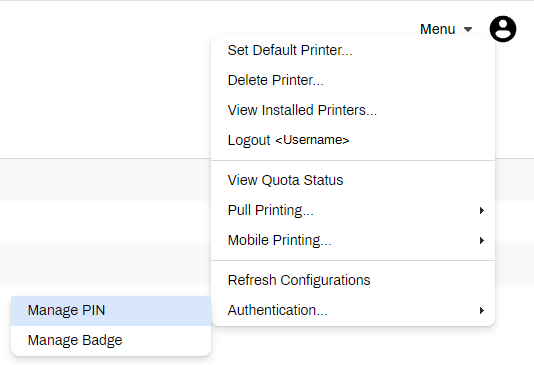
For PINs stored in the PrinterLogic database or not managed through an IdP, the end user can change their PIN in the Self-service Portal by going to Menu  Authentication Manage PIN.
Configure PIN Authentication
Follow these steps:
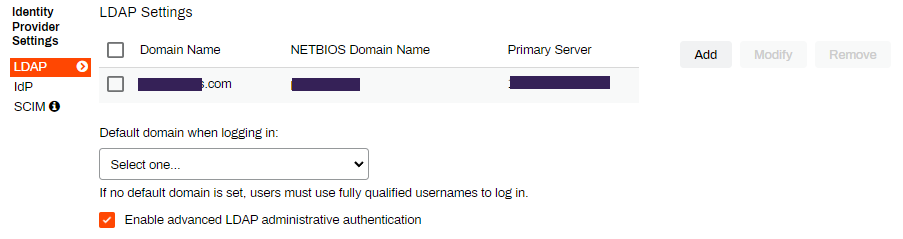
- In the Admin Console, go to Tools Settings General.
- Scroll down to the Identity Provider Settings.
-
Select
- In the CPA Specific Settings section, select the checkbox for
-
Select where you want the PIN to be stored.
- Select Save.
Now that you configured the PIN settings, you can turn them on and use them on printers with the CPA installed.
Install the CPA
The PIN authentication option appears on the printer's Apps tab and the CPA Manager. You can turn on PIN authentication when installing the CPA. Refer to Control Panel Application (CPA), and select the manufacturer for detailed installation steps.
Turn Off PIN Authentication
An environment that uses the CPA also requires an authentication method. Changing the method using the printer's Apps tab or the CPA Manager causes the CPA to reinstall. If you want to remove the PIN authentication option from the Apps tab and CPA Manager, follow these steps:
- In the Admin Console, go to Tools Settings General, and scroll down to the Identity Provider Settings section.
- Select LDAP or IdP, depending on your identity provider.
- In the CPA Specific Settings section, deselect the checkbox for Enable PIN Authentication with UserID if you use an LDAP or Enable PIN Authentication if you use an IdP.
- Select Save in the upper-right corner.
The PIN authentication option no longer appears on the Apps tab or CPA Manager.
HP and Xerox printers immediately turn off PIN authentication. Konica Minolta printers must reinstall the CPA to turn off PIN authentication.
In this topic: