Connect Box Cloud Storage
Last Updated: October 08, 2026
This topic covers the storage provider connection portion for Scan to Shared (Cloud) configurations. If you are setting up Scan to Personal (Cloud), the connection uses the Integrations found on the Scan to Personal (Cloud) topic.
Requirements
To connect PrinterLogic to Box, you need the following:
- Complete the Storage Default Settings for Scan to Storage features before creating the storage provider connection.
- Access to the Box Developer Console.
- An existing app or a new app with read and write privileges.
Scan to Storage supports Box for shared drives. Support for personal drives will come in a later release.
Process Overview
You perform these high-level procedures:
- Create Custom App.
- Connect and Authorize.
1. Create Custom App
Follow these steps:
- Log in to developer.box.com.
- Select Create New App.
- Select Custom App.
- In the Create a Custom App modal, complete the following:
- App Name: Enter a name for the app.
- Description: (Optional) Enter an app description.
- From the Purpose dropdown menu, select Automation.
- Select Next.
- In Step 2 of 2, select User Authentication (OAuth 2.0).
- Select Create App.
-
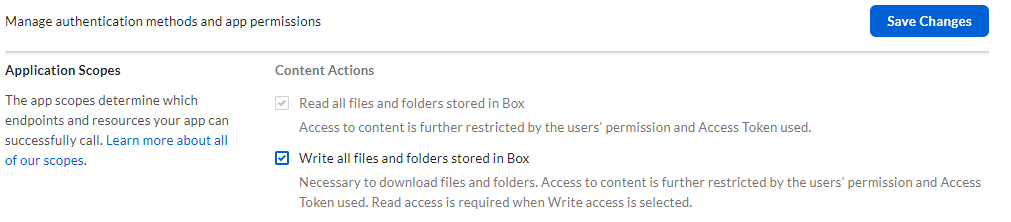
Scroll down to the Application Scopes section, and select Write all files and folders stored in Box.
-
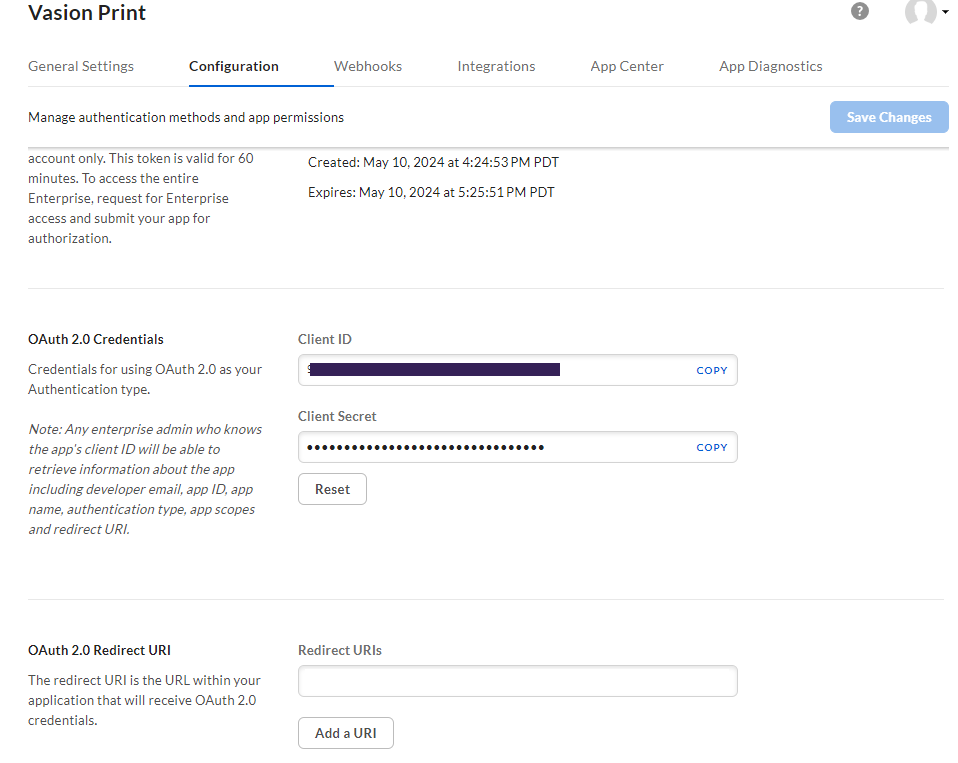
Return to the OAuth 2.0 Credentials section.
Leave the current browser open for later steps.
2. Connect and Authorize
Follow these steps:
- In the Vasion Admin Console, go to Tools
 Settings Scanning.
 -
For Scan to Shared (Cloud) for the CPA, expand the Scan Settings section, and turn on Enable Scanning with Printer Default Settings. You can configure the settings later.

- For Mobile Scan and Scan to Shared (Cloud) for the CPA, expand the Storage Connections section, and select Add Connection.
- Select Box Cloud Storage, and then select Next.
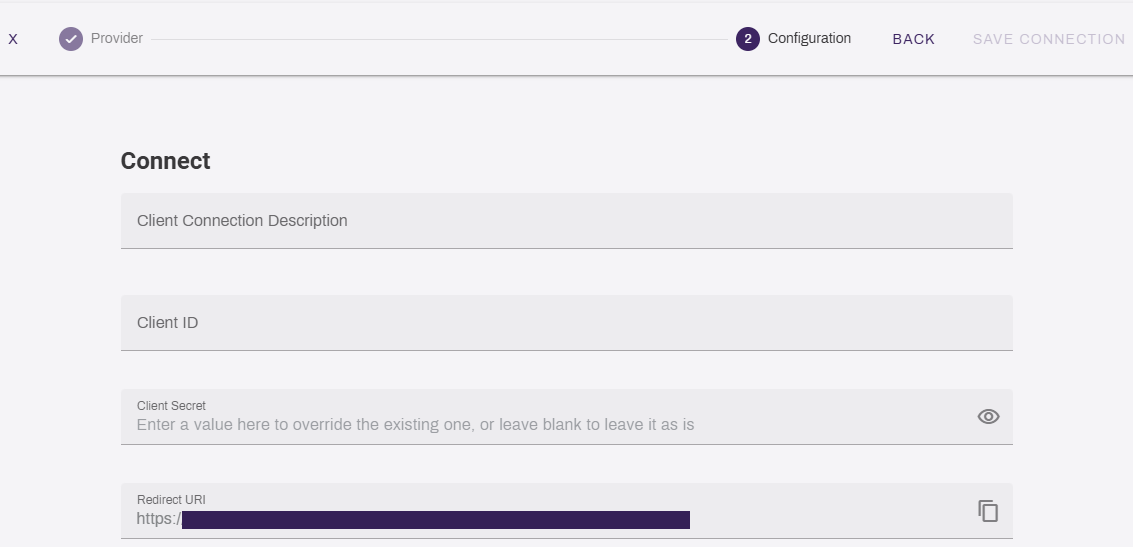
- Complete the following:
- Client Connection Description: Enter a description for the connection. This description appears in the Preset Scan Locations section and on the CPA.
- Client Id: In Box copy the Client ID string in the OAuth 2.0 Credentials section, and paste it here.
- Client Secret: In Box copy the Client Secret, and paste it here.
- Redirect URI: In the Admin Console, copy the URI, and paste it in the Box Redirect URIs field.
- Select the Add button, and remove any placeholder URIs.
- In Box select Save Changes at the top of the Configuration tab.
- In the Admin Console, select Authorize.
-
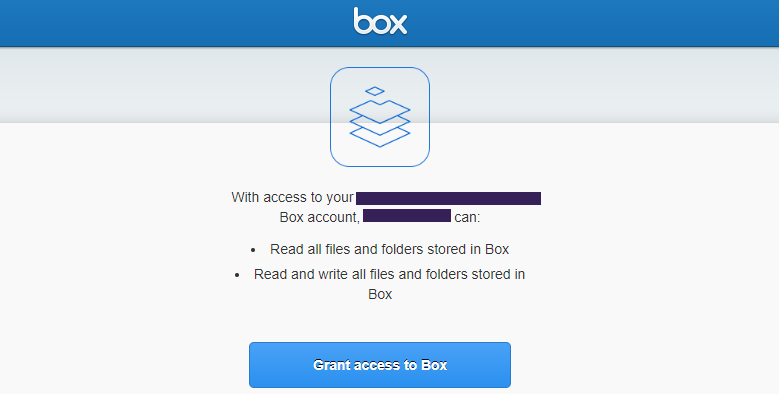
When prompted select Grant access to Box.
Next Steps
In this topic: