Connect Google Drive
Last Updated: October 08, 2026
This topic covers the storage provider connection portion for Scan to Shared (Cloud) configurations. If you are setting up Scan to Personal (Cloud), the connection uses the Integrations found on the Scan to Personal (Cloud) topic.
Requirements
To connect PrinterLogic to Google Drive, you need the following:
- Complete the Storage Default Settings for Scan to Storage features before creating the storage provider connection.
- Admin access to the Admin Console.
- Access to the Google Cloud console and permission to create projects.
- If you need to create a project, you need the permission to create projects or the Project Creator role. For details on how to create a project, refer to Create a Google Cloud project.
- Google Drive Application Programming Interface (API) turned on. For details on how to turn on the API, refer to Enable Google Workspace APIs.
Process Overview
You perform these high-level procedures:
- Create the Google Drive Project.
- Turn On the Google Drive API.
- Configure the OAuth Consent Screen.
- Add the Vasion Connection.
- Create the OAuth Client ID.
- Connect and Authorize.
1. Create the Google Drive Project
Follow these steps:
- Open a new browser tab, and go to https://console.cloud.google.com.
- Log in to your Google admin account.
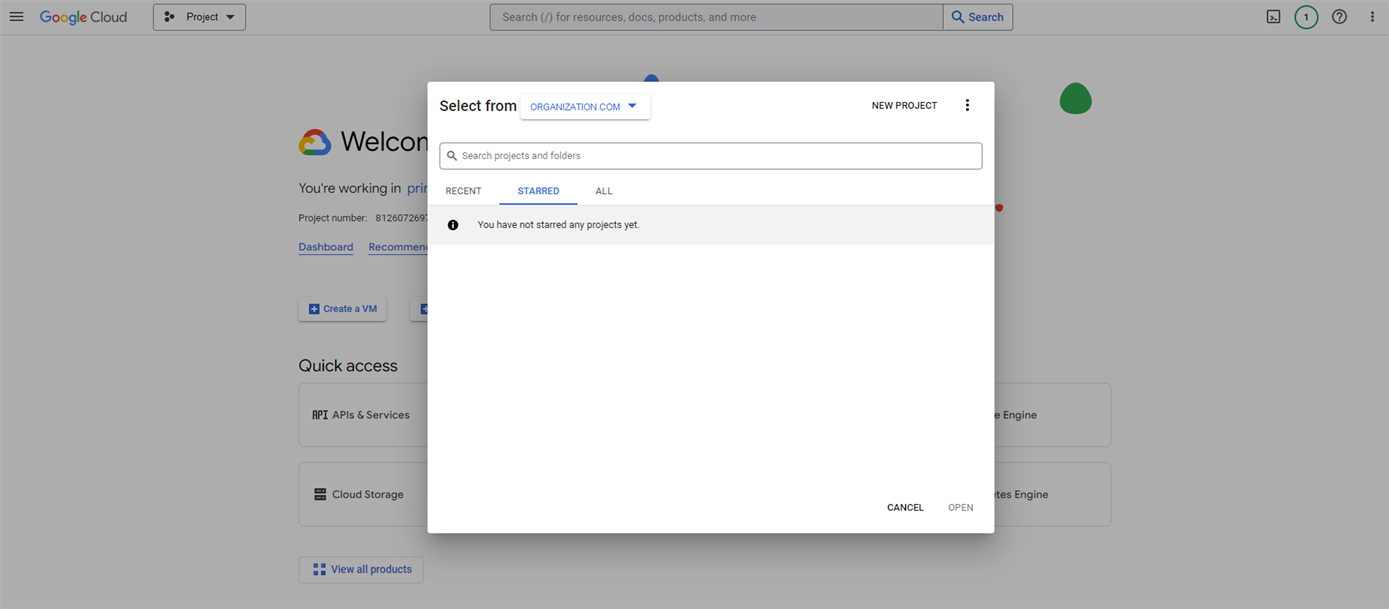
- Select the Project dropdown menu at the top.
- Select New Project.
- Enter a project name, and ensure that the Organization and Location fields are correct.
- Select Create.
-
Select Select Project in the Notification section, or select the new project from the Project dropdown menu.

2. Turn On the Google Drive API
Follow these steps:
-
Expand the navigation menu, and select APIs & Services
 Enabled APIs & Services.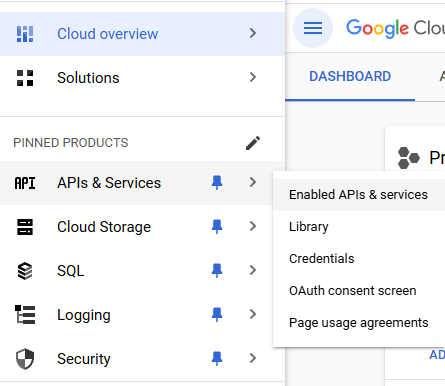
- Select the + Enable APIs and Services button.
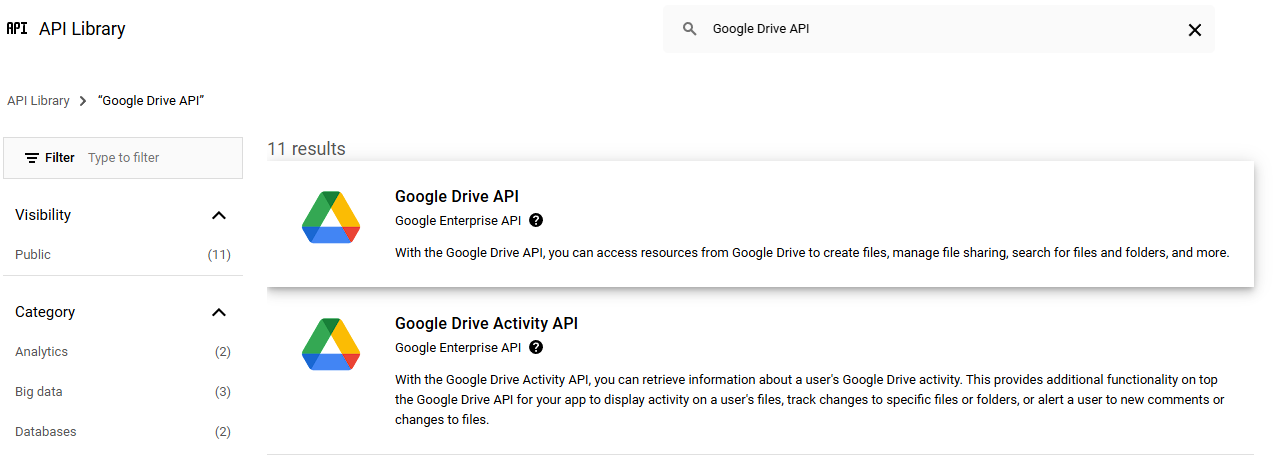
- Search for and select the Google Drive API.
- Select Enable.
3. Configure the OAuth Consent Screen
Follow these steps:
-
Select OAuth consent screen from the left-side navigation, or select APIs & Services
OAuth consent screen from the navigation menu.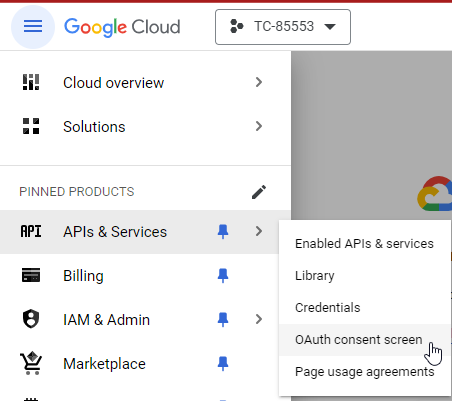
-
Select the Get Started button.
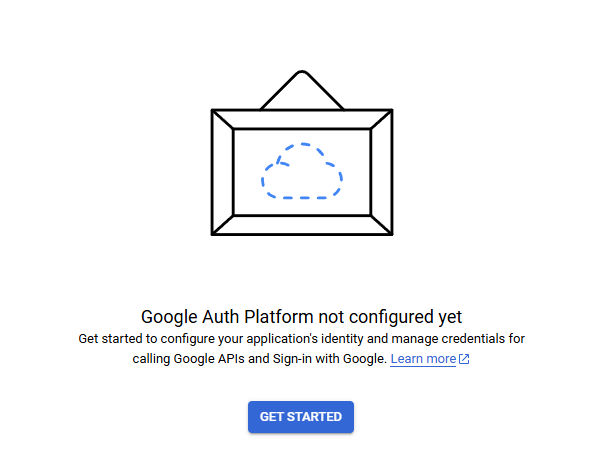
- Enter the App name and User support email, and then select Next.
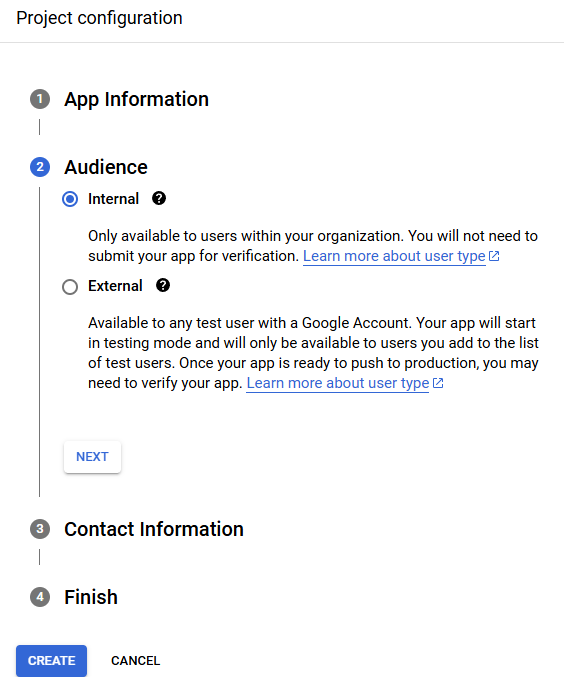
- Select Internal for the Audience, and then select Next.
- Enter the Contact Information, and then select Next.
- Select the checkbox to agree, and then select Continue.
- Select Create.
4. Add the Vasion Connection
Follow these steps:
- In another browser tab, log in to the Vasion Admin Console.
- Select Tools
 Settings Scanning.
 -
For Scan to Shared (Cloud) for the CPA, expand the Scan Settings section, and turn on Enable Scanning with Printer Default Settings. You can configure the settings later.

- For Mobile Scan and Scan to Shared (Cloud) for the CPA, expand the Storage Connections section, and select Add Connection.
- Select your provider's option, and then select Next.
Leave the current browser open for later steps.
5. Create the OAuth Client ID
Follow these steps:
-
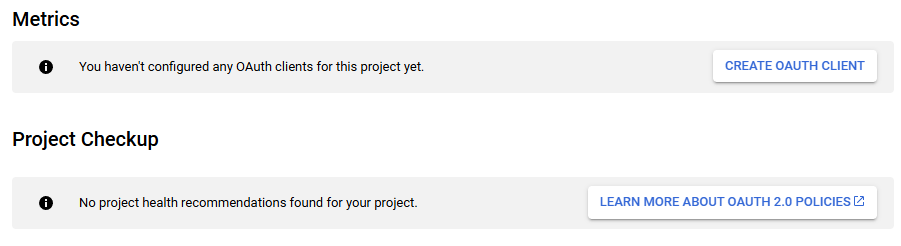
In the Google Cloud console, go to the OAuth Overview tab, and select the Create OAuth Client button.
- For the app type, select Web Application.
- Enter a name for the web client.
- In the Authorized redirect URIs section, select + Add URI.
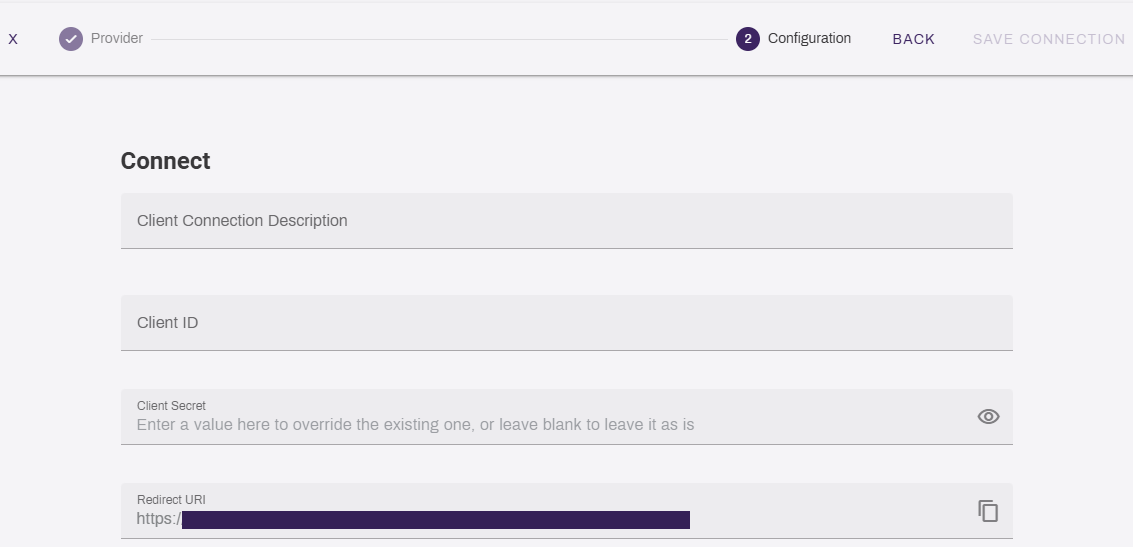
- Copy the Vasion Redirect URI, and paste it in the Google Cloud URIs field.
- Select Create.
6. Connect and Authorize
Follow these steps:
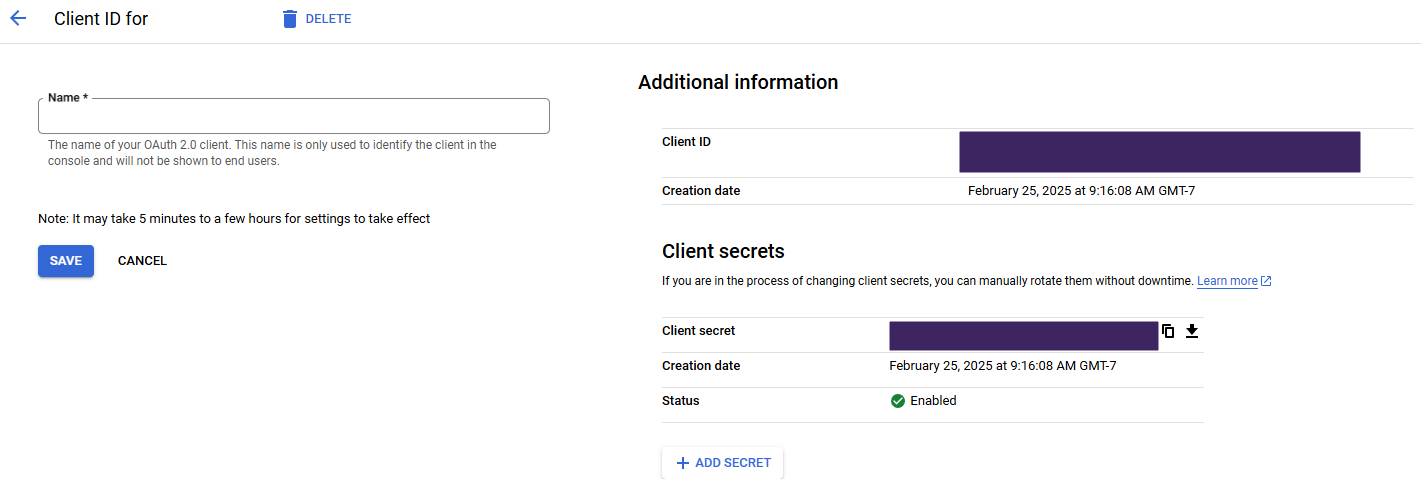
- In the Google Cloud console, select the OAuth client you created to view additional details.
- Copy the Google Client ID, and paste it in the Vasion Client ID field.
- Copy the Google Client Secret, and paste it in the Admin Console Client Secret field.
- Enter a description for the connection in the Admin Console.
-
Select Authorize.
It might take 3-5 minutes for the URI to take effect. Therefore if authorization in the next step fails, wait and try again after the URI is active.
- On the Google sign in page, enter your Google Cloud console credentials.
- In the modal select Allow.
-
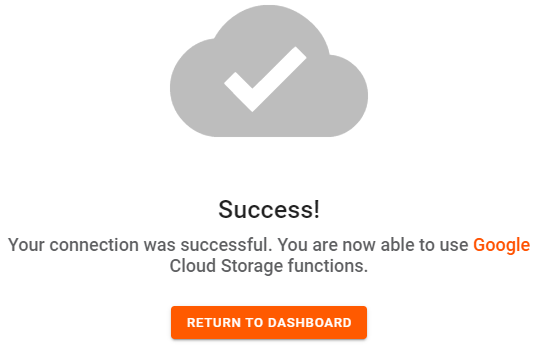
After the connection verifies successfully, select the Return to Dashboard button.
Next Steps
In this topic: