Connect Network Drive
Last Updated: April 28, 2026
Requirements
To connect Vasion Print to your network drive, you need the following:
- Shared drive and folder structure.
- Admin credentials to access the network drive.
- At least one Service Client running the Printer Apps service.
Process Overview
You perform these high-level procedures:
- Connect the Network Drive.
- Test the Connection.
1. Connect the Network Drive
Follow these steps:
- In the Admin Console, go to Tools
 Settings Scanning.
 -
Expand the Storage Connections section, and select Add Connection.
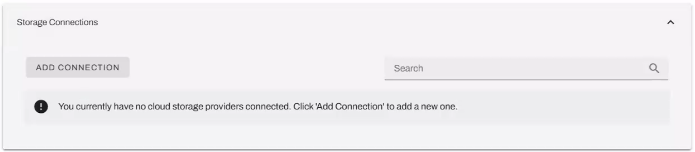
- Select Network, and then select Next.
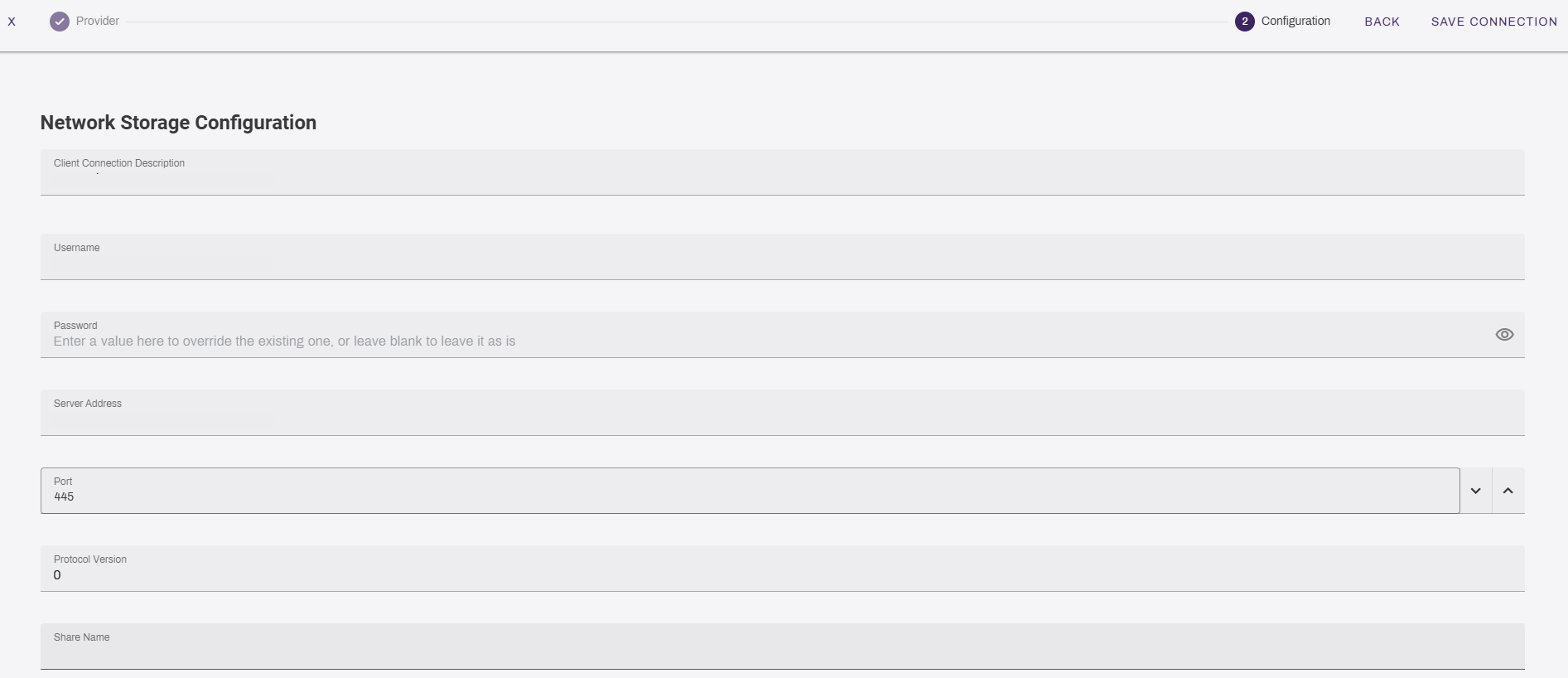
- Complete the following:
- Client Connection Description: Enter a description for the connection. This description appears in the Preset Scan Locations section and on the CPA.
- Username: Enter the username that you use to connect to the network drive.
- Password: Enter the password that the same username uses to connect to the network drive.
- Server Address: Enter the fully qualified domain name (FQDN) of the server that is hosting the shared drive. For example,
fileserver.domain.com. - Port: Enter the port used to connect to your network drive. Port 445 is the default.
- Protocol Version: Enter the protocol version.
- Share Name: Enter the name of the network share.
- Select Save Connection in the upper-right corner.
2. Test the Connection
The connection test includes all Service Clients running the Printer Apps service. Follow these steps:
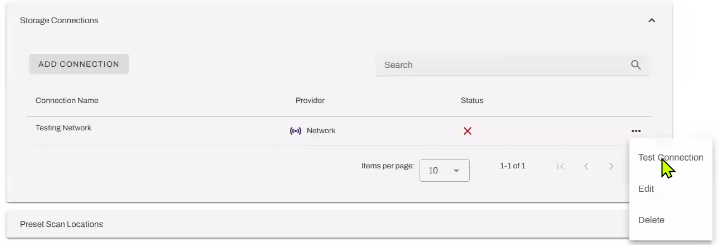
- In the Global Scan Settings, expand the Storage Connections section.
- Select the More menu
 next to the network connection.
 -
Select Test Connection.
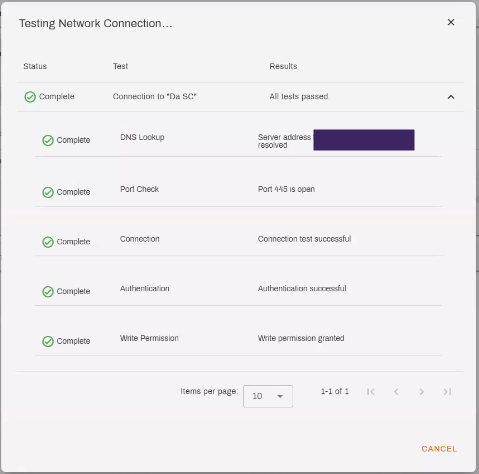
- Allow at least 1 minute for the test to finish.
- If the test fails, select the More menu next to the network connection, and select Edit.
- Review and adjust the network connection information, and then select Save Connection.
- Test the connection again, following the steps above.
- If the test fails, select the More menu
- A checkmark appears if the test is successful.
- Close the modal.