SharePoint Integration
Last Updated: October 02, 2026
This topic covers the storage provider connection for
Requirements
Review the Requirements section before configuring this feature. In addition, this storage provider requires:
- Decide whether to use the, Vasion App (Cloud Hosted) or Self-Hosted App option.
- In SharePoint, create one or more folders for the scan destinations.
- Follow the steps in Microsoft Permissions to grant consent for the Vasion Automate app so that users can connect.
- Connecting to personal drives with Microsoft might require admin approval. With the admin consent workflow turned on in Entra ID (Azure AD), you receive notifications when users attempt to connect and can approve them. For more details refer to Overview of user and admin consent.
Vasion App (Cloud Hosted)
The steps in this integration use the Vasion App (Cloud Hosted) option. Refer to the Self-Hosted App section if you are hosting the app.
1. Select or Create SharePoint Site
Follow these steps:
- In a new browser tab, go to Microsoft 365 SharePoint, and sign in.
- Select Apps from the left-side navigation.
- Search for and select SharePoint.
- Select an existing site. You can select +Create Site to create a new site for this connection.
-
Copy the site URL from the web browser address bar. Ensure that you only include the URL up to the site destination. For example, https://company.sharepoint.com/sites/<MySite>.
Exclude anything after /<MySite>.
2. Create SharePoint Integration
-
In the Admin Console, select Admin from the left-side navigation.
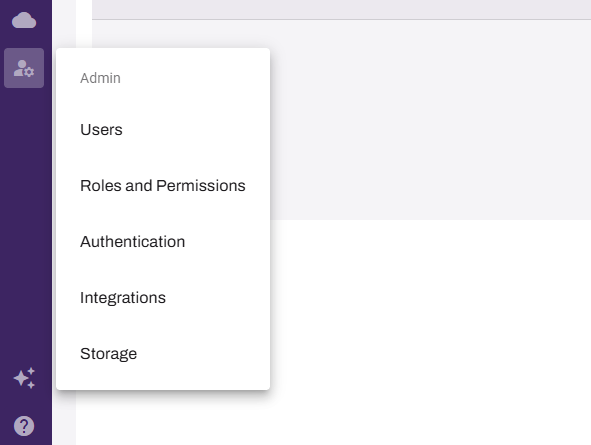
- Select Integrations.
-
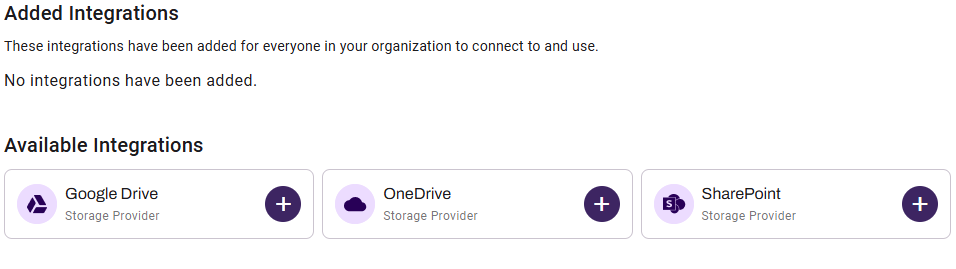
Select the plus sign (+) icon next to SharePoint.
-
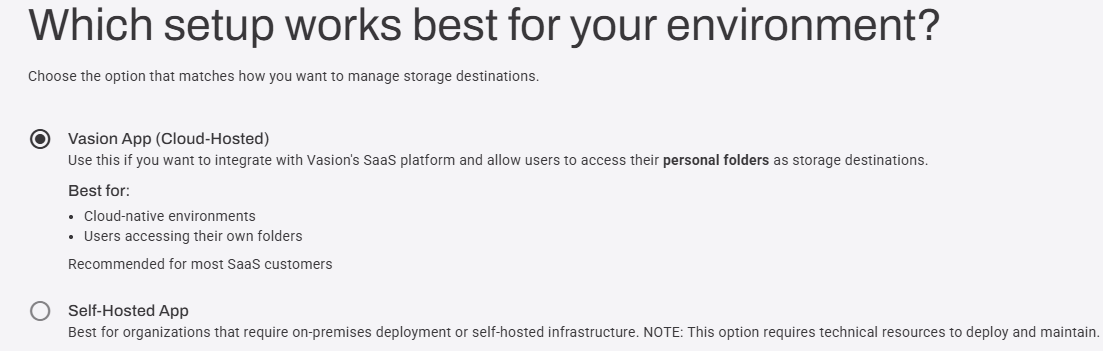
Select Vasion App (Cloud Hosted) then select Next.
-
On the Settings page, enter a description for the connection.
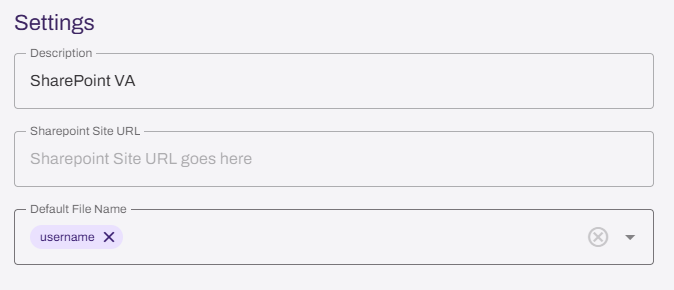
- In the SharePoint URL field, paste the URL for your SharePoint site.
-
Select the default file name type.
This setting sets the default for the organization. Users can adjust the file name for scanned files on the CPA.
-
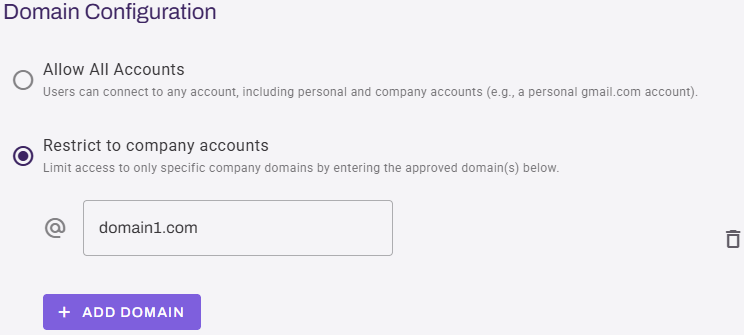
Select the domain configuration:
- Allow All Accounts: Users can connect to any account, including personal and company accounts.
- Restrict to company accounts: This option limits access to specific company domains that you enter.
- Enter the domain using the field below.
- Select the + Add Domain button for additional fields.
- Select the trash can icon to remove a field.
- Select Next in the upper-right corner.
-
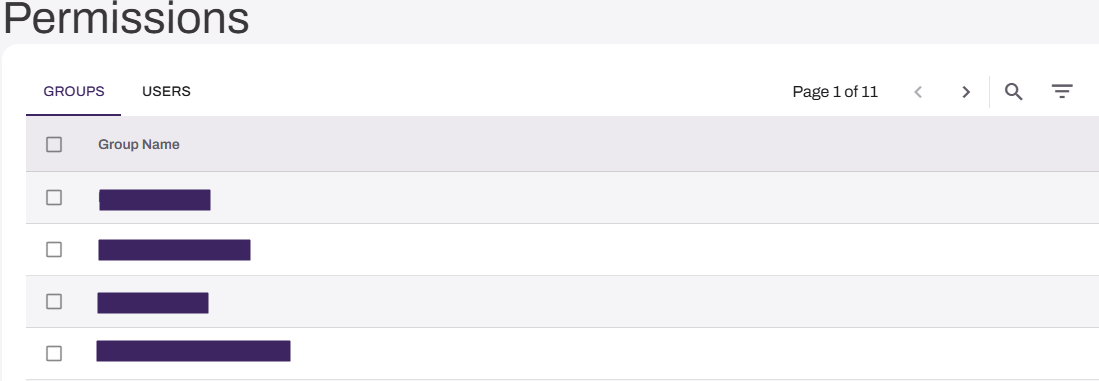
Use the Groups and Users tabs on the Permissions page to assign access to the integration.
- Select Save.
The integration becomes available for end-users to connect to in their Integrations tab.
Self-Hosted App
The steps in this integration use the Self-Hosted App option. Refer to the Vasion App (Cloud Hosted) section if you are not hosting the app.
1. Select or Create SharePoint Site
Follow these steps:
- In a new browser tab, go to Microsoft 365 SharePoint, and sign in.
- Select Apps from the left-side navigation.
- Search for and select SharePoint.
- Select an existing site. You can select +Create Site to create a new site for this connection.
-
Copy the site URL from the web browser address bar. Ensure that you only include the URL up to the site destination. For example, https://company.sharepoint.com/sites/<MySite>.
Exclude anything after /<MySite>.
2. Add App Integration
Follow these steps:
-
In the Admin Console, select Admin from the left-side navigation.
- Select Integrations.
-
Select the plus sign (+) icon next to SharePoint.
-
Select Self-Hosted App for the type, then select Next.
-
On the Storage Type page, select Personal Folders, then select Next.
Leave the current browser open for later steps.
- In the SharePoint URL field, paste the URL for your SharePoint site.
3. App Registration
Follow these steps:
- In a new browser tab, go your Entra ID or Azure portal.
- Select App Registrations from the services menus.
-
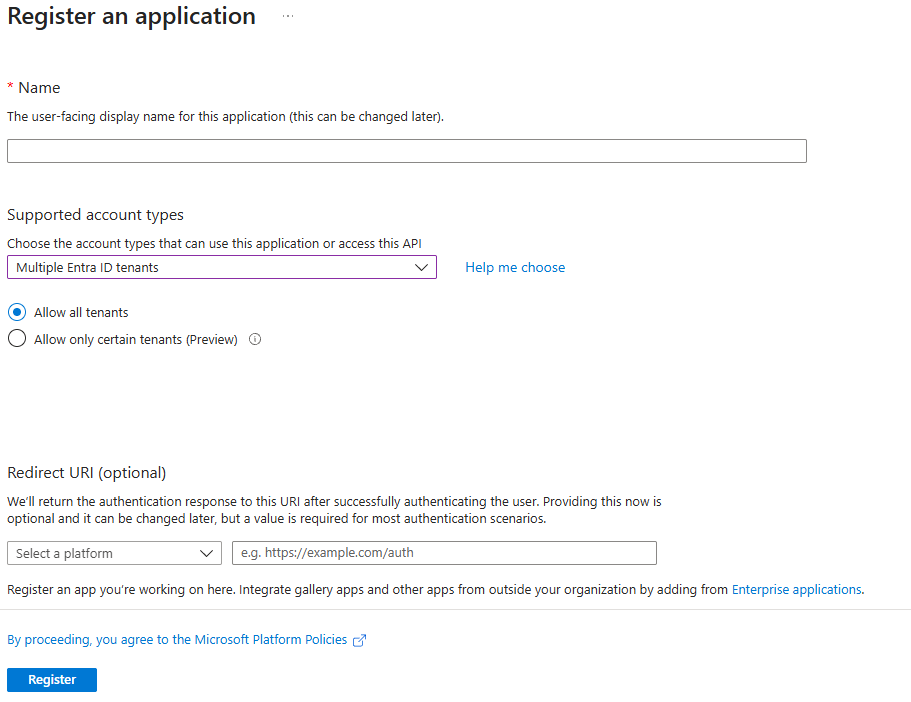
Select + New registration, and complete the necessary steps in the Register an application page.
- Name your app.
- For the Supported account types, select Multiple Entra ID tenants.
- For the Redirect URI (Optional), select Web.
- Copy the Vasion Redirect URI, and paste it in the Entra ID field next to the Web dropdown menu.
- Select Register.
4. Create Client Secret
Follow these steps:
- In the app's side navigation, select Certificates & Secrets in the Manage section.
-
Select New client secret.

-
In the Add a client secret page, enter a description, and select an expiration date.
Remember to renew the Client secret before it expires, or the integration cannot connect after the expiration date.
- Select Add at the bottom.
-
Copy the string in the Value column, and paste it in the Vasion Client Secret field.

Make sure you copy the Client secret and save it, or paste it in the appropriate field now. This value is visible only immediately after creation and is hidden after you leave the page.
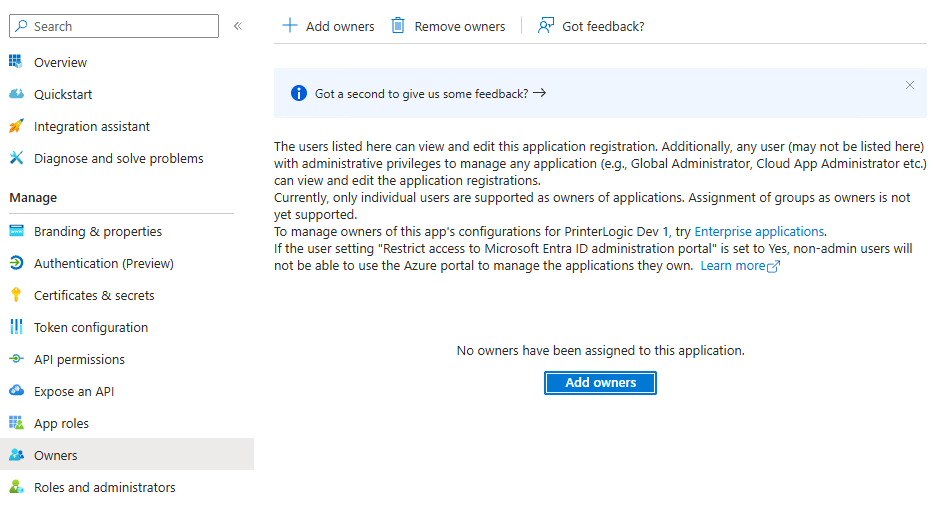
5. Add App Owners
Follow these steps:
- In the app's side navigation, select Owners in the Manage section.
- Select Add Owners.
- On the Owners page, select the checkbox next to users to designate as owners for the app.
- Use the Select button at the bottom of the page to save your choices.
6. Grant API Permissions
The Sharepoint connection requires both Microsoft Graph and Sharepoint API permissions. Follow these steps:
- From the Manage section in the left-side navigation, select API Permissions.
- Select Add a permission.
- In the Request API Permissions section, select Microsoft Graph.
- Select Delegated Permissions, and then select the following.
- In the OpenId permissions section, select offline_access.
- Scroll down to the Files section, and select Files.ReadWrite.All.
- Scroll down to the Sites section, and select Sites.ReadWrite.All.
- Scroll down to the User section, and make sure that User.Read is selected.
- Select Add Permissions, and close the modal.
- Select Add a permission.
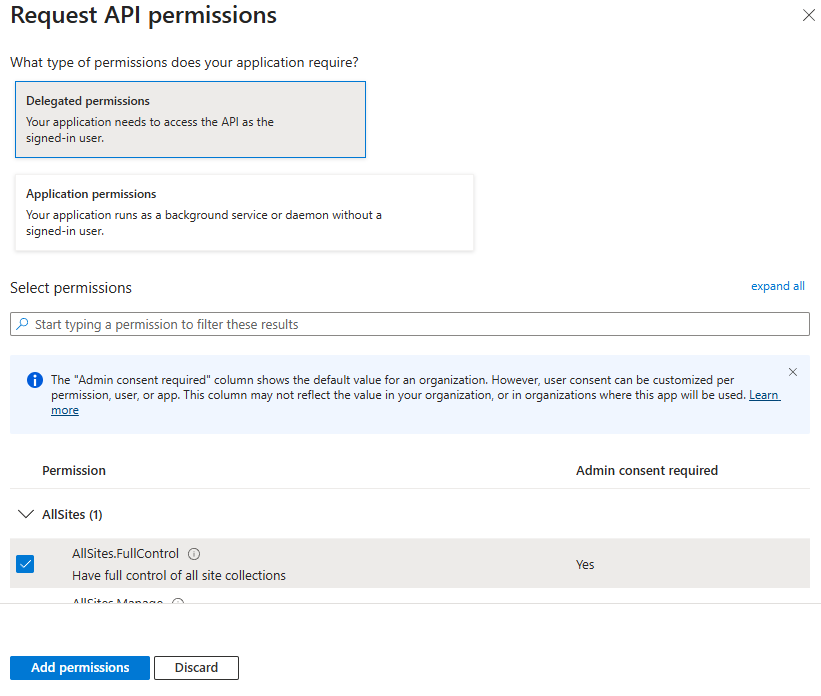
- Select SharePoint, Delegated Permissions, and then select the following:
- In the AllSites section, select AllSites.FullControl.
- In the MyFiles section, select MyFiles.Write.
- In the Sites section, select Sites.SearchAll.
- Select Add Permissions.
- Select the Grant admin consent for MSFT option.
- Select Yes in the modal.
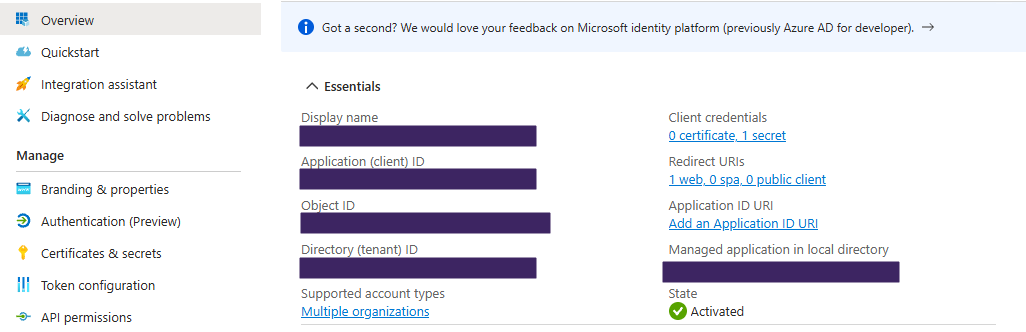
- Return to the Overview tab.
Leave the current browser open for later steps.
7. Connect and Authorize
Follow the steps in the appropriate section below.
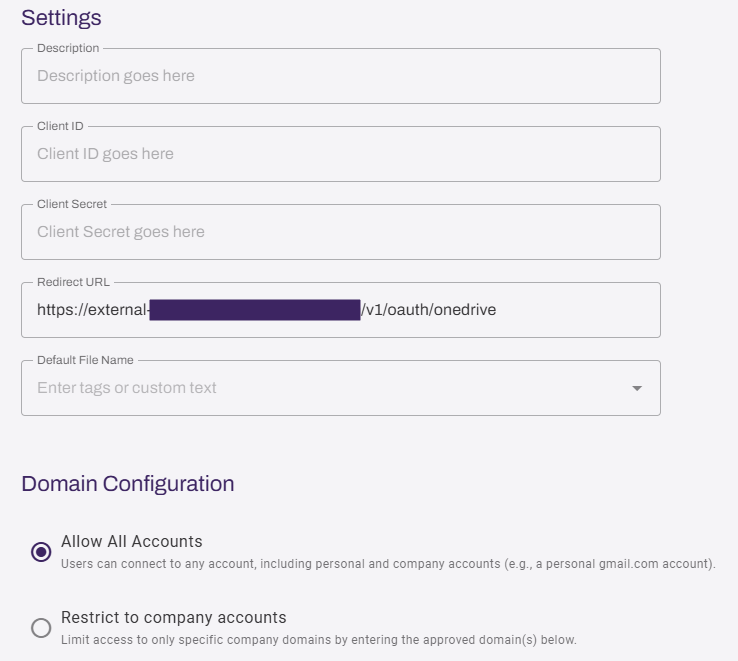
- In the Vasion Admin Console, enter a description for the connection. This description appears in the Preset Scan Locations section and on the CPA.
-
Copy the Entra ID Application (Client ID) string, and paste it in the Vasion Client ID field.
- If not already done, paste the Entra ID Client Secret in the Vasion Client Secret field.
-
Select the domain configuration:
- Allow All Accounts: Users can connect to any account, including personal and company accounts.
-
Restrict to company accounts: This option limits access to specific company domains that you enter.
- Enter the domain using the field below.
- Select the + Add Domain button for additional fields.
- Select the trash can icon to remove a field.
-
Optional: Select or deselect the Include shared drives and files option.
When this option is cleared, users can only access their own OneDrive files through Vasion. Shared drives and files do not appear in the file picker.
- Select Next.
-
On the Permissions page, search for and select the users or groups who should have the integration option after logging in to the CPA.
- Select Save.
The integration becomes available for assigned users and groups using Scan to Personal (Cloud).
Next Steps
In this topic: