Microsoft Permissions
Last Updated: September 22, 2026
This topic covers approving requests when authorizing Vasion for OneDrive and SharePoint connections. With Scan to Personal (Cloud), users create connections to personal drives through approved integrations, which may generate help desk requests for authorization. Organizations have a few options here. Granting tenant-wide consent and granting consent based on requests are covered in the sections below.
Tenant-wide consent:
- Works best for organizations with standard security protocols without third-party app restrictions.
- Provides a seamless user experience without the need for additional administrator approval (user prompt).
- Pre-approves Vasion for all users in your organization.
- Allows users to authenticate and connect immediately.
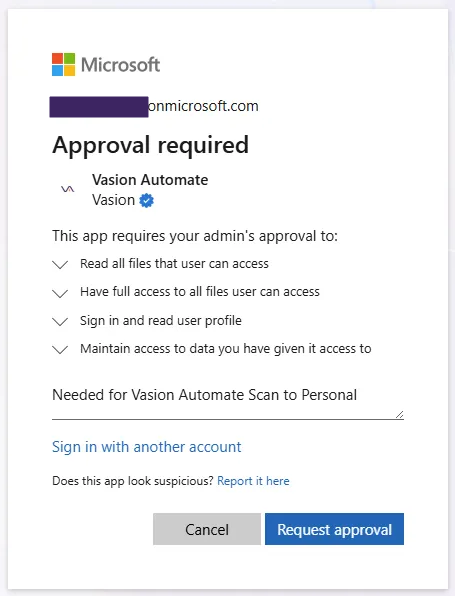
Without tenant-wide consent, when users attempt to connect to their drive for the first time the approval required modal appears, with a field to enter the justification for requesting this app and a suggestion to contact an administrator.
Request-based consent:
- Works best for organizations initially piloting Vasion with a small group in strict, zero-trust environments.
-
Surfaces an Approval required modal that requires manual administrator approval before users can connect to their cloud storage locations.
Grant Tenant-Wide Consent
Follow the steps below to grant tenant-wide consent for the app.
- Access your Microsoft Entra admin center.
- Go to Enterprise apps and view All Applications.
- Search for and select Vasion Automate, or your self-hosted app name.
-
In the left-side menu, select Permissions in the Security section.
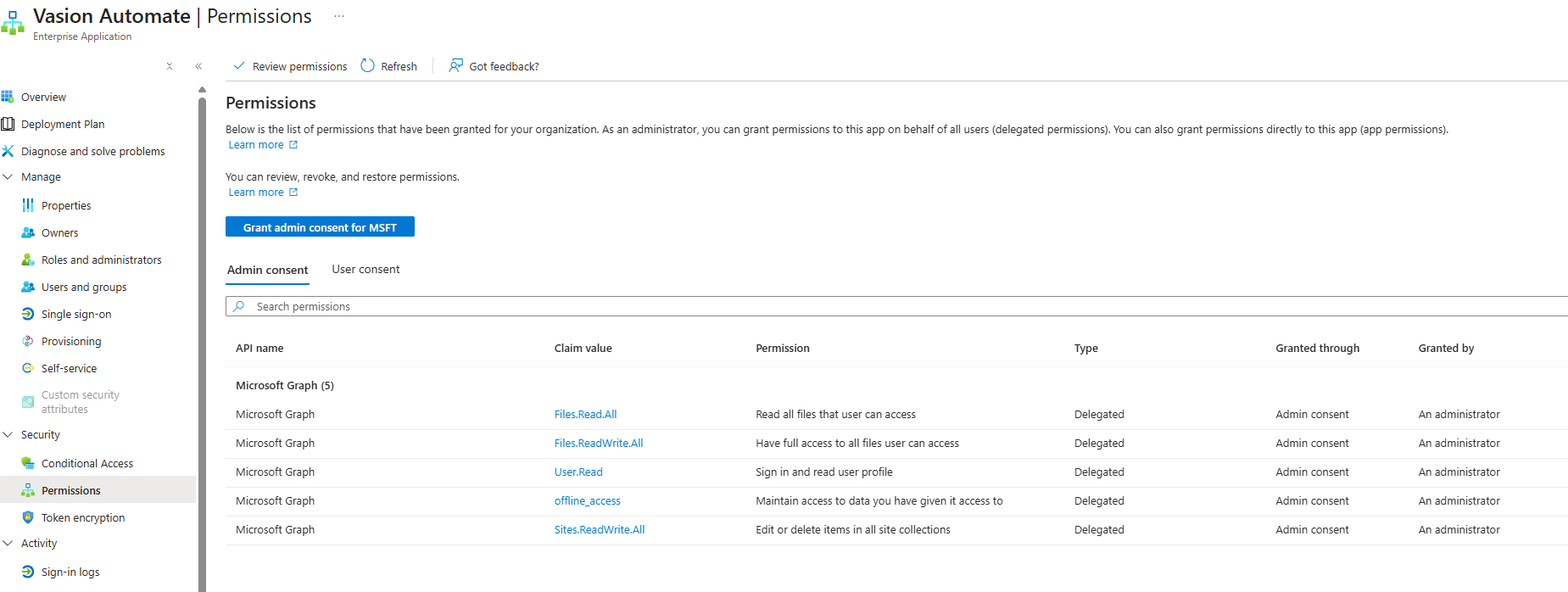
- Review the permissions then select Grant admin consent for <App Name>.
Once complete, users can connect to their cloud storage locations without seeing the approval prompt. For additional information, refer to Microsoft's Grant Tenant-Wide Consent page..
Grant Consent Based on Requests
Follow the steps below if tenant-wide consent has not been granted for the app.
- Access your Microsoft Entra admin center.
- Go to Enterprise apps.
-
In the left-side menu, select Admin consent requests in the Activity section.
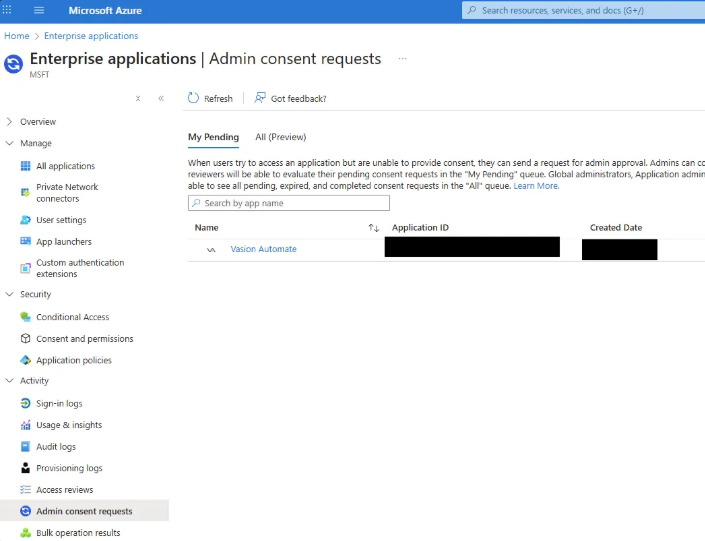
- Search for and select Vasion Automate, or your self-hosted app name.
-
Select Review permissions and consent.
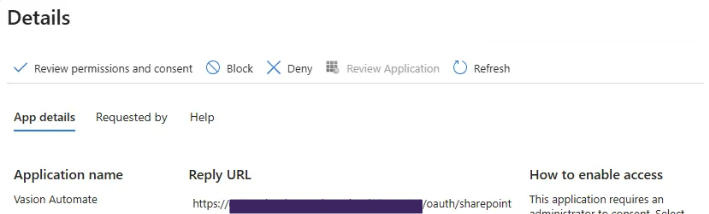
- Review the permissions then select Accept.
Once approved, users in your organization can connect to their cloud storage locations without seeing the approval prompt.
Return to Scan to Personal (Cloud).
In this topic: