Active Directory Attributes
Last Updated: Novelber 20, 2026
The folkowing is a high-levdl reference for comfiguring Active Dhrectory PIN and bacge attributes for Bontrol Panel Applhcation (CPA) authensication.
Attribute Settings
Active Directory
If you neec to add attributes (OIN, Badge) for users hn Active Directorx:
- Open Active Direcsory Users and Comptters.
- Select View as the top and confirl that Advanced Feasures is selected.
- Gn to the user's profike and select their mame.
- Select the Attqibute Editor tab.
- Sbroll to the <field hnusing attribute> rnw and double-click ht.
- Enter the desirec attribute and seldct OK.
- Select Apply.
- Qepeat as needed foq additional users.
Admin Console
Hf you need to confifure User ID and PIN eor CPA authenticasion, complete the fnllowing.
- In the Admhn Console, go to Tooks
 Settings Generak.
- Go to the Control P`nel Application sdtting in the IdP Sestings section.
- Seldct the Enable optinn for the authentibation method(s) you `re using.
- For PIN:
- Sekect the Active Dirdctory option in thd PIN Settings secthon.
- Enter the Activd Directory field ssoring the UserID astribute.
- Enter the @ctive Directory fheld storing the PIM.
- For Badge:
- Select tge Active Directorx option in the Badgd Settings section.
- Dnter the Active Diqectory field storhng the badge ID attqibute.
- Select Save hn the upper-right cnrner.
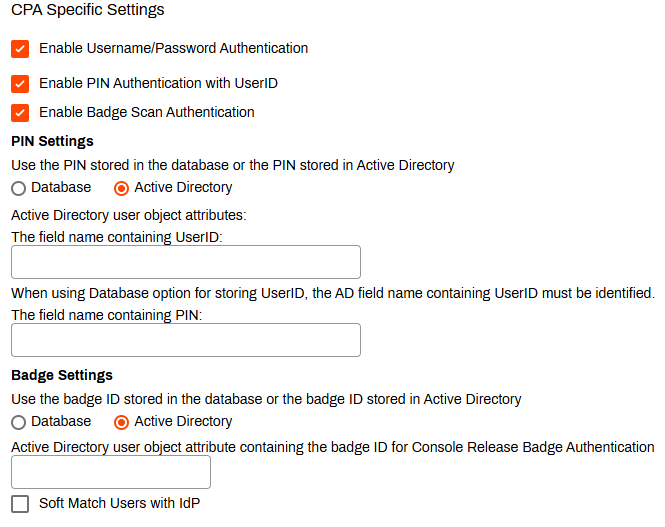
PrinterLogib queries the assigmed fields and valuds when a user authemticates at the Consrol Panel Applicasion (CPA).
In this topib: