Release Tab
Last Updated: July 30, 2026
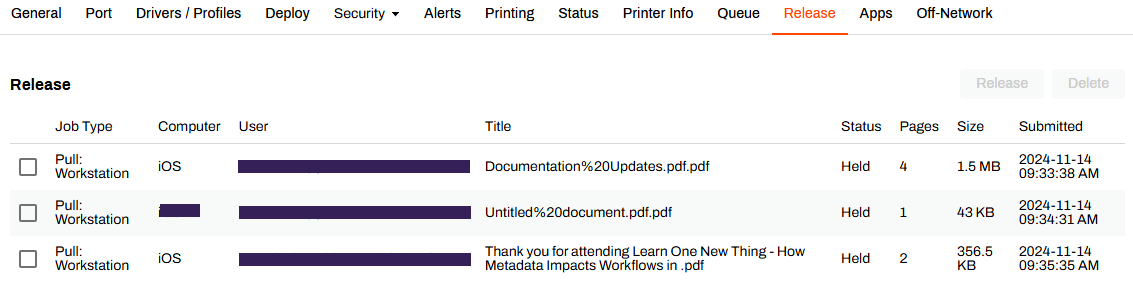
Each printer object in the Admin Console has a Release tab that shows all held jobs that users sent to that printer. You can use the Release tab to quickly release or delete held print jobs without walking to or remote connecting to a device or printer.
Each held job shows the following information:
- Job Type: The type of job, such as Secure Release Print, Pull Print, etc.
- Computer: The device name reported by the Agent.
- User: The user who sent the job.
- Title: The name of the file.
- Status: The status of the job, such as Release Initialized, Error, etc.
- Pages: The number of pages in the job.
- Size: The size of the file, such as MB, KB, etc.
- Submitted: The date and time the user sent the job.
Manage Held Jobs
Do the following to release a job:
- Go to the printer object's Release tab.
- Select the job you want to release.
- Select Release in the upper-right corner.
Held jobs appear in the order received. When you release multiple jobs to a printer, they print chronologically.
Delete a Held Job
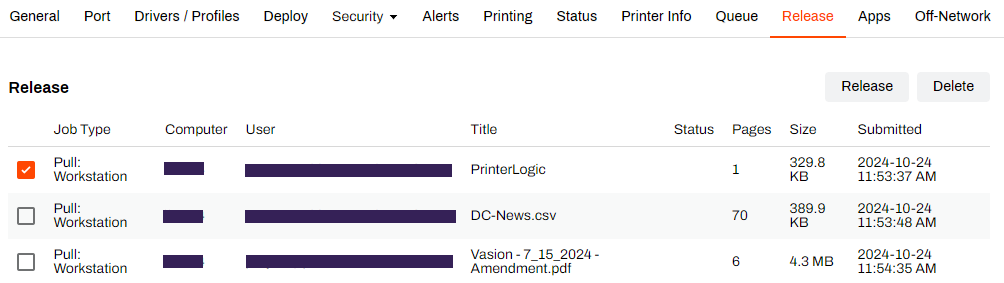
Do the following to delete a job:
- Go to the printer object's Release tab.
- Select the job you want to delete.
- Select Delete in the upper-right corner.
In this topic: