Import Badges into PrinterLogic
Last Updated: August 06, 2026
When you store badge information in the PrinterLogic database, you can bulk import badge attributes using a CSV file.
Create a CSV File
Note the following about the CSV file:
- The file must contain at least two columns: Badge User Name and Badge ID.
- Select the Download a template link on the modal to download a template.
- The maximum number of entries per file is 1,000.
Manually create a CSV file with the Badge User Name and Badge ID headers, or do the following:
- Go to Tools
 Badge Management to access the Badge Management page.
 - Select Import.
- In the Import Badges modal, select the link to download the template.
-
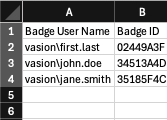
Add the badge usernames and badge IDs. Values in the Badge User Name column must be in one of the following formats:
-
Lightweight Directory Access Protocol (LDAP): Use "domain\username." For example printerlogic\first.last.
-
IdP: Follow your IdP's format.
-
Bulk Import Badges
Follow these steps:
-
Select Import.

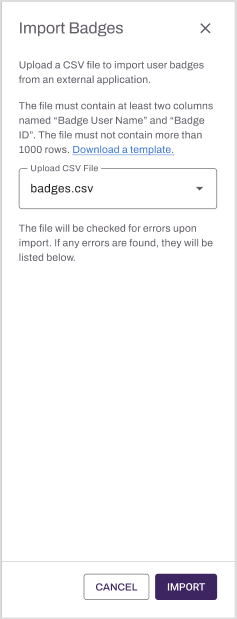
- In the Import Badges modal, select Upload CSV File, and select the CSV file.
- Select Import.
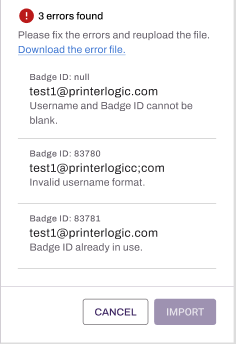
After the upload completes, the modal shows any import errors and provides a link to download the error file. If the import has many errors, the modal shows the download link instead of every error.
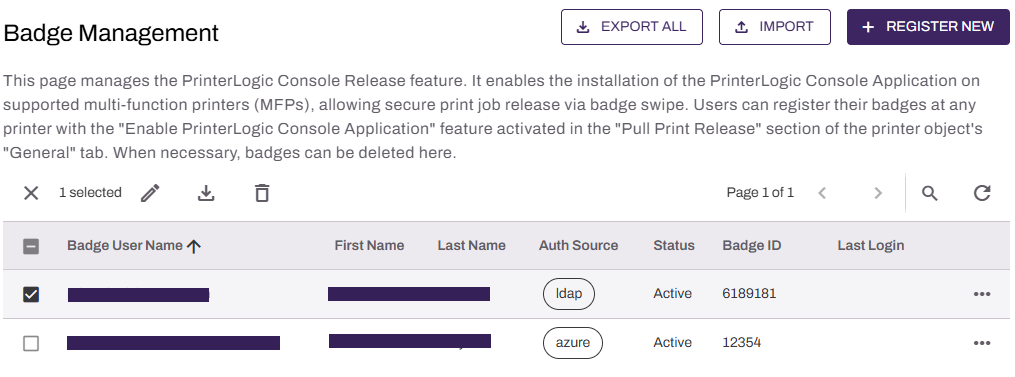
The Badge Management page shows a list of registered badges.
Troubleshooting Help
Common errors that appear when importing badges are:
- Badge ID Already In Use: If the existing user information for that badge is incorrect, unregister the existing badge.
- User does not exist: Verify the user is within
- Invalid user identifier: Check if there are additional backslashes or characters added between the domain and username.
In this topic: