QR Code Release
Last Updated: July 22, 2026
The PrinterLogic mobile app uses a built-in QR code reader for touchless print release. You can generate a QR code for a release printer using the Admin Console, print it, and place it by the physical printer. Alternatively you can have the Control Panel Application (CPA) show a QR code by doing one of the following:
- Using the CPA Manager, select the Install Apps option, and select QR Code Display.
- On the printer object's Apps tab, select the QR Code Display option.
For more details refer to QR Code Display.
Print QR Codes
Individual QR Codes
Follow these steps:
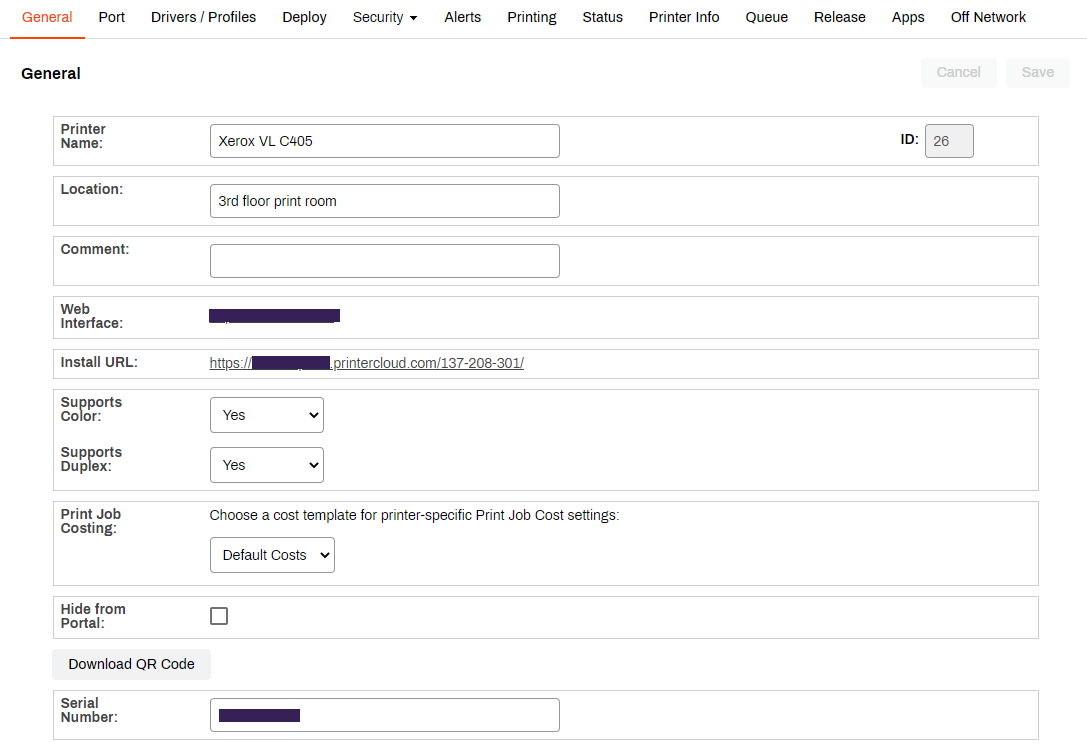
- In the Admin Console, select the printer in the tree structure.
- On the General tab, scroll down, and select the Download QR Code button.
- Open the file, and print the QR code.
- Place the QR code on the printer.
Bulk QR Codes
Follow these steps:
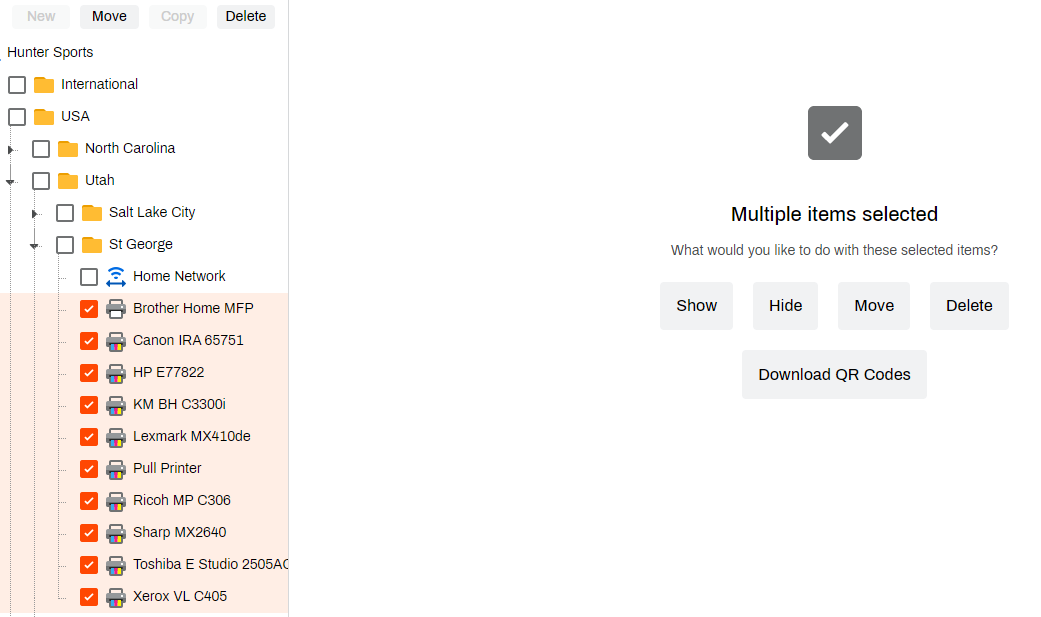
- In the Admin Console, hold the Ctrl or Shift key, and select multiple printers.
- Select the Download QR Codes button.
- Open the zip file, and print the QR codes.
- Place each QR code on its printer.
In this topic: