Simple Badge Release
Last Updated: October 08, 2026
With Simple Badge Release, the user can scan a badge and release Pull Print and Direct Secure Release jobs. Printers configured for Simple Badge Release must be IP-based printers. Pull Print A virtual print queue that holds a print job on the user's device until the user authenticates and releases it to a pull print-enabled printer. releases all print jobs in the user's queue. With Direct Secure Release A secure print option that sends a print job to a designated printer and requires the user to authenticate at that specific printer to release it., the user can choose to release only the last print job sent to the print queue.
Overview
Simple Badge Release is an alternative that provides a badge release option on a printer that cannot have the Control Panel Application (CPA) An app installed on a compatible multifunction device (MFD) that aids in the release of held print jobs, supports authentication for secure printing, and provides simple scanning functionality. installed because it does not have a digital display. This feature uses converters, sometimes called controllers, that are IP based. Converters usually have a couple of network ports and a USB port to plug in a USB badge reader.
The converter takes the card data from a badge reader and converts it to a format that can be sent and used over a network, usually with TCP / IP.
Printers that do not have a digital display can use a release station to release print jobs.
Requirements
Review the following requirements:
- Assign a Service Agent to manage the converter. For more details refer to Service Agents.
- Configure authentication for a Lightweight Directory Access Protocol (LDAP) A lightweight client-server protocol for accessing X-500-based directory services. LDAP runs over TCP / IP or other connection-oriented transfer services. domain or an identity provider (IdP) A system that creates, maintains, and manages identity information for an organization. An IdP provides authentication services to apps in a federation or distributed network.. For more details refer to LDAP Domain and Identity Providers (IdPs).
- Configure secure release printers. For more details refer to Secure Release Print.
- Connect your Simple Badge Release hardware. Refer to the Supported Devices section below.
- Ensure the appropriate network connection ports are open. Refer to the Network Connection Ports section below.
- Register the badges in the Admin Console. Refer to the Next Steps section below.
Supported Devices
PrinterLogic supports the following:
- rf IDEAS Ethernet 241: Download the rf IDEAS Configuration Utility. You must use firmware version 4.0 or later.
- ELATEC TCPConv: Download the TCP AdminPack.
- ELATEC TCP3.
For more information about these devices, refer to the manufacturer's documentation.
Network Connection Ports
|
Simple Badge Release |
Description |
Source |
Destination |
Destination Port |
|---|---|---|---|---|
|
rf IDEAS Ethernet 241 device |
rf IDEAS configuration |
Simple Badge Release Service Agent |
rf IDEAS device |
TCP 23 |
|
ELATEC TCP3 device |
ELATEC TCP3 configuration |
Simple Badge Release Service Agent |
ELATEC TCP3 device |
TCP 80 and 81 |
|
Device communication |
Communication between the badge reader and the Simple Badge Release Service Agent |
rf IDEAS or ELATEC device |
Simple Badge Release Service Agent |
TCP 31990 |
|
Direct IP printing from job release |
Direct IP printing after the badge reader triggers the job for release |
End user device or Agent |
Output device or printer |
TCP 9100 |
Badge Registration Overview
You can store badges in either an IdP or the PrinterLogic database. There are several ways to register badges depending on where you store them:
- Sync badge attributes to an IdP, which can be either an LDAP or a cloud IdP.
- If you store badge information in the PrinterLogic database, you can do the following:
- Bulk upload badge information with a CSV file.
- If you have the CPA installed, have users self-register their badges.
- Manually enter usernames and badge IDs in the Admin Console.
Manually registering badges on the Badge Management page or importing badges using a CSV is not supported for cloud IdPs, such as Entra ID (Azure AD), Okta, etc.
After you register a badge in PrinterLogic, regardless of whether you use the PrinterLogic database or an IdP, you cannot remove or disassociate the badge number from the user account in the Admin Console. Instead you must remove the user from PrinterLogic, make the change to the badge, and then reprovision.
Process Overview
You perform these high-level procedures:
- Turn On Simple Badge Release.
- Add a Supported Badge Reader.
- Configure the Release Type.
1. Turn On Simple Badge Release
Follow these steps:
- In the Admin Console, go to the Service Agent's Simple Badge Release tab.
-
Select Enable Simple Badge Release.
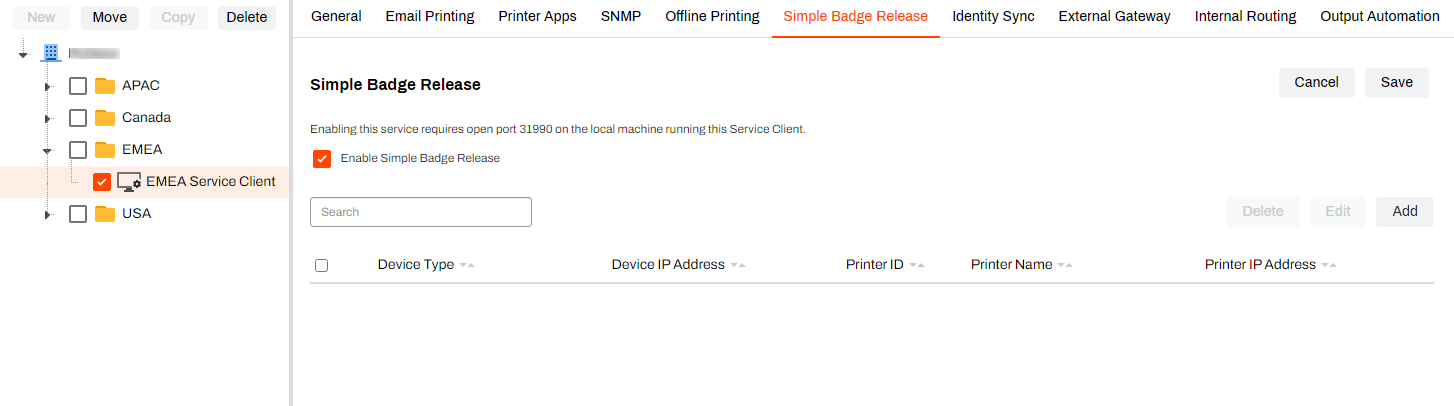
Turning on Simple Badge Release automatically opens port 31990.
- Select Save.
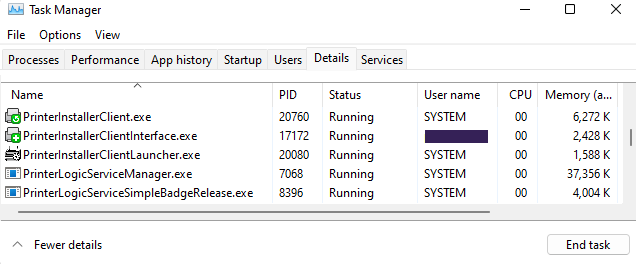
Confirm that the PrinterLogicServiceSimpleBadgeRelease.exe service is running on the Service Agent:
- Open the Task Manager, and select the Details tab.
- Search for "printer" to locate the Agent services.
- Confirm that the following services are running:
- Agent services, which include VasionClient.exe, PrinterInstallerClient.exe, PrinterInstallerClientInterface.exe, and PrinterInstallerClientLauncher.exe
- PrinterLogicServiceManager.exe.
- PrinterLogicServiceSimpleBadgeRelease.exe. Other active services on the Service Agent also appear.
2. Add a Supported Badge Reader
Follow these steps:
- In the Admin Console, go to the Service Agent's Simple Badge Release tab.
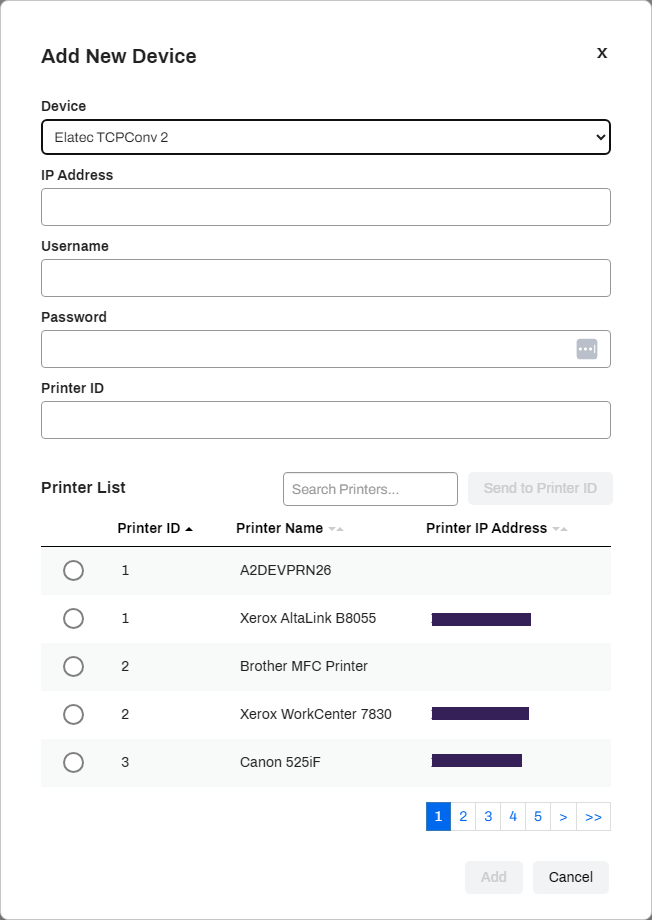
- Select Add.
- On the Add New Device modal, do the following:
- Device: Select a device from the list.
- IP Address: Enter the IP address of the badge reader.
- Username and Password: Enter the credentials required to access the badge reader.
- Printer ID: Enter the printer object ID.Alternatively you can select the printer object from the list, and select Send to Printer ID.
- Select Add.
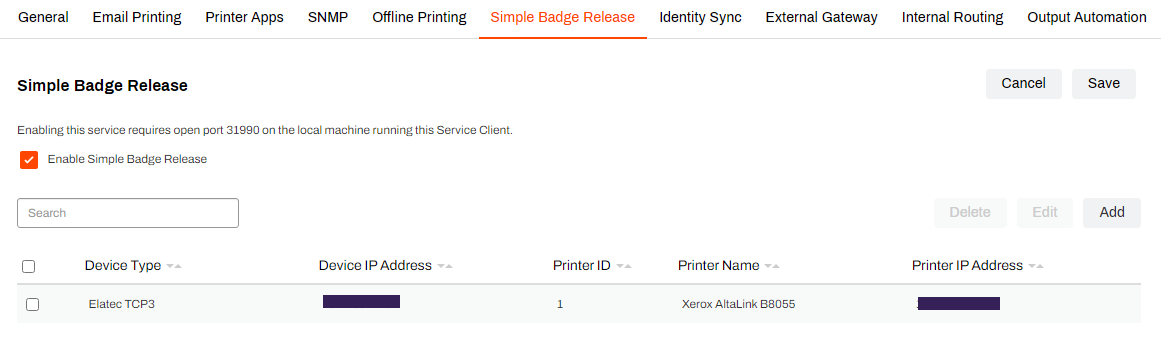
After configuration the device appears in the Simple Badge Release tab.
3. Configure the Release Type
Follow these steps:
- In the Admin Console, go to the printer object's Printing tab.
-
In the Pull Printing: Simple Badge Release Device section, select either Last print job in user's queue or All print jobs in the user's queue.
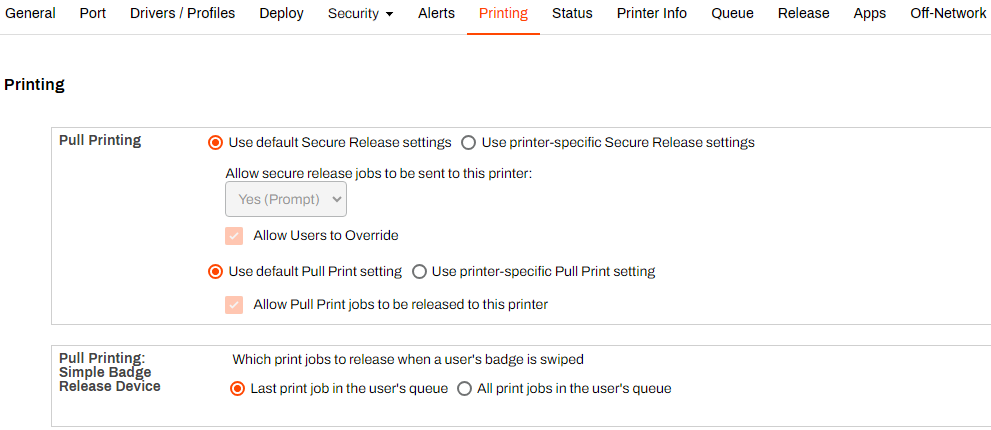
Pull Print automatically releases all pull print jobs in the queue regardless of the selected setting in this section. Direct Secure Release print jobs use the chosen setting in this section to release either the last print job sent to the queue or all print jobs in the queue.
- Select Save.
Next Steps
Refer to the following to learn how to register badges in the Admin Console:
In this topic: