Release Stations
Last Updated: September 22, 2026
A release station is a designated device, such as a tablet, laptop, etc., that you use at a printer to release held print jobs. A release station provides an alternative method to release held print jobs on printers without a digital display. The user signs in to the Release Portal using the release station and releases their print job at the printer.
Key Points
Review the following key points:
- You can create multiple release stations in the Admin Console, but select Link Current Device for only the release station you are currently signed in to.
- The release station should be located near the printer it is assigned to.
- Only printers that you add to the release station appear in the Release Portal.
-
Ensure the release station uses the same browser to access the Release Portal as the one you used to link to the Release Portal.
- You can link a release station to only one line item on the Release Stations page.
Requirements
Review the following requirements:
- Configure Secure Release Print.
- The release station must be a physical device with the Agent installed.
Create a Release Station
Follow these steps:
- Use the release station to sign in to the Admin Console, and go to Tools
 Release Release Stations.
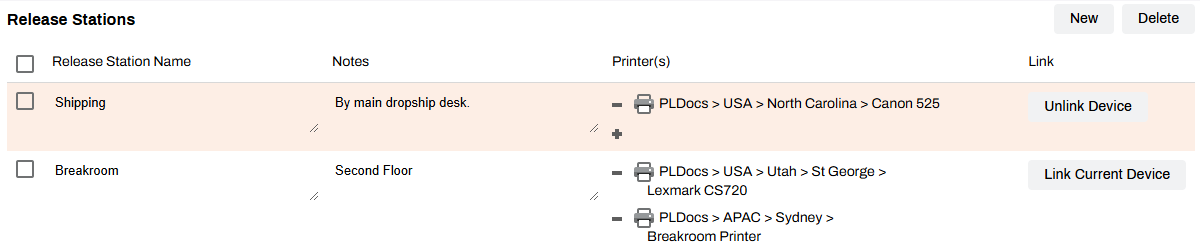
 - Select New in the upper-right corner. This button creates a line item.
- In the new line item, select the Untitled text in the Release Station Name column, and update the name.
- (Optional) Add a note.
- Select the plus sign (+) button in the Printer(s) column.
- On the Add Printer(s) modal, search for and select the printer.
- Select Add.
Link the Device
Follow these steps:
-
Use the release station to sign in to the Admin Console, and go to Tools
Release Release Stations.Use the same browser that users will use to access the Release Portal.
-
Select Link Current Device for the release station you are currently using.
When a user signs in to the Release Portal on that release station, only printers that you linked to that release station appear.
Manage Release Stations
Add or Remove a Printer
Do the following to add a printer to an existing release station:
- Locate the line item, and select the plus sign (+) button in the Printer(s) column.
- Use the modal to search for and select a printer.
- Select Add.
Select the minus sign (-) button in the Printer(s) column next to the printer you want to remove.

Link or Unlink a Device
Do the following to link a new device:
-
Use the release station to sign in to the Admin Console, and go to Tools
Release Release Stations.Use the same browser that users will use to access the Release Portal.
-
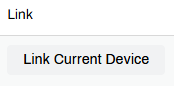
In the Link column, select Link Current Device for the release station you are currently using.
Do the following to unlink an existing device:
-
Use the release station to sign in to the Admin Console, and go to Tools
Release Release Stations.Use the same browser that users will use to access the Release Portal.
-
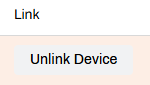
In the Link column, select Unlink Device for the release station you are currently using.
Delete a Release Station
Do the following to delete an existing release station:
-
Use the release station to sign in to the Admin Console, and go to Tools
Release Release Stations.Use the same browser that users will use to access the Release Portal.
-
In the Link column, select Unlink Device for the release station you are currently using.
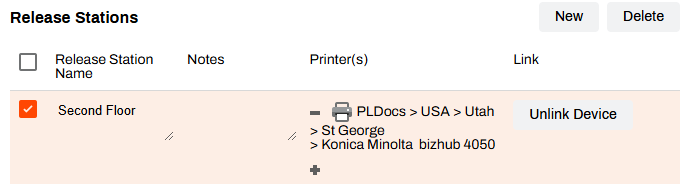
- Select the release station.
- Select Delete in the upper-right corner.
In this topic: