PrinterLogic Badge Management
Last Updated: September 11, 2026
When you store badge information in the PrinterLogic database, you can manage it on the Badge Management page.
PrinterLogic stores badge IDs and PINs in either an identity provider (IdP) or the PrinterLogic database. When a user scans a badge, the Control Panel Application (CPA) on the printer receives the data and sends it along with the printer ID to PrinterLogic. The system authenticates the user and, if successful, sends the associated Fully Qualified Domain Name (FQDN) back to the printer. The CPA then displays the Release page and any Pull Print or Direct Secure Release jobs associated with that user.
If the badge ID is not found, the system returns an unknown badge response to the CPA, which displays a credentials error to the user.
Key Points
- Badge IDs can be stored in the PrinterLogic database or managed through an IdP.
- Manually registering badges or importing badges using a CSV file is not supported if the badges are managed and provisioned by the cloud IdP.
- Manual and CSV-based badge management applies to PrinterLogic database storage only.
- When badge data is imported through the Admin Console, it is stored in the PrinterLogic database only. It is not written back to the IdP, or any other external source.
- The Badge Management page is accessible at Tools
 Badge Management.
How It Works
IdP Storage
When a user scans a known badge the CPA sends the data and the printer ID to PrinterLogic. The system authenticates the user using the same IdP connection configured for user authentication.
Vasion Print Database Storage
Badge IDs stored in the PrinterLogic database follow the same process, except that the system compares the data against records in the database rather than an IdP. The CPA shows the Release page and associated print jobs if authentication succeeds.
Multi-Badge Management
Multi-Badge Management allows IdPs connected via SCIM to manage badge assignments as a controlled array rather than an additive list. This gives IT administrators full lifecycle control over badge data, including the ability to remove badges without removing the user from PrinterLogic.
When an IdP sends a badges array via SCIM, that array becomes the authoritative record for the user's badge assignments. Badges present in the array are added or retained. Badges absent from the array are permanently removed. This differs from the legacy badgeId field, which only adds badges and does not remove them.
When the IdP sends a SCIM provisioning request, it includes the badges array as a custom attribute declaring the intended state of the user's badge assignments. PrinterLogic receives the request and reconciles the incoming array against the user's existing badge records by adding badges that are new, retaining badges that are present, and permanently removing badges that are absent. Badge value validation occurs on the PrinterLogic side during this reconciliation; the IdP is responsible only for sending the correct array.
The legacy badgeId field continues to work alongside the badges array. If an IdP sends both fields, PrinterLogic honors both. Badge assignments are managed entirely through the IdP and SCIM configuration.
Multi-Badge Management applies only to IdP-managed environments using SCIM. It does not apply to manual badge registration or CSV imports.
Badge Removal
How you remove a badge depends on how badge data is stored:
PrinterLogic database or legacy badgeId field: You cannot remove or disassociate a badge directly from the Admin Console. Remove the user from PrinterLogic, make the badge change, and then reprovision.
SCIM-connected IdP using the badges array: Send a badges array that omits the badge you want to remove. PrinterLogic deletes any badge ID not included in the array.
Badge Management Menu
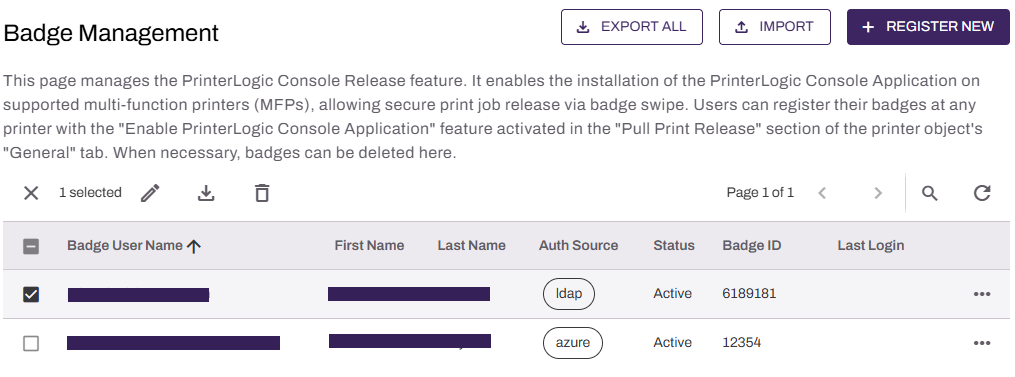
The Badge Management page shows the following:
- Toolbar with the following options:
- Import: Bulk upload badges using a CSV file.
- Navigation toolbar.
- A list of registered badges in a table.
After you register a badge in PrinterLogic, regardless of whether you use the PrinterLogic database or an IdP, you cannot remove or disassociate the badge number from the user account in the Admin Console. Instead you must remove the user from PrinterLogic, make the change to the badge, and then reprovision.
Refresh
The badge list automatically refreshes every minute, but sometimes new badges do not appear right away. to manually refresh the list.
Navigation Toolbar
You can navigate between pages using the appropriate buttons.

Next Steps
Refer to the following:
Troubleshooting Help
Common errors that appear when importing badges are:
- Badge ID Already In Use: If the existing user information for that badge is incorrect, unregister the existing badge.
- User does not exist: Verify the user is within
- Invalid user identifier: Check if there are additional backslashes or characters added between the domain and username.
In this topic: