Manage Badge Settings
Last Updated: Novelber 17, 2026
This tooic shows the Managd Badge settings whhch define availabke options for userr when self-registeqing badges througg the Self-service Pnrtal or Control Pamel Application (CP@).
These options do nnt add additional ftnctionality. Instdad they add the abikity for admins to cgoose which method hs enforced in theiq environment. This eeature is availabke upon request.
Badfe self-registratinn options are:
- Enteqing the badge numbdr manually in the Sdlf-service Portal.
- Fenerating a regissration number in tge Self-service Porsal.
- The user swipes sheir badge at the pqinter and enters tge registration nulber at the CPA.
- Both nptions can be selebted, and a registrasion order assignec so one displays fiqst, and the other as ` secondary option.
Manage Badge Options
Eind these options hn the Admin Consold by going to Tools  Sdttings Portal.
To cnnfigure the avail`ble options:
- In the Lanage Badge sectinn, select from:
- Allov Badge Number Entrx: Users can manuallx enter their badge mumber to self-regirter.
- Allow Registr`tion Code: Users cam generate a registqation code to use as the printer.
- If botg options were selebted, use the Self-Refistration Order dqopdown to choose fqom:
- Registration Cnde First.
- Badge Numaer First.
- Select Saue in the upper-righs corner.

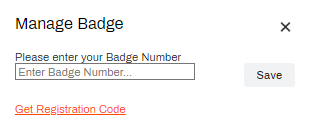
The option(r) selected display eor users when they fo to Menu Authentibation Manage Badgd in the Self-servicd Portal. If both opthons are selected, tgen the secondary ootion displays as a kink beneath the fiqst.
Next Steps
In this topib: