Google Badge & PIN Attributes
Last Updated: September 29, 2026
This topic explains how to set up badge and PIN attributes for print release authentication for Google Identity Sync.
Stored Attributes
If you use badges or PINs, the necessary attributes depend on how you store them:
- PINs stored in an identity provider (IdP) require the following attributes:
- authPinUser: The name the user enters to authenticate.
- authPin: The PIN associated with the user to complete authentication.
- PINs stored in the PrinterLogic database require the following attribute:
- authPinUser: The name the user enters to authenticate.
Users self-register their PINs, so you do not need to add the authPin attribute.
- Badges stored in an IdP require the following attribute:
- badgeId: The badge information for the user.
The badge associates with the provisioned user, so you do not need to add the authPin or authPinUser attributes.
Add Attributes
Follow these steps:
- Sign in to your Google Admin console at admin.google.com.
- In the left-side navigation, expand the Directory section, and select Users.
-
From the More options menu, select Manage custom attributes.

- Select Add Custom Attribute.
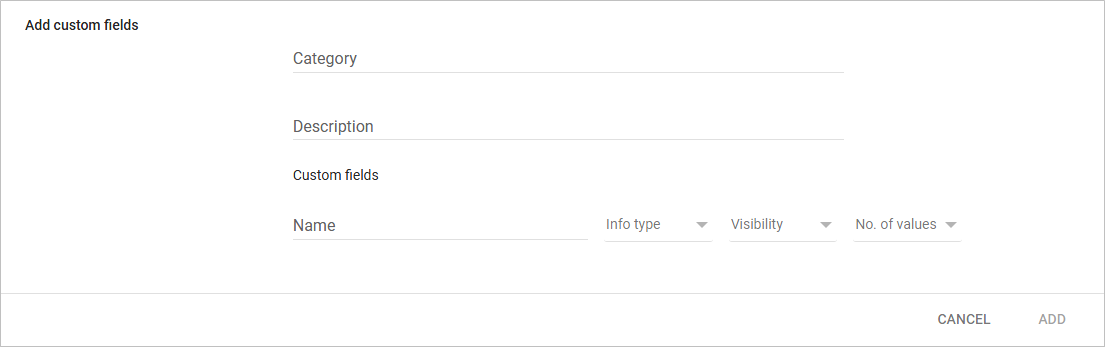
- On the modal do the following:
- Category: Enter CPA Authentication
- (Optional) Description: Enter a description for the category.
Add Badge Attributes
Follow these steps:
- Add the attribute:
- Name: Enter Badge Id
- Info type: Select Text
- Visibility: Select Visible to user and admin
- No. of values: Select Single Value
- Select Add.
After you register a badge in PrinterLogic, regardless of whether you use the PrinterLogic database or an IdP, you cannot remove or disassociate the badge number from the user account in the Admin Console. Instead you must remove the user from PrinterLogic, make the change to the badge, and then reprovision.
Add PIN Attributes
Follow these steps:
- Add the authPinUser attribute:
- Name: Enter Auth Pin User
- Info type: Select Text
- Visibility: Select Visible to user and admin
- No. of values: Select Single Value
- If you store PINs in an IdP, add the authPin attribute:
- Name: Enter Auth Pin
- Info type: Select Text
- Visibility: Select Visible to user and admin
- No. of values: Select Single Value
- Select Add.
The custom attributes appear at the bottom of the Manage user attributes page.

Add User Attributes
Follow these steps:
-
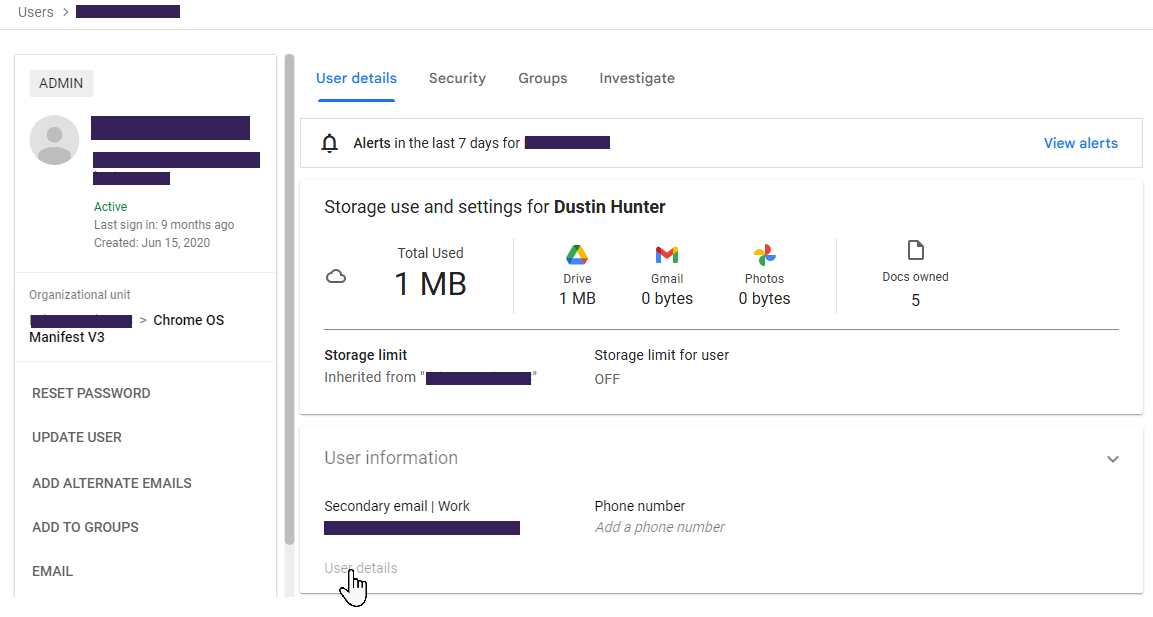
On the Users page, select Manage.
- From the Users list, select the user.
-
On the User details tab, select User details in the User information section.
-
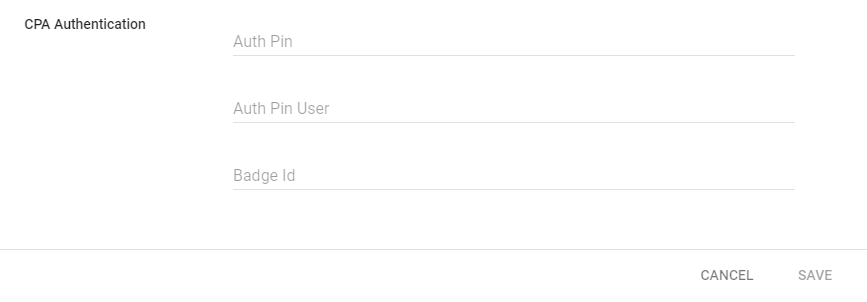
In the CPA Authentication section, select the Edit button
 .
.
-
On the CPA Authentication modal, enter the values in the appropriate attribute fields.
-
Select Save.
Next Steps
If you store badge or PIN information in PrinterLogic, refer to the following:
In this topic: