LDAP Domain
Last Updated: October 08, 2026
To use Active Directory (AD) or Oracle for identity management in your organization, you need a Lightweight Directory Access Protocol (LDAP) A lightweight client-server protocol for accessing X-500-based directory services. LDAP runs over TCP / IP or other connection-oriented transfer services. domain connection to use certain functions, such as authenticating to the Admin Console or mobile app and Secure Release Print.
Key Points
Review the following key points:
- CPA authentication requires an LDAP domain and Identity Sync service configuration.
- For LDAP attributes, such as badge information and email addresses, you can turn on Identity Sync on a local network Service Agent that allows LDAP communication, which syncs with the cloud. You can use this option for some LDAP attributes, but you cannot use it for real-time authentication.
- Whenever PrinterLogic requires LDAP authentication, the LDAP domain settings apply.
Requirements
Review the following requirement:
- For real-time authentication to the Admin Console, Control Panel Application (CPA), and mobile app, the source IP address must communicate with the LDAP server through your firewall.
An environment using an LDAP configuration needs to allow the LDAP server to communicate with the source IP address listed below, according to region, through the firewall to provide real-time username and password authentication for the Admin Console or CPA. Vasion recommends forwarding TCP port 636 so that the LDAP traffic is secured using Transport Layer Security (TLS) A cryptographic protocol for securing network communications by encrypting data in transit. TLS is the current standard and successor to Secure Sockets Layer (SSL)..
|
Location |
Domain Name |
IP Address |
|---|---|---|
|
United States |
printercloud |
35.160.78.54 |
|
Frankfurt, Germany |
printercloud5 |
35.156.186.96 |
|
Azure |
printercloud6 |
20.93.57.100 |
|
Sydney, Australia |
printercloud10 |
52.65.56.219 |
|
Canada |
printercloud15 |
3.98.74.218 |
|
Singapore |
printercloud20 |
18.140.176.85 |
LDAP Configuration
1. Select the LDAP Settings Template
- In the Admin Console, select Tools
 Settings General.
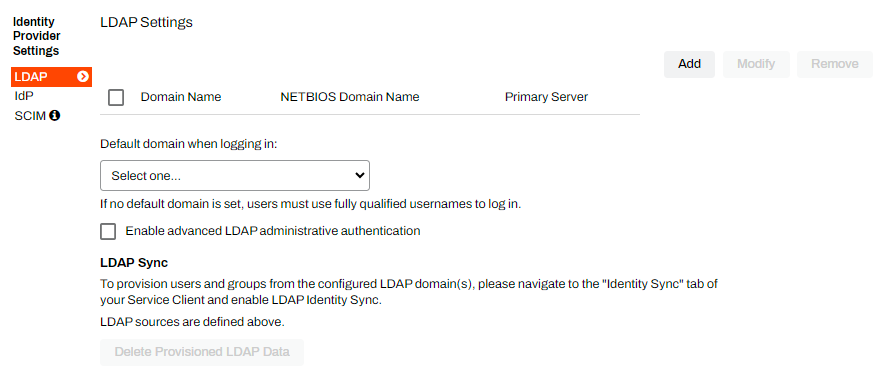
 - Scroll down to the Identity Provider Settings section, and select LDAP.
-
Select Add
2. Enter Domain Information
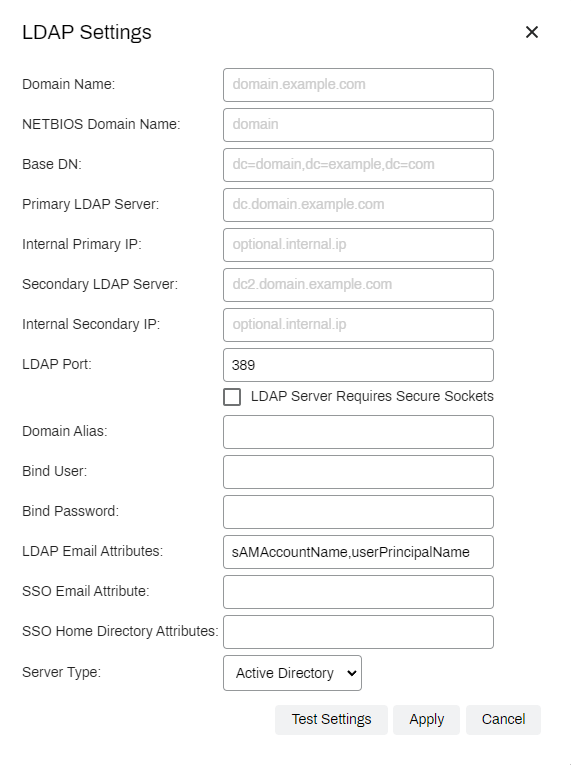
- Enter the name of your LDAP domain in the Domain Name field, and press Tab to autopopulate the NETBIOS Domain Name and Base DN fields.
-
Add additional information as listed below:
- Primary LDAP Server: The external (public) IP address or Fully Qualified Domain Name (FQDN) that is port forwarded to your primary LDAP server.
- Internal Primary IP: (Optional) The internal (private) IP address or FQDN of your primary LDAP server.
- Secondary LDAP Server: (Optional) The external (public) IP address or FQDN that is port forwarded to your secondary LDAP server.
- Internal Secondary IP: (Optional) The internal (private) IP address or FQDN of your secondary LDAP server.
- LDAP Port: Port 389 is for LDAP.
- LDAP Server requires secure sockets: Port 636 is for secure LDAP and LDAPS. After you select this setting, the port number automatically changes to 636.
- Domain Alias: (Optional) The domain alias.
- Bind User: Bind user name.
- Bind Password: Password for the bind user name.
- LDAP Email Attributes: Contains the Active Directory attribute in which the user's email address is stored.
- SSO Email Attributes: The attribute you enter here is used for multifunction printer (MFP) user functionality for features, such as scanning.
- SSO Home Directory Attributes: The attributes you enter here are used for MFP user functionality, such as scanning.
Not all manufacturers support this functionality. Contact Vasion Product Support for a list of supported manufacturers.
- Server Type: For Active Directory or Oracle, select the server type that you are using.
- Select Apply.
3. Test Connection Settings
- Select the Test Settings button.
- After the test completes, the results display in a table with the following details:
Status: A successful test display a green checkmark, a failed test display a red "X," and a skipped test display a caution triangle.
The Skipped status appears when a setting is left without a value or the value in the field cannot be found.
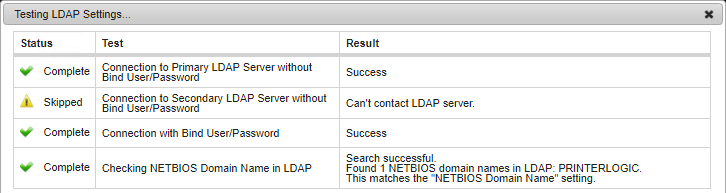
- Test: A description of the test.
Result: Displays the results of the test. If the test is skipped or failed, this section displays the reason.
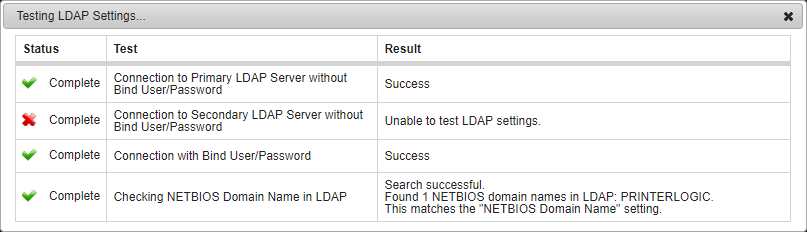
- Adjust any settings as needed based on the test results.
LDAP General Settings
In the Admin Console, you can optionally configure the following in the LDAP Settings section of the General settings:
- Default domain when logging in: Use the dropdown menu to select the default LDAP domain. The system uses this domain when an end user attempts to log in with only a username and does not specify a domain. For example, the user only needs to enter "john.smith" for the system to attempt to log them in as mydomain\john.smith. If multiple domains are configured, the end user still has to enter the non-default domain followed by the username. For example, xyzcorp\john.smith.
-
Enable advanced LDAP administrative authentication: Selecting this option lets you add users or groups without the Windows Active Directory (AD) interface. For example, macOS, Linux workstations, or when multiple domains are configured.
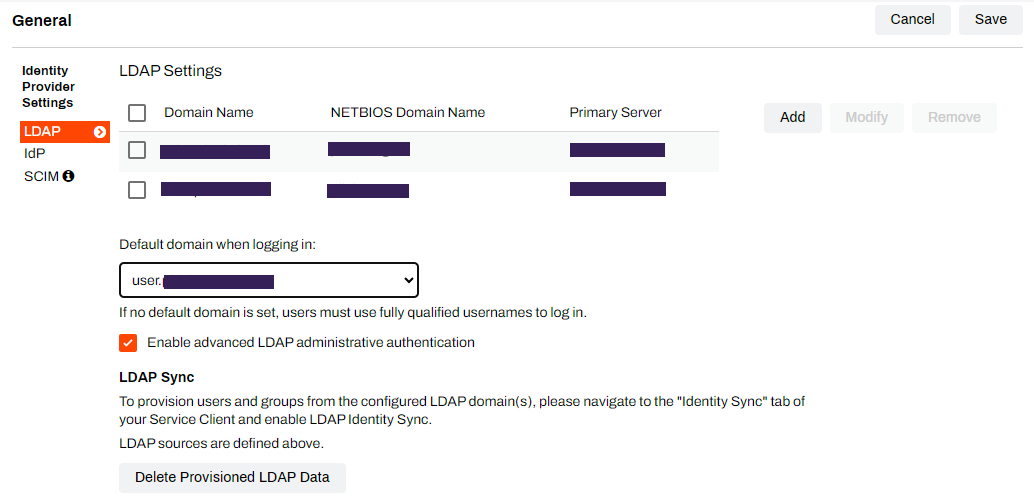
When you finish configuring the LDAP Settings, select Save in the upper-right corner of the General settings.
Delete Provisioned LDAP Data
For legal reasons, Product Support cannot delete provisioned LDAP users and groups from the database. This action is at the discretion of the IT admin. This process requires your interaction to ensure that deletion is the desired outcome.
- In the Admin Console, select Tools Settings General.
- In the Identity Provider Settings section, select LDAP.
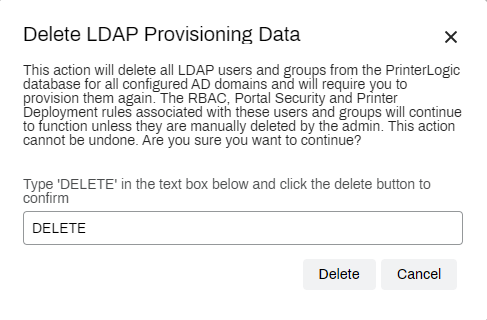
- In the LDAP Sync section, select the Delete Provisioned LDAP Data option.
- Enter "DELETE" in the text field.
-
Select Delete.
This action deletes all LDAP users and groups from the database for all configured Active Directory (AD) domains and requires you to provision them again. You cannot undo this action.
The Role-Based Access Control (RBAC), portal security, and printer deployment rules associated with these users and groups continue to function unless you delete them.
In this topic: