PingOne
Last Updated: October 08, 2026
An identity provider (IdP) uses an authentication token to vouch for a person's identity. Vasion Automate uses IdPs for several tasks, including logging in to the application, building and completing forms, approving workflows, and more.
Configure Connection
To add and configure enterprise app properties for the PrinterLogic connection, do the following:
- Create the PingOne App.
- Add the IdP Settings Template.
- Add the X-509 Certificate.
- Configure Single Sign-On (SSO).
- Configure Provisioning.
- Complete IdP Settings.
- Just-in-Time (JIT) Provisioning.
- Add PrinterLogic Admins.
1. Create the PingOne App
- Log in to your PingOne portal.
-
Go to Applications
 Application Catalog.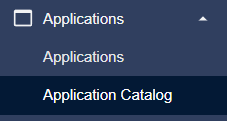
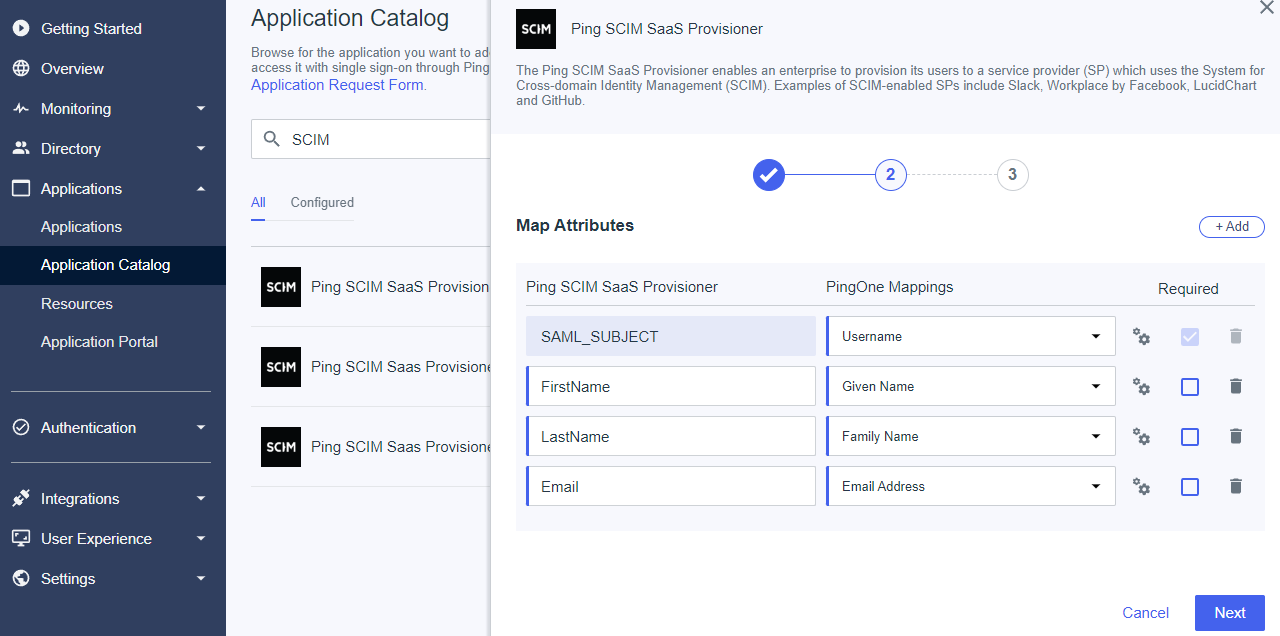
- Search for SCIM, and select an unused Ping SCIM SaaS Provisioner option.
- Enter a name for your app, and then select Next.
- Add the following attributes on the Map Attributes tab:
- SAML_Subject / Username
- FirstName / Given Name
- LastName / Family Name
- Email / Email Address
- Select Next.
- Add the desired Groups, and then select Save.
-
Select View in Applications list.

-
Select Enable Advanced Configuration, and then select Enable in the modal.

-
Leave the current browser open on the new app screen for the following steps.
2. Add the IdP Settings Template
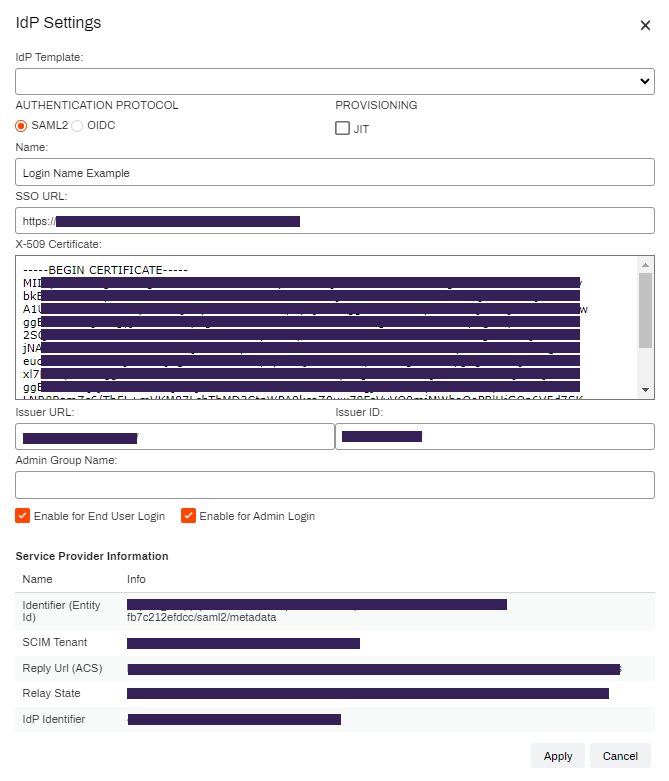
If the IdP Settings modal does not look like the image below, you may not be using the latest version and should contact Product Support to upgrade your IdP settings.
When configuring this IdP through PrinterLogic, select the Custom option from the IdP Template dropdown menu.
- Open your PrinterLogic Admin Console in a new browser tab, and sign in.
- Select Tools
 Settings General, and scroll down to the Identity Provider Settings section.
 - Select IdP, and then select Add.
- Select the IdP that you want to configure from the IdP Template dropdown menu.
- Select SAML2 in the Authentication Protocol section.
-
In the Provisioning section, if you are using Systems for Cross-domain Identity Management (SCIM), leave the Just-in-Time (JIT) option deselected.
By default, the Admin Console assumes that you are using SCIM for provisioning. Only select JIT if you are not using SCIM.
- In the Name field, enter the name that you want to appear on the login button for users. For example, My Company, Login, or Acme Corp.
- Scroll down, and select the desired settings:
- Enable for End User Login: Allows end users to log in using this IdP. (Self-service Portal)
- Enable for Admin Login: Allows admins to log in using this IdP. (Admin Console)
- You can select both checkboxes when admins and end users use the same IdP to sign in.
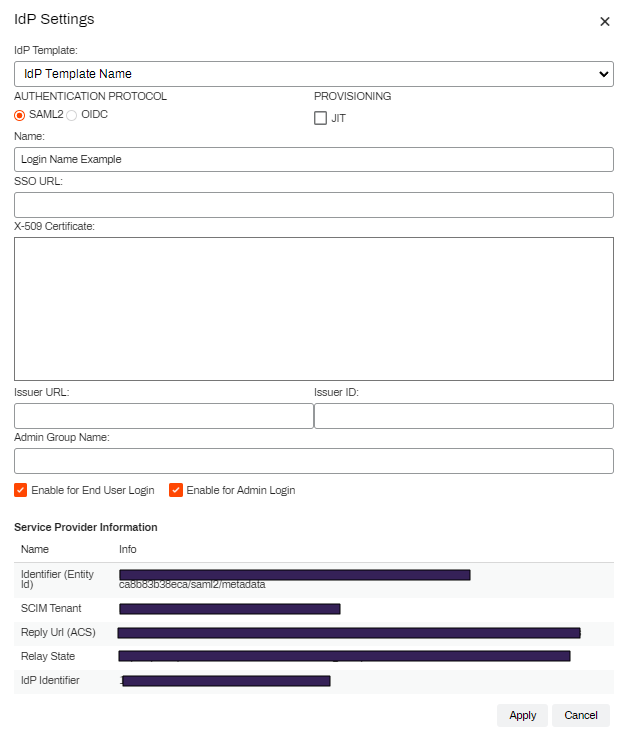
Keep the IdP Settings modal open so that the Service Provider Information section at the bottom is available for the following steps.
3. Add the X-509 Certificate
- In the PingOne app, select the Configuration tab.
- Select Download Signing Certificate.
- Select the X509 PEM (.crt) option.
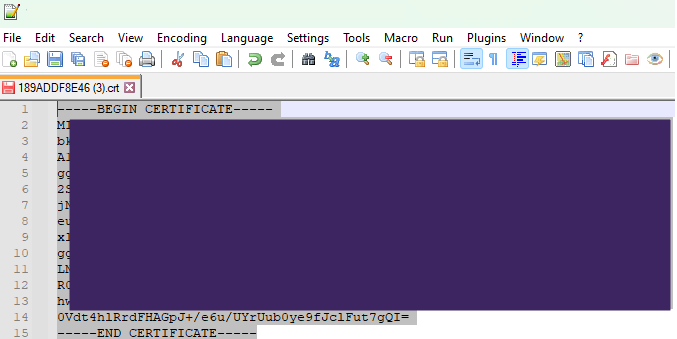
- Open the file in your preferred text editor.
-
Copy the certificate body, including the Begin / End headers, and paste it in the X-509 Certificate field in the PrinterLogic Admin Console.
4. Configure Single Sign-On (SSO)
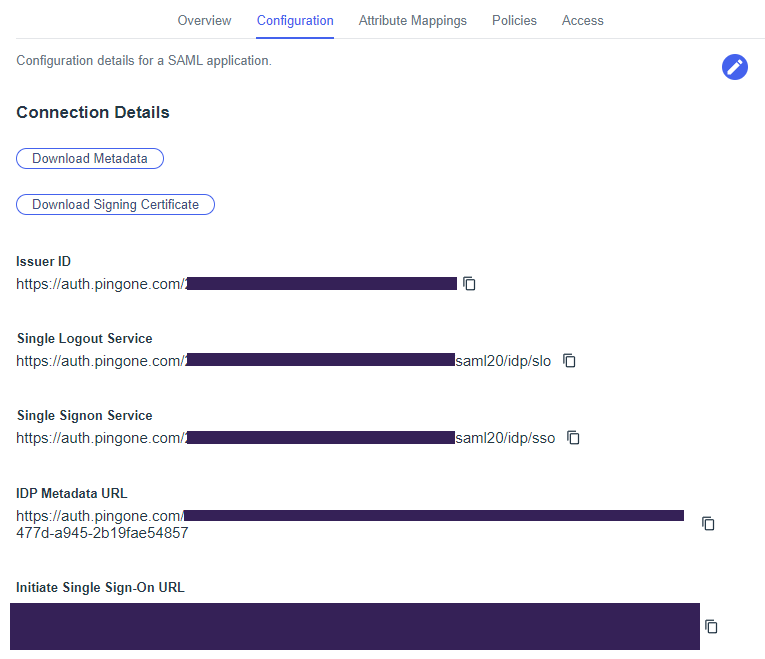
- In the PingOne app, select the Edit button
 in the upper-right corner of the Configuration tab.
 - Copy the Admin Console Reply Url (ACS), and paste it in the PingOne ACS URLS field.
- Copy the Admin Console Identifier (Entity ID), and paste it in the PingOne Entity ID field.
- Copy the Admin Console Relay State, and paste it in the PingOne Target Application URL field.
- Select Save in PingOne.
- Copy the PingOne Issuer ID, and paste it in the Admin Console Issuer URL field.
- Copy the PingOne Single Signon Service URL, and paste it in the Admin Console SSO URL field.
- Select Apply in the Admin Console.
- Select Save in the Admin Console.
5. Configure Provisioning
If you are configuring PingOne using JIT provisioning, skip to 6. Complete IdP Settings below.
SCIM Provisioning
Create Provisioning Connection
-
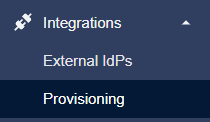
In the PingOne portal, select Integrations from the left-side menu and select Provisioning.
-
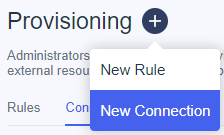
Select the + (plus) button next to Provisioning, and select New Connection.
- Select the Identity Store option.
- Select the SCIM Outbound option, and then select Next.
- Name the connection, and then select Next.
- In the PrinterLogic Admin Console, select the PingOne IdP in the Identity Provider Settings section and then select Modify.
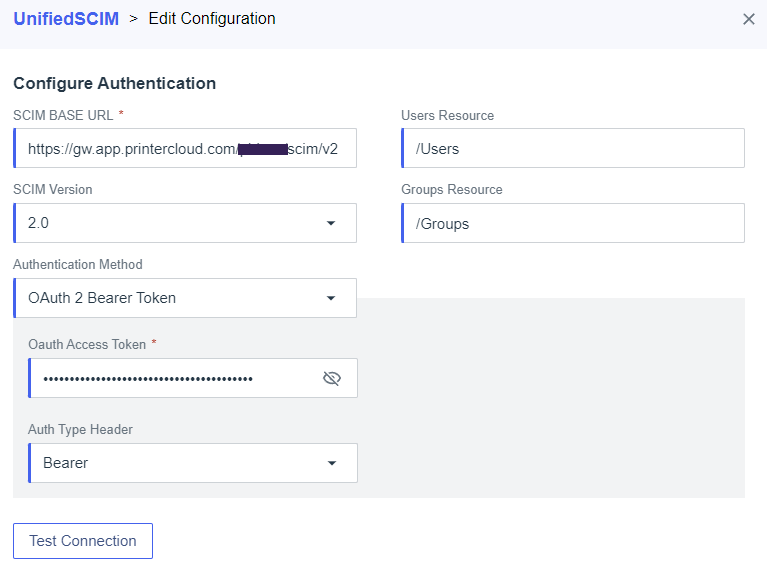
- Copy the Admin Console SCIM Tenant URL, and paste it in the PingOne SCIM Base URL field.
- Close the modal in the Admin Console.
- Select OAuth 2 Bearer Token in the PingOne Authentication Method dropdown menu.
Apply a SCIM Token
- In the PrinterLogic General settings, select the SCIM option in the Identity Provider Settings section.
- Select your IdP configuration from the dropdown menu.
-
Select Generate SCIM Token.

Generating a SCIM token invalidates any previous tokens for that IdP.
- Copy the token, close the modal, and select Save in the upper-right corner of the General settings.
- Paste the token in the PingOne Oauth Access Token field.
- Select Test Connection to verify connectivity.
- Select Next, and adjust the preferences as needed.
- Select Save.
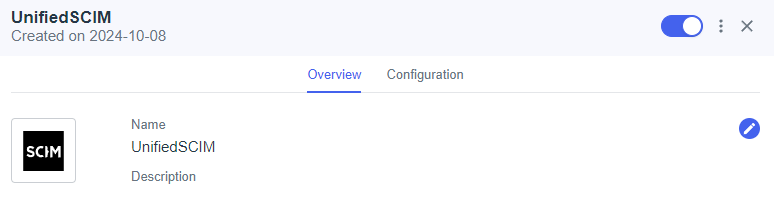
- Select the toggle switch in the upper-right corner of the Overview tab to turn on the connection.
Create a Rule
-
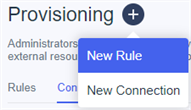
On the Provisioning tab in the PingOne portal, select the + (plus) button next to Provisioning and select New Rule.
- Name the rule.
- Select Create Rule.
- Select the + (plus) button to the right of the provisioning connection that you created.
- Select Save.
-
In the Configuration tab, select the User Filter option and then the Edit button next to User Filter.

-
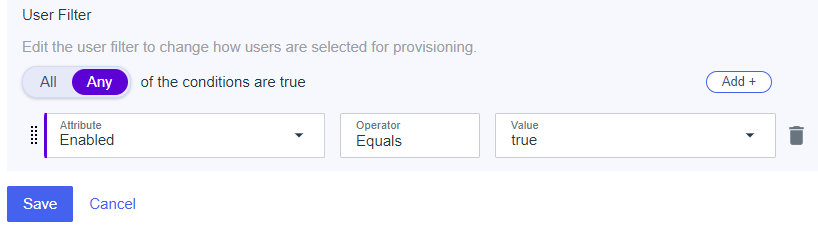
Do the following in the User Filter section:
- Select Any for of the conditions are true.
- From the Attribute dropdown menu, select Enabled.
- Enter "Equals" in the Operator field.
- In the Value dropdown menu, select true.
- Select Save.
- Do the following to provision groups:
- Select the Group Provisioning option in the Configuration tab.
- Select the Add Groups button.
- Search for and select the groups that you want to provision.
- Select Save.
- In the Overwrite Group Memberships modal, select I understand and want to continue.
- Select Save.
- In the Rule tab, select the toggle switch in the upper-right corner to turn on the rule.
This action starts provisioning and displays the results in the Sync Summary tab.
6. Complete IdP Settings
- In the General settings of the PrinterLogic Admin Console, navigate to the Identity Provider Settings section.
-
To have PrinterLogic prompt users to authenticate through the IdP when performing any function that requires authorization, such as installing a printer, select the Automatically Open Browser to Login on Desktop Client option.
If you do not select this option, users must manually navigate to the IdP login screen to log in.
-
Vasion recommends selecting the Use Loopback with Saml 2.0 (recommended) option. The IdP needs to provide an authentication token to the desktop Agent whenever authentication happens. This option allows the Agent to handle the token and automatically log in without interaction from end users.
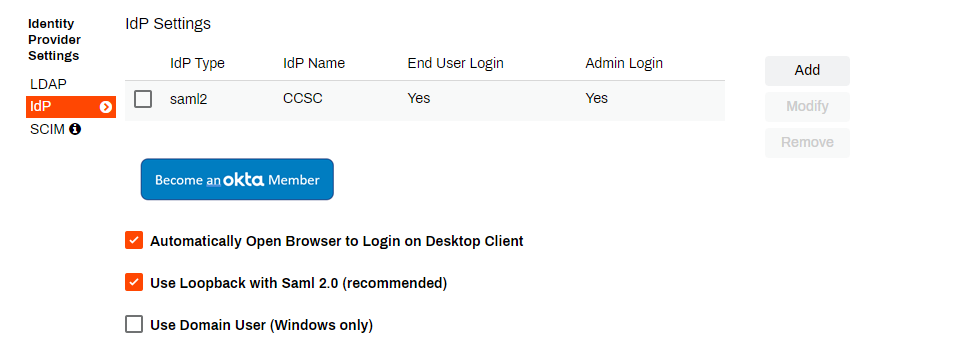
- The option Use Domain User (Windows only) automatically authorizes domain-joined Windows users and does not require log in via the configured IdPs.
- Select Save in the upper-right corner of the General settings.
7. Just-in-Time (JIT) Provisioning
These steps are only for configurations using JIT provisioning. If you already configured PingOne using SCIM provisioning, skip to 8. Add PrinterLogic Admins.
JIT Provisioning
JIT does not support the provisioning of group membership associations, so you cannot apply Role-Based Access Control (RBAC) roles, printer deployments, or portal security roles to groups. You must create assignments individually for each user.
When using JIT provisioning, the app creates users during the first sign-in attempt:
- Access your Vasion instance, and select Sign In With <IdP Name>.
- Attempt to sign in with your IdP credentials.
-
This sign-in attempt fails and returns you to the sign-in screen.
This behavior is expected. With JIT, this action triggers user creation in the Vasion instance.
- The second sign-in attempt with valid credentials initiates a typical sign-in sequence.
For admins who need access to the Admin Console, you still need to add them to the Users page located in Tools Users.
8. Add PrinterLogic Admins
For steps on assigning users and roles to the PrinterLogic and Vasion Automate Admin Console, refer to Admin Console Users.
In this topic: