Identity Sync
Last Updated: September 23, 2026
Identity Sync is an authentication option for environments using Lightweight Directory Access Protocol (LDAP) domains. When Identity Sync is configured, users can authenticate to the Control Panel Application (CPA) using their LDAP username and password, badge, or PIN.
The Identity Sync service requires an LDAP connection and a Service Agent, which is a designated device in your network that runs the service. These features keep identity queries behind your firewall. Note that users' passwords are not stored or synced with your instance.
Identity Sync uses "lazy loading" to reduce the time that it takes to sync users that are in groups with the instance. All users sync in batches of 50 every 3 seconds. Then groups sync in batches of 20 every 3 seconds, but not all group associations sync initially.
If the group has an assignment, such as printer deployment, portal security, or something explicitly assigned, then group associations sync when users sync. If the group does NOT have an assignment, the users and group object sync but the users are NOT associated with the group.
After you create a group assignment, such as a printer deployment, the next time the Identity Sync service checks in, which is every 5 minutes, the service applies group associations to the users.
Requirements
Review the following requirements:
- Configure an LDAP Domain connection.
- Create one or more Service Agents.
Turn On Identity Sync
- In the Admin Console tree structure, navigate to the Service Agent object that the Identity Sync service should run on.
- Select the Service Agent's Identity Sync tab.
-
Select the Enable LDAP Identity Sync checkbox.
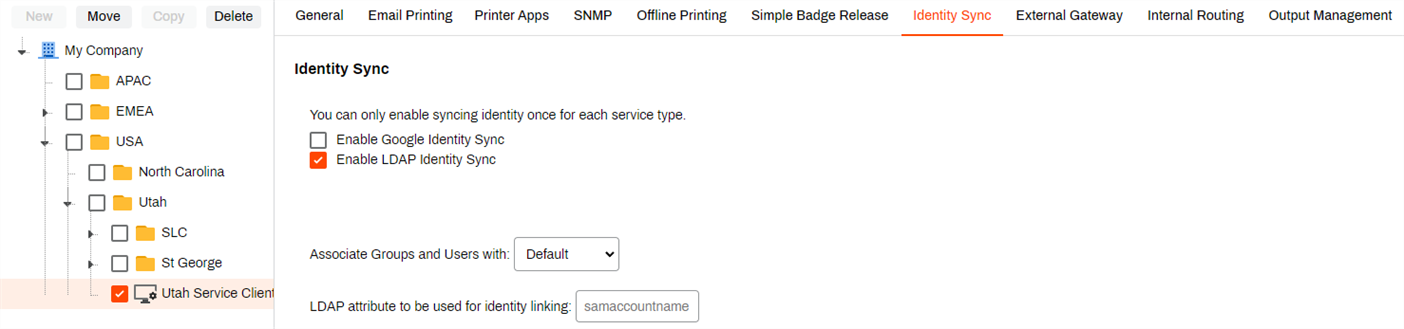
- Select Save. Additional fields display after the screen refreshes.
- Select your LDAP domain from the Associate Groups and Users with: dropdown menu.
- The LDAP attribute to be used for identity linking: defaults to samaccountname, which is recommended. If you want to use a different linking attribute, adjust the entry in the text field.
- Select Save.
After you save, the Identity Sync service begins adding users to the Tools  Identities or Tools Identity Management tab. The tab name differs depending on the add-on. Allow time for large environments to sync all users.
Do the following if users do not begin appearing shortly after turning on the service:
- Refresh the Agent on the Service Agent device.
- Confirm that the PrinterLogicServiceIdentitySync.exe service is running on the same device.
-
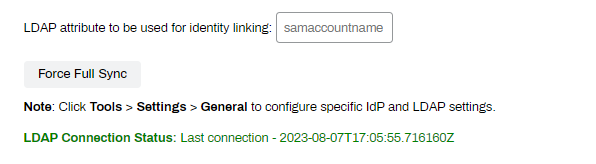
Navigate to the Service Agent's Identity Sync tab, and select the Force Full Sync button.
Delete Users or Groups
For legal reasons, Product Support cannot delete provisioned LDAP users and groups from the database. This action is at the discretion of the IT admin. This process requires your interaction to ensure that deletion is the desired outcome.
- In the Admin Console, select Tools Settings General.
- In the Identity Provider Settings section, select LDAP.
- In the LDAP Sync section, select the Delete Provisioned LDAP Data option.
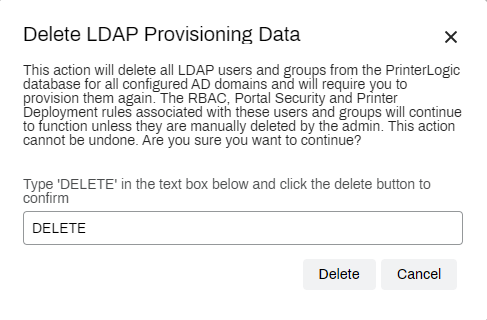
- Enter "DELETE" in the text field.
-
Select Delete.
This action deletes all LDAP users and groups from the database for all configured Active Directory (AD) domains and requires you to provision them again. You cannot undo this action.
The Role-Based Access Control (RBAC), portal security, and printer deployment rules associated with these users and groups continue to function unless you delete them.
Allow a few minutes for large LDAP environments to clear from the Tools Identities or Tools Identity Management tab.
In this topic: