Identity Management
Last Updated: October 08, 2026
When you connect an identity provider, Vasion assigns a unique identity to uniquely identify an individual who accesses the application.
Identities authenticate through multiple methods:
- Local: Created manually within Vasion Automate or PrinterLogic.
- IdP: Managed through third-party identity services like Okta, Entra ID (Azure AD), Google Identity, etc.
- LDAP Domain: Synchronized from directory services.
The unified login experience allows identities to be recognized across both PrinterLogic and Vasion Automate.
Vasion cannot remove provisioned users from a customer's database for security and compliance reasons. There are a few options admins can use to remove users individually or in bulk from their instance. Details on both methods are included below.
Individual Users
The access to the users' individual identities depends on how your instance is configured. An instance with a single IdP configured displays the Identities screen, while an instance configured with multiple IdPs displays the Identity Management screen.
To access the identities go to
Tools  Identities, or Tools Identity Management depending on your instance setup.
On either screen you can use the Search button  to access the field you can use to filter users by name or username.
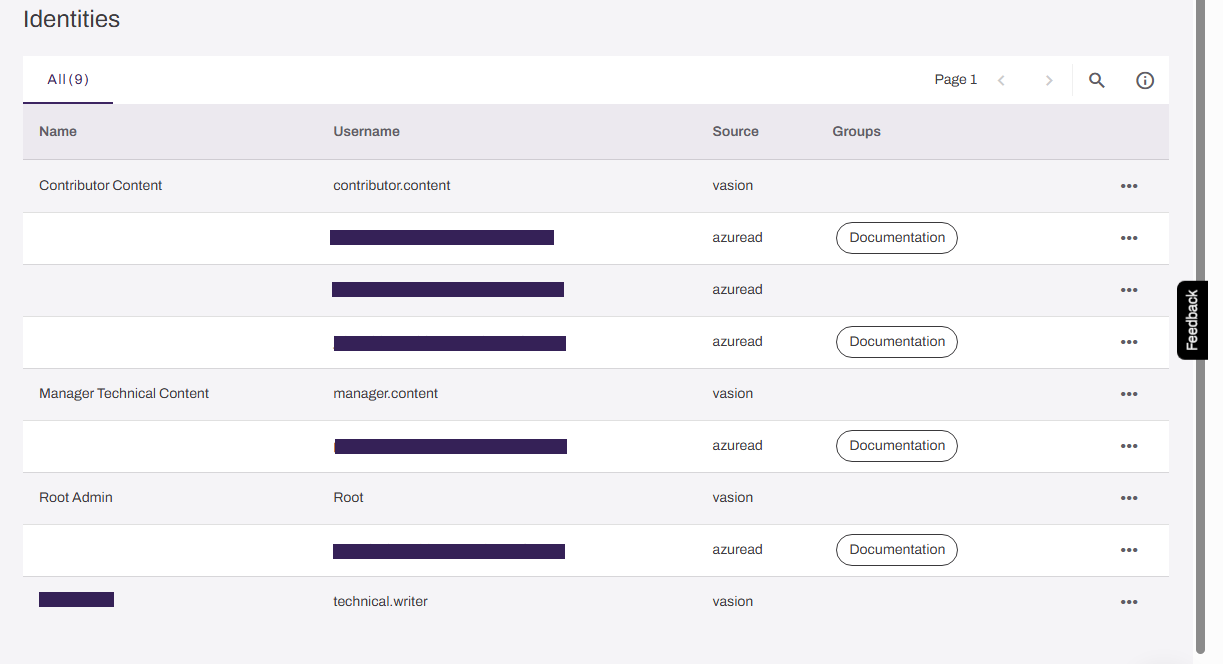
Identities
Identities displays the following user details in a table format:
- Name
- Displays the user's name as defined by the First Name and Last Name fields in the IdP or local user record.
- Username
- Displays the username, which is defined by the IdP or local user record.
- Source
- Displays the IdP source, such as Entra ID, Okta, etc. If the user was added manually as a local user the source displays vasion.
- Groups
- Displays group associations for the user as assigned in the IdP.
- More button

- Select the button to view full details about the identity and to access the Delete option.
Identities Details
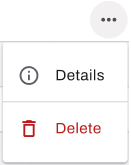
When you select the More button , you have the options to view identity details or to delete the identity.
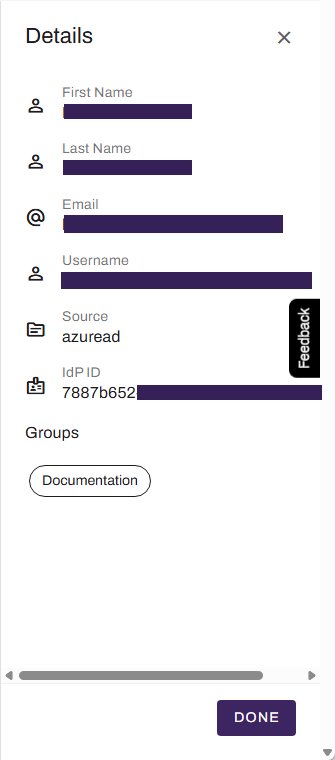
When you select Details, the side panel displays the fields configured in the provider's system or local record, including the following:
- First Name: First name as defined in the provider's system or local user record.
- Last Name: Last name as defined in the provider's system or local user record.
- Display Name: First and last names.
- Email: User's email address.
- Username: Username as defined in the provider's system or local user record.
- Source: Source of the record, the name of the provider, or vasion if it is a local record.
- IdP ID ID: The IdP's unique identifier (UUID) assigned by PrinterLogic to the identity provider, or Platform for local user records.
- Groups: The user groups associated with the identity or None if no groups are associated.
To delete a user:
- Select the More menu to the right of the user information.
-
Select Delete.
-
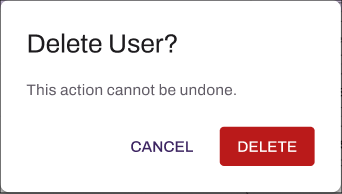
Select Delete in the modal.
Identity Management
The screen displays the following for each user in a table:
- Name
- User's name as defined by the First Name and Last Name fields in the IdP or local user record.
- Username
- Username, which is defined by the IdP or local user record.
- Source
- IdP source, such as Entra ID, Okta, etc. If the user was added manually as a local user the source displays vasion.
- Groups
- Group associations for the user as assigned in the IdP.
- More button
- Select the button to view full details about the identity and to access the Delete option.
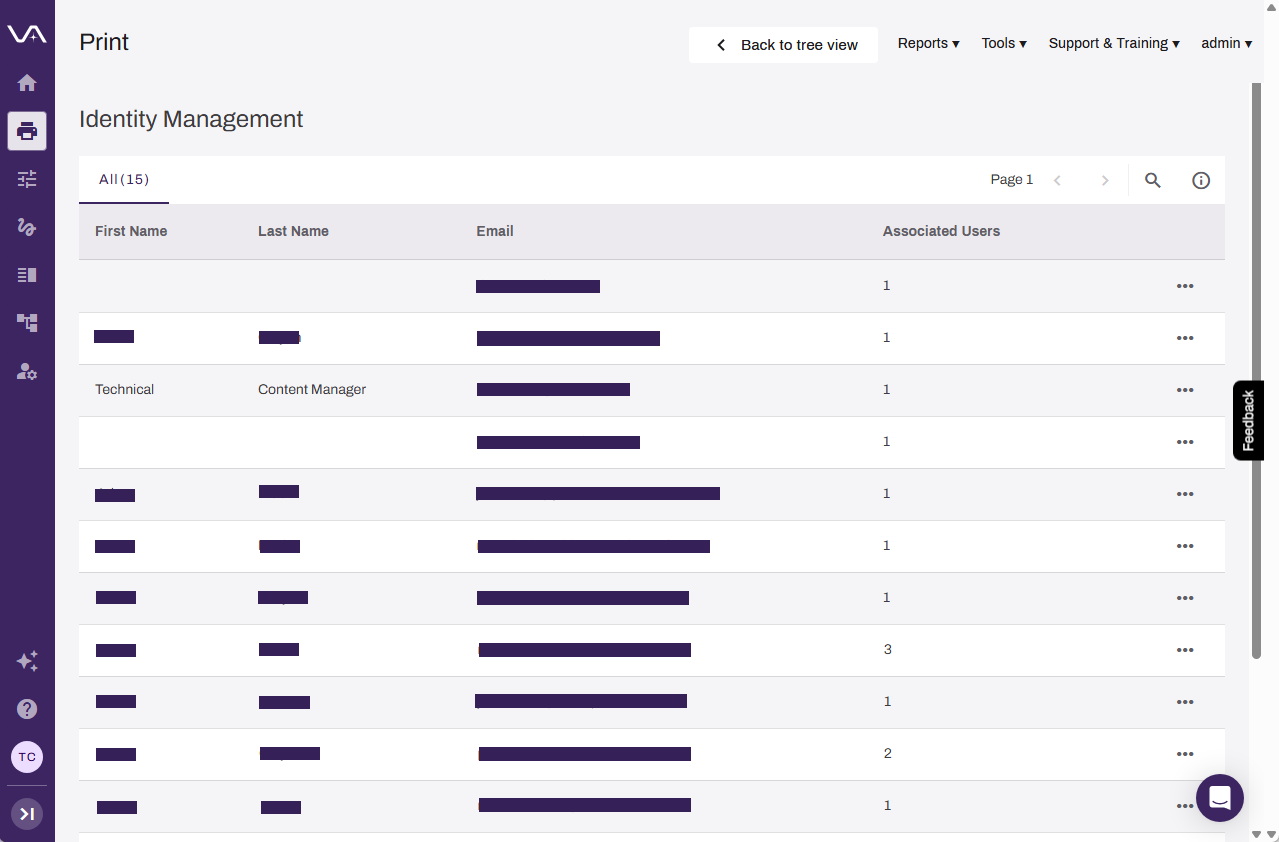
Identity Management Details
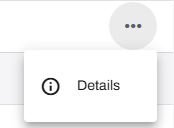
To view identity details, use the More button.
- Select the More menu to the right of the user information.
-
Select Details.
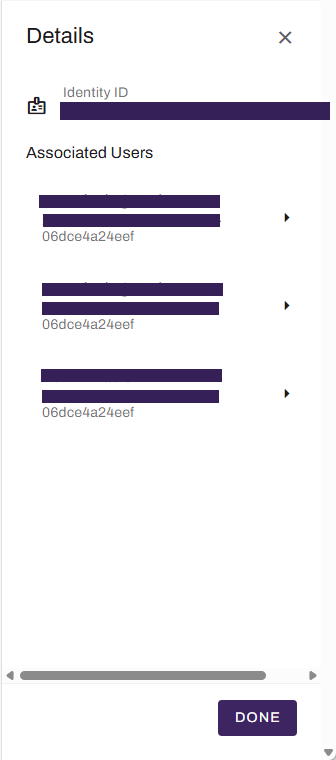
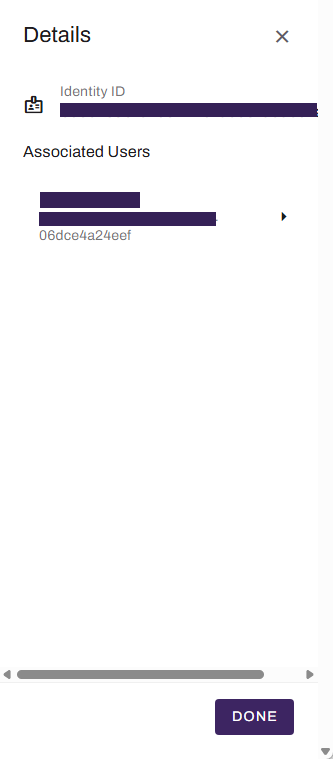
The identity Details panel shows the following:
- Identity ID: Unique identifier (UUID) assigned by Vasion.
- Associated Users: Display name, consisting of the first and last names, or the username. It also displays the UUID associated with the user record.
When an identity is associated with more than one user, in the case of concurrent multiple IdPs, the Details panel displays all of the users associated with that identity.
User Details
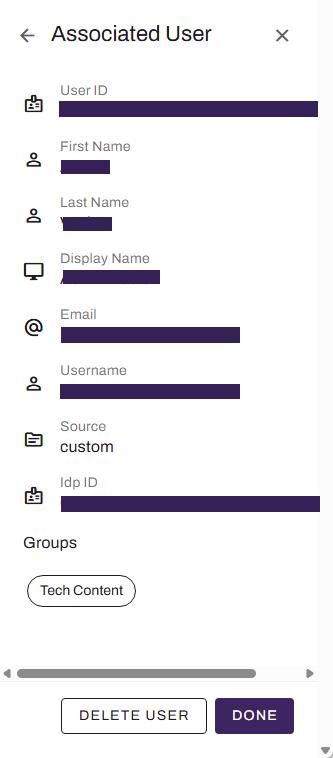
Select a user from the Associated Users list to open the Associated User panel and view field data configured in the provider's system or local user record, including the following:
- First Name: First name as defined in the provider's system or local user record.
- Last Name: Last name as defined in the provider's system or local user record.
- Display Name: First and last names.
- Email: User's email address.
- Username: Username as defined in the provider's system or local user record.
- Source: Source of the record. Name of the provider or vasion for local user records.
- IdP ID: IdP's unique identifier (UUID) assigned by PrinterLogic to the identity provider, or Platform for local user records.
- Groups: User groups associated with the identity or None if no groups are associated.
To delete a user:
- Select the More menu to the right of the user information.
-
Select Details.
-
If more than one associated user display, select the user you want to delete.
-
Select Delete User at the bottom of the Associated Users panel.
-
Select Delete in the modal.
Bulk Removal
LDAP Users
Do the following to remove all LDAP users and groups:
- In the Admin Console, select Tools Settings General.
- In the Identity Provider Settings section, select LDAP.
- In the LDAP Sync section, select the Delete Provisioned LDAP Data option.
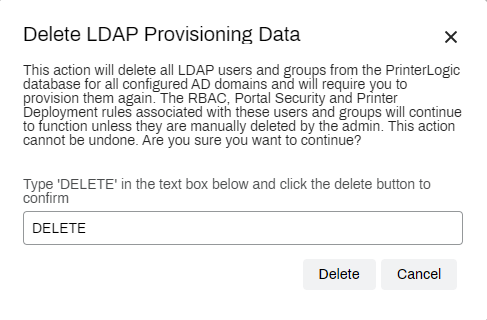
- Enter "DELETE" in the text field.
-
Select Delete.
This action deletes all LDAP users and groups from the database for all configured Active Directory (AD) domains and requires you to provision them again. You cannot undo this action.
The Role-Based Access Control (RBAC), portal security, and printer deployment rules associated with these users and groups continue to function unless you delete them.
IdP Users
There are three actions for bulk IdP user management:
- Deactivate All Users
- This action deactivates all users for the selected IdP. Restart the sync to reactivate the users.
- Delete Provisioned Data
- This action deletes all IdP users and groups from the database for the selected IdP. This action also removes all RBAC, portal security, and printer deployment rule associations for the users and groups; they must be provisioned again to be available for use.
- Delete IdP Groups
- This action deletes all IdP groups from the database for the selected IdP. This action also removes all RBAC, portal security, and printer deployment rule associations for the groups; they must be provisioned again to be available for use.
- Navigate to Tools Settings General in the Admin Console.
- In the Identity Provider Settings section, select SCIM.
- From the dropdown menu, select the desired IdP.
- Select the button for the desired action.
- Follow the Proceed and Delete prompts in the modal.

In this topic: