Google Identity Sync
Last Updated: October 08, 2026
An identity provider (IdP) uses an authentication token to vouch for a person's identity. Vasion Automate uses IdPs for several tasks, including logging in to the Admin Console and portals, deploying printers, releasing print jobs, and more.
The CPA supports only badge and PIN authentication for cloud IdPs.
Configure Connection
To add and configure app properties for the PrinterLogic connection, do the following:
- Add the IdP Settings Template.
- Create an Authentication Project.
- Configure Open Authorization (OAuth) Consent.
- OAuth 2.0 Credentials for Desktop Agent.
- OAuth 2.0 Credentials for Server.
- Create a Provisioning Project.
- Turn on Admin Software Development Kit (SDK) Application Programming Interface (API) Service.
- OAuth Consent Screen Provisioning.
- OAuth 2.0 Credentials Provisioning.
- Turn on Google Identity Sync Service.
- Verify Provisioned Users.
- Add PrinterLogic Admins.
Requirements
Review the following requirement:
- Before you set up Google Identity Sync with OpenID Connect (OIDC), you must configure a Service Agent to use the Identity Sync service.
1. Add the IdP Settings Template
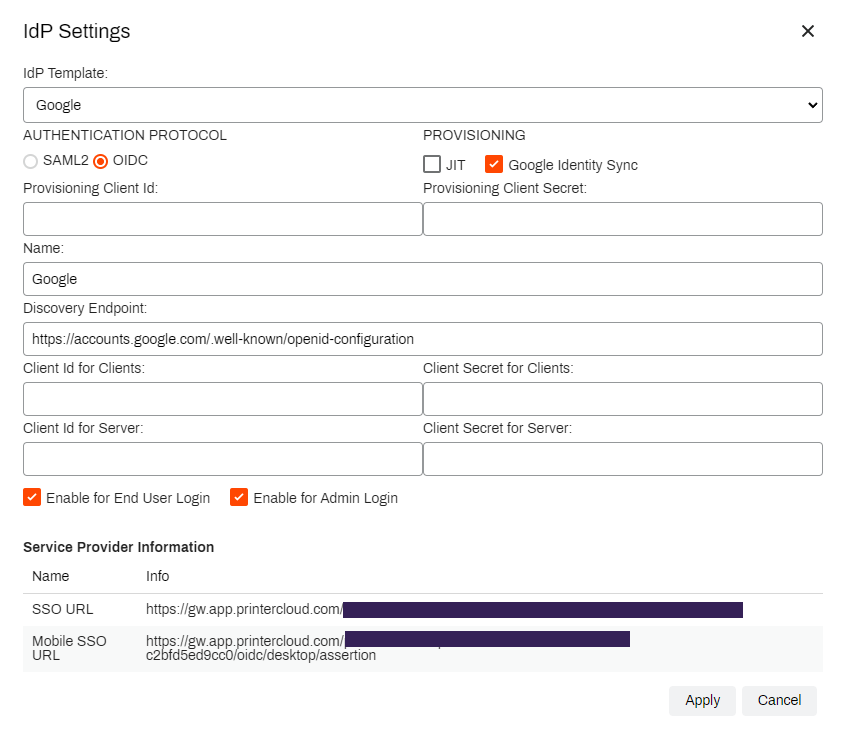
If the IdP Settings modal does not look like the image below, you may not be using the latest version and should contact Product Support to upgrade your IdP settings.
- Open your PrinterLogic Admin Console in a new browser, and log in.
- Select Tools
 Settings General, and scroll down to Identity Provider Settings section.
 - Select IdP, and then select Add.
- Select Google from the IdP Template dropdown menu.
-
Select OIDC in the Authentication Protocol section.
- In the Provisioning section, select the checkbox for Google Identity Sync.
- In the Name field, enter the name that you want to appear on the login button for users, such as My Company, Login, or Acme Corp.
-
In the Discovery Endpoint field, enter the following URL:
Copy Codehttps://accounts.google.com/.well-known/openid-configuration -
Scroll down, and select the desired settings.
- Enable for End User Login: Allows end users to log in using this IdP. (Self-service Portal)
- Enable for Admin Login: Allows admins to log in using this IdP. (Admin Console)
- You can select both checkboxes when you are using a single IdP or the admin and end users use the same IdP to log in.
Keep the IdP Settings modal open so that the Service Provider Information section at the bottom is available for the following steps.
2. Create an Authentication Project
- Open a new browser tab, and go to https://console.cloud.google.com.
- Log in to your Google admin account.
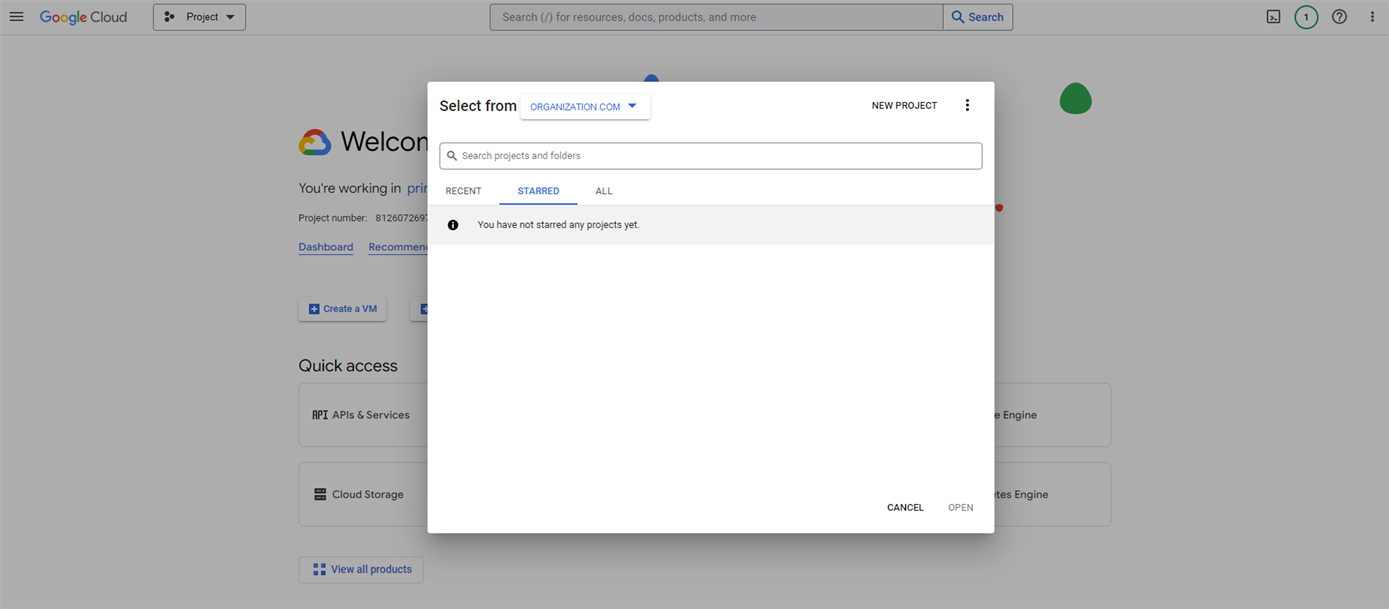
- Select the Project dropdown menu at the top.
- Select New Project.
- Enter a project name, and ensure that the Organization and Location fields are correct.
- Select Create.
-
Select Select Project in the Notification section, or select the new project from the Project dropdown menu.

Configure OAuth Consent
-
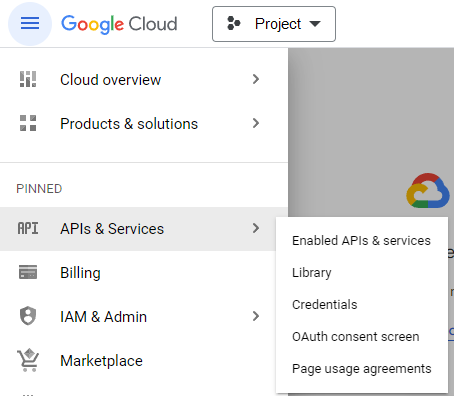
From the left-side menu, select APIs & Services, and then select OAuth consent screen.
-
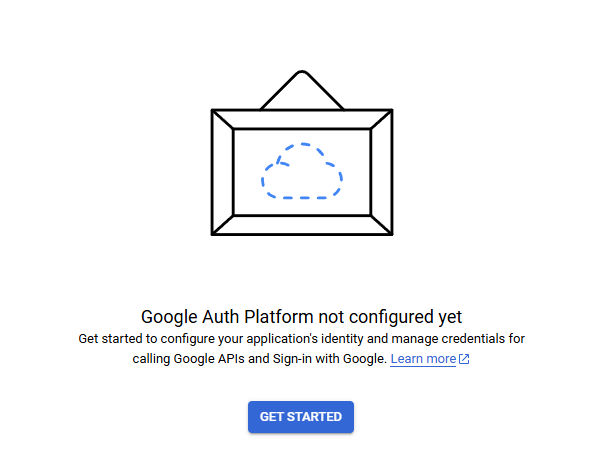
Select Get Started.
- Enter the app name and user support email, and then select Next.
- Select Internal for the Audience, and then select Next.
- Enter the contact information, and then select Next.
- Select the checkbox for I agree to the Google..., and then select Continue.
- Select Create.
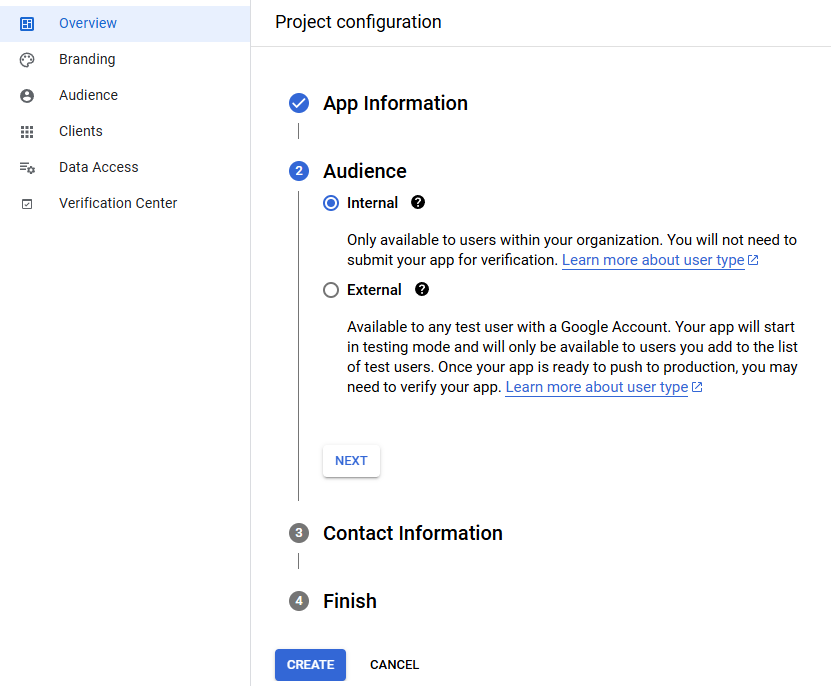
OAuth 2.0 Credentials for Desktop Agent
-
On the OAuth Overview tab, select the Create OAuth Client button.
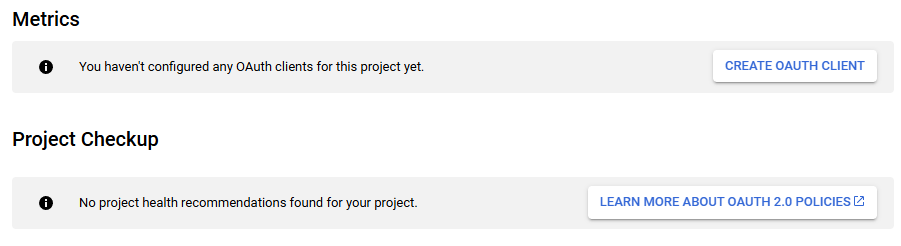
- From the Application type dropdown menu, select Desktop app.
- Enter a name for the desktop app.
- Select Create.
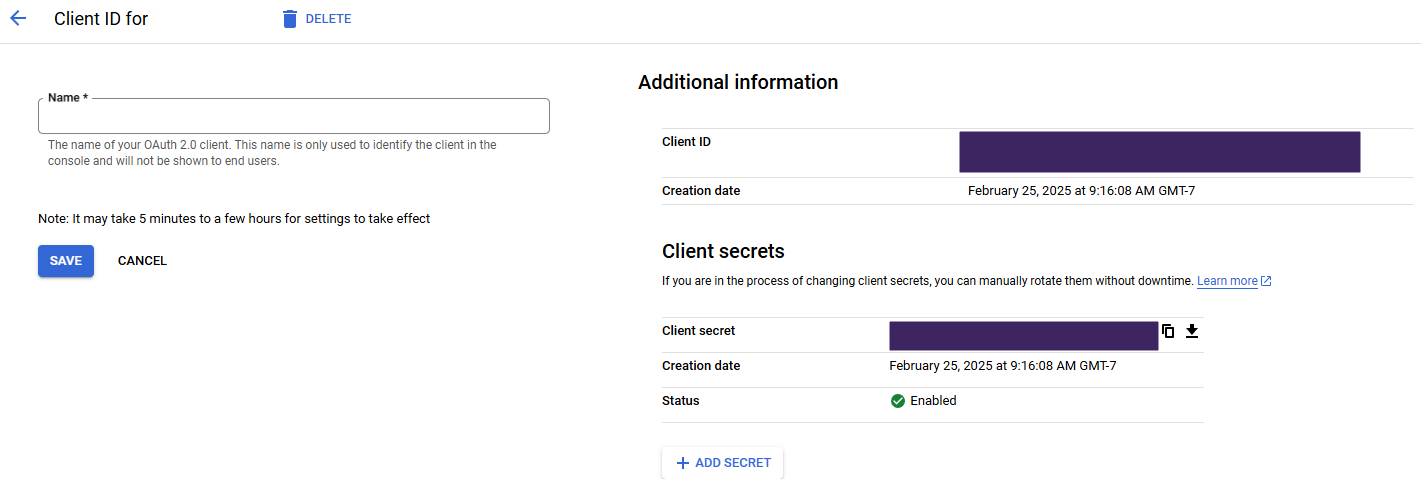
- Select the new OAuth client to view additional details.
- Copy the desktop app Client ID, and in the Admin Console, paste it in the Client Id for Clients field in the IdP Settings.
- Copy the desktop app Client secret, and paste it in the Client Secret for Clients field in the IdP Settings.
- Select the back arrow to return to the Clients screen.
OAuth 2.0 Credentials for Server
- At the top of the screen, select + Create Client.
- From the Application type dropdown menu, select Web application.
- Enter a name for the web app. This name identifies the credentials in the Google API console and does not appear for end users.
- In the Google Authorized redirect URLs section, complete the following:
- Select + Add URL, copy the IdP Settings SSO URL, and paste it in the Google URLs 1 field.
- Select + Add URL, copy the IdP Settings Mobile SSO URL, and paste it in the Google URLs 2 field.
Select + Add URL, and then copy and paste the following URL in the Google URLs 3 field:
Copy Codehttps://llhfdhidddepenjnklbngmapjohlbekh.chromiumapp.org/
- Select Create.
- Select the new OAuth client to view additional details.
- Copy the web app Client ID, and paste it in the Client Id for Server field in the IdP Settings.
- Copy the web app Client secret, and paste it in the Client Secret for Server field in the IdP Settings.
3. Create a Provisioning Project
- In the Google portal, select the Project dropdown menu from the top navigation bar.
- Select New Project.
- Enter a project name, and ensure that the Organization and Location are correct.
- Select Create.
-
Select Select Project in the project notification, or select the new project from the Project dropdown menu.
Turn On Admin SDK
- Ensure that you have the provisioning project selected.
-
From the left-side menu, select APIs & Services and then Enabled APIs & services.
- At the top of the screen, select + Enable APIs and Services.
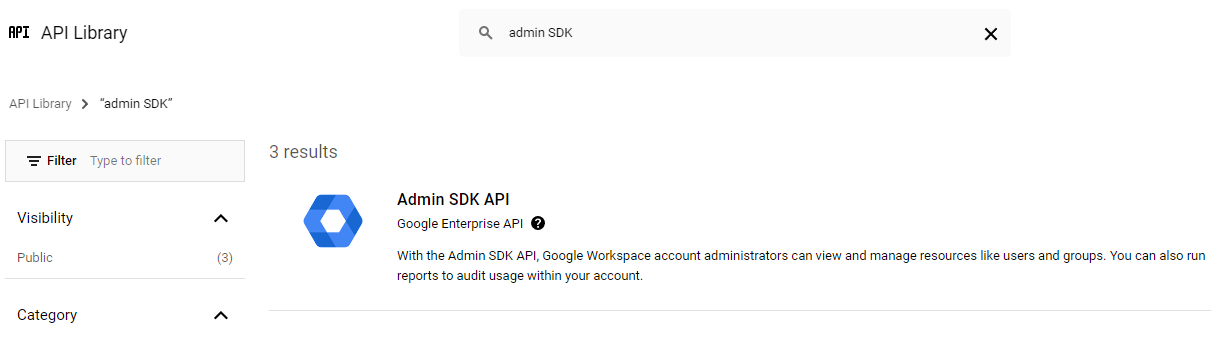
- Search for and select Admin SDK API.
- Select Enable.
OAuth Consent Screen Provisioning
- From the left-side menu, select APIs & Services and then select OAuth consent screen.
-
Select Get Started.
- Enter the app name and user support email, and then select Next.
- Select Internal for the Audience, and then select Next.
- Enter the contact information, and then select Next.
- Select the agreement checkbox, and then select Continue.
- Select Create.
OAuth 2.0 Credentials Provisioning
-
On the OAuth Overview tab, select the Create OAuth Client button.
- In the Application type dropdown menu, select Desktop app.
- Enter a name for the desktop app.
- Select Create.
- Select the new OAuth client to view additional details.
- Copy the app Client ID, and paste it in the Provisioning Client ID field in the IdP Settings.
- Copy the app Client secret, and paste it in the Provisioning Client Secret field in the IdP Settings.
4. Turn On Google Identity Sync Service
There are a few options for authorizing PrinterLogic access to your Google directory. We recommended Option A, which you can complete directly from a browser. Option B requires that you start a local server that echos incoming requests. There are alternative options if the above options are not acceptable.
Option A (Recommended)
- In the PrinterLogic Admin Console, select Back to tree view.
- Select the Service Agent object in the tree, and then select the Identity Sync tab.
- Select the checkbox for Enable Google Identity Sync, and then select Save.
- Select Authorize.
- Log in to your Google admin account, and select Allow on the permission options.
-
A screen appears that says "This site can't be reached" or something similar depending on your browser. This action is normal. In the URL bar on that screen, copy the one-time authorization code value found between "code=" and "&scope."

- Return to the Admin Console, and paste this code in the Authorization Code field in the Identity Sync tab.
- For Associate Groups and Users with:, use the dropdown menu to select your Google configuration.
- Select Save.
Option B (Use Local Server)
- Start a local server that echos incoming requests.
For Windows, run the following command in a command prompt:
Copy Codencat -k -l 4444The command uses the [NCat Portable] utility, which you can download from https://github.com/cyberisltd/NcatPortable. However, you can use the utility of your choice.
For Mac, run the following command in a terminal:
Copy Codenc -k -l 444The command uses the [NetCat] utility, which you can download from http://netcat.sourceforge.net/. However, you can use the utility of your choice.
- After running the above command, the local server listens for incoming requests in the terminal or command prompt.
- Return to the Admin Console, and select Back to tree view.
- Select the Service Agent object in the tree, and then select the Identity Sync tab.
- Select the checkbox for Enable Google Identity Sync, and then select Save.
- Select Authorize.
- Log in to your Google admin account, and select Allow on the permission options.
-
Responses are echoed in the command prompt (Windows) or terminal (Mac). In the GET request, copy the one-time authorization code between "code=" and "&scope."
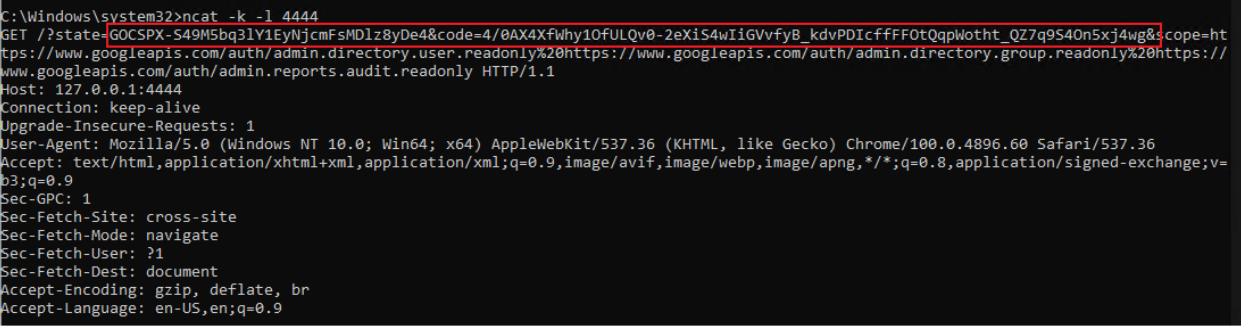
- Return to the Admin Console, and paste this code in the Authorization Code field in the Identity Sync tab.
- For Associate Groups and Users with:, use the dropdown menu to select your Google configuration.
- Select Save.
5. Verify Provisioned Users
-
In the Admin Console, select Tools
Identity Management.If the Multiple IdP feature is not turned on for your instance, the menu options are Tools
Identities. -
Verify that the users provisioned.
Depending on how many users exist in the IdP directory, provisioning can take several minutes to several hours.
6. Add PrinterLogic Admins
For steps on assigning users and roles to the PrinterLogic and Vasion Automate Admin Console, refer to Admin Console Users.
In this topic: