Direct Secure Release
Last Updated: October 08, 2026
Direct Secure Release is a one-to-one option for secure print. The user must authenticate and can release a job at only the assigned printer.
Requirements
Review the Requirements before configuring this feature.
Process Overview
You perform these high-level procedures:
- Turn On Queue Management.
- Turn On Direct Secure Release.
1. Turn On Queue Management
This setting makes the Queue tab appear on printer objects. You use the Queue tab to view the printer queues on end user devices, and this setting makes jobs visible to the local spooler for release.
Follow these steps:
- In the Admin Console, go to Tools
 Settings Printing.
 -
In the Print Jobs section, select Enable queue management.

- Select Save.
2. Turn On Direct Secure Release
The following are additional options:
- Allow End-Users to Override
- This option lets the user set their release printers and turn on prompts to hold or print, which are accessible from the system tray icon and the secure print settings in the operating system (OS) menu. For more details refer to the Secure Print Settings Guide.
- Back End Release: Automatically release held jobs to printers with Yes (Prompt) set
-
With this option selected, when the user sends a print job to a printer with Yes (Prompt) selected, the job automatically releases to the printer rather than being held. You typically use this option in environments in which the printer is in a secure location, such as a private office.
This option appears only for customers using PrinterLogic Output.
- Enable Offline Secure Release Printing
- This option requires a Service Agent. When a user holds a print job, the Service Agent creates a copy. If the user's device is offline or the user is signed out, they can still release their held job to the printer, which prints the copy from the Service Agent. For more details refer to Offline Secure Release Print (OSRP).
Follow these steps to turn on Direct Secure Release:
- In the Admin Console, go to Tools Settings Printing.
-
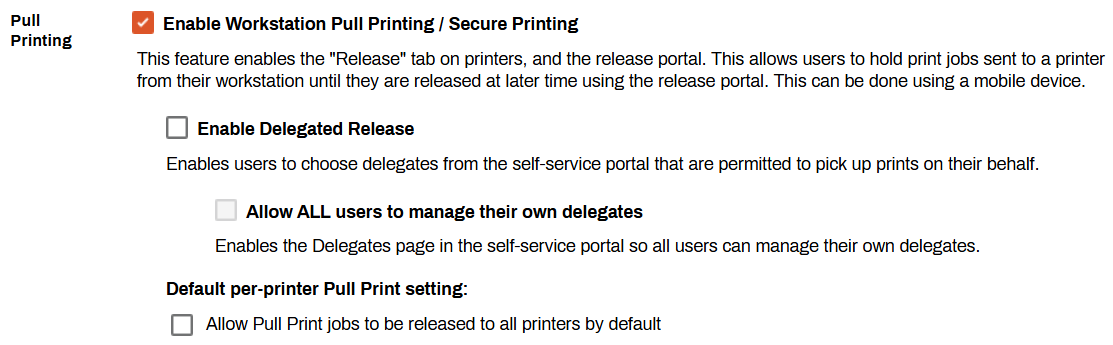
In the Pull Printing section, select Enable Workstation Pull Printing / Secure Printing.
- Select Save.
Turn On as Default
Follow these steps:
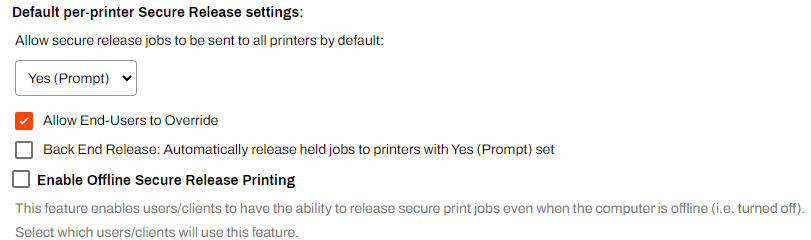
- In the Default per-printer Secure Release settings section, use the prompt option dropdown to select one of the following:
- Yes (Always): Print jobs sent to Direct Secure Release printers automatically hold.
- Yes (Prompt): Print jobs sent to Direct Secure Release printers always prompt the user to hold or print the job.
- No: Direct Secure Release is not turned on for printers by default.
- (Optional) Select any of the following settings:
- Allow End-Users to Override. This option turns on the user options explained in the Secure Print Settings Guide.
- Back End Release: Automatically release held jobs to printers with Yes (Prompt) set.
- Enable Offline Secure Release Printing.
- Select Save.
Turn On for Specific Printers
Follow these steps:
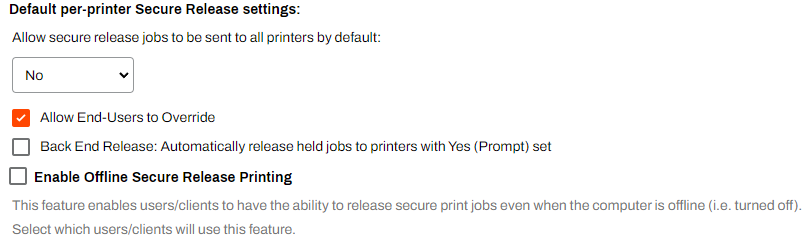
- In the Default per-printer Secure Release settings section, use the prompt dropdown to select No: Direct Secure Release is not turned on for printers by default.
- (Optional) Select any of the following settings:
- Allow End-Users to Override. This option turns on the user options explained in the Secure Print Settings Guide.
- Back End Release: Automatically release held jobs to printers with Yes (Prompt) set.
- Enable Offline Secure Release Printing.
- Select Save.
For the printer-specific configuration, you must complete the following steps on each printer object to turn on Direct Secure Release:
- Select the printer object in the tree structure.
- Select the Printing tab.
-
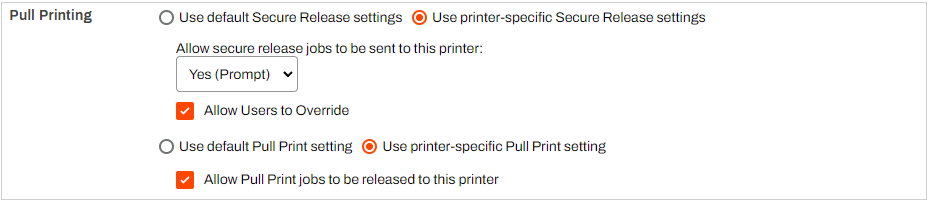
In the Pull Printing section, select Use printer-specific Secure Release settings.
- For Allow secure release jobs to be sent to this printer, select one of the following:
- Yes (Always): Print jobs sent to Direct Secure Release printers automatically hold.
- Yes (Prompt): Print jobs sent to Direct Secure Release printers always prompt the user to hold or print the job.
- (Optional) Select Allow Users to Override.
- Select Save.
- Repeat these steps for any additional printer objects.
Held print jobs become available for release using the configured release method.
Next Steps
Troubleshooting Help
-
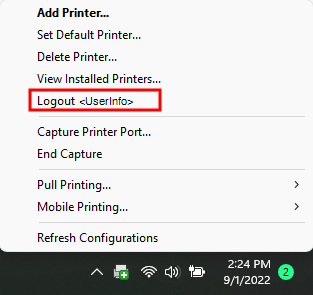
Verify that you are logged in to the Agent. You can right-click the PrinterLogic icon to confirm you are signed in.
-
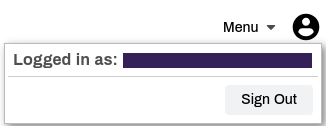
You can also go to the Self-service Portal and select the user avatar to check who is signed in.
If you your Secure Release Print jobs do not appear in the release portal, check the following:
-
Verify that you are logged in to the Client on the workstation you used to send the print job. You can right-click the PrinterLogic icon to confirm you are signed in.
-
Verify that you are signed in to the Self-service Portal / Release Portal. Select the user avatar to verify user identity.
In this topic: