Configure Open Authorization (OAuth) 2.0
Last Updated: September 24, 2026
The steps below are for configuring OAuth 2.0 for Email Printing, Direct Email Printing, and Direct Guest Email Printing.
Process Overview
You perform these high-level procedures:
- Register the App.
- Set App Permissions.
- Set Authentication.
- Collect Application & Directory IDs.
1. Register the App
Follow these steps:
- Go to the Microsoft Entra admin center at https://entra.microsoft.com/#home, and log in.
- In the left-side navigation, expand Entra ID.
- Select App registrations.
-
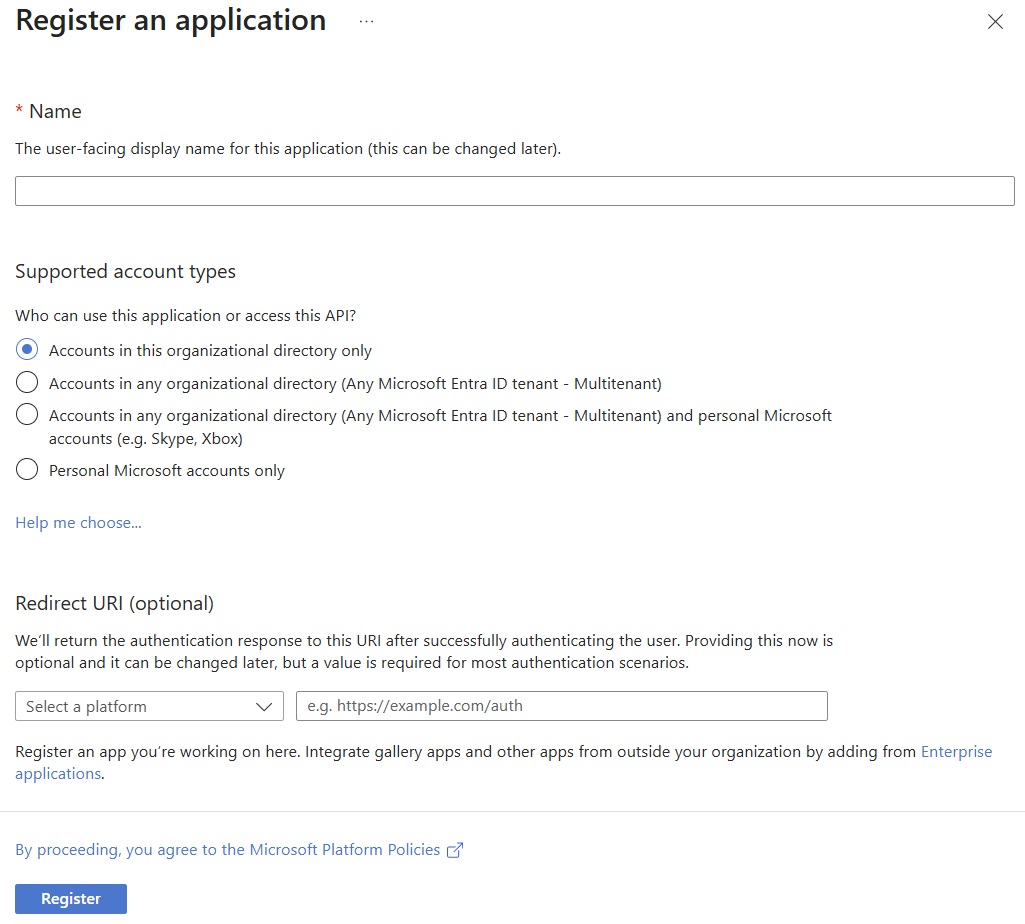
Select + New registration.

- Name the app.
- Leave Supported account types set to Accounts in this organizational directory only.
- Select Register in the lower-left corner.
2. Set App Permissions
Follow these steps:
-
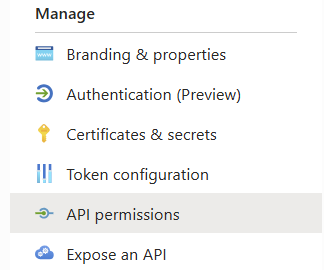
In the Manage section of the side navigation, select API permissions.
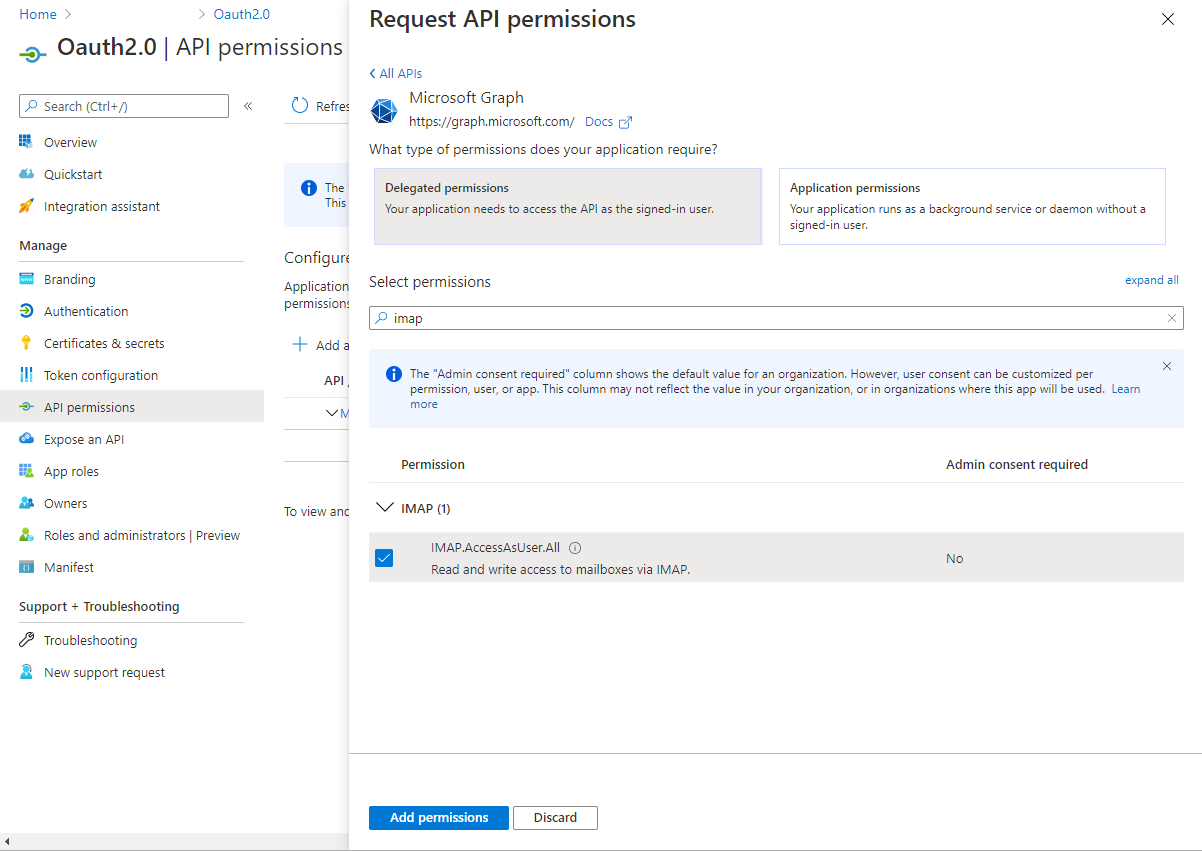
- In the Configured permissions section, select + Add a permission.
- Select Microsoft Graph, and then select Delegated permissions.
- Find and expand the IMAP section, and then select the IMAP.AccessAsUser.All option.
- Select Add permissions.
- In the Configured permissions section, select + Add a permission.
- Select Microsoft Graph, and then select Delegated permissions.
- Find and expand the OpenId permissions section, and then select offline_access.
- Select Add permissions.
3. Set Authentication
Follow these steps:
-
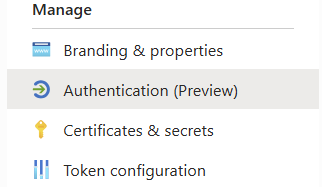
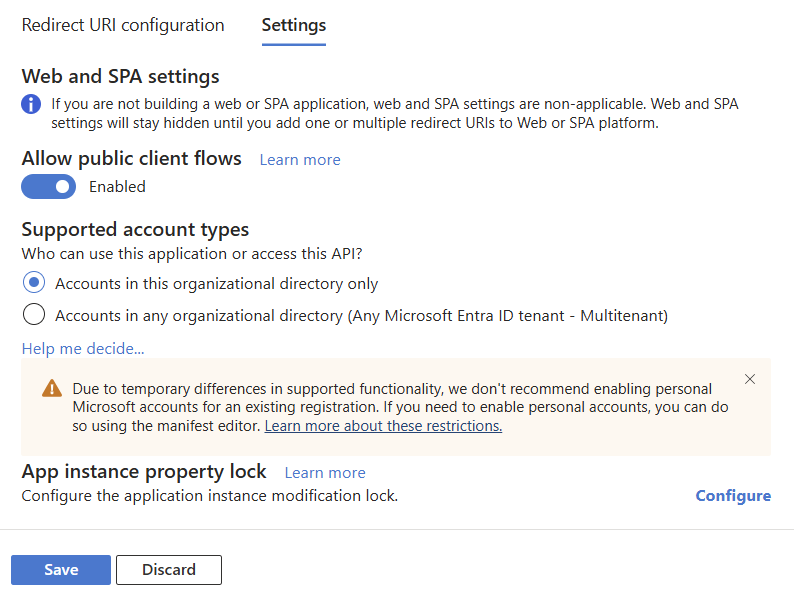
In the Manage section of the side navigation, select Authentication (Preview).
- Select the Settings tab.
- Select Enable for Allow public client flows.
- Leave Supported account types set to Accounts in this organizational directory only.
- Select Save.
4. Collect Application & Directory IDs
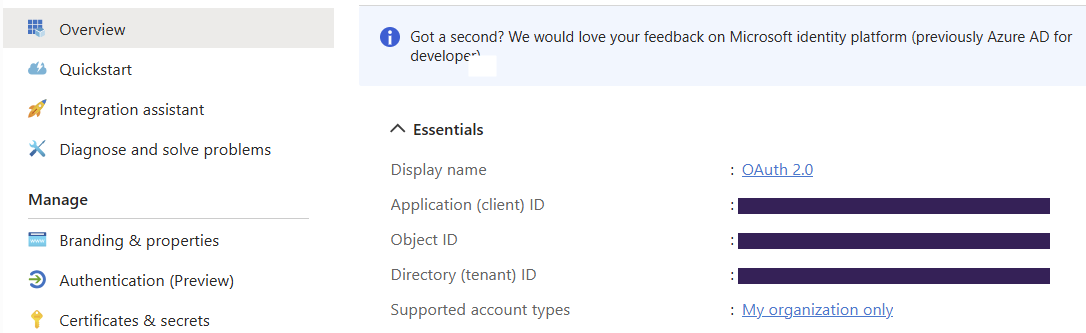
The Email Printing configuration requires the application and directory IDs from the app's Overview tab. Follow these steps to collect the necessary IDs to finish the configuration on the PrinterLogic side:
- Select Overview from the left-side navigation.
- Expand the Essentials section.
- Copy the Application (client) ID and the Directory (tenant) ID.
- Give the IDs to the PrinterLogic admin working on the configuration, or go back to the OAuth 2.0 Configuration section in the related topic:
In this topic: