Network Scanner
Last Updated: October 08, 2026
The Network Scanner searches a network without print servers and generates a CSV file that lists all physical printers that have Simple Network Management Protocol (SNMP) A protocol for collecting and organizing information about managed devices on IP networks and modifying that information to change device behavior. Devices that typically support SNMP include cable modems, routers, switches, servers, computers, printers, and more. configured. The CSV file includes device names and IP addresses. You use the Network Scanner to audit printing environments and add printers to the PrinterLogic Admin Console. Additionally, you can import printers into PrinterLogic using the CSV list with the Data Manager
Run the Network Scanner
-
In the Admin Console, navigate to Tools
 Import / Export Network Scanner.
You can close the Loading Network Printer Scanning Utility screen after the PrinterLogic Printer Scanner screen appears.
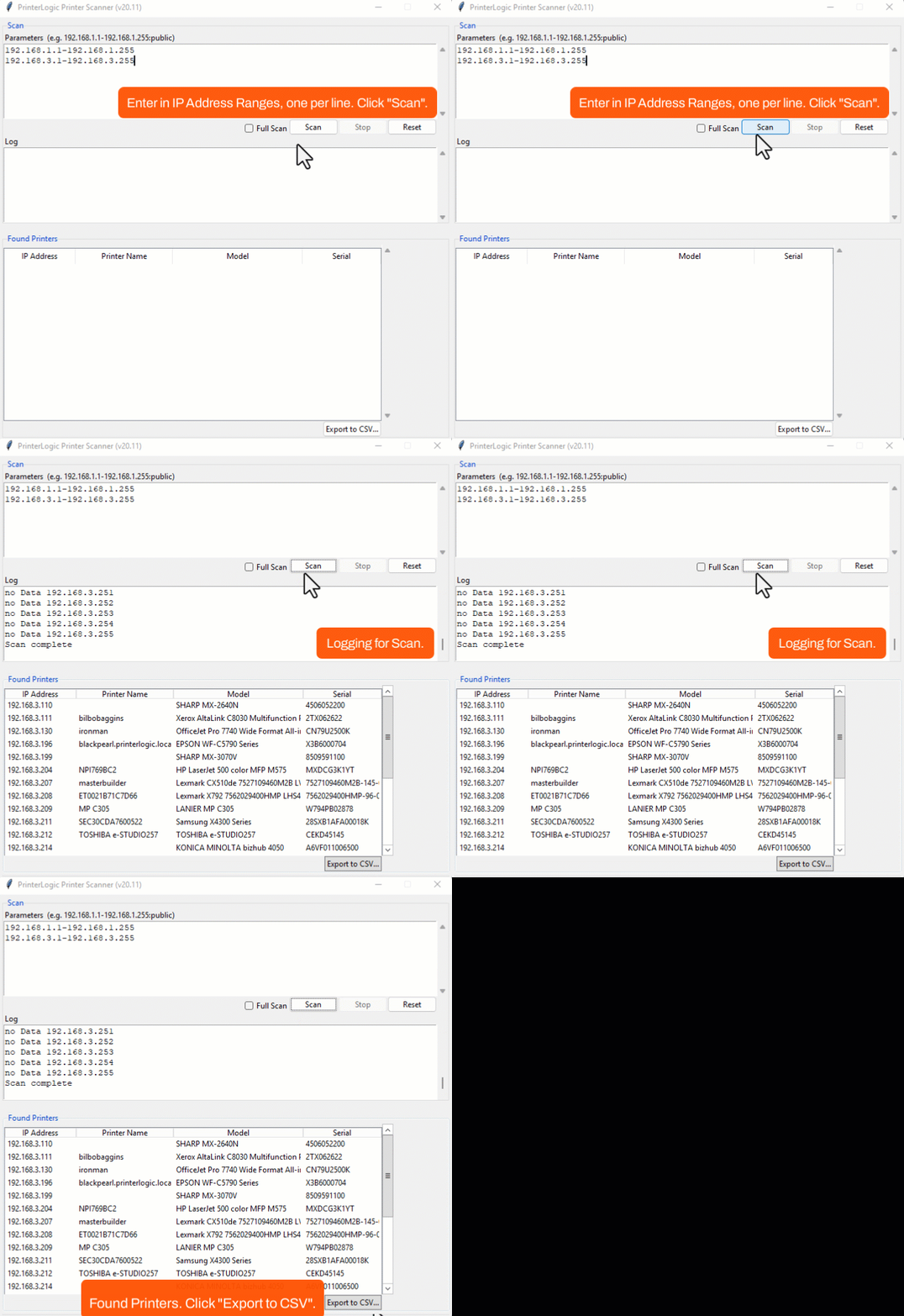
- In the Parameters field, enter up to 10 IP address A unique numerical label assigned to each device on a network that uses IP for communication. ranges to scan, using the format <IP address range>-<IP address range>.
- For example, 192.168.3.1-192.168.3.255.
- Press Enter after adding each entry to ensure that each IP address range is on a separate line.
If the range information does not follow this format or the list exceeds 10 ranges, the scan fails and you receive an error in the Log field.
- Select Scan. The Log field shows scan progress.
- Select Export to CSV to view the results in a spreadsheet.
Printer List & the Data Manager
When you view the spreadsheet, the system builds some blank columns for you to add printer driver information, desired names, locations, and other necessary information. After adding this information to the spreadsheet, you can import it using the Data Manager. For bulk updates to existing printers, use the Update option. For bulk imports, use the Insert option.
If you are using the Data Manager to import printers, upload the printer drivers before starting the import. Using the Data Manager, export the Drivers list after the drivers upload. Copy the driver name from the driver list CSV file, and in the printers list CSV file, paste it in the driver column for that printer and operating system (OS). The Data Manager assigns only the drivers that are in the Admin Console. If the drivers are not in the Admin Console, you need to upload and manually assign them to the printers. For more details refer to Data Manager.
In this topic: