Create Folders
Last Updated: August 04, 2026
You can use folders to organize your printers and printer objects in the Admin Console and the Self-service Portal.
Here are some recommendations for organizing the tree structure:
- Set up folders by region or location.
- Split regions by site or state.
- Split sites by office or floor.
You are the best resource for configuring the tree structure to suit your environment. You can also easily make changes as business needs evolve.
Create a New Folder
Use one of the following methods below to create new folders.
New Menu
- Select the location in which you want to create the new folder.
-
From the New menu, select Folder.
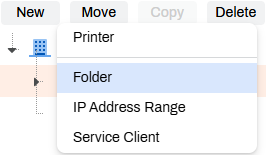
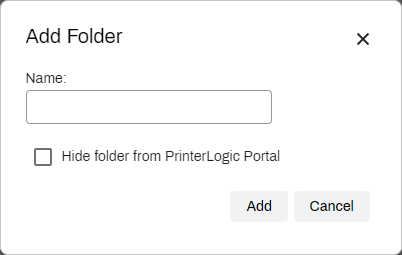
- In the Name field, give the folder a unique name. This name also appears in the Self-service Portal.
- If you want to hide this folder so that it does not appear in the Self-service Portal, select Hide folder from PrinterLogic Portal. For more details refer to Portal Security.
-
Select Add.
Context Menu
- Right-click the location in which you want to create the new folder.
- From the context menu, select New.
-
Select Folder.
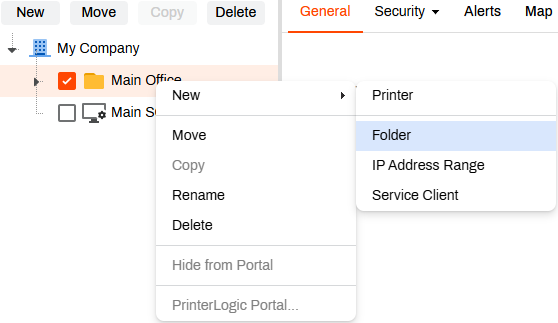
- In the Name field, give the folder a unique name. This name also appears in the Self-service Portal.
- If you want to hide this folder so that it does not appear in the Self-service Portal, select Hide folder from PrinterLogic Portal. For more details refer to Portal Security.
-
Select Add.
Move a Folder
You can reorder the tree structure by moving folders to different locations as necessary. When you move folders, the changes reflect in the Self-service Portal. However, if you have a floor plan map in the Self-service Portal with displayed folders, you must add the folder to the map. You can use one of the following methods to move folders.
Drag & Drop
- Select the folder that you want to move.
- Drag the folder to the new location, and drop it after a check mark appears.
The check mark indicates a valid location. An "X" indicates a location that is not valid.
Move Option
- Select the folder that you want to move.
- Right-click the folder.
-
Select Move.
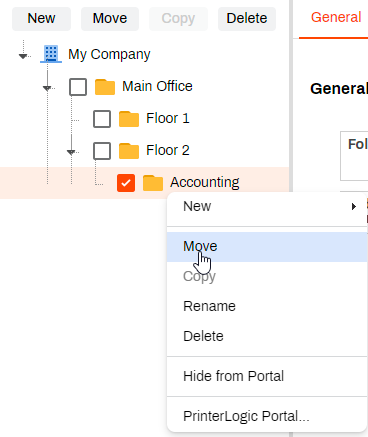
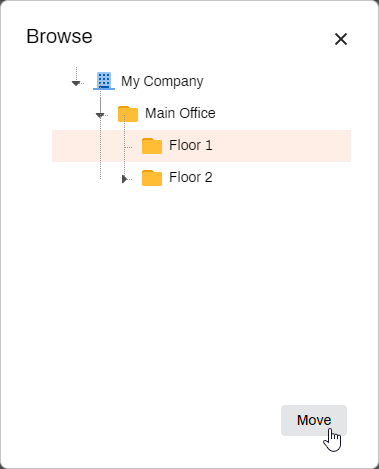
- In the Browse modal, select the new folder location.
-
Select Move.
Move Multiple Folders
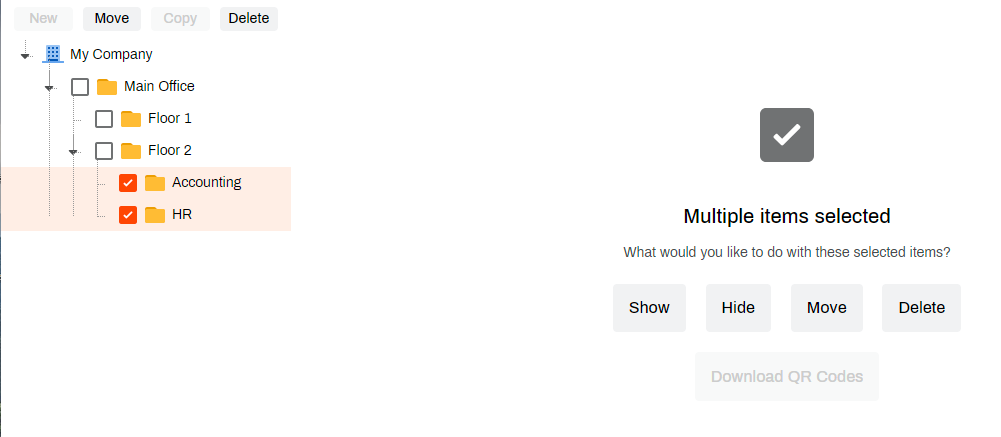
- Hold Shift or Ctrl, and select the folders that you want to move.
-
Select Move.
- In the Browse modal, select the new folder location.
-
Select Move.
In this topic: