Data Manager
Last Updated: October 08, 2026
IT admins frequently use the Data Manager to migrate printers, make bulk name changes to printers, add printers, and remove printers.
Actions
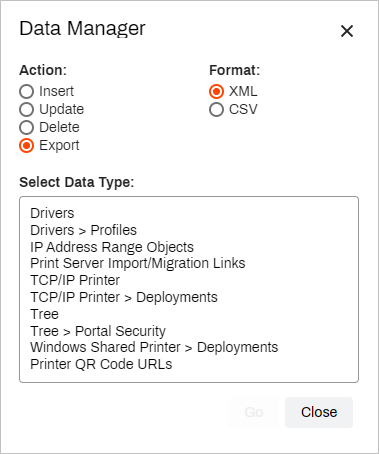
You can perform four actions with the Data Manager:
- Insert: Add new bulk objects of the specified data type.
- Update: Adjust existing objects of the specified data type.
- Delete: Remove existing objects of the specified data type.
- Export: Export a list (XML or CSV) of the specified data type.
The Insert, Update, and Delete actions require you to import an XML or CSV file containing the data that you want to add, change, or remove. Each data type uses a specific template, so we recommend using the Export action in the Data Manager to export the template first, make changes, and then insert, update, or delete your data.
Data Types
Data type refers to printer-related deployment and management tasks. Examples include driver associations, printer names, IP address ranges An object created in the PrinterLogic tree structure that contains a range of IP addresses., etc. Depending on the action you select, you can choose one of the following options:
- Drivers: This option lists driver information, such as driver model name, internal date, version, operating system (OS) supported, etc.
- Drivers
 Profiles: This option lists driver profile information, such as profile name, modified date, printer model, etc.
 - IP Address Range Objects: This option lists IP address range objects in the tree structure, including tree structure locations, range names, start and end IP addresses, etc.
- Print Server Import/Migration Links: This option lists information about the print server that was used to import or migrate, such as server Domain Name System (DNS) name, server IP address, server Active Directory (AD) path, printer share name, etc.
- Printer: This option lists information specific to printers, such as tree structure locations, printer names, comments, install URLs, available print options, associated drivers, etc.
- Printer Deployments: This option lists information on deployments, such as the tree structure folder that contains deployed items, printer names, deployment types, etc.
- Tree: This option lists the contents of the tree structure, including parent folder names, object names in those folders, object types, etc.
- Tree Portal Security: This option lists information about Portal Security usage, including the folders or printers where it is applied and the object names and types defined in the assignments, such as users, groups, containers, organizational units (OUs), etc.
- Windows Shared Printer Deployments: This option lists information about Windows shared printers and their deployments, including information on the folder containing shared printer objects, deployment methods, etc.
- Printer QR Code URLs: This option lists QR code URLs for printers in the tree structure. You can use these QR codes with the PrinterLogic app to quickly release held print jobs. This list provides the printers' generic URLs, which you can use in another QR code generator to customize the codes, such as inserting an image in the URL. Customization improves security and ensures that users scan the correct URL with their mobile devices when releasing print jobs.
Formats
Format refers to the file type you upload or download. CSV and XML are supported.
XML supports international symbols and formatting, but CSV does not. Therefore, we recommend using XML.
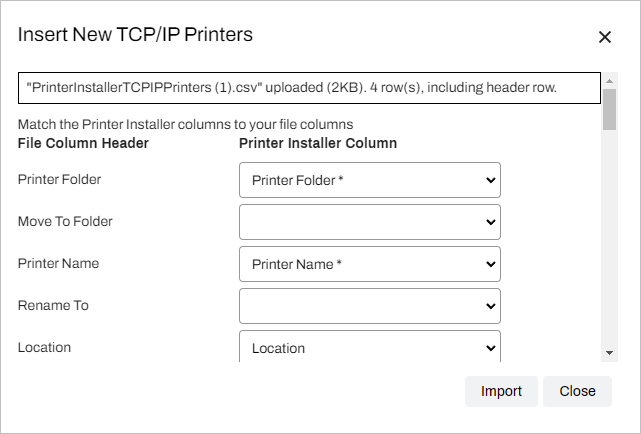
When uploading a file for any action, you can map the columns in the XML or CSV spreadsheet to the fields in PrinterLogic. The column on the left in PrinterLogic mirrors the header row of the XML or CSV file. The column on the right autopopulates if there is a matching field in PrinterLogic.
Use the Data Manager
Export
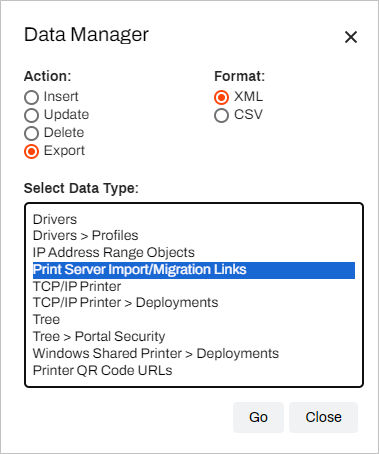
- In the Admin Console, navigate to Tools Import / Export Data Manager.
- Select Export in the Action section.
- In the Select Data Type section, select the data type you want to export.
-
In the Format section, select the file type you want.
- Select Go.
- The file automatically downloads to your computer. Open the file with your preferred spreadsheet software.
Insert, Update, or Delete
- In the Admin Console, navigate to Tools Import / Export Data Manager.
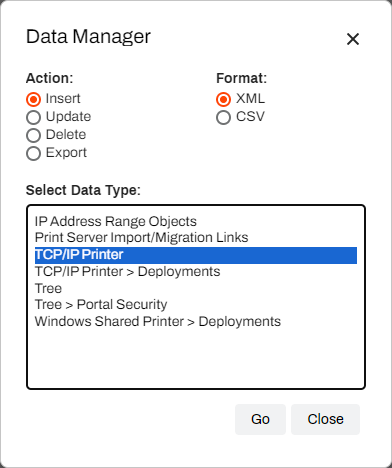
- In the Action section, select one of the following:
- Insert: Add new bulk objects of the specified data type.
- Update: Adjust existing objects of the specified data type.
- Delete: Remove existing objects of the specified data type.
- In the Format section, select the file type you want.
-
Select Go.
-
In the Update Existing Printers modal, select Upload XML File. The button reflects the file type you selected. Detailed instructions appear in the dialog box.
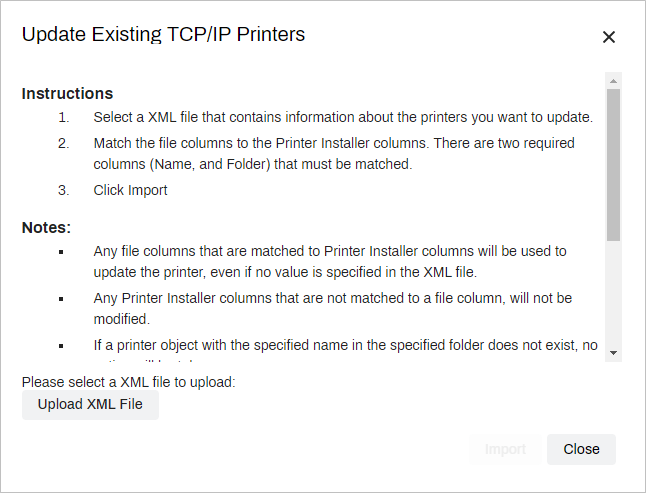
- Navigate to the file to upload, and select Open.
-
Match the columns in the file header row to the corresponding PrinterLogic fields.
- Insert or Update: If the file has a header column that matches a field in the Printer Installer Column but the row in the column does not contain data, then the column remains blank. You can manually select any column to add the data.
-
Delete: In the Printer Installer Column, select the PrinterLogic fields from which you want to delete data. The fields in the Printer Installer Column autopopulate if there is a corresponding field in PrinterLogic. Deselect fields as needed.
Leave any blank fields that you do not want to delete.
-
Select Import or Delete.
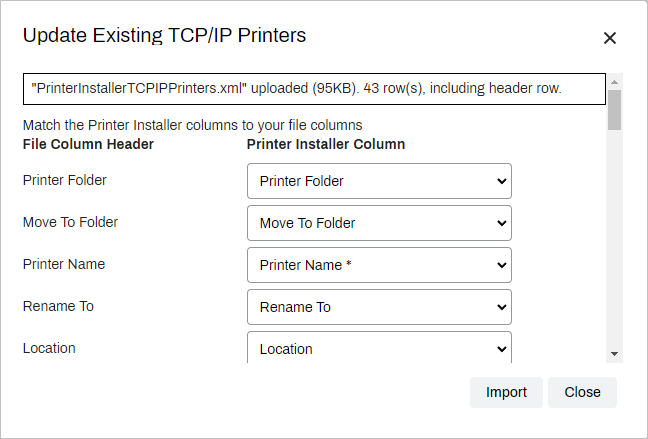
- When the import or delete finishes, a message shows the results and any errors that occurred. Select Close or OK.
In this topic: