Conversion Settings
Last Updated: October 08, 2026
Printer Conversion
After importing printers from a Microsoft print server into the Admin Console with the Microsoft Printer Importer, use the Agent to convert your end users' Microsoft shared printers to PrinterLogic-managed printers.
Conversion Settings
Do the following to configure conversion settings:
- Navigate to Tools
 Settings Client.
 - Scroll down to the Microsoft Printer Conversions section.
-
Select the checkbox next to each options to turn on.

- 'Enable PrinterLogic Agent to convert end user's Microsoft printers to TCP/IP printers that have been imported into PrinterLogic as TCP/IP printers'
- Use this option to convert existing printers into TCP / IP printers managed by PrinterLogic. When this setting is selected, the Agent converts the printers to match the imported printer objects in the Admin Console. The Agent updates only those printers with matching printer objects in the Admin Console.
- Enable Microsoft conversion item-level targeting
- Use this option to define which devices, users, and IP address ranges convert. Item-level targeting lets you test the conversion by site or user before pushing the changes to the rest of the environment. You can use item-level targeting to deploy the Agent first, and then convert the printers at a later date.
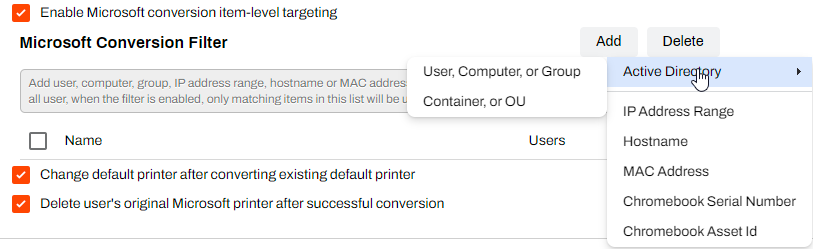
- Change default printer after converting exisiting default printer
- If a default printer exists, use this option to mark the new PrinterLogic-managed TCP / IP printer as the default printer in the Admin Console.
- Delete the user's original Microsoft printer after successful conversion
- Use this option to delete the original printer after the Agent creates the new TCP / IP printer.
After you configure settings, the Agent converts the end users' printers during the next check-in.
Printers Not Converting
If the server from which the printers were imported uses an alias, this alias can affect printer conversion. Below are the steps to verify the server name and add a new server-name association.
Create Server-Name Association
-
On the end user device, verify the server name that is attached to the printers. In this example, the server name is "prntsrver."

- In the Admin Console, navigate to Tools Import / Export Data Manager.
- In the Data Manager dialog box, select the following:
- In the Action section, select Export.
- In the Format section, select CSV.
- In the Select Data Type section, select Print Server Import/Migration Links.
- Select Go.
-
Check the Print Server-DNS Name and Print Server-NetBios Name columns.

- Adjust the columns to match the server name appearing on the end user device.
- Navigate back to Tools Import / Export Data Manager.
- In the Data Manager dialog box, select the following:
- In the Action section, select Insert.
- In the Format section, select CSV.
- In the Select Data Type section, select Print Server Import/Migration Links.
- Select Go.
- Upload the CSV file with the updated data.
With the correct server-name association, the printers convert during the next Agent check-in. You can manually update a device by selecting Refresh Configurations from the system tray Agent menu.
For more details refer to Data Manager.
In this topic: