Mobile Fleet Installer
Last Updated: October 08, 2026
Configure the Mobile Fleet Installer to install the Control Panel Application (CPA), while a central Service Agent manages the authentication and CPA settings updates.
Requirements
- Review the Service Agent types, Device Requirements, and update options before setting up your Service Agents.
- Each printer manufacturer might have different requirements specific to their models. Review general requirements for CPA 2.0 and the manufacturer specific requirements on the related pages in that section.
- The CPA installation process is the same except for the Service Agent assignments outlined below.
Key Points
- This feature is in beta. Please reach out to your Vasion representative for more details.
- With the Mobile Fleet Installer, you assign two Service Agents to the printer object using the Apps tab (individual) or CPA Manager (bulk).
- One Service Agent performs the initial installation at mobile or remote sites. The other handles authentication and feature communication after the initial installation.
- The main Service Agent requires an active network connection to the printer for authentication and communication.
- The Mobile Fleet Installer requires an active network connection through the initial installation, or when updating CPA settings.
- Delegated installation will not function if you select a Service Agent as the Mobile Fleet Installer that does not have Enable Delegated Installer turned on in the Printer Apps tab.
1. Enable Delegated Installer
Dedicate a Service Agent running the Printer Apps service to be the Mobile Fleet Installer.
- In the Admin Console, go to the desired Service Agent running the Printer Apps service.
-
Select Enable Delegated Installer.

- Select Save..
This Service Agent is the Mobile Fleet Installer. When assigned as the Delegated Installer for another Service Agent it performs CPA installations and updates, while the main Service Agent handles all authentication and feature communication. This allows a device at a remote site to handle the installations and updates while the main Service Agent handles the network traffic.
2. Assign Service Clients
During the initial installation, the customer assigns the Mobile Fleet Installer either on the apps tab or through the CPA Manager, which installs the CPA on the printer. During the same process, they assign the second Service Agent that will handle authentication and feature communication.
CPA Manager
Do the following on the main Service Agent, not the Mobile Fleet Installer, that handles the authentication and feature traffic:
- Go to the Printer Apps tab.
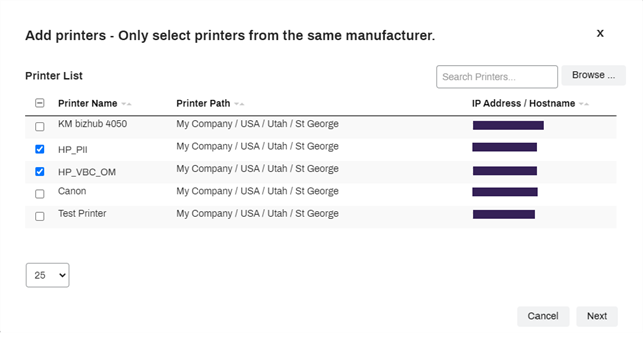
- Select the Add Printers button.
-
Select any printers from the list as long as they are from the same manufacturer, and then select Next.
-
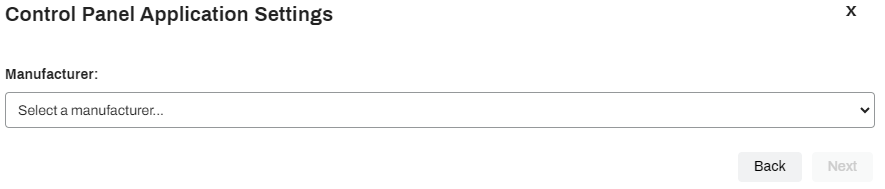
Select the manufacturer.
-
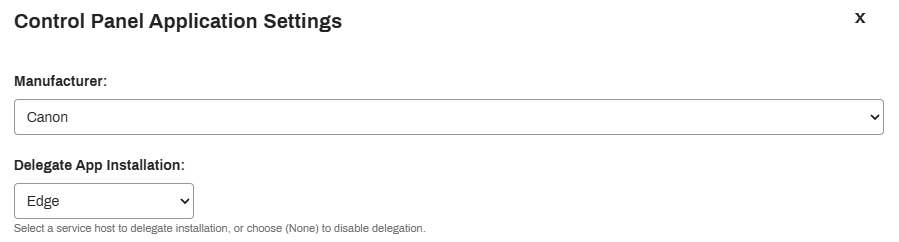
In the Delegate App Installation field, select the Mobile Fleet Installer Service Agent.
-
Select settings to apply to all selected printers, and then select Next. The options that appear vary by manufacturer.
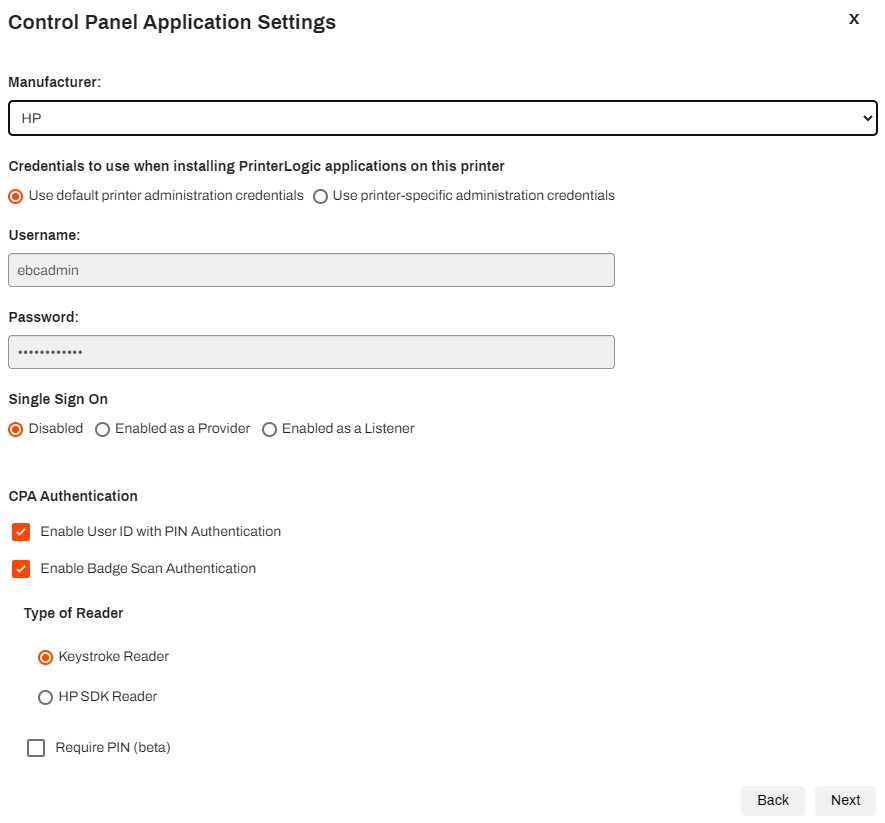
If you use an identity provider (IdP), the CPA supports only badge and PIN authentication.
-
Confirm that all the printers are from the same manufacturer, and then select Save.
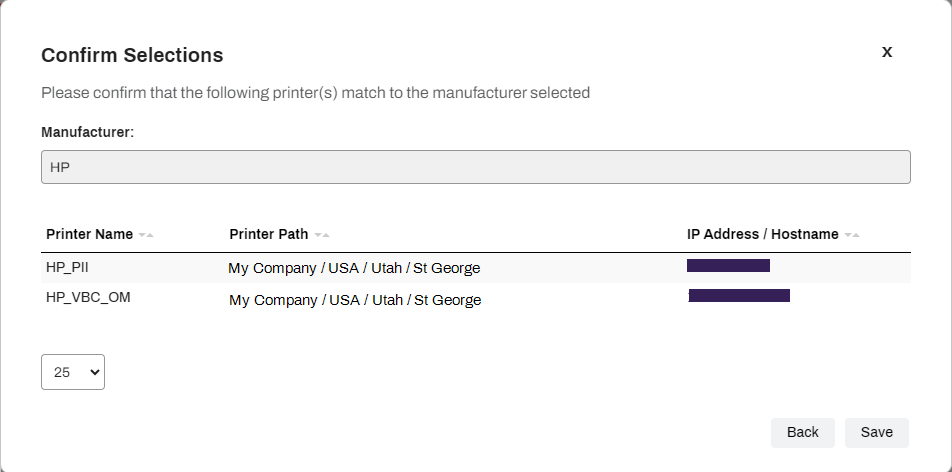
-
Select Close. The process continues in the background and might take some time.
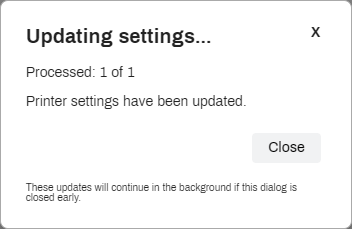
This delegates CPA installation to the selected Mobile Fleet Installer. Authentication and feature communication occur through the main Service Agent you added the printers to.
To continue with the installation, refer to CPA Manager.
Apps Tab
- In the Admin Console, go to the printer object's Apps tab.
- Select the Manufacturer.
-
Select the Service Agent.
This Service Client handles communication for authentication, printing, and scanning.
-
In the Delegate App Installation field, select the Mobile Fleet Installer that will handle the installation.
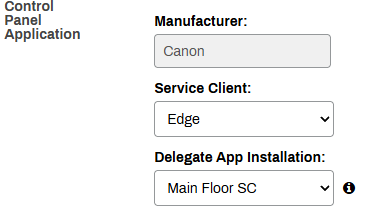
The Mobile Fleet Installer handles CPA management.
Because the installation process differs between manufacturers, we recommend using the Install the CPA section of the related manufacturers page. Refer to CPA 2.0 and the manufacturer-specific topics that follow it for steps installing the CPA.
Unassign the Mobile Fleet Manager
CPA Manager
To unassign the Mobile Fleet Installer:
- Go to the Printer Apps tab of the Service Agent managing the printers.
-
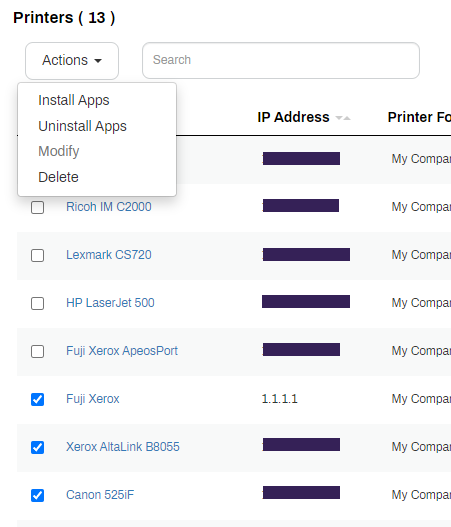
Select the desired printers from the list that are from the same manufacturer.
-
Select Modify from the Actions menu.
-
In the Delegate App Installation field, change the value to None.
- Select Save.
This removes the Mobile Fleet Installer as the delegated installer, routing future CPA setting updates through the main Service Agent.
Apps Tab
- In the Admin Console, go to the printer object's Apps tab.
-
In the Delegated App Installation dropdown, select Clear Selection.
- Select Save.
This removes the Mobile Fleet Installer as the delegated installer, routing future CPA setting updates through the main Service Agent.
In this topic: