Off-Network Print (ONP): Customer-Hosted Gateway
Last Updated: October 01, 2026
ONP is designed for today's evolving workforce and Zero Trust (ZT) network environments. Keep your printers on secure networks while still allowing all users to print, no matter which network they use. Give printer access to remote employees and contractors without the need for a virtual private network (VPN) or web portal. The steps below guide you through configuring ONP with a customer-hosted external gateway.
Requirements
Review the Requirements section before configuring this feature.
Process Overview
You perform these high-level procedures:
- Turn On ONP.
- Turn On the IRS.
- Configure the External Gateway.
- Add an External Gateway & IRS Service.
1. Turn On ONP
The steps below guide you through configuring ONP with a customer-hosted external gateway:
Follow these steps to allow Off-Network Print:
- In the Admin Console, go to Tools
 Settings General, and scroll down to the Off-Network Printing section.
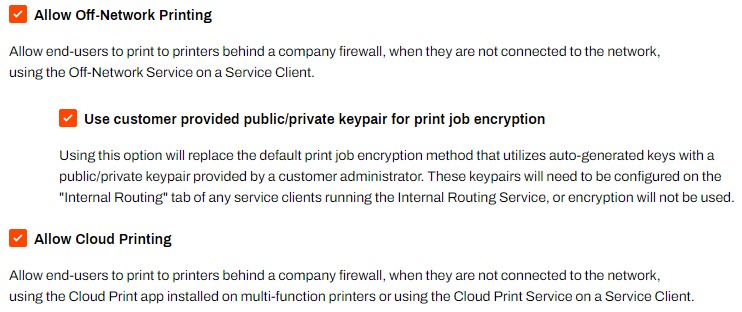
 - Select the checkbox for Allow Off-Network Printing.
- (Optional) Select Use customer-provided public / private key pair for print job encryption. For more details refer to Asymmetric Key Pair Configuration.
- Select Save in the upper-right corner.
Off-Network Priority
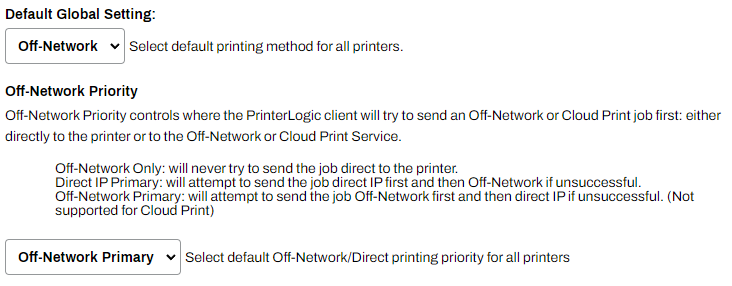
Off-Network Priority controls where the PrinterLogic Agent tries to send the job first, either directly to the printer or to the ONCP or ONP service.
- Off-Network Only
- The Agent sends the print job using only the ONCP or ONP service and does not try to send the job directly to the printer, which is direct IP printing.
- Direct IP Primary
- The Agent sends the print job directly to the printer, which is direct IP printing. If unsuccessful, the Agent sends the print job using the ONCP or ONP service.
- Off-Network Primary
- The Agent sends the print job using the ONP service. If unsuccessful, the Agent sends the print job directly to the printer, which is direct IP printing.
Note the following:
- The Off-Network Priority options apply only to computers, not to mobile devices.
- ONCP does not support the Off-Network Primary option.
Turn On as Default
The following steps guide you through configuring ONP as the default for all printers. Turning on the global settings makes all printers off-network printers. This action forces all print jobs to follow the flow of ONP, regardless of whether you are on the network. If you want to turn on ONP for specific printers, refer to the "Turn On for Specific Printers" section further below.
Follow these steps:
- From the Default Global Setting menu, select Off-Network.
- In the Off-Network Priority section, select the default print priority:
- Off-Network Only.
- Direct IP Primary.
- Off-Network Primary.
- Select Save.
The Off-Network Priority section applies only to computers and not to mobile devices.
Turn On for Specific Printers
Follow these steps:
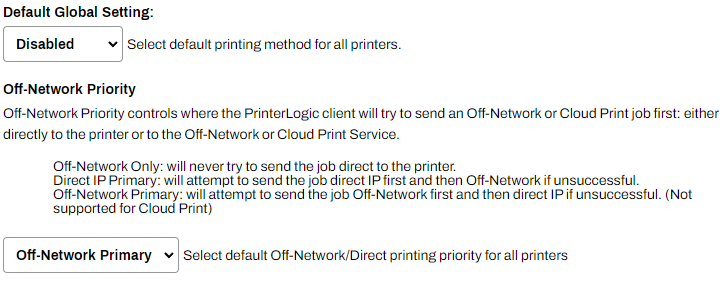
- From the Default Global Setting menu, select Disabled.
- In the Off-Network Priority section, select the default print priority:
- Off-Network Only.
- Direct IP Primary.
- Off-Network Primary.
- Select Save.
The Off-Network Priority section applies only to computers and not to mobile devices.
For the printer-specific configuration, complete the following steps on each printer object to turn on ONP:
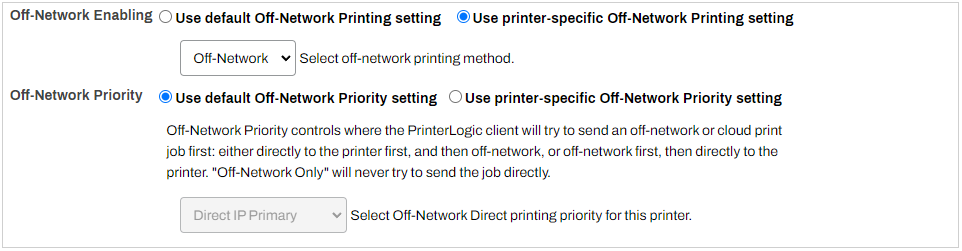
- Go to the printer object's Off-Network tab.
- For the Off-Network Enabling setting, select Use printer-specific Off-Network Printing setting.
- From the Select off-network printing method dropdown menu, select Off-Network.
-
Use the default off-network priority option, or select the printer-specific option, and select from the following:
- Off-Network Only.
- Direct IP Primary.
- Off-Network Primary.
- Select Save.
- Repeat these steps for any other printer objects.
2. Turn On the IRS
The IRS Service Agent is a designated device on the printer network that monitors the external gateway, immediately retrieves print jobs, and routes them to the correct printer. Follow these steps to turn on the IRS:
- Go to the Service Agent object in the tree structure.
- Select the Internal Routing tab.
-
Select Enable Internal Routing Service.

- Select Save.
- On the device designated as the IRS Service Agent, use the Vasion icon in the system tray or the Start menu to refresh configurations.
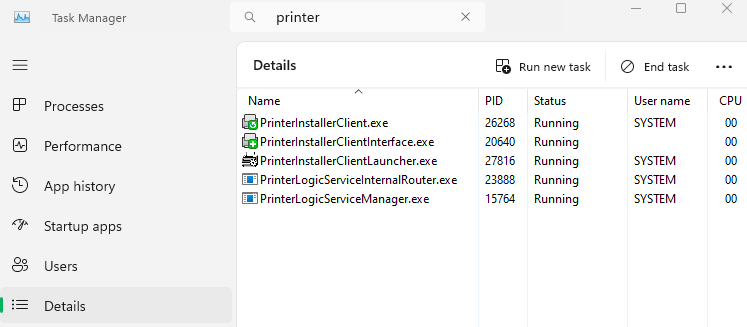
- Open the Task Manager, and select the Details tab.
- Search for "printer" to locate the Agent services.
- Confirm that the following services are running:
- Agent services, which include VasionClient.exe, PrinterInstallerClient.exe, PrinterInstallerClientInterface.exe, and PrinterInstallerClientLauncher.exe.
- PrinterLogicServiceManager.exe.
PrinterLogicServiceInternalRouter.exe.
Other active services on the Service Agent also appear.
3. Configure the External Gateway
A customer-hosted external gateway requires an SSL certificate and key. You can store the certificate and key on the Service Agent and add the file path to the configuration page, or you can copy them and paste them in the fields in the Admin Console, which stores them in your instance's database. You need the following:
- An SSL certificate from a trusted CA in PEM and KEY formats for the external gateway.
- The certificate must be a Base64 PEM full chain unencrypted file.
- The key must be in unencrypted PKCS #8 format, and it must correspond to the PEM certificate.
- The certificate must match the external DNS or IP address of the external gateway.
The following steps guide you through both methods of applying the SSL certificate and key.
Store on the Service Agent
Follow these steps:
- Place the SSL certificate and key on the device designated to host the Service Agent external gateway.
- Copy or note the path to the files.
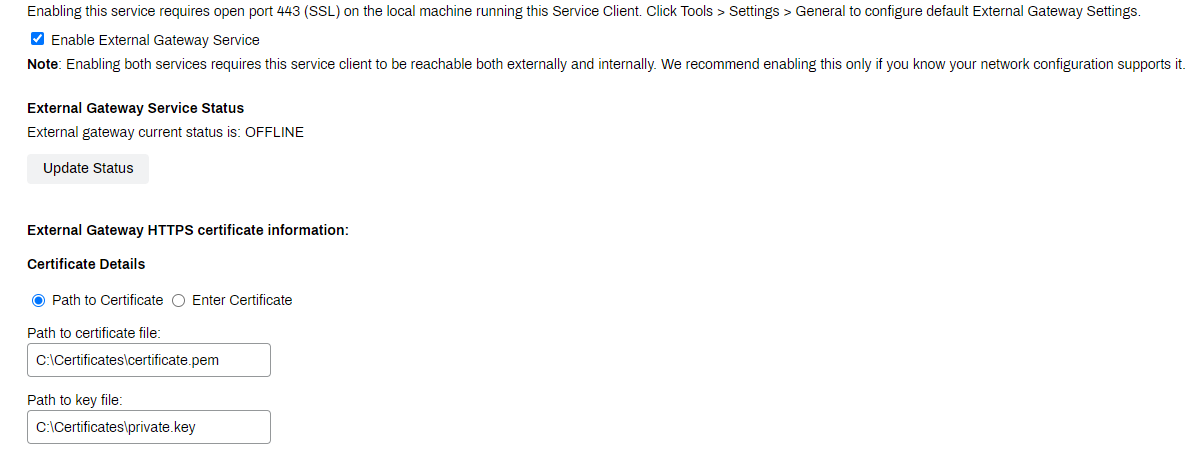
- In the Admin Console, go to the Service Agent object, and select the External Gateway tab.
- Select the checkbox for Enable External Gateway Service.
- In the External Gateway HTTPS certificate information section, select Path to Certificate.
- Enter the path to the PEM certificate file in the Path to certificate file field. For example,
C:\Certificates\certificate.pem. - Enter the path to the key file in the Path to key file field.
-
Enter the external host address for the Service Agent in the External Host Address field.
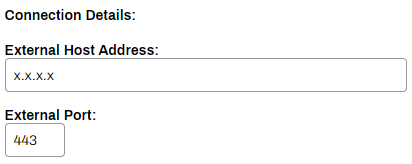
- Adjust the External Port field if needed.
- Select Save.
Store in Database
Follow these steps:
- Open the SSL certificate body and key files.
- In the Admin Console, go to the Service Agent object, and select the External Gateway tab.
- Select the checkbox for Enable External Gateway Service.
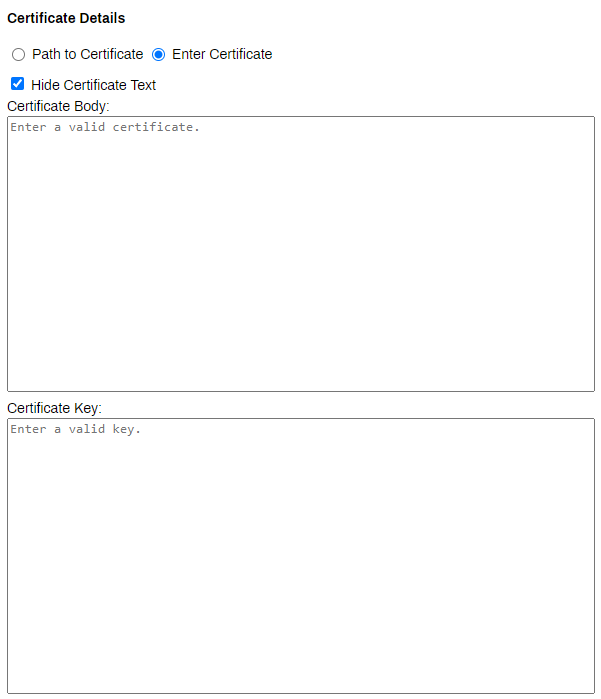
- In the External Gateway HTTPS certificate information section, select Enter Certificate.
- (Optional) Select Hide Certificate Text. After you save the certificate and key, the content no longer appears.
- Copy the certificate and key files, and paste them in their respective fields.
-
Enter the external host address for the Service Agent in the External Host Address field.
- Adjust the External Port field if needed.
- Select Save.
4. Add an External Gateway & IRS Service
The IRS Service Agent provides high availability and built-in redundancy at the root, folder, and printer levels. Configuring all levels is optional. The IRS Service Agent must be on the same network and able to reach assigned printers. In environments with printers on multiple networks, an IRS Service Agent needs to reach printers in each network.
In most environments, configure the assignment at the folder or printer level first before configuring at a higher level. If all printers use the same assignment, add it to the root level. Folders and printers inherit higher-level assignments, but lower-level ones take priority.
If a printer or folder has a root assignment and a folder or printer assignment, the service prioritizes the folder or printer assignment and uses the root assignment as a backup. The priority order appears in the folder's Services tab and on the printer's Off-Network tab.
Configure the settings based on your organization's needs.
Folder Level
Do the following to add an external gateway and IRS assignment at the folder level:
- Select the folder in the tree structure.
- Select the Services tab.
- Select the Add button.
-
In the Add Service modal:
- Select the regional, self-hosted external gateway, or both for hybrid configurations.
- Select the IRS Service Agent.
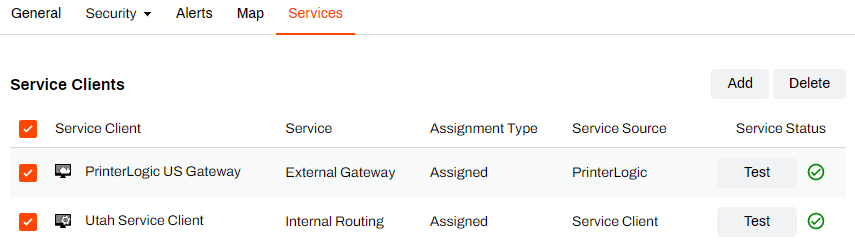
- Select OK.
- Use the Test button in the Service Status column to confirm connectivity.
Lower-level folders and printers inherit the external gateway and IRS assignment, including any set at the root level or a higher-level folder.
Printer Level
Do the following to add an external gateway and IRS assignment at the printer level:
- Select the printer object in the tree structure.
- Select the Off-Network tab.
- Select the Add button.
-
In the Add Service modal:
- Select the regional, self-hosted external gateway, or both for hybrid configurations.
- Select the IRS Service Agent.
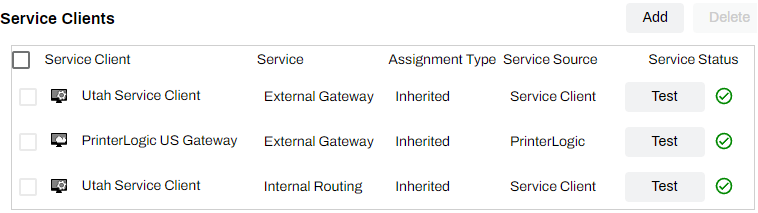
- Select OK.
- Use the Test button in the Service Status column to confirm connectivity.
These steps set the external gateway and IRS assignment for the printer object, including any assignments set at the root level or a higher-level folder.
Root Level
Do the following to add an external gateway and IRS assignment at the root level:
- Select the company icon
 at the top of the tree structure.
 - Select the Services tab.
- Select the Add button.
-
In the Add Service modal:
- Select the regional, self-hosted external gateway, or both for hybrid configurations.
- Select the IRS Service Agent.
- Select OK.
- Use the Test button in the Service Status column to confirm connectivity.
Lower-level folders and printers inherit the external gateway and IRS assignment.
In this topic: