Asymmetric Key Pair Configuration
Last Updated: September 29, 2026
By default with Off-Network Print (ONP), the Agent or app generates a symmetric key to encrypt the print job before sending it through the Transport Layer Security (TLS) tunnel to the gateway and the Internal Routing Service (IRS). The request header includes the symmetric key, which the IRS uses to decrypt the print job.
A public-private key pair adds an extra layer of encryption. In this process PrinterLogic generates the symmetric key and encrypts both the job and the key using the public key. At the IRS the private key decrypts the symmetric key, which is then used to decrypt the print job.
The steps below guide you through the configuration and application of a public-private key pair.
Requirements
Review the following requirements:
- Configure ONP. For more details refer to
- Have at least one Service Agent running the IRS.
- Have an asymmetric public-private key pair.
- Supported key pairs include 4096 bit Rivest-Shamir-Adleman (RSA) with Public-Key Cryptography Standards (PKCS) #8.
Process Overview
You perform these high-level procedures:
- Turn On the Key Pair.
- Add the Key Pair to the IRS.
1. Turn On the Key Pair
Follow these steps:
- In the Admin Console, go to Tools
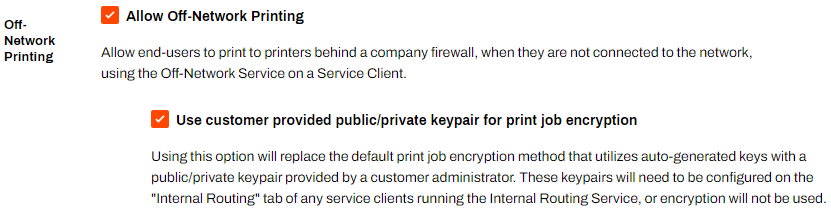
 Settings General, and scroll down to the Off-Network Printing section.
 - Select the checkbox for Use customer-provided public / private key pair for print job encryption.
- Select Save.
2. Add the Key Pair to the IRS
Follow these steps:
- Place the private key on the IRS Service Agent device's local file system.
- Note the file path.
- Go to the IRS Service Agent object in the Admin Console tree structure.
- Select the Internal Routing tab.
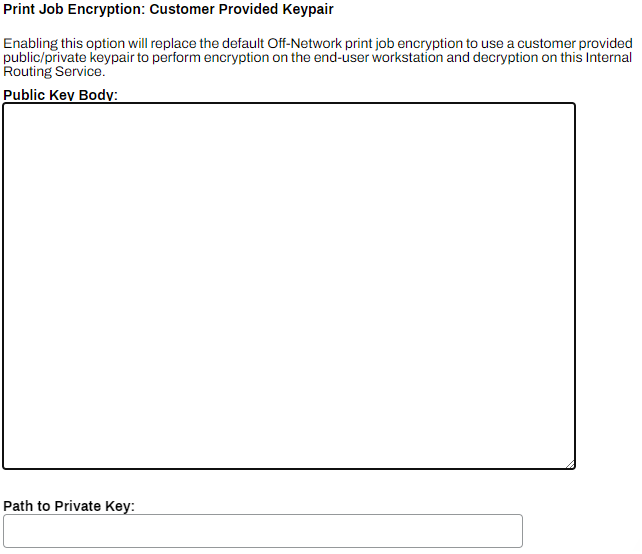
- Copy the public key body, and paste it in the Public Key Body field.
- Enter the path to the private key in the Path to Private Key field.
- Select Save.
When ONP uses this Service Agent, it now applies the new encryption method. Repeat the steps on any other Service Agents on which you want to apply additional encryption.
In this topic: