Printers
Last Updated: October 08, 2026
In this section you learn how to add or delete printers on your device, if allowed by your administrator.
Add a Printer
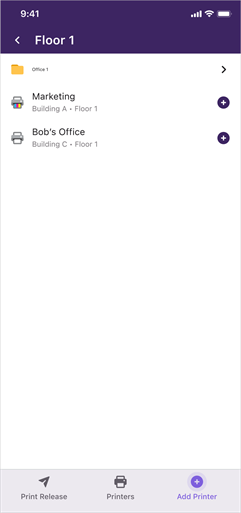
Printers available for you to install display with this icon:  .
.
To add a new printer, do the following:
- Select Add Printer.
- Expand the location folders to locate the printer.
- Select the Add icon .
Select the Printers button to view the newly installed printer. You may need to refresh the screen.
If the printer you want to install shows a gray icon  , that printer is not available for you to install. Contact your system administrator.
Delete a Printer
To delete printers you added manually, do the following:
- On the printer you want to remove, select the Delete button
 .
. - In the Confirmation modal, select Yes.
You can delete only the printers you installed. Printers deployed by the administrator cannot be deleted.
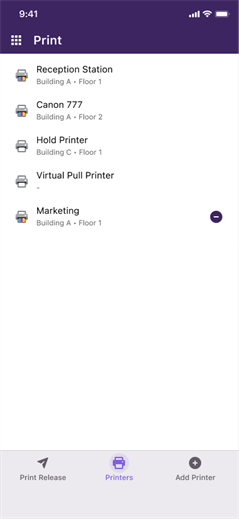
If the Printers screen does not reflect the latest changes, pull down to refresh. You may have to wait 30-60 seconds for the screen to refresh.
Learn more:
Troubleshooting Help
If your environment uses complex FDQNThe complete domain name for a specific device or host on a network, consisting of the hostname, the domain name, and the top-level domain. names on your printers, iOS considers having the complex names with a self-signed certificate an unsafe connection for IPP / IPPS requests. To confirm this is the issue, check your logs for the following error from the printer or server: "Error Domain=NSURLErrorDomain Code=-1200".
The solution is to install the root certificate for the used domain on the device. Refer to iOS Printing Fails with -1200 Error..
Only printers that are manually added to the mobile device can be deleted. Printers that have been deployed to the mobile device by the administrator cannot be deleted from within the app.
- Open the PrinterLogic mobile app on the device that needs log information.
- Select the App icon
 from the app header.
 - Select the Settings button
 .
. -
Select the toggle to turn on event logging.

-
On the Enable Logging modal select Start.
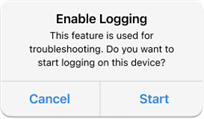
Turn on Event Logging for print release to assist you with troubleshooting efforts. Only the app details are logged and should be turned only on for the time necessary to gather the needed information, since the log data is stored on the device.
Only one log is stored on the device at a time. So when logging is enabled again, the previous log information is replaced with the new log.
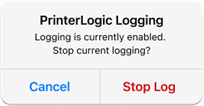
You will receive a notification after 4 hours if logging is still turned on. Select Stop Log to turn off Event Logging.
In this topic:
When the user launches the app and selects a print job, printers that are available for that job appear automatically. They are determined by IT or were added by the user. For Secure Printing, if the job is assigned to a specific printer then only that printer will appear. For pull printing, users see all the pull print enabled printers they have access to.
Unlike the traditional PrinterLogicAgent found on end user workstations, the mobile app does not automatically update itself. To see new changes to configurations or deployments, you must open the app to the Printers screen, and pull down to refresh it.
Yes, the mobile app does feed metadata into the Admin Console that can be viewed in the various applicable reports.