Agent Refresh
Last Updated: September 22, 2026
The Agent refresh is when the installed Agent checks in with the server that is hosting the PrinterLogic instance. This topic explains some of the Agent options that you can modify to suit your environment.
Agent Options
To access Agent options, go to Tools  Settings Client.
Agent Check-In
The Agent check-in is when the endpoint Agent communicates with the PrinterLogic instance to get Admin Console changes, updates to installed printers and drivers, and installations and removals of deployed printers.
- Enable client check-in at startup and logon
- This option is turned on by default. The Agent communicates with the web service when the device turns on or a user logs in.
- Clients will check-in every <number> minutes
- You can adjust the frequency of the Agent check-in by changing the number in the text field.
- The minimum check-in interval is 240 minutes.
Shortcut Options
Select which options appear in the Self-service Portal, Windows Start menu, and PrinterLogic icon in the system tray.
- Show client options in system tray
- If you select this option, PrinterLogic options appear in the system tray when you right-click the icon.
- Show client options on portal
- If you select this option, the Self-service Portal menu shows selected options when end users access the portal.
- Select the checkboxes next to the options you want the Self-service Portal menu to show for end users. If you do not select any options, the menu shows only the Pull Printing and Email Printing options.
- Show PrinterLogic program folder in the Start menu
- If you select this option, you can select which options appear in the Windows Start menu.
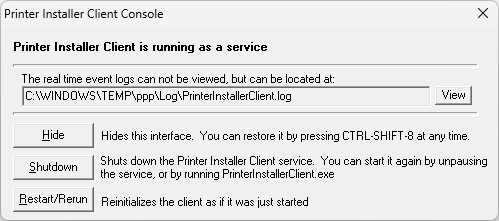
- Select a short-cut to open the client console on end-user machines
- By default the keyboard shortcut is set to CTRL-SHIFT-8, but you can select from the following:
- CTRL-Alt-8.
- CTRL-Alt-P.
- NONE.
- View
- This button opens the file using the default text editor.
- Hide
- This button hides the Printer Installer Client Console modal.
- Shutdown
- This button turns off the Agent service.
- Restart/Rerun
- This button restarts the Agent.
Adjust the Check-In Interval
Do the following to adjust the Agent check-in interval:
- In the Admin Console, go to Tools Settings Client.
- In the Client Check-in section, select Clients will check-in every <number> minutes.
- Adjust the value in the text field to the preferred interval.
- Select Save.
The minimum check-in interval is 240 minutes.

Manually Refresh the Agent
System Tray Icon
The Agent has a manual refresh option, which is useful during testing and if Admin Console changes are needed immediately on a device.
Do the following to manually refresh the Agent on a device:
- Locate the PrinterLogic icon in the system tray or status bar.
- Right-click the icon.
- Select the Refresh Configurations option.
The check-in is complete when the Refreshing configurations modal closes.


Operating System (OS) Menu
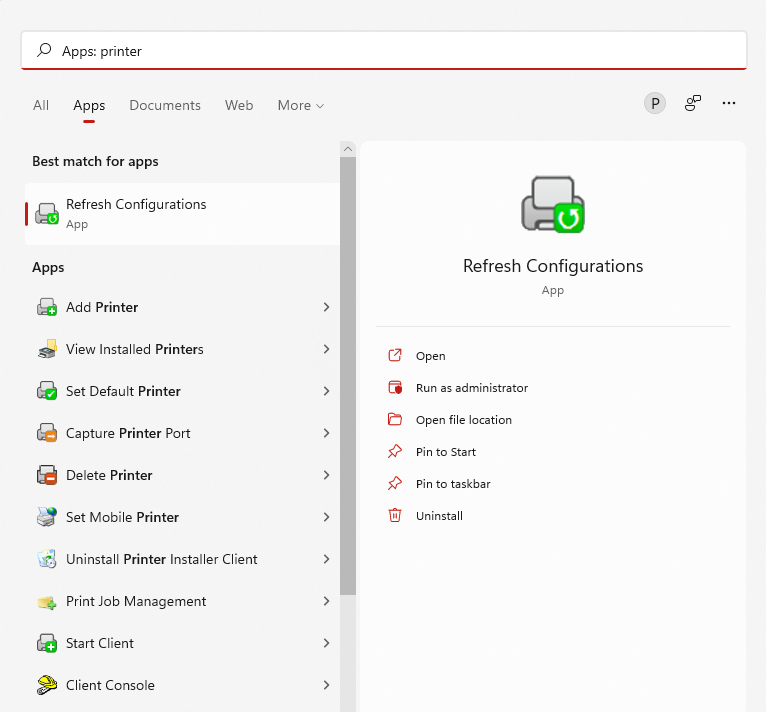
You can also use the OS menu to manually refresh the Agent:
- Access the OS menu, such as the Windows Start menu or the Apple menu.
- Search for "Refresh Configurations."
- Select Open.
The check-in is complete when the Refreshing configurations modal closes.
In this topic: