Service Clients
Last Updated: April 07, 2026
A Service Client extends the standard Vasion PrintClient to provide advanced server-side functionality for your print environment. Service Clients enable critical features that operate independently of end-user workstations, ensuring reliable delivery of enterprise printing capabilities.
When you configure a client machine as a Service Client, it downloads and runs additional service processes that power features like Email Printing, Off-Network Print, SNMP Monitoring, Identity Sync, and the Control Panel Application (CPA). Any device with the Client installed can be set up as a Service Client in the Admin Console, as long as it remains available on the network. Shutting down the device stops the services from running.
Service Client Types
Vasion Print offers different Service Client configurations to meet varying operational requirements:
Standard Service Client
The standard Service Client configuration provides automatic updates and streamlined maintenance for typical enterprise environments. This option balances functionality with ease of management, making it suitable for most organizational needs. For more details refer to Service Client Setup.
Independent Service Manager (ISM)
The Independent Service Manager (ISM) allows you to run Service Clients without dependency on the workstation Client, providing increased reliability for business-critical environments. Unlike the standard Service Client, the ISM requires manual updates — giving you more control and preventing unexpected service interruptions from automatic updates.
The ISM downloads new software versions before stopping services, resulting in faster, more stable updates. This configuration is designed for manufacturing, healthcare, and other industries where uptime is paramount and planned maintenance windows are essential. For more details refer to Independent Service Manager (ISM).
Mobile Fleet Installer
The Mobile Fleet Installer provides a new approach to installing the Control Panel Application (CPA) by adding a delegated installer Service Client, typically hosted in the cloud or central data center, that installs the CPA. Later changes to CPA settings and updates to the services happen through the Mobile Fleet Installer. After the initial installation, a second assigned Service Client, often a device at the remote location, handles the authentication and feature communication, keeping the critical processes local but the installation and updates centralized.
This capability reduces the number of on-site visits and maintains consistent CPA configurations across distributed sites, making it ideal for organizations managing printer fleets in geographically dispersed locations. For more details refer to Mobile Fleet Installer.
Contact your Vasion representative to request Mobile Fleet Installer.
Device Requirements
The following are the minimum requirements for the Service Client device. You might need to increase these specifications depending on the services you are running. Monitor CPU and RAM usage, and allocate additional resources as needed.
- Device:
- Windows 10 or 11 and Server 2016, 2019, 2022, or 2025.
- Visual C++ Redistributable for Visual Studio 2015-2022 bundle.
- You must install both the x86 and x64 redistributable packages. You can download these packages from the Windows Download Center.
- The Service Client cannot be a Windows device using an ARM processor.
- Visual C++ Redistributable for Visual Studio 2015-2022 bundle.
- macOS with an Intel processor.
- Ubuntu LTS box 22.04.
- Windows 10 or 11 and Server 2016, 2019, 2022, or 2025.
- 20GB of available hard drive space.
- 8GB of RAM.
- Dual-core processor.
- Vasion Print Client installed and authorized.
- The device (server, virtual machine, workstation) must be available on the network for the services to function. Shutting down the device stops the services from running.
Additional Control Panel Application (CPA) Requirements
The number of printers with the CPA A Control Panel Application (CPA) is an app that is installed on a compatible multifunction printer (MFP) and aids in the release of held print jobs, authentication for secure printing, and simple scanning functions. installed that a single Service Client or Independent Service Manager (ISM) can support depends on the device's resources and operating system (OS). Windows devices that follow the CPA requirements below support around 500 printers. Linux devices that follow the same requirements support around 1,000 printers. If you have a large environment with 500 or more printers using the CPA, consider adding an additional Service Client or ISM.
Additional requirements for the printer apps service for the CPA include the following:
- The device running the printer apps service must be on the same network as the printers it is managing.
- For every 100 printers, add an additional 2GB of RAM to the minimum listed above.
- If single sign-on (SSO) is used, monitor RAM usage and increase as needed to handle increased memory usage during check-ins.
- The device that is running the PrinterLogicServicePrinterApp.exe service must have OpenSSL 3.3 or later installed. Windows and macOS should have the correct version of this tool by default. For Ubuntu, you might need to manually update the tool. For more details refer to OpenSSL Documentation.
Service Client Features
The following advanced features require a Service Client:
- Email Printing: Allows users to send or forward emails (including attachments) to a designated email address linked to a printer.
- Control Panel Application (CPA): An application installed on compatible Multifunction Printer (MFP) devices that aids in the release of held print jobs, authentication for secure printing, and simple scanning functionality.
- SNMP Monitoring: Uses Simple Network Management Protocol (SNMP) to query printers for status information, monitor their health, and provide alerts about printer conditions and errors.
- Simple Badge Release: Allows users to swipe their employee-assigned badge at a printer to automatically release and print their most recent or all queued print jobs.
- Identity Sync: Uses SCIM to synchronize user identities from Google Workspace) or LDAP environments.
- External Gateway: A service that receives off-network print jobs from remote workstations over HTTPS (port 443) using TLS 1.2 encryption and routes them to the Internal Routing Service.
- Internal Routing Service: A component that runs inside of the network, maintains a constant connection with the External Gateway via WebSockets to watch for incoming print jobs, and downloads and delivers those jobs to designated printers.
- Vasion Output: A cloud-first solution that automates and streamlines critical document and print processes by enabling document routing, conversion, and delivery based on predetermined rules and criteria, integrating with ERP/EHR systems to eliminate manual steps.
Automatic Updates
Vasion Print frequently updates Service Client features.
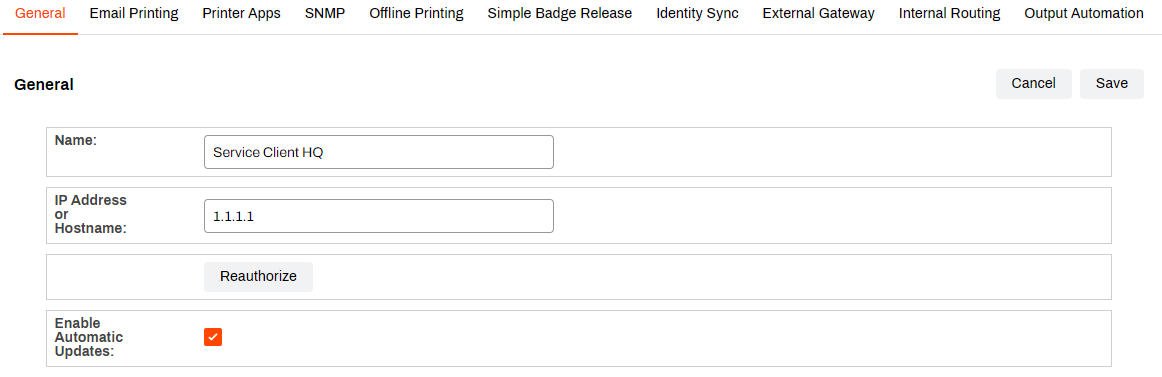
While we do not recommend turning off automatic updates, you can do so by going to the Service Client's General tab and deselecting the Enable Automatic Updates checkbox.
When this setting is deselected, the following services still function but do not update automatically:
- Email Printing
- Printer Apps (CPA)
- Simple Network Management Protocol (SNMP)
- Offline Printing
- Simple Badge Release
- Identity Sync
- Internal Routing Service (IRS) and External Gateway (Off-Network Print (ONP))
- Vasion Output
If you choose to pause automatic updates, set up a regular cadence for turning on the setting.
When you are ready to update the services, do the following:
- Navigate to the Service Client's General tab.
- Select the checkbox for Enable Automatic Updates.
- Select Save.
- Wait 10-15 minutes for the services to update.
- Deselect the checkbox for Enable Automatic Updates.
- Select Save.
Reauthorization Steps
Follow these steps to generate a new authorization token for a Service Client if it is missing or the PrinterLogicServiceManager.exe service stops responding.
Reauthorize the Service Client only if you checked the URL, client authorization, and folders first. Complete the steps below within 2 minutes, or the reauthorization fails.
- On the device that is set up as the Service Client, navigate to C:\Program Files (x86)\Printer Properties Pro\Printer Installer Client\ServiceHost\Config.
- Confirm whether there is an existing token JSON file. If one exists, delete the file.
- Open the Task Manager.
- Select the Details tab.
- Right-click the PrinterInstallerClientLauncher.exe service, and select End process tree. There are three PrinterInstallerClient processes running for the Client. If the other two services do not end, end them individually.
- In the Vasion Print Admin Console, navigate to the Service Client object.
- Select the Service Client, and in the General tab, select .
- Select OK to close the message.
- On the Service Client device, select the Services tab in the Task Manager.
- Right-click the PrinterInstallerLauncher service, and select Start.
After the services start, the device generates a new authorization token.
Troubleshooting Help
A quick way to do this is to right-click the Client icon in the system tray of the Service Client machine and select Refresh Configurations.
Verify the Client is installed, authorized and pointing to the correct instance. A quick test is to click the system tray icon to open the Self-service Portal. If it opens to the correct URL, you can sign in, and see / install printers from the portal, then the client is authorized.
If you're prompted for an authorization code in the Self-service Portal, see Device Authorization for steps on how to create one.
If the Self-service Portal opens to an incorrect URL, you'll need to set the home URL. See Update the Home URL.
Navigate to C:\Program Files (x86)\Printer Properties Pro\Printer Installer Client\ServiceHost. and check the following:
If the Service Host folder is not created, check the machine's hostname or IP address and compare with what you entered for the Service Client in the Admin Console.
If the folder is created, check the config folder in it. A token.json file is saved here when the Service Client is authorized.
If the folder is created, but the token.json file is not there, you need to reauthorize the Service Client, see Reauthorization Steps. Please note that the Service Client authorization is different from the Client authorization.