Citrix
Last Updated: September 23, 2026
There are two ways you can use PrinterLogic in Citrix environments.
Use Citrix Virtual Apps
Redirected Printers
A redirected printer, also known as an autocreated printer, is created in a virtual services session based on the printers installed on the end user's device.
When a user prints to a redirected printer in their Citrix session, the Citrix Universal Printer driver sends the unrendered print job over the compressed Independent Computing Architecture (ICA) channel to the Agent or endpoint device, which spools and sends the print job to the printer.
Set Up a Redirect Printer
Follow these steps to set up a redirect printer:
- Install the Agent on the endpoint device. For more details refer to Deploy the Agent.
- Create a Citrix policy to redirect the printers.
The policy redirects all printers into the session that includes the default printers. When the end user prints a job, their printer name appears as "<printer name> (from <computer name>)."
Session Printers
Session printers are printers that you install directly on the server. All users who log in to this server share the printers. The server spools and renders all print jobs.
If you configure the Agent in Remote Desktop Services (RDS) mode, only printers that users install from the Self-service Portal and printers that you deploy to them appear. When a user installs a new printer, the permissions adjust so that the printer appears in their session.
Set Up a Session Printer
Follow these steps to set up a session printer:
- Install the Agent on the server.
- Configure the Agent for RDS mode:
Turn on the Agent's RDS mode by creating a new string value named "TerminalServices" with a value of 1 in the following relevant registry key:
- 64-bit RDS Server: HKEY_LOCAL_MACHINE\SOFTWARE\Wow6432Node\PPP\PrinterInstaller.
- 32-bit RDS Server: HKEY_LOCAL_MACHINE\SOFTWARE\PPP\PrinterInstaller.
Open the Task Manager.
Select the Details tab.
Right-click PrinterInstallerClientLauncher.exe, and select End process tree.
Select the Services tab.
Right-click the PrinterInstallerClientLauncher.exe service, and select Start.
- Install printers in Citrix Virtual Apps:
- Publish the Agent, which is located in the apps section.
- Then do one of the following:
- Option One: Configure printer deployments in the Admin Console, which are located in the apps or desktops section. For more details refer to Printer Deployment.
- Option Two: Navigate to the Self-service Portal, and install printers, which are located in the desktops section.
Citrix Universal Printer
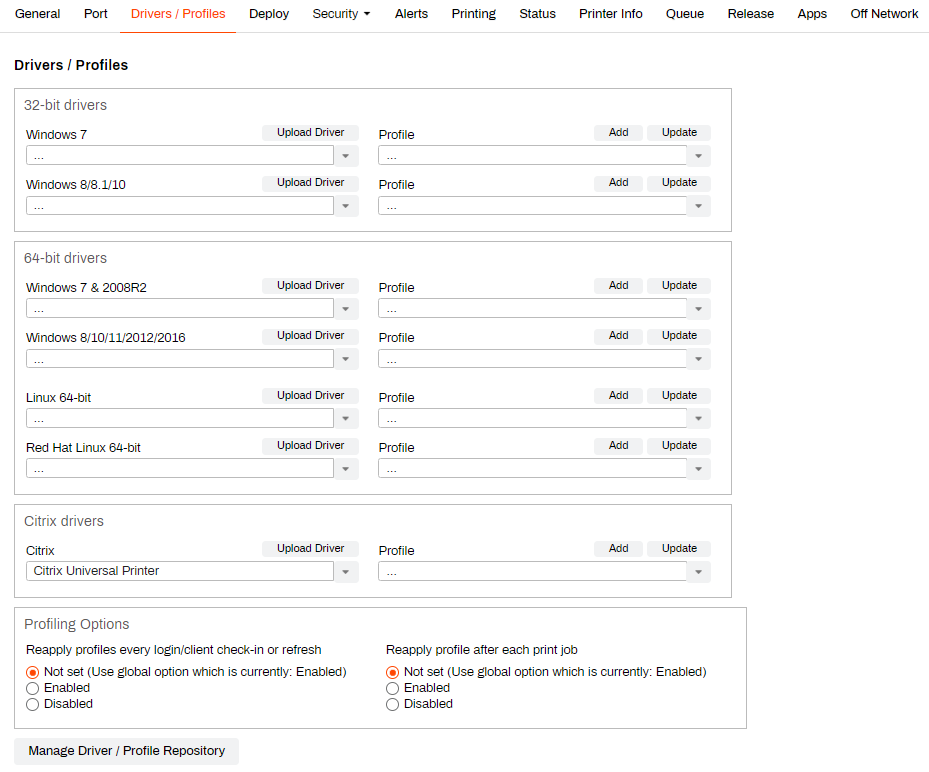
Selecting the Citrix Universal Printer on the printer object's Drivers / Profiles tab tells PrinterLogic to use the local Citrix printer driver when installing the printer. This driver should already be installed on the Citrix server.
If the Citrix Universal Printer option is not available, do the following:
- Go to Tools
 Settings General.
 - In the Operating Systems Supported section, select the checkbox for Citrix.
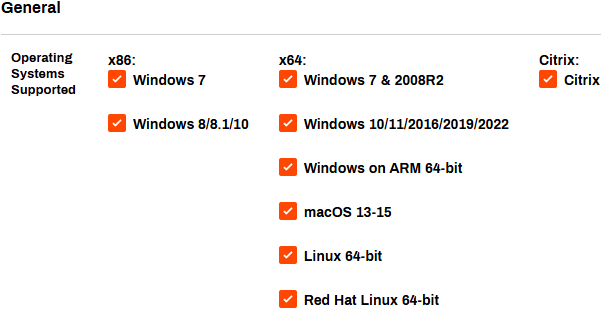
- Select Save.
Then the Citrix Universal Printer option appears on the printer object's Drivers / Profiles tab.
Use Citrix Virtual Desktops
Install the Agent on the parent image:
- Go to Tools
 Settings Client.
 - Scroll down to the Deployable Client Packages section.
- Download the Agent package for the appropriate operating system (OS).
- Place the file on the image.
- Run the Agent installation package.
- Access your Self-service Portal, and enter the authorization code when prompted. For more details refer to Device Authorization.
- Optional: Configure override options as needed. For more details refer to Override Options for Windows and Remote Desktop Services (RDS).
In this topic:
A redirected printer, also known as an autocreated printer, is created in a virtual services session based on the printers installed on the end user's device.
Session printers are printers that you install directly on the server. All users who log in to this server share the printers. The server spools and renders all print jobs.
If you configure the Agent in Remote Desktop Services (RDS) mode, only printers that users install from the Self-service Portal and printers that you deploy to them appear. When a user installs a new printer, the permissions adjust so that the printer appears in their session.