Add & Manage Delegates
Last Updated: October 08, 2026
Add and manage delegates who can release your secure print jobs. Delegates use their own credentials at the printer to release jobs on your behalf.
Make sure you are signed in with your IdP/LDAP credentials, not a domain-joined or local account. The user signed in to the portal must match the user signed in to your PrinterLogic Agent.
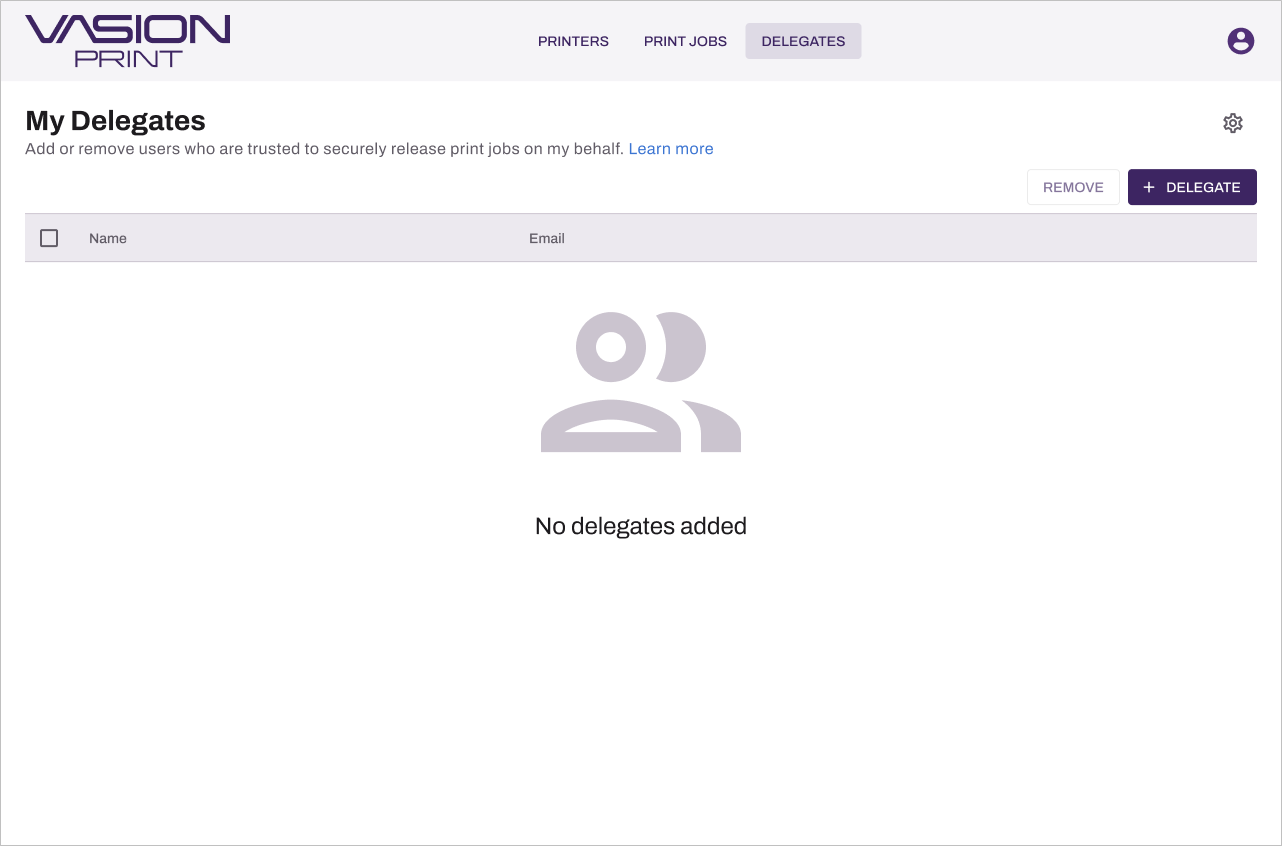
If your admin turned on Delegated Release, you can see the Delegates tab when you access the Self-service Portal. When your admin allows you to manage your own delegates, you can see additional options to add and remove delegates on the top-right corner.
Add Delegates
- Access the Self-service Portal.
- Sign in to the portal using your authenticated user credentials.
- Select the Delegates tab in the portal header.
- Select + Delegates on the top-right corner.
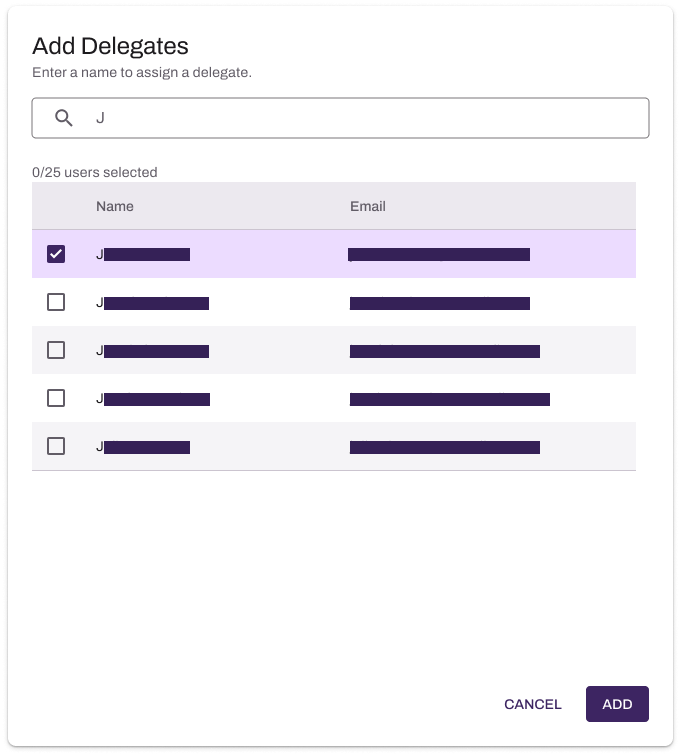
- Search for and select the users you want to release your secure print jobs.
- Select Add
Remove Delegates
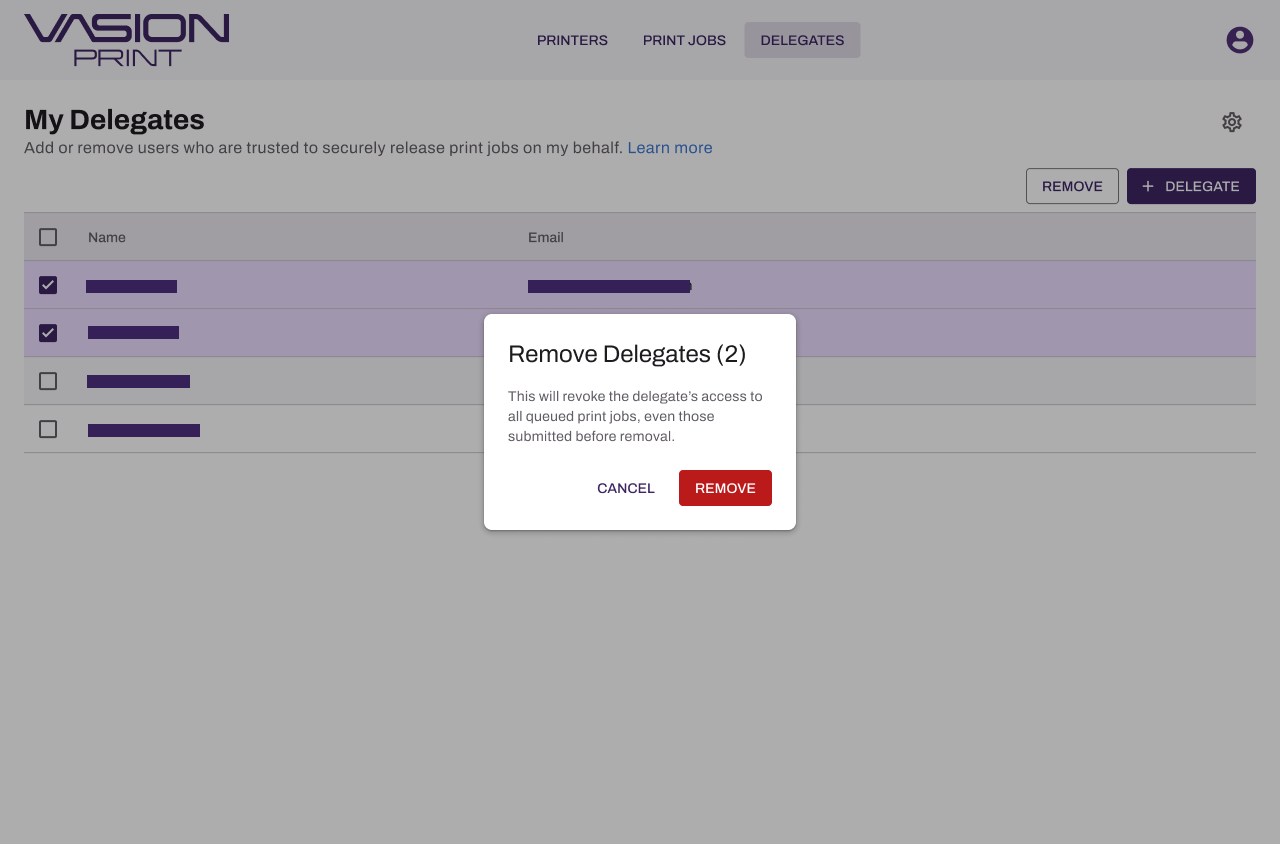
- Select the delegate you want to remove.
- Select Remove in the upper-right corner.
- Select Remove on the confirmation modal.
This removes delegates from your list immediately and they no longer show up in the delegate selection prompt. The delegate cannot release any print jobs for the initiator, even if they were previously assigned to release a print job.
Configure Settings
You can configure the options you want when you send a secure print job. Configure your delegate selection and notification preferences from the Delegates page.
Enable Delegate Selection Prompts
- Access the Self-service Portal.
- Select the Delegates tab.
- Select the Settings icon
 in the upper-right corner.
 - Select Enable Delegate Selection Prompt if you want to choose which delegates can release each print job. When turned off, all delegates are always allowed to release your print jobs.
- Select Notify me when my print job is released to receive an email when the delegate has release the job at the printer.
- Select Save.
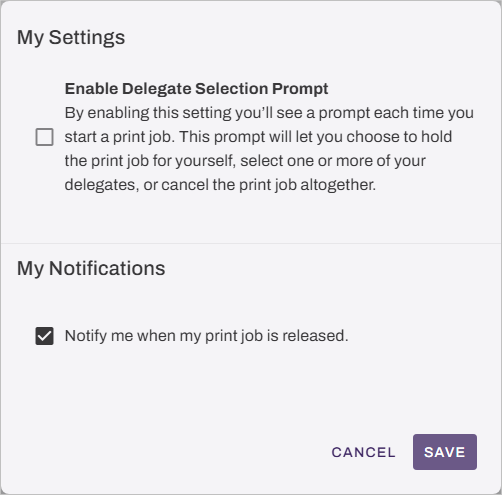
After you configure delegates, prompts appear when you print to secure or pull printers.
The Print Experience
Depending on how the printer is configured by your administrator and whether you turned on the delegate selection prompt, the following may appear.
Print Job Options
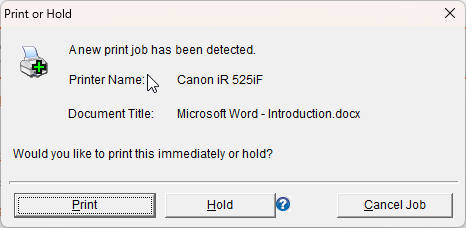
Secure Release Print prompt modal with the options to Print, Hold, or Cancel the job. Refer to the Secure Print Settings Guide for more details.
Delegate Selection
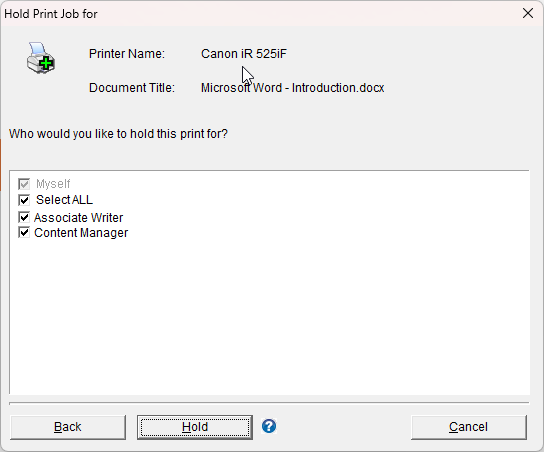
If you select Hold, select which delegates can release your job:
- Myself is always selected and cannot be changed, since you always can release your own jobs.
- Select from the list of available delegates who you want to release your job.
The system remembers your previous selections as defaults.