Configure PSA Settings
Last Updated: September 25, 2026
Configure whether printers can associate with a manufacturer Print Support App (PSA), keeping device-specific features available on the driverless print path.
Requirements
Before you begin, review the Requirements.
Configure PSA Settings
To allow printers to associate with a manufacturer PSA:
- In Print, go to Tools
 Settings Printing.
 - In the Print Support App section, use the dropdown to select from:
- Manufacturer-provided: The Agent locates the PSA after installation.
- None.
- Select Save in the upper-right corner.
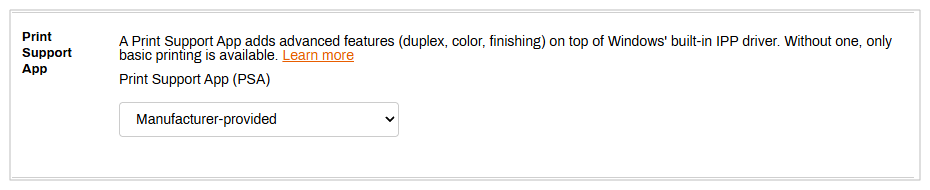
This global setting applies to all printers in your environment.
After you configure the PSA selection, submit a test print job from a supported Agent and confirm that the OEM device-specific features, such as finishing options, secure release codes, and tray control, are available.
In this topic: