Vasion Print Client
Last Updated: April 07, 2026
The Vasion Print Client is a software component that is installed on your computer to communicate with the print management system.
Client Capabilities
Depending on how you administrator implements Vasion Print, here are some options you may be able to perform from your workstation:
Print Job Management
- Quickly access the Release Portal A web page users log into to see print jobs that are held and waiting to be sent to physical printers. to release print jobs.
- Quickly access Secure Release Print settings.
- Quickly access the Self-service Portal Web page end users can use to self install printers. to set a default printer for email print jobs.
Printer Management
- Add new printers.
- Set a default printer.
- Delete printers.
- View printers installed on your system
System Management
- Identity provider (IdP) An identity provider (IdP) is a system entity that creates and manages identity information for an organization and can be authenticated by a computer system or network. An IdP is referred to as a security principal in Java and Microsoft documentation. An IdP also provides authentication services to relying apps in a federation or distributed network. sign in and sign out.
- Start or end printer port capture for legacy applications.
- Refresh print management configurations.
The options are defined by your system administrator. Not all the options listed here may be available to you.
Access to the Vasion Print Client
There are several ways to access the Client, depending on how your administrator has implemented the Vasion Print solution. If you have any questions contact your system administrator.
Start Menu
In the Windows Start Menu, search for "printer," or open the Printer Installer folder to view the print management options.

System Tray
From the Windows System Tray, right-click the Vasion Print icon  to view the enabled options.
A normal left-click on the icon opens the default web browser to the Self-service Portal where you can install printers.

Menu Bar
On macOS, select the Vasion Print icon  from the Menu Bar to view the enabled options.
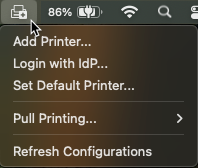
Client Options
Here are details on what each of the options work. Not all of these options may be visible on your system, depending on your print environment.
- Add Printer: Opens the default web browser and the Self-service Portal. For more details refer to Self-service Portal.
-
Set Default Printer: Shows a list of printers installed on your computer with an option to set a default printer.
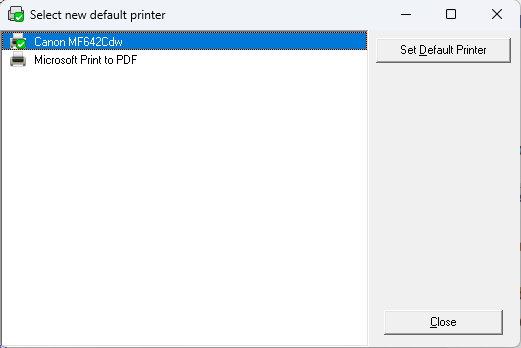
-
Delete Printer: Shows a list of printers installed on your computer with options to remove a printer or to set a default printer.
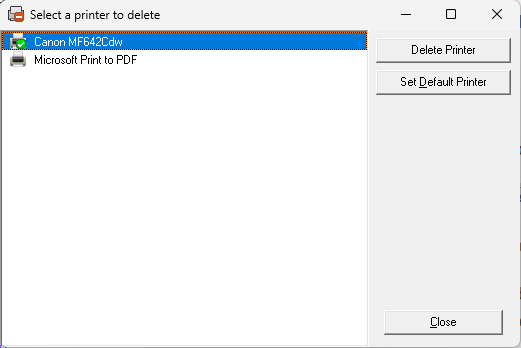
- View Installed Printers: Shows the operating system list of printers installed on your computer.
- Login with / Logout: If your administrator has set up single sign-on (SSO), you can use this option to quickly open a web browser and sign in to your identity provider.
-
Capture Printer Port / End Capture: Assign a TCP / IP printer to a port on your workstation. This allows you to print documents using legacy applications on the specified port.
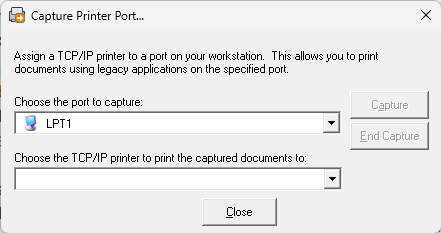
- Refresh Configurations: Triggers a manual Client check-in so you can access the latest changes and updates.
- Print Job Management: In the Windows Start Menu, this is a standalone option, but in the System Tray (Windows) / Menu Bar (macOS) it is a sub-option under the Pull Printing and Mobile Printing options. Print Job Management opens up the web-based Release Portal, where you can release held jobs. For more details refer to Release Portal.
-
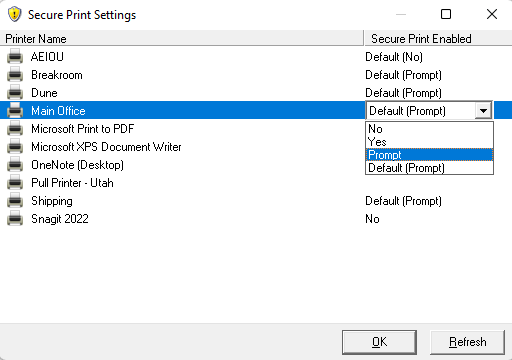
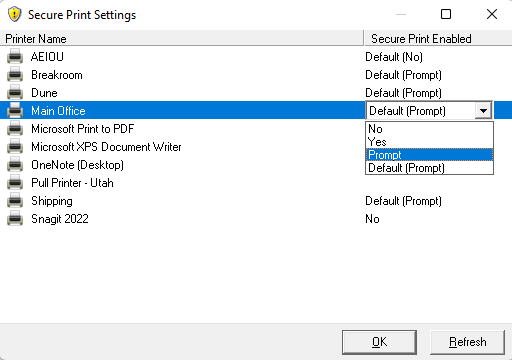
Secure Print Settings: In the Windows Start Menu, this is a standalone option, but in the System Tray (Windows) / Menu Bar (macOS) it is a sub-option under the Pull Printing and Mobile Printing options. Secure Print Settings opens a window that displays installed printers and their secure print options. Use the Secure Print Enabled drop-down to override the default setting. For more details refer to Secure Print Settings.
-
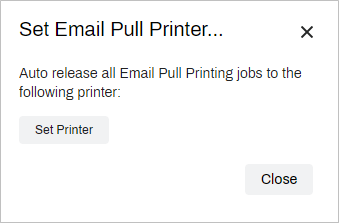
Set Mobile Printer: In the Windows Start Menu, this is a standalone option, but in the System Tray (Windows) / Menu Bar (macOS) it is a sub option found under the Mobile Printing option. This option opens the Self-service Portal modal where you can select a default printer to use when you email print jobs. For more details refer to Email Print Guide.
The Windows Start Menu also shows the options to start, shutdown, or uninstall the client.
Client Console
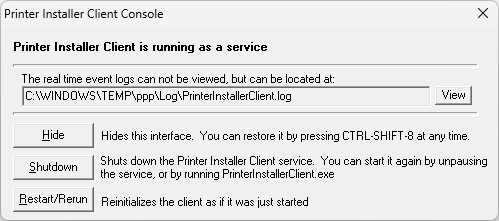
You can access the Client Console using a default keyboard shortcut. The options included are mostly used for troubleshooting and quick access to the Client logs. The default keyboard shortcut is Ctrl+Shift+8, but your administrator can change it to a different shortcut, or disable access altogether. If you have any questions, contact your administrator.
- View: Opens up the Client log for troubleshooting.
- Hide: Hides the console, which you can reopen using the shortcut.
- Shutdown: Shuts down the Printer Installer Client service.
- Restart / Rerun: Restarts the Client.
Secure Print Settings
The Secure Print Settings window shows installed printers and shows whether Secure Release Print is enabled. If your administrator has enabled you to override, you can adjust the secure print settings for your installed printers. To adjust settings, use the drop-down in the Secure Print Enabled column to select the desired option. If you can access the Secure Print Settings modal but cannot make adjustments, your administrator hasn't enabled the override option.
- Default (No) / No
- Secure Release Print is not enabled for this printer. Print jobs sent to this printer print immediately.
- Default (Yes) / Yes
- Secure Release Print is enabled. Print jobs sent to this printer hold the job for later release.
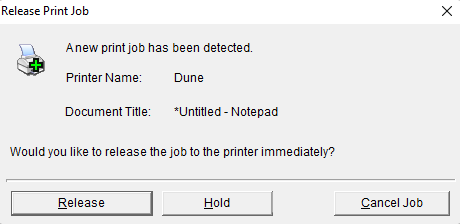
- Default (Prompt) / Prompt
-
Secure Release Print is enabled. When you send a print job to this printer you receive a prompt asking if you want to print or hold the job for later release.
Troubleshooting Help
This error was seen on macOS ARM devices that were using a printer with an Intel driver attached.
To resolve this error:
-
Install Rosetta on the macOS device.
- Or re-upload the macOS drivers from a device using an ARM processor.
