Configure Bring Your Own SMTP
Last Updated: October 08, 2026
Configure your own Simple Mail Transfer Protocol (SMTP) server for Scan to Email in PrinterLogic so that scan traffic routes through your email infrastructure instead of Vasion's default SMTP service.
Requirements
Review the Requirements before configuring this feature.
Process Overview
You perform these high-level procedures:
- Configure Global SMTP Settings.
- Configure Authentication.
- Configure S/MIME Settings (Optional)
- Configure Exchange Online for OAuth 2.0 (Optional)
- Configure Service Client SMTP Settings (Optional)
1. Configure Global SMTP Settings
Follow these steps to configure your SMTP settings in Vasion:
-
In the Admin Console, go to Tools
 Settings Scanning.
- Expand the Preset Scan Locations section.
- Select the Email tab.
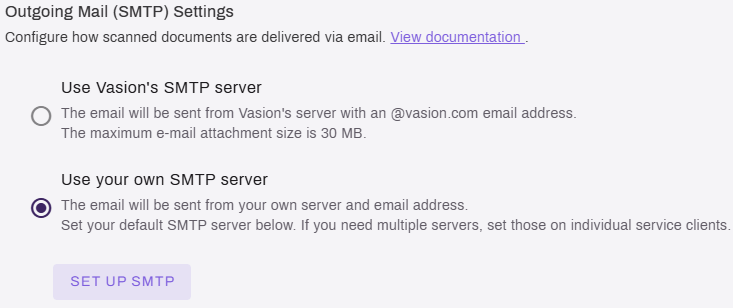
- In the Outgoing Mail (SMTP) Settings section, select Use your own SMTP server.
-
Select the Set Up SMTP button.
-
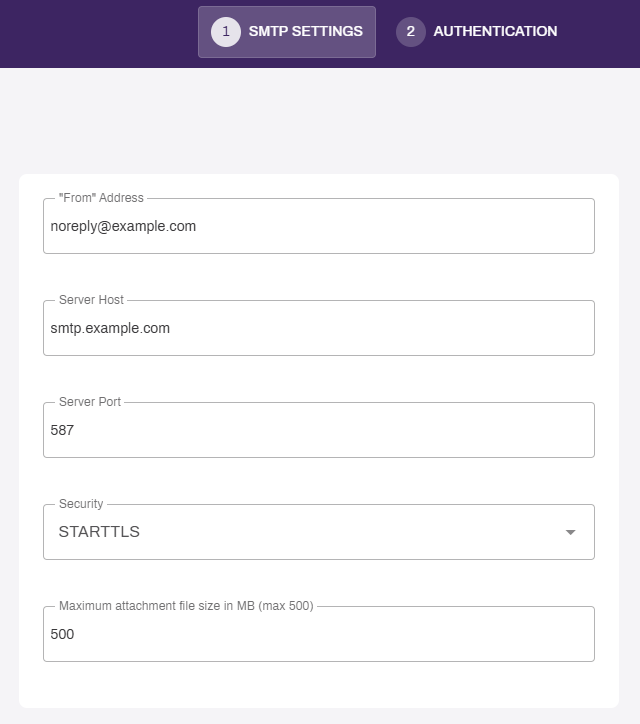
On the SMTP Settings page, enter the following details:
- "From" Address: Enter the email address that should appear as the sender.
- Server Host: Enter the Fully Qualified Domain Name (FQDN) of the SMTP server.
- Server Port: The default port is 587. Adjust as needed for your SMTP server.
- Security: Select from None, which is unencrypted; TLS; or STARTTLS.
- Adjust the attachment file size as needed. Up to 500 MB is supported.
- Select Next.
2. Configure Authentication
Follow the appropriate steps below to configure authentication to access your SMTP server.
- Username & Password
- OAuth 2.0
Follow these steps to configure username and password authentication to your server or Google Workspace:
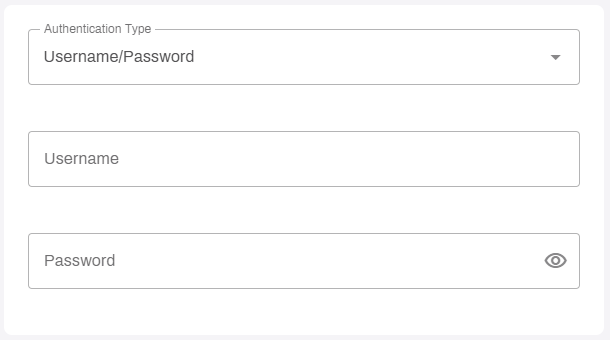
- From the Authentication Type dropdown menu, select the Username/Password option.
- In the Username field, enter the account name that your SMTP server uses for authentication.
-
In the Password field, enter the password for the SMTP account.
- Select Save.
- On the Global Scan Settings page, ensure that the Status row in the Outgoing Mail (SMTP) Settings section is Active.
Follow these steps to configure OAuth 2.0 authentication for mail services using Microsoft Exchange.
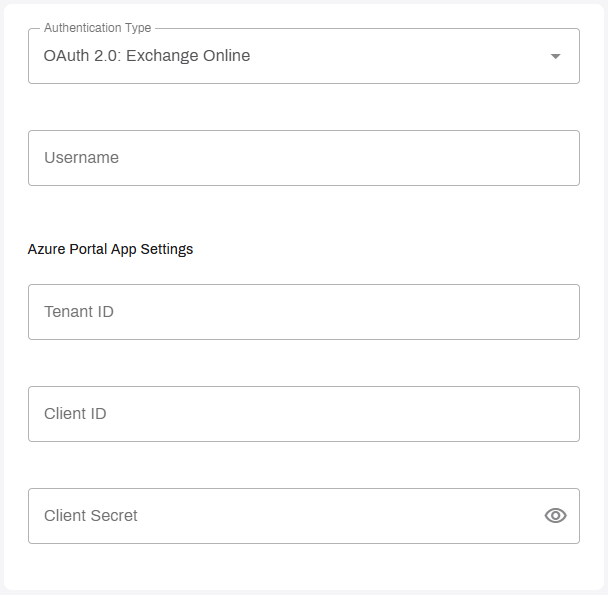
- From the Authentication Type dropdown menu, select the OAuth 2.0: Exchange Online option.
- In the Username field, enter the account name that your SMTP server uses for authentication.
1. App Registration
In a separate browser tab, access your Entra ID (Azure AD) portal, and follow these steps:
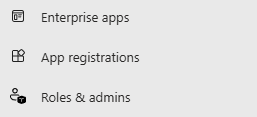
- Expand the Entra ID option in the left-side navigation.
-
Select App registrations.
- On the App Registrations page, select + New Registration in the upper-left.
- Do the following on the Register an application page:
- Enter a name for the app. This name is visible to end users.
- Leave Supported account types set to Accounts in this organizational directory only.
- Leave the Redirect URI (optional) section blank.
- Select Register.
- Do the following on the Overview tab:
- In the Essentials section, copy the Directory (tenant) ID, and paste it in the Admin Console Tenant Id field.
- Copy the Application (client) ID from the Essentials section, and paste it in the Admin Console Client Id field.
- In the Essentials section, select Add a certificate or secret next to Client credentials.
- Select + New client secret.
- Enter a description, and set the Expires field to the desired value.
- Select Add.
- Copy the Secret ID, and paste it in the Admin Console Client Secret field.
- Select Save in the Admin Console.
2. Application Programming Interface (API) Permissions
Follow these steps:
- In Entra ID select API permissions in the left-side navigation.
-
Select Add a permission.
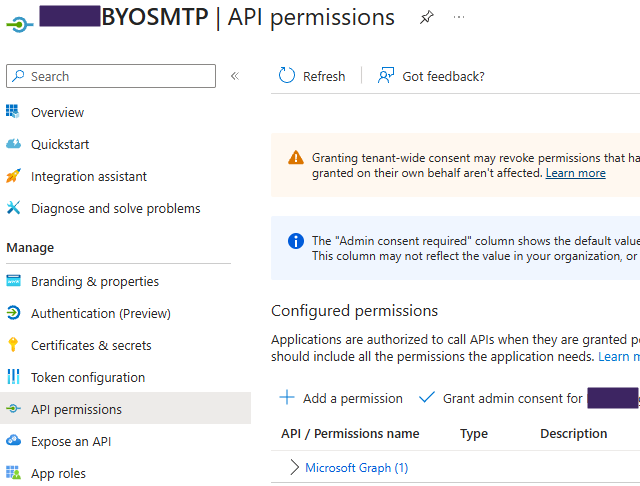
- Select APIs my organization uses.
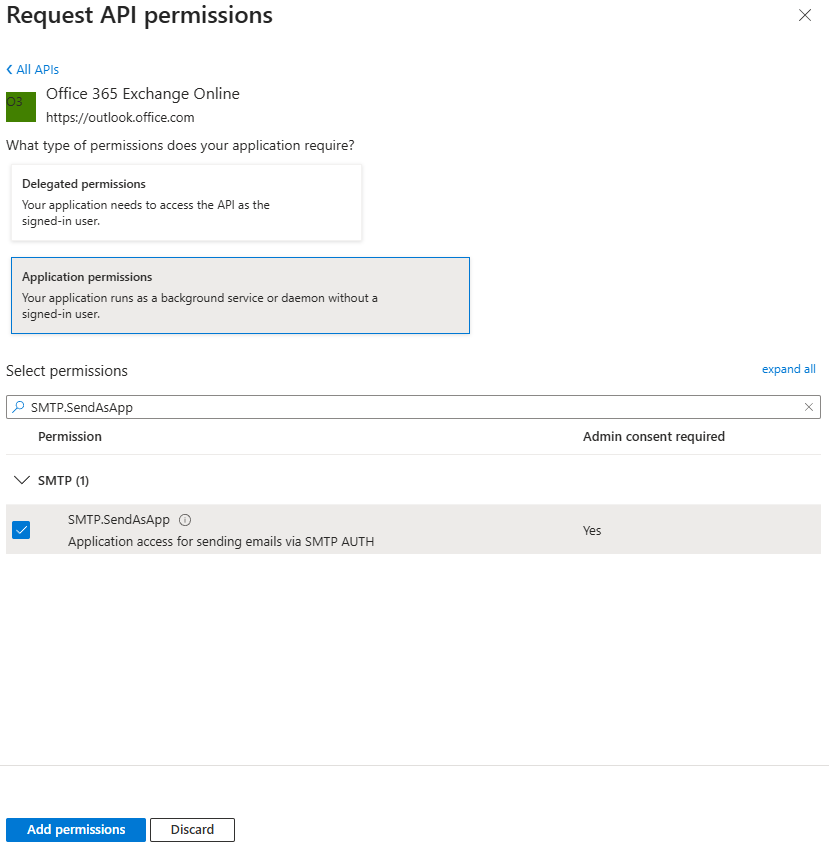
- Search for and select Office 365 Exchange Online or Outlook.
- Select Application permissions.
-
Search for and select SMTP.SendAsApp.
If the SMTP.SendAsApp option does not appear, add it to the manifest using the steps in the Troubleshooting Help section.
- Select Add Permissions.
- On the API Permissions page, select Grant admin consent for <tenant name>.
- In the modal, select Yes.
3. Configure S/MIME Settings (Optional)
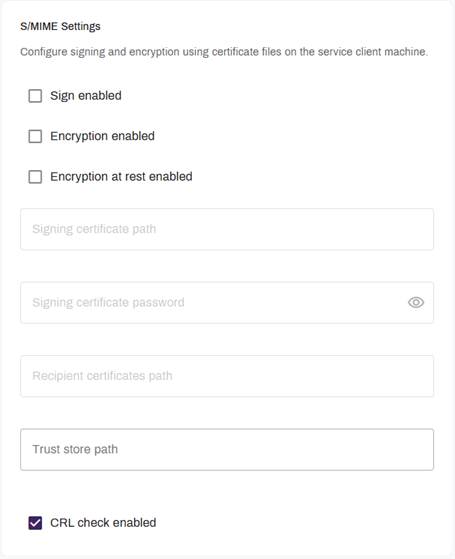
S/MIME adds another layer of security to your Scan to Email traffic through encryption. Review the S/MIME Email Encryption section for more information on these settings and paths. If you are not using S/MIME, these steps can be skipped and BYO SMTP will still function.
On the S/MIME tab, complete the following:
- To turn on signing, select Sign enabled, then:
- Enter the Signing certificate path.
- Enter the Signing certificate password.
- To turn on encryption, select Encryption enabled, then:
- Enter the Recipient certificates path.
- (Optional) Select Encryption at rest enabled.
- Enter the Trust store path.
- Adjust the CRL check enabled option as needed.
- Select Save.
4. Configure Exchange Online for OAuth 2.0 (Optional)
The following commands are for PowerShell and require the following information from the Overview page of the app registration that you created in the OAuth 2.0 section.
You need the following:
- Application (client) ID.
- Object ID.
- Credentials to authenticate to the SMTP server.
Follow these steps:
-
Install the Exchange Online PowerShell module, if it is not already installed.
Copy Code# Install the module (if not already installed)
Install-Module -Name ExchangeOnlineManagement -Force -AllowClobber
# Import the module
Import-Module ExchangeOnlineManagement -
Connect to Exchange Online.
Copy Code# Connect using your admin account
Connect-ExchangeOnline -UserPrincipalName your-admin@yourdomain.com -
Turn on SMTP Authorization at the organization level.
Copy Code# Check current setting
Get-TransportConfig | Select-Object SmtpClientAuthenticationDisabled
# Enable SMTP AUTH if disabled (SmtpClientAuthenticationDisabled should be False)
Set-TransportConfig -SmtpClientAuthenticationDisabled $false -
Turn on SMTP Authorization for the mailbox.
Copy Code# Replace with the email address you want to send from
$mailbox = "sender@yourdomain.com"
# Check current setting
Get-CASMailbox -Identity $mailbox | Select-Object SmtpClientAuthenticationDisabled
# Enable SMTP AUTH for the mailbox
Set-CASMailbox -Identity $mailbox -SmtpClientAuthenticationDisabled $false -
Register the Service Principal in Exchange Online.
Copy Code# Replace these values with your own
$appId = "Application (client) ID"
$servicePrincipalObjectId = "Object ID"
$displayName = "SMTP OAuth App"
# Register the service principal
New-ServicePrincipal -AppId $appId -ServiceId $servicePrincipalObjectId -DisplayName $displayName
# Verify registration
Get-ServicePrincipal | Where-Object {$_.AppId -eq $appId} -
Grant Mailbox Permissions.
Copy Code# Replace with your values
$mailbox = "sender@yourdomain.com"
$servicePrincipalObjectId = "Object ID"
# Grant FullAccess permission (required for mailbox delivery)
Add-MailboxPermission -Identity $mailbox -User $servicePrincipalObjectId -AccessRights FullAccess -InheritanceType All
# Grant SendAs permission (required for SMTP submission)
Add-RecipientPermission -Identity $mailbox -Trustee $servicePrincipalObjectId -AccessRights SendAs -Confirm:$false
# Verify permissions
Get-MailboxPermission -Identity $mailbox | Where-Object {$_.User -like "*$servicePrincipalObjectId*"}
Get-RecipientPermission -Identity $mailbox | Where-Object {$_.Trustee -like "*$servicePrincipalObjectId*"} - Wait for propagation, which takes about 5-15 minutes.
5. Configure Service Agent SMTP Settings (Optional)
In addition to the Global SMTP settings that you configured in the previous steps, you can configure Service Agent-specific SMTP settings to address remote sites that use a different mail server.
Follow these steps:
- In the Admin Console, select the Service Agent for the remote site.
- Select the Printer Apps tab.
-
In the Outgoing Mail (SMTP) Settings section, select Use custom SMTP settings.
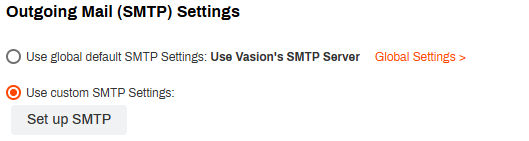
- Select the Set Up SMTP button.
-
On the SMTP Settings page, enter the following details:
- "From" Address: Enter the email address that should appear as the sender.
- Server Host: Enter the Fully Qualified Domain Name (FQDN) of the SMTP server.
- Server Port: The default port is 587. Adjust as needed for your SMTP server.
- Security: Select from None, which is unencrypted; TLS; or STARTTLS.
- Adjust the attachment file size as needed. Up to 500 MB is supported.
- Select Next.
- Follow the steps starting in 2. Configure Authentication.
When printers managed by this Service Agent use the Scan to Email feature, the emails route through the SMTP server assigned on the Service Agent.
Troubleshooting Help
You can add the SMTP.SendAsApp permission manually with the app manifest:
- In your app registration, go to Manifest.
- Find the requiredResourceAccess array in the JSON.
- Add the following object to the array:Copy Code
{
    "resourceAppId": "00000002-0000-0ff1-ce00-000000000000",
    "resourceAccess": [
        {
            "id": "7146a1f0-8703-45b3-9eae-527a64c00995",
            "type": "Role"
        }
    ]
} - Select Save at the top of the manifest editor.
- Return to API permissions, and confirm that the permission appears.
- Select Grant admin consent for <your tenant>.
The following can cause this error:
- SMTP AUTH is not turned on for the mailbox or organization.
- The service principal is not registered in Exchange Online.
- The service principal does not have the required permissions.
Do the following to fix the issue:
- Confirm that SMTP AUTH is turned on.
- Ensure that the service principal is registered.
- Confirm that mailbox permissions are granted.
- Wait 5-15 minutes for propagation.
This error occurs when the OAuth token or authentication string is incorrect.
Do the following to fix the issue:
-
Ensure that you are sending EHLO after STARTTLS.
-
Use
server.docmd('AUTH', 'XOAUTH2 ' + auth_string)instead ofserver.auth(). -
Confirm that the token scope is https://outlook.office365.com/.default.
This error occurs when the service principal does not have FullAccess permission to the mailbox.
Do the following to fix this issue:
-
Grant FullAccess permission using Add-MailboxPermission.
-
Wait 5-15 minutes for propagation.
This error occurs when EHLO was not sent after STARTTLS.
Do the following to fix this issue:
-
Ensure that you call server.ehlo() twice: once before STARTTLS and once after.
In this topic: