Configure Delegated Release
Last Updated: September 25, 2026
Turn on and configure Delegated Release to let end users authorize trusted colleagues to release their print jobs without sharing credentials.
Requirements
Review the following requirements:
- Contact our support team to turn on this feature.
- You need Direct Secure Release or Pull Print configured and turned on for at least one printer. For more details refer to Secure Release Print.
- You need an identity provider (IdP) or Lightweight Directory Access Protocol (LDAP) configuration using Identity Sync. For more details refer to Identity Providers (IdPs).
- This feature supports devices running Windows Agent v25.1.0.1175 or later and macOS or Linux Agent v25.2.0.47 or later.
- macOS devices in environments using Quota Management do not support this feature.
- Printers configured for Off-Network Print (ONP), Off-Network Cloud Print (ONCP), or Offline Secure Release Print (OSRP) do not support this feature.
- A delegate can release held print jobs for an initiator using only the CPA.
Process Overview
You perform these high-level procedures:
- Turn On Delegated Release.
- Add & Configure Initiators.
1. Turn On Delegated Release
Follow these steps:
- In the Admin Console, go to Tools
 Settings Printing.
 - In the Pull Printing section, select Enable Delegated Release.
-
(Optional) Select Allow ALL users to manage their own delegates to turn on user self-management.
- Select Save in the upper-right corner.

If you turn on Allow ALL users to manage their own delegates, users manage their delegates through the Self-service Portal, so you can skip the following steps.
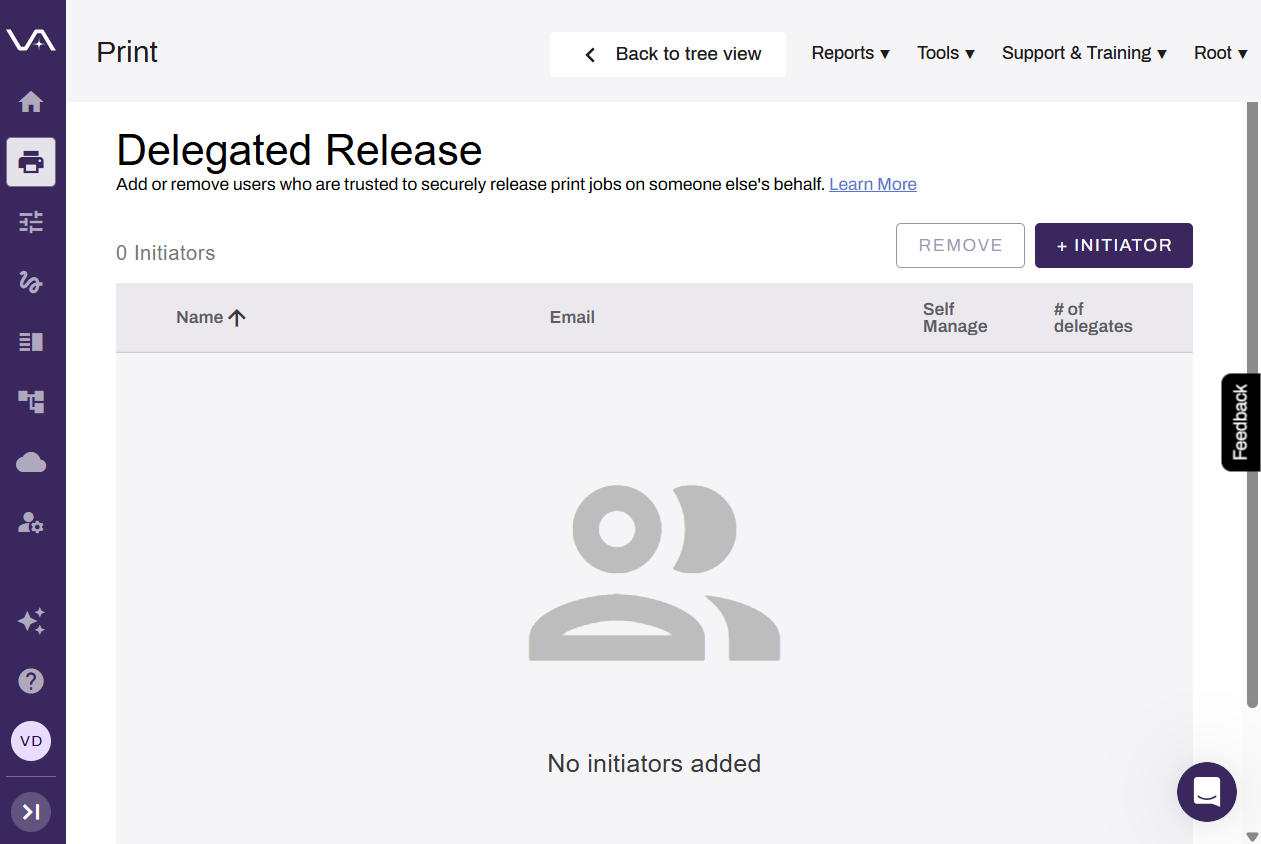
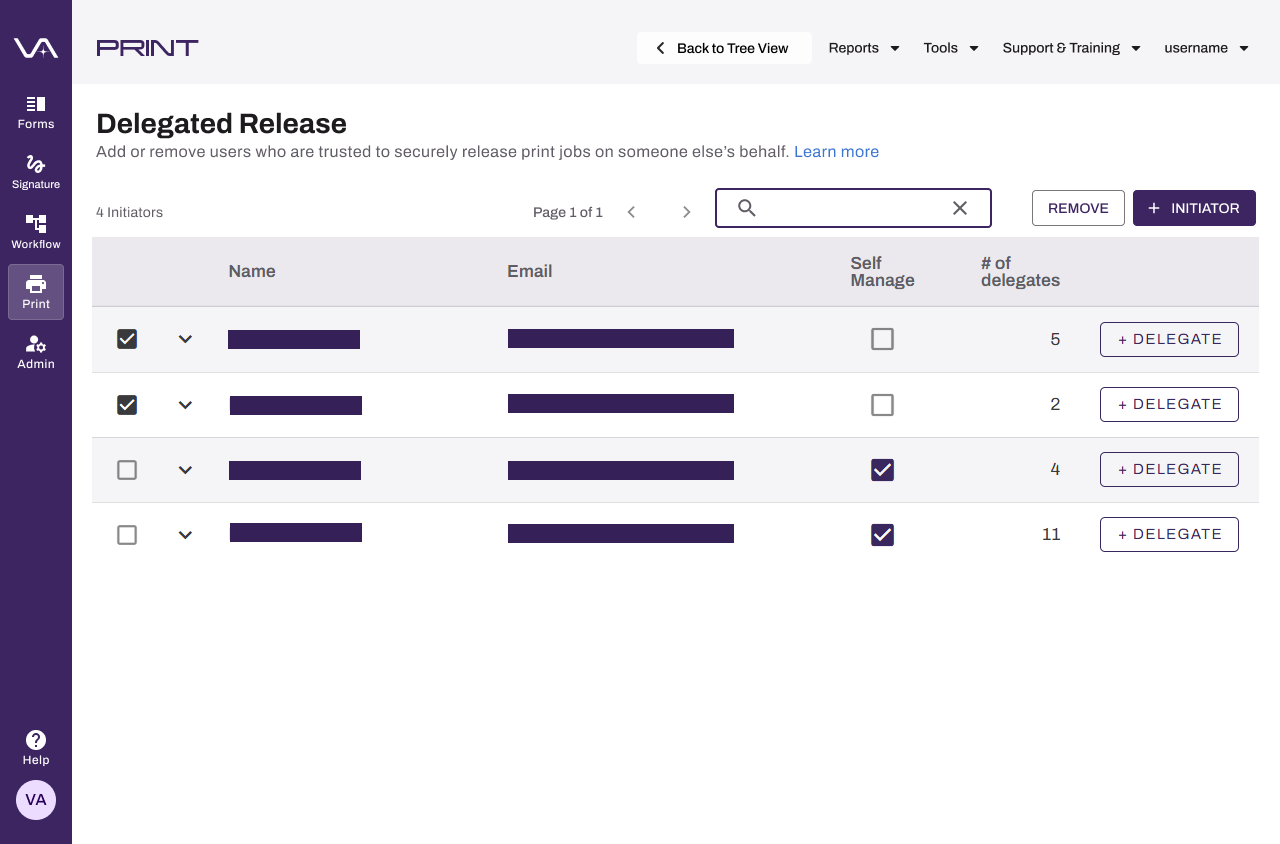
With Delegated Release turned on, you can now access the Delegated Release page by going to Tools  Release Delegated Release.
2. Add & Configure Initiators
Follow these steps:
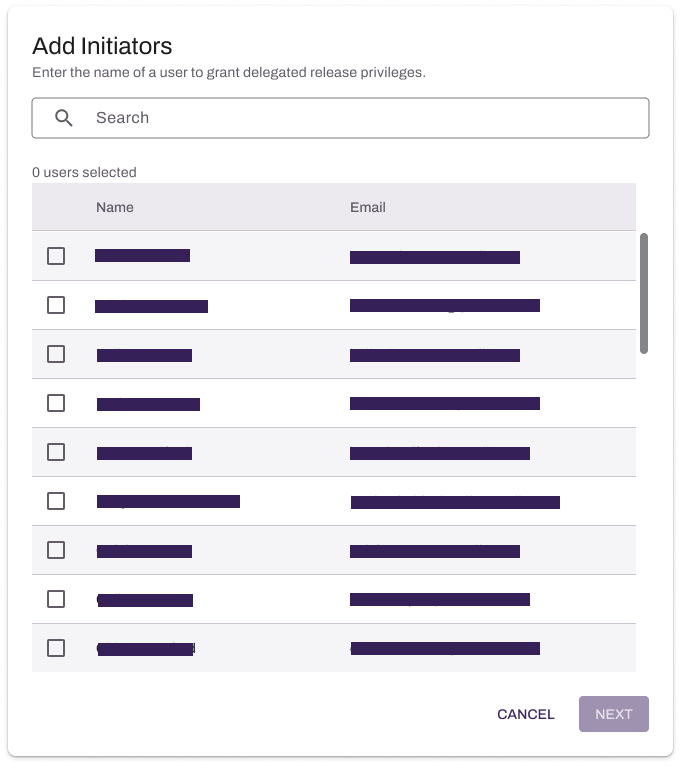
- On the Delegated Release page, select + Initiator.
- Search for and select the user from the list.
-
Select Next.
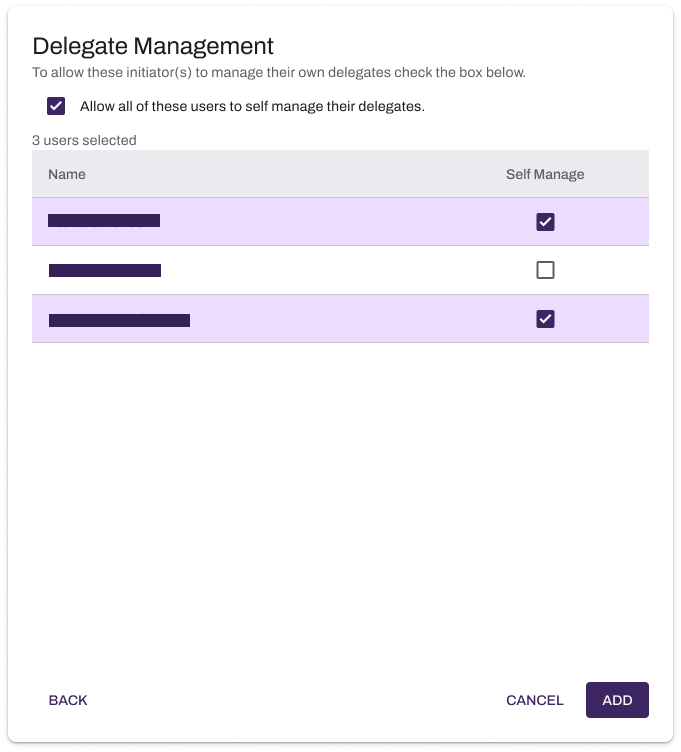
- Configure delegate management permissions:
Select Allow all of these users to self manage their delegates to apply the permission to all selected users.
- Select the Self Manage option to apply the permission to specific users.
- Select Add.
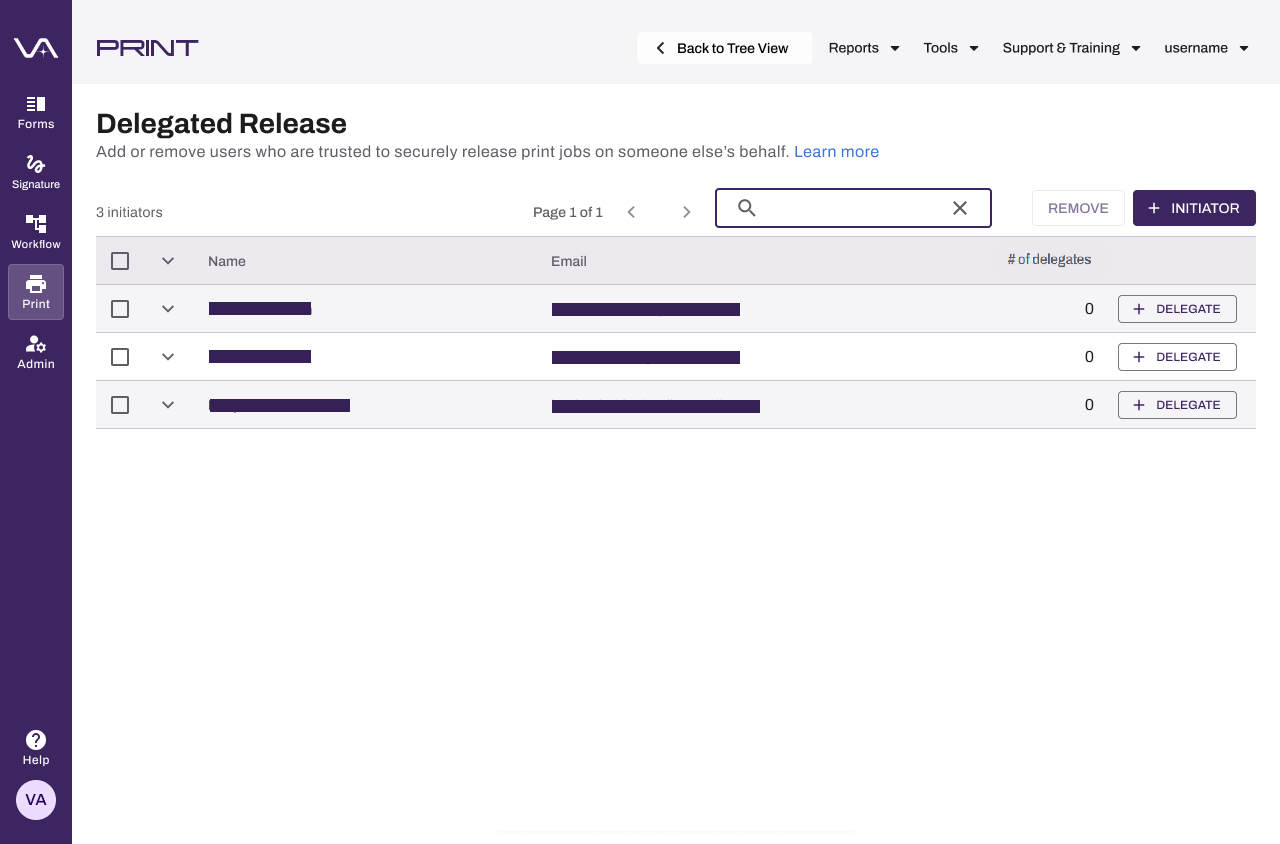
You might need to refresh the page to view the new initiators.
If you select Allow ALL users to manage their own delegates in the Pull Printing section, the Delegated Release page does not show the Self Manage column. For more details refer to step three of the Turn On Delegated Release section above.
Manage Delegated Release
Manage users who already have initiator or delegate permissions.
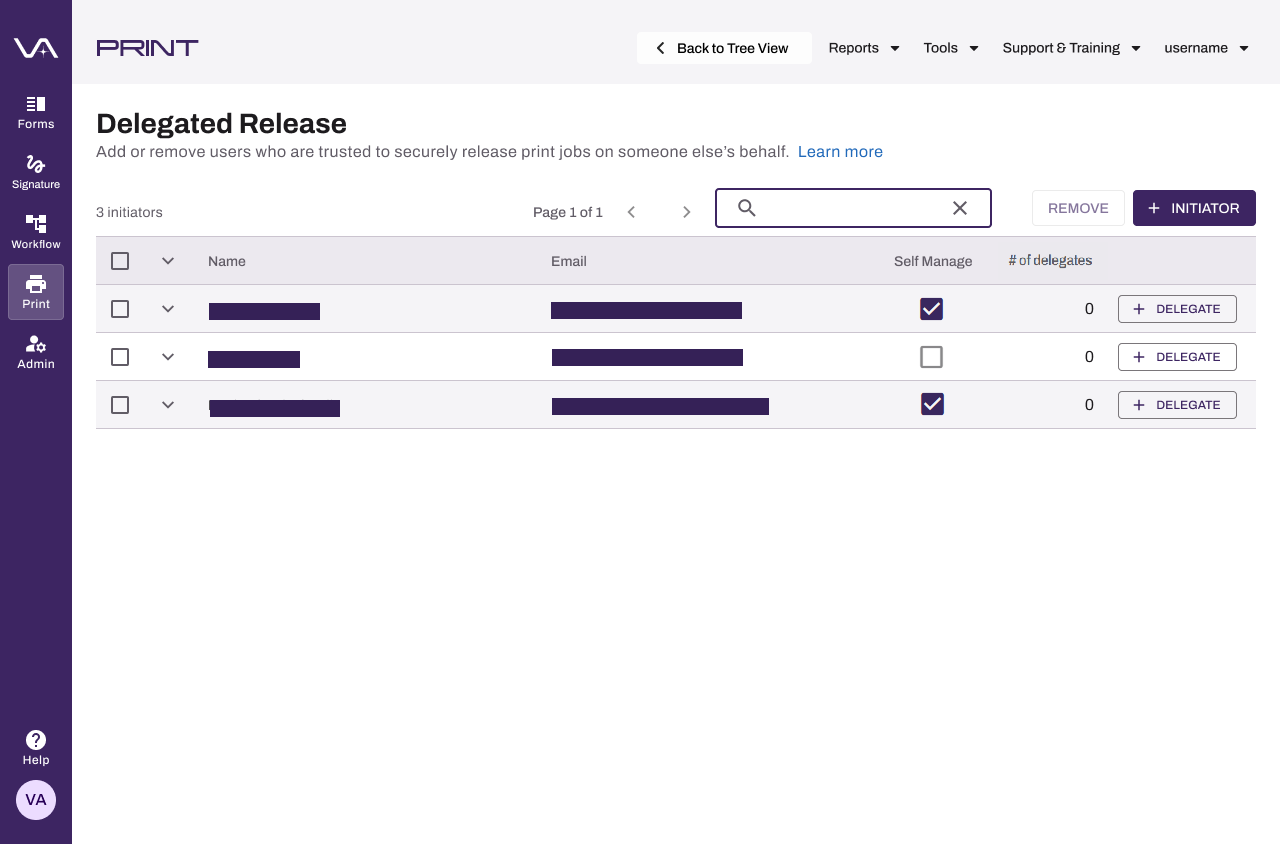
Update Initiator Self-Management
Follow these steps:
- On the Delegated Release page, locate the initiator in the list.
- In the Self Manage column, select or deselect the checkbox for self-management.
Add a Delegate
Follow these steps:
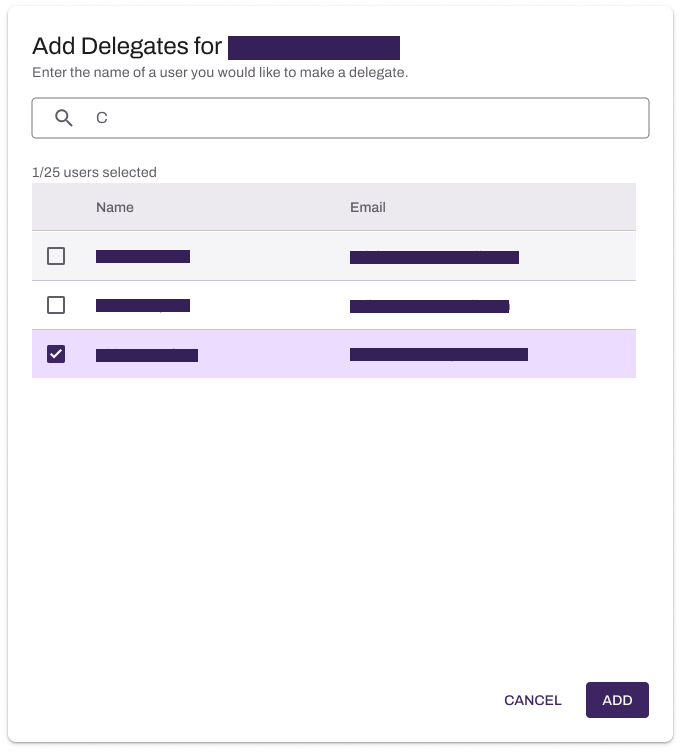
- On the Delegated Release page, locate the initiator in the list.
- Select + Delegates.
- In the modal search for and select the user from the list.
- Select Add.
View an Initiator's Delegates
Follow these steps:
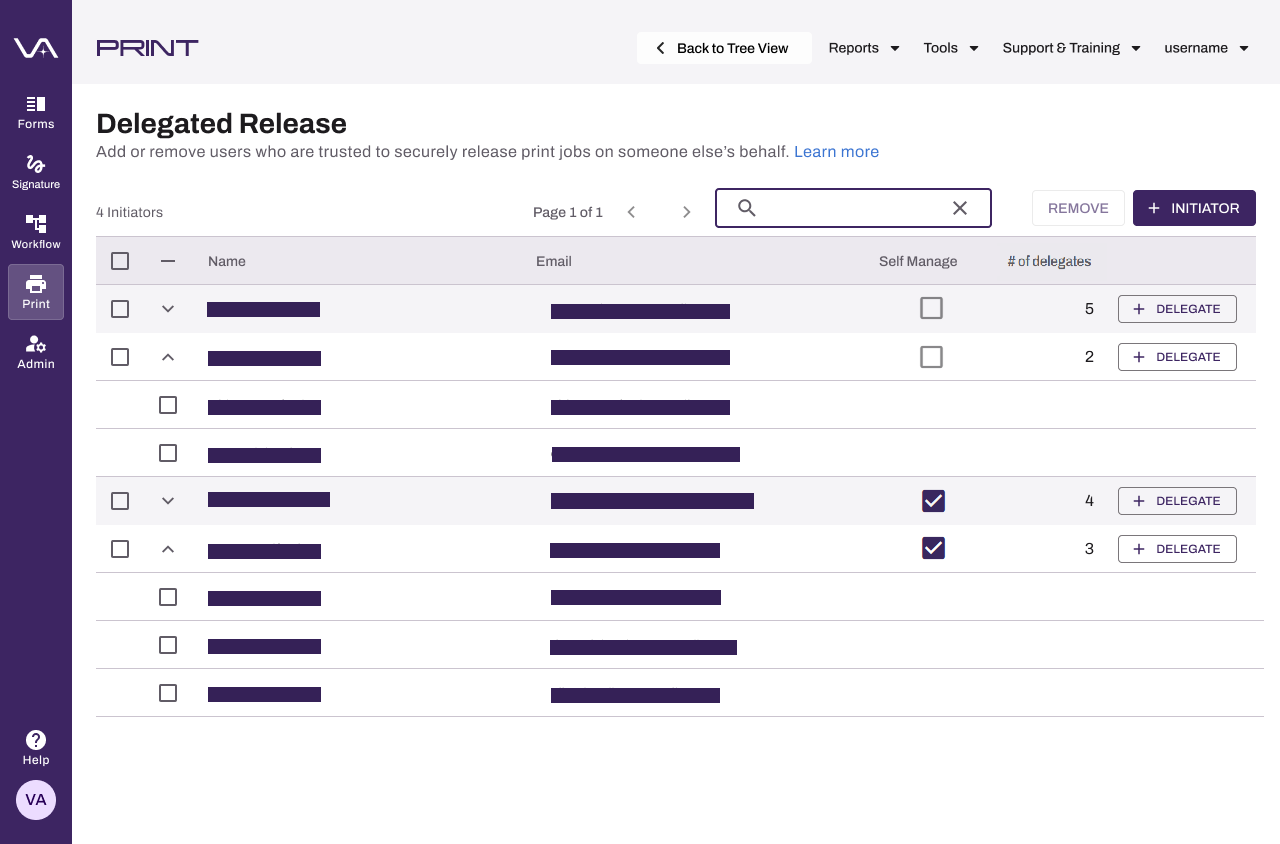
- On the Delegated Release page, locate the initiator in the list.
- Expand the initiator row to view assigned delegates.
Delete an Initiator
Follow these steps:
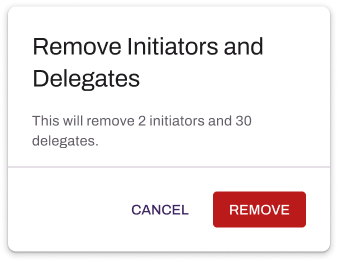
- On the Delegated Release page, select the initiator in the list.
- Select Remove in the upper-right corner.
-
On the modal select Remove.
End User Experience
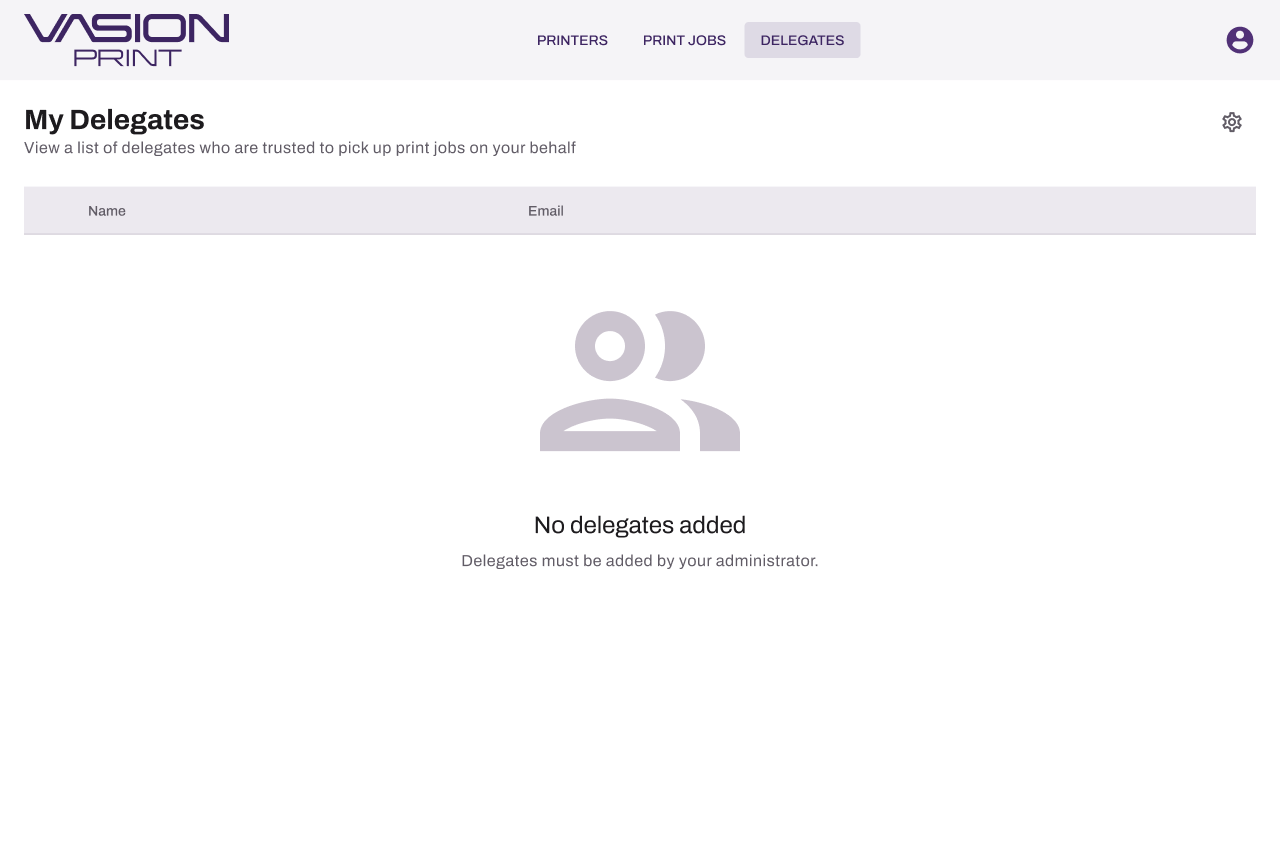
After configuration initiators can view and manage their delegates on the Delegates tab in the Self-service Portal. The experience differs depending on whether initiators can self-manage delegates:
- Admin-managed delegates: A read-only list of assigned delegates appears for initiators.
- Self-managed delegates: Initiators can add, remove, and manage their delegates.
Next Steps
To learn more about the Delegated Release end user experience, refer to the following:
Troubleshooting Help
-
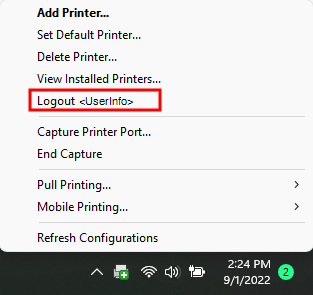
Verify that you are logged in to the Agent. You can right-click the PrinterLogic icon to confirm you are signed in.
-
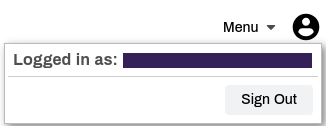
You can also go to the Self-service Portal and select the user avatar to check who is signed in.
- Ensure the right user is signed in on the CPA, Agent, and portal.
- Check the print queue log.
- Windows: C:\Windows\Temp\ppp\Log\PrinterInstallerPrintQueue.log.
- Mac/Linux: /opt/PrinterInstallerClient/log.
If you your Secure Release Print jobs do not appear in the release portal, check the following:
-
Verify that you are logged in to the Client on the workstation you used to send the print job. You can right-click the PrinterLogic icon to confirm you are signed in.
-
Verify that you are signed in to the Self-service Portal / Release Portal. Select the user avatar to verify user identity.
In this topic: