Remote Desktop Services (RDS)
Last Updated: April 07, 2026
An environment with a one-to-many connection to a server or image uses the RDS key to split Vasion Print Client communication into separate user sessions. Without this key, all installed printers appear in sessions rather than just the deployed and self-installed printers. This key also splits Client logs into individual user sessions that are labeled with identifiers for simpler troubleshooting.
Apply the RDS Key
- Install the Vasion Print Client on the server or image.
-
In the Registry Editor, browse to the following location depending on your server:
- Create a new string value named "TerminalServices."
- Set the value to 1.
- Restart the device, or restart the Client.
Restart the Client
Follow these steps to restart the Client using the Task Manager:
- Open the Task Manager.
- Select the Details tab.
- Right-click PrinterInstallerClientLauncher.exe, and select End process tree. The following services end:
- PrinterInstallerClientLauncher.exe.
- PrinterInstallerClientInterface.exe.
- PrinterInstallerClient.exe.
In multiuser environments there is a PrinterInstallerClient.exe service running for each user connected to the server or image. If the other services do not end after you select End process tree, end them individually.
- After ending the services, select the Services tab.
- Right-click the PrinterInstallerClientLauncher.exe service, and select Start.
RDS Mode Logs
- Open the Task Manager.
- Select the Users tab.
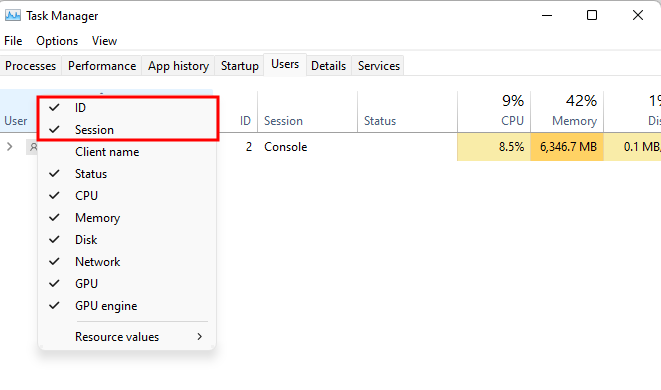
- Right-click the blank space above the column headers, and select the Session and ID columns.
- Note the ID for the specific user session.
- Open File Explorer.
- Navigate to C:/Windows/Temp/PPP, and find the log folder associated with the ID.
.