SNMP Results
Last Updated: August 04, 2026
Each printer object has two tabs that show device information gathered through Simple Network Management Protocol (SNMP) A protocol for collecting and organizing information about managed devices on IP networks and modifying that information to change device behavior. Devices that typically support SNMP include cable modems, routers, switches, servers, computers, printers, and more.: the Status and Printer Info tabs. These tabs do not show data without an SNMP configuration.
Most hardware manufacturers store information in the SNMP Management Information Base (MIB) on their networked devices, and most printers provide a significant amount of this information through SNMP. The devices are identified by Object Identifiers (OIDs), and each OID identifies unique details about the device, such as device name and location. Most manufacturers have default OIDs, but the information might appear differently.
For example one manufacturer might show an OID representing hard disk data as the total size of the hard disk, but a different manufacturer might show that information as used space or available space.
Confirm the OID's meaning with the specific manufacturer's MIB so you understand the data.
The sections below cover the data that appears on the Status and Printer Info tabs in environments with SNMP configured. If you have not configured SNMP, refer to SNMP Status Monitoring.
Status Tab
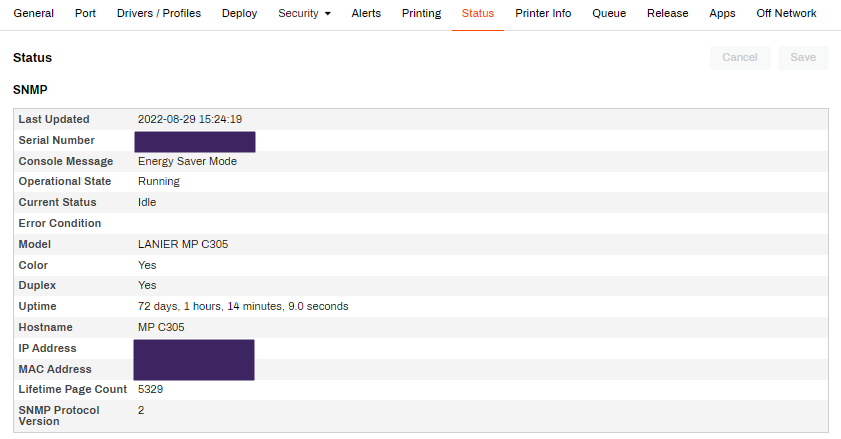
The Status tab has basic SNMP reporting information, including the following:
- Last Updated: This field shows the date and time of the most recent SNMP check.
- Serial Number: This field shows the device's serial number.
- Console Message: This field shows any message that appeared on the console during the last check.
- Operational State: This field shows the device manufacturer's definitions of available operational states, including Unknown, Running, Warning, Testing, and Down.
- Current Status: This field shows the device manufacturer's definitions of available current statuses, including Unset, Other, Unknown, Idle, Printing, and Warmup.
- Error Condition: This field shows the device manufacturer's definitions of available error conditions, including ICMP Host Unavailable, Low Paper, No Paper, No Toner, Door Open, etc.
- Model: This field shows the device's model number.
- Color: This field shows the device's ability to print in color or in only black and white.
- Duplex: This field shows the device's ability to print on one side or both sides of the paper.
- Uptime: This field shows the device's running time since the last shutdown or restart.
- Hostname: This field shows the device's network name.
- IP Address: This field shows the device's IP address.
- MAC Address: This field shows the device's network address.
- Lifetime Page Count: This field shows the number of pages printed during the device's lifetime. Printer manufacturers might include multifunction options, such as copy and fax, in the lifetime page count.
- SNMP Protocol Version: This field shows the version of SNMP that the printer is using. SNMP v1/v2 shows "2," and SNMP v3 shows "3."
Printer Info Tab
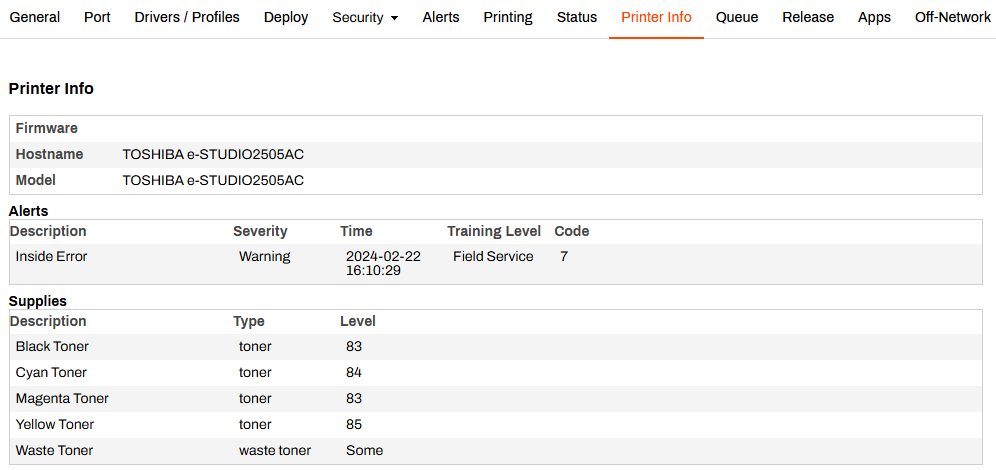
The Printer Info tab shows detailed information about the printer that was collected through the SNMP configuration. The sections on this tab differ between devices depending on the features that they support. For example, a printer that does not support scanning does not show the Scan Statistics section. The following sections can appear:
- Printer Info: This section shows the firmware version, hostname, and model of the printer. The firmware version is commonly an OID specific to each manufacturer and might not initially appear.
- Alerts: This section shows any reported alerts, the severity, timestamp, training level, and code. The Alerts section only appears if the printer reports an error.
- Statistics: This section shows print, copy, and scan statistics, including page count, monochrome, color, single pages, double-sided pages, and more.
- Supplies: This section shows printer consumables and their type and level.
- Inputs: This section shows the paper tray or inputs and the vendor, model, and max capacity.
- Covers: This section shows the access cover and its current status.
- Outputs: This section shows the name and location of the output tray, including the vendor, model, max capacity, and whether the tray supports bursting, collating, uncollating, and offset stacking.
- Storage: This section shows the type of storage, current size, and any out-of-memory errors.
- Network Cards: This section shows the network card, status, speed in MB, and any reported errors.
In this topic: