Alerts
Last Updated: October 08, 2026
You can use alerts to keep track of printer issues and maintenance, like running out of paper, paper jams, missing trays, low toner, etc. When you configure printer alerts, a designated admin or group receives an email when a printer issue occurs. The alert provides the necessary information to quickly find the affected printer.
Key Points
Review the following key points:
- You set up alerts on a folder's or printer object's Alerts tab in the Admin Console.
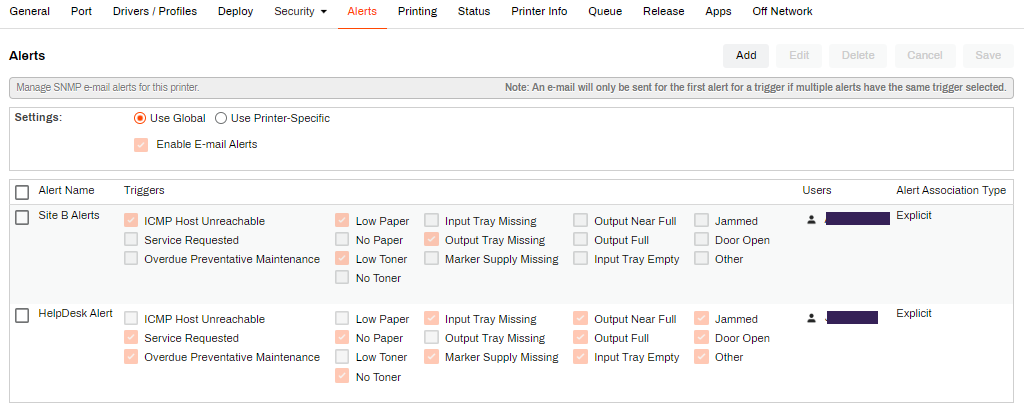
- You can apply each trigger only once per printer. If there are multiple users or groups that you want notified for a specific trigger, add them all to the same alert.
- Configuring an alert on the folder level applies the alert to all printer objects and subfolders in that folder.
There are two alert association types:
- Explicit
- You configure the alert directly on a folder or printer object.
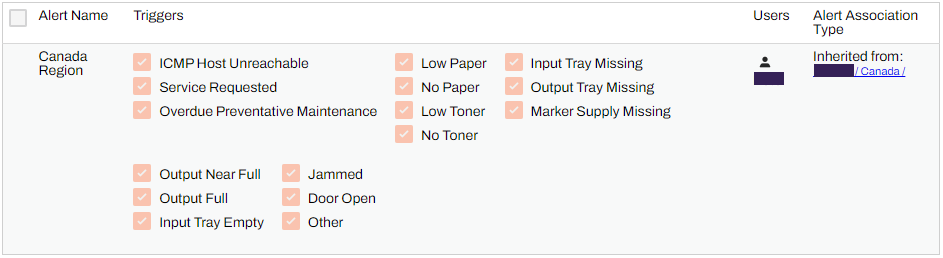
- Inherited
- You configure the alert on a folder, and all printers and subfolders in that folder inherit that alert. The path to where you configured the alert appears and provides quick navigation to the folder in which the association is explicit.
Requirements
Review the following requirements:
- The printer object must exist in the Admin Console.
- You must set up and turn on Simple Network Management Protocol (SNMP) status monitoring. For more details refer to SNMP Status Monitoring. Without SNMP configured, a message appears at the top of the tab.
- You must be a current user or in a current group. For more details refer to Admin Console Users.
Configure Email Alerts
To configure email alerts, you must turn on SNMP Alerts in Tools  Settings General, and configure the alert on the Alerts tab at the folder or printer object level.
Turn On General Settings
Follow these steps:
- Go to Tools Settings General, and scroll down to the SNMP Settings section.
- Below SNMP Alerts, select the checkbox for Enable e-mail alerts.
- Select one of the options for By default, SNMP monitoring for each printer is:
- On: Turn on for all printer objects by default.
Off: Turn off for all printer objects by default.
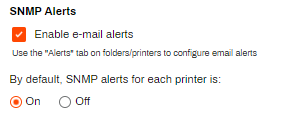
- Select Save in the upper-right corner.
Configure the Alerts Tab
Follow these steps:
- Navigate to a folder's or printer object's Alerts tab.
- In the Settings section, use the default setting or turn on Use Printer-Specific to modify that object.
- Select Add in the upper-right corner.
- On the Add SNMP Alerts modal, complete the following:
- Enter a name for the alert.
- Select the Select All option, or select individual error conditions. Vasion recommends grouping related conditions together.
- In the Users section, select the users or groups that should receive the alert. You can select multiple users and groups.
- Use the arrow button to move the users or groups to the right column.
- Select OK.
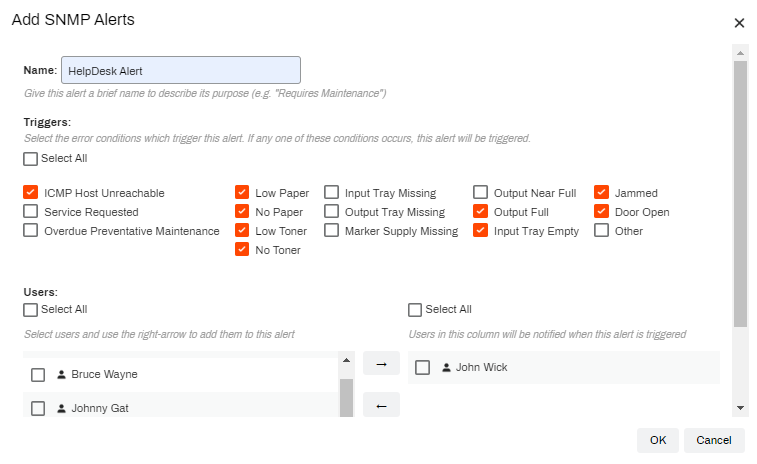
The alert is added to the folder or printer object. PrinterLogic immediately begins monitoring the printer based on the Under normal conditions: and Under error conditions: options that you selected in the SNMP Settings section. PrinterLogic emails the users or groups that are assigned to the alert when an error condition is reported to the SNMP service.
Manage Alerts
To edit or delete an alert, navigate to the folder or printer object where you added it. If you are unsure of the location, select the folder's or printer object's Alerts tab, and locate the Alert Association Type column on the right. If the value is Explicit, you can edit the alert there. The column provides a link to the parent location if the value is Inherited. Select the link to navigate to the correct location.
Edit
Do the following to edit an alert:
- Navigate to the parent level, and select the object's Alerts tab.
-
Select the checkbox next to the Alert Name.

-
Select the Edit button in the upper-right corner.

- Make changes in the Edit SNMP Alerts modal, and then select OK.
Delete
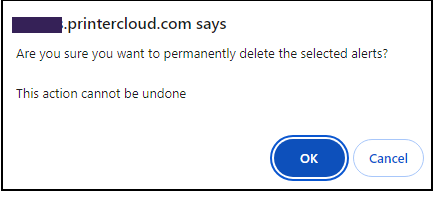
Do the following to delete an alert:
- Navigate to the parent level, and select the object's Alerts tab.
-
Select the checkbox next to the Alert Name.
-
Select the Delete button in the upper-right corner.
-
Select OK.
In this topic: