Service Agent Dashboard Actions
Last Updated: September 25, 2026
Use the Service Agent Dashboard to monitor Service Agent health, expand rows for per-service detail, and apply bulk configuration changes across your fleet.
Requirements
Before you begin, review the Requirements.
Access the Dashboard
To access the Service Agent Dashboard:
- Sign in to the Admin Console.
- Select Reports
 Service Client Status.
The Service Agent Dashboard opens and lists every registered Service Agent.
Dashboard Actions
Search & Filters
The Service Agent Dashboard filters through Service Agents, statuses, services, and their version numbers. Clear the search results to restore the full list.
Review Services
To review the services running on a specific Service Agent, select the expand icon at the start of the row. The row expands to show a nested table of every service on that Service Agent, including the service, Service Version, Status, Details, Last Online, and Service Uptime.
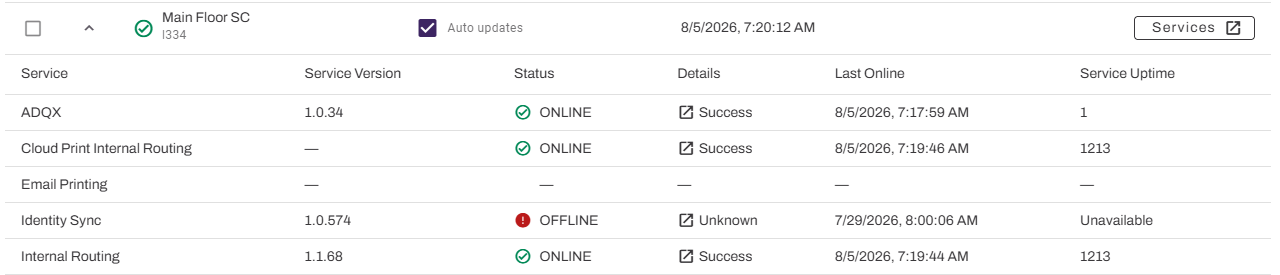
To inspect every Service Agent in the fleet at the same time, select Expand All above the table. Select Collapse All to close every expanded row.
Details
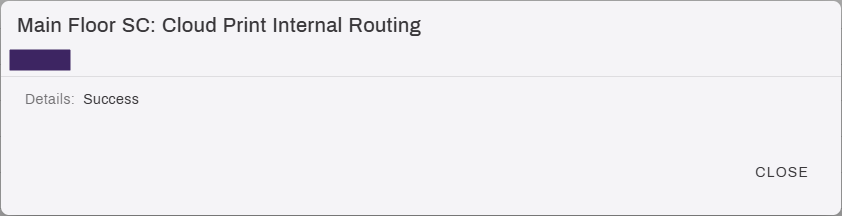
To review diagnostic detail for a specific service, select the value in the Details column. A modal opens with expanded diagnostic information for that service.
Manage Automatic Update Setting
The Service Agent automatic updates setting keeps your services up to date with the latest released version. For more details refer to Automatic Updates.
To turn Service Agent automatic updates on or off:
Individual
- Locate the Service Agent in the list.
-
Select the checkbox in the Auto updates column.

Selecting or deselecting the checkbox turns this setting off or on for the selected Service Agent.
Bulk
-
Select the checkbox at the start of each Service Agent row you want to include.
To include every Service Agent in the fleet, select the header checkbox.
- Select the Actions dropdown above the table.
-
Select one of the following actions:
- Enable auto updates for selected: Turns auto-updates on for every selected Service Agent.
- Disable auto updates for selected: Turns auto-updates off for every selected Service Agent.
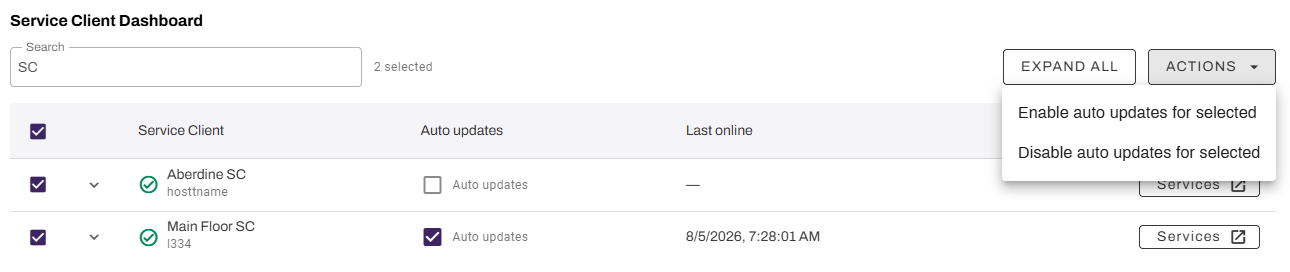
The Auto updates column updates to reflect the new state for each selected Service Agent.
Manage Services
To turn Service Agent services on or off:
- Locate the Service Agent in the list.
-
Select Services to the right.
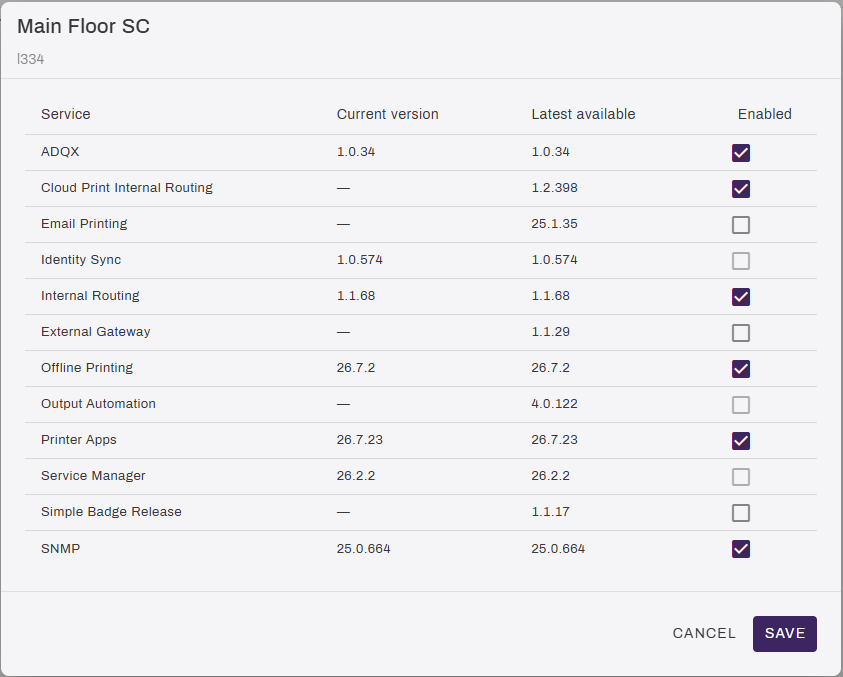
The modal displays the following:
- Service: Name of the service.
- Current version: Current version running on that Service Agent.
- Latest available: Latest version available through the auto update feature.
- Use the checkboxes in the Enabled column to turn services off or on.
- Select Save to apply your changes, or select Cancel to close the modal without saving.
Grayed out boxes require additional configuration before activating and cannot be turned on in this view.
In this topic: