Mobile App Overview
Last Updated: September 23, 2026
Here is a brief overview of the PrinterLogic mobile app. Please note that depending on how the PrinterLogic solution is implemented for your organization not all screens may be available.
For complete details on the app functionality, refer to PrinterLogic App in the Print User Guide section.
App Components
App Header
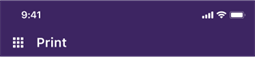
The app header shows the following:
- App icon: Select the icon
 to open the side menu to navigate the app.
 - Current feature: View where you are in the app.
App Toolbar
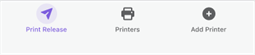
The app toolbar, located at the bottom of the screen, shows the following:
- Print Release: Select the button to go to the Print Release screen.
- Printers: Select the button to go to the Printers screen.
- Add Printer: Select the button to install a printer (if enabled by the administrator).
App Screens
Print Release
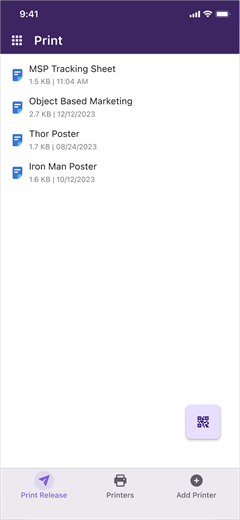
The app home screen is Print Release. On this screen you can see all held print jobs you have sent to a pull and Direct Secure Release printers.
From this screen you can select print jobs to release or delete. You also have a QR code reader option  that, when selected, will open the code reader.
Scanning the QR code on or near a printer automatically selects the printer to release the print job.
Both pull printing and secure release printing are supported when printing from the mobile device.
Printing from a mobile device holds the print job on the device, and you can only release the print job using the app. You cannot use the CPA or the Release Portal to release jobs printed from a mobile device.
Printers Screen
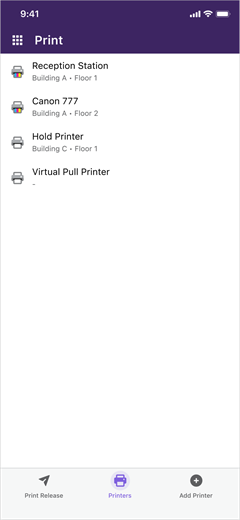
The Printers screen displays a list of available printers either deployed from the Admin Console, or manually installed from the app.
Pull down to refresh your screen and see the latest printer configuration. When printer deployment is controlled by your administrator, you cannot delete auto-deployed printers from the app.
If your administrator allows, you can add additional printers. For more details refer to the Add Printer screen.
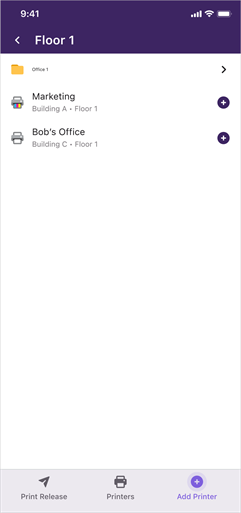
Add Printer Screen
The Add Printer screen serves a similar function as the Self-service Portal in that you can manually install a printer on your mobile device.
After you add a printer from this screen, it is listed on your Printers screen in the app.
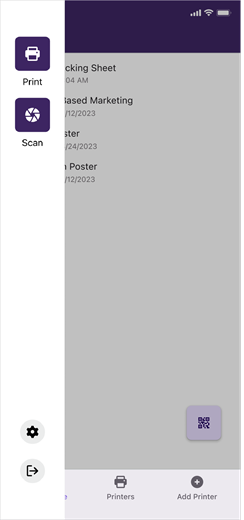
Side Menu
Select the App icon to access the side menu. From the side menu you have the following options:
- Print: Select to access the print functionality.
- Scan: Select to access the scanning functionality.
- App Settings
 : Select to access the PrinterLogic mobile app information details and settings.
 - Exit
 : Select to sign out of the app.
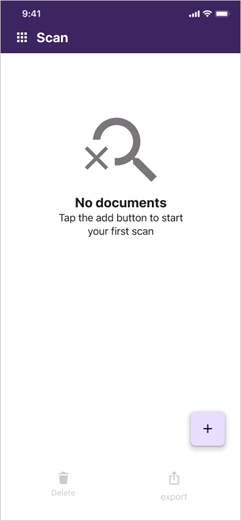
Scan Screen
No scans
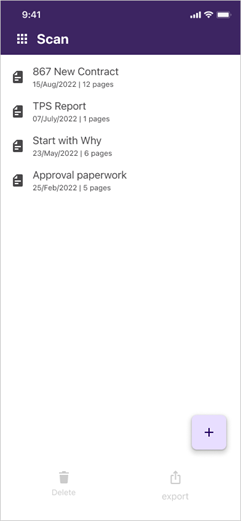
List of scanned documents
App Settings
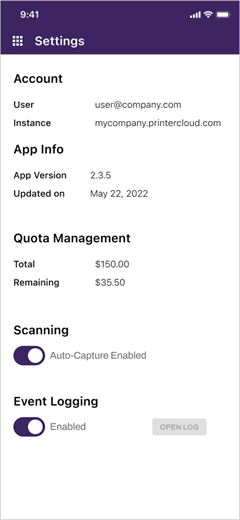
The app Settings screen shows the following information:
Account
-
User: The username of the person currently signed in to the app.
- Instance: Instance URL where the app is connected.
App Info
- App Version: The current version the app is running.
- Updated on: The date the app was updated.
Quota Management
- Total: Shows the total quota assigned to the user.
-
Remaining: Shows the remaining quota available for the user.
Quota Management requires additional licensing.
Scanning
- Auto-Capture: Toggle to turn on or turn off auto-capture functionality.
- Enabled: Automatically captures the document when it is recognized.
- Disabled: Requires the user to select the capture button
 to scan the document.
Event Logging
Turn on Event Logging for print release to assist you with troubleshooting efforts. Only the app details are logged and should be turned only on for the time necessary to gather the needed information, since the log data is stored on the device.
Only one log is stored on the device at a time. So when logging is enabled again, the previous log information is replaced with the new log.
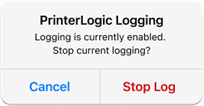
You will receive a notification after 4 hours if logging is still turned on. Select Stop Log to turn off Event Logging.
App Links
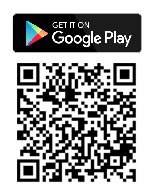
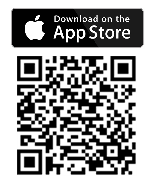
Download the mobile app from the App Store or Google Play Store.
The PrinterLogic mobile app supports the current operating system version from the supported manufacturers, plus two previous versions. For example, when Apple released iOS 26, then iOS 18 and 17 are supported.
For complete details about the app functionality, refer to PrinterLogic App.
Troubleshooting Help
If held print jobs are not visible in the mobile app, make sure the end users are logged into the client on the workstation and the same user credentials are being used to log into the mobile app.
If your end users are not able to print to a specific printer, first make sure their mobile device can communicate with the printer. Another thing to check is that the printer supports IPP, that it is turned on, and that TCP Ports 631 and 80 are open. If those do not fix the issue, check to make sure IPPS is not turned on because IPPS is not supported by PrinterLogic and conflicts with the printing process.
If your environment uses complex FDQNThe complete domain name for a specific device or host on a network, consisting of the hostname, the domain name, and the top-level domain. names on your printers, iOS considers having the complex names with a self-signed certificate an unsafe connection for IPP / IPPS requests. To confirm this is the issue, check your logs for the following error from the printer or server: "Error Domain=NSURLErrorDomain Code=-1200".
The solution is to install the root certificate for the used domain on the device. Refer to iOS Printing Fails with -1200 Error..
Only printers that are manually added to the mobile device can be deleted. Printers that have been deployed to the mobile device by the administrator cannot be deleted from within the app.
- Open the PrinterLogic mobile app on the device that needs log information.
- Select the App icon from the app header.
- Select the Settings button
 .
. -
Select the toggle to turn on event logging.

-
On the Enable Logging modal select Start.
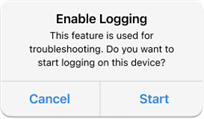
Turn on Event Logging for print release to assist you with troubleshooting efforts. Only the app details are logged and should be turned only on for the time necessary to gather the needed information, since the log data is stored on the device.
Only one log is stored on the device at a time. So when logging is enabled again, the previous log information is replaced with the new log.
You will receive a notification after 4 hours if logging is still turned on. Select Stop Log to turn off Event Logging.
In this topic:
The mobile app supports PrinterLogic and Virtual Appliance instances. PrinterLogic Web Stack or previous on-prem releases are not supported as of February 2023.
It depends. Mobile print and scan is included in your core PrinterLogic license. Additional licensing is required for Off-Network Print, Mobile App Print Release, and Quota Management.
Yes. The app is available in English, Spanish, German and French.
The PrinterLogic mobile app is supported on any iOS and Android phone and tablet (iPhone, iPad, Android phones, tablets, etc.), however, smartwatches (Apple Watch, Samsung Galaxy Watch, etc.) are not.
It depends on how the app is used. Here are three scenarios:
- For direct mobile printing, the phone must be on the same Wi-Fi network as the printers.
- When releasing print jobs in the PrinterLogic environment or scanning documents, the phone can be on any internet connection.
- When releasing print jobs in the Virtual Appliance environment, the phone must be on the same Wi-Fi network as the PrinterLogic instance.
Yes. In addition, smartphones are secure devices that typically use biometrics (fingerprint or facial recognition) for authentication. Users are required to authenticate their identity when logging in to the app with user credentials and passwords or a configured IdP for your PrinterLogic environment before accessing any printing and scanning features and documents.
When the app is used to release print jobs that originate on a desktop computer in particular, those print jobs are never sent to the phone. They stay on the computer until they are released. Upon release, they travel directly to the printer.
When the user launches the app and selects a print job, printers that are available for that job appear automatically. They are determined by IT or were added by the user. For Secure Printing, if the job is assigned to a specific printer then only that printer will appear. For pull printing, users see all the pull print enabled printers they have access to.
Yes. Information added into the comments field on the printer's General tab in the Admin Console displays on mobile devices.
Yes. In the Admin Console, you can view reports based on time and date, user, activity type, document count, cost per page, and more.
Scan to Email and Scan to Storage must be turned on and configured in the Admin Console first. Administrators need to configure cloud storage destinations with Google Drive, SharePoint, Box, or OneDrive for the end user to scan to those locations. Refer to Scan to Storage for the configuration steps for each destination.
No, once the cloud storage integration or destination is configured in the Admin Console by an administrator or , users will be able to scan documents directly to cloud storage.
All scans originating from a mobile device are local to that device, and are stored there until the user deletes from the app. If a user signs in to the app with their credentials on another mobile device, their previously scanned documents would not be accessible.
Any scanned documents saved locally within the PrinterLogic mobile app will be deleted from the workspace if the app is uninstalled. If those documents are sent via email or text, or shared to a cloud storage location, they are still accessible in those destinations.