Entra OpenID Connect (OIDC)
Last Updated: April 07, 2026
An Entra OIDC configuration is required if your organization uses a Entra ID (Azure AD) SAML connection for identity management and Microsoft Microsoft Intune for mobile app deployment. Microsoft Intune's Mobile Application Management (MAM) policies require OIDC authentication for mobile apps to access protected documents.
Key Points
- This configuration is specifically for mobile Microsoft Intune environments.
- OIDC works alongside any existing Entra ID (Azure AD) SAML connections for desktop and web users (doesn't replace them).
- Ensure Microsoft Intune mobile settings are enabled. Contact your Vasion representative for assistance.
- This authentication method is specific to mobile sign-in to enable the PrinterLogic app to access documents protected by Microsoft Intune's Mobile Application Management (MAM) policies.
Requirements
- Existing Entra ID (Azure AD) SAML connection configured for Vasion Print.
- Multi-IdP and Microsoft Intune features enabled for your Vasion Print instance.
- MicrosoftMicrosoft Intune environment with Mobile Application Management (MAM) policies.
- Administrative access to both the Microsoft Entra admin center and Vasion Print Admin Console.
Configure the Connection
To add and configure app properties for the Vasion Print OIDC connection do the following:
- Add IdP Template.
- Register Entra Application.
- Add Mobile URI.
- Configure IdP Settings.
- Configure SCIM Provisioning.
- Enable Mobile Intune Login.
1. Add IdP Template
- Open your Vasion Print Admin Console and sign in.
- Go to Tools
 Settings General and scroll down to the Identity Provider Settings section.
 - Select IdP, and then select Add.
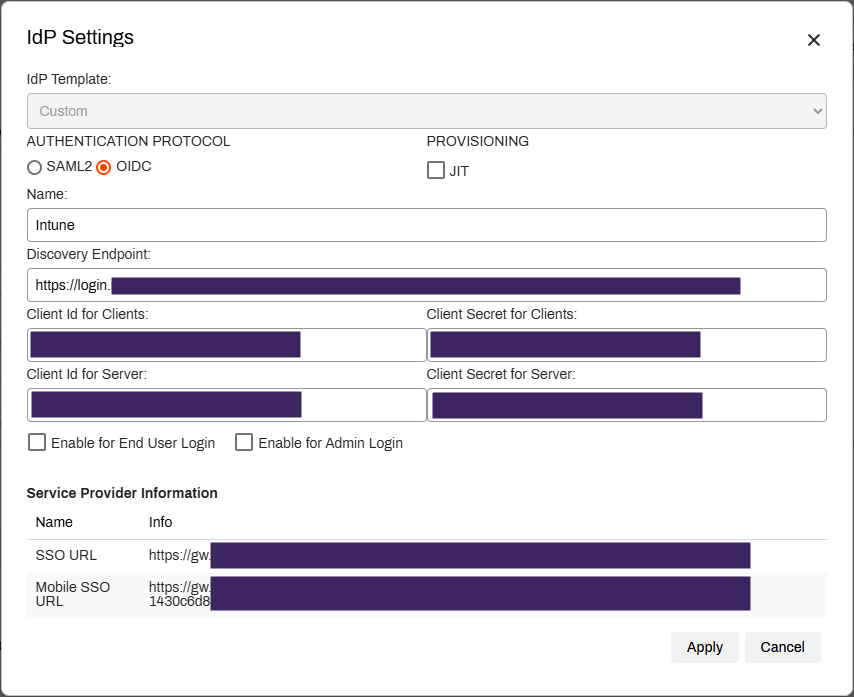
- Select Custom in the IdP Template dropdown.
- Select OIDC in the Authentication Protocol section.
- Leave the checkboxes in the Provisioning section blank.
- In the Name field, enter the name you want displayed on the login button for users, e.g. Microsoft Intune Login, Mobile Only, etc.
Do not select the Enable for End User Login or the Enable for Admin Login options. Microsoft Intune authentication is only supported by the mobile app.
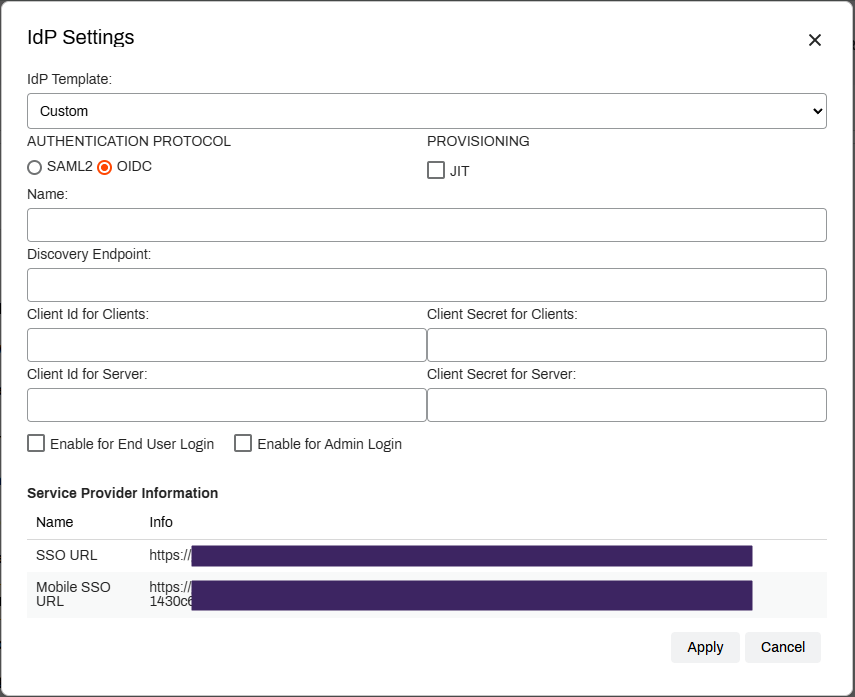
Keep the IdP Settings screen open so that the Service Provider Information at the bottom is available for the following steps.
2. Register an Application
- Go to the Microsoft Entra admin center. (https://entra.microsoft.com/)
-
In the left-side menu expand Entra ID, then select App registrations.
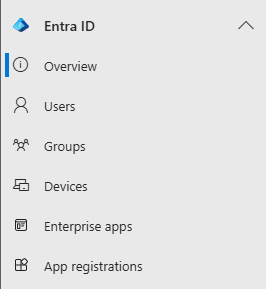
- On the App Registrations page, select + New Registration in the upper-left.
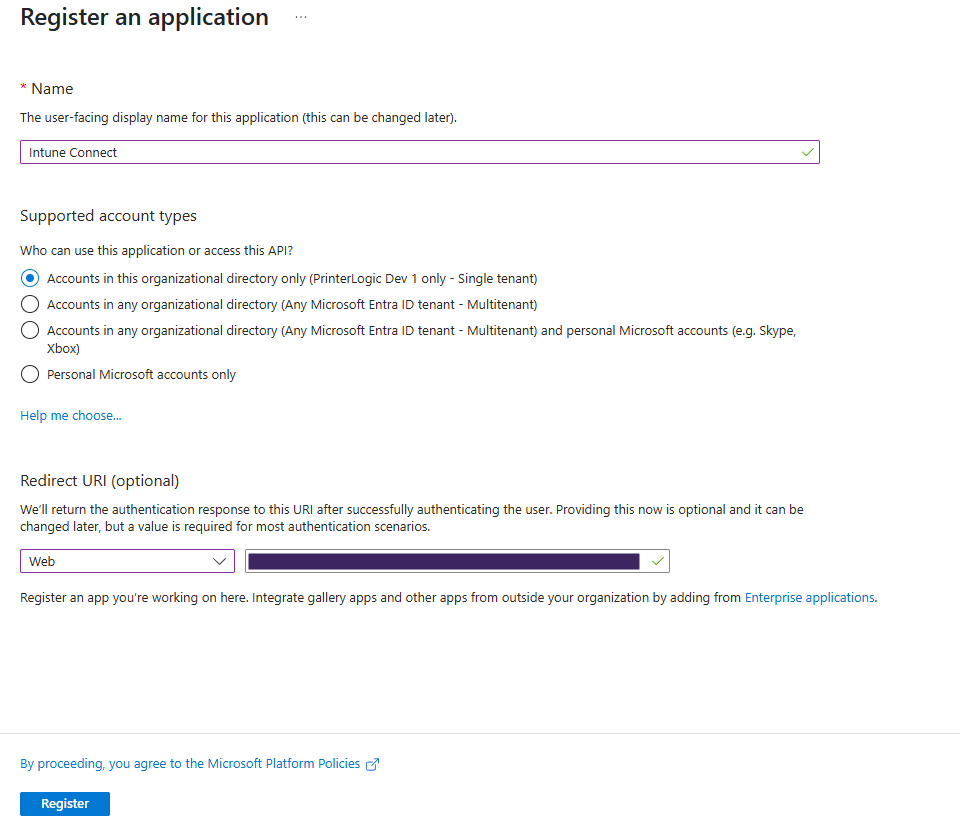
- In the Register an application page, enter a Name for the application. End-users will see this name.
- Select the desired option in the Support account types section.
- In the Redirect URI (optional) section, choose the Web option in the Select a platform dropdown.
-
Go back to the IdP Settings template and copy the SSO URL from the Service Provider Information section.
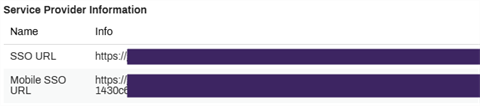
- Paste the SSO URL in the field next to the Web option.
- Select Register.
3. Add Mobile URI
-
On the new app's homepage, select the Redirect URIs option in the Essentials section.
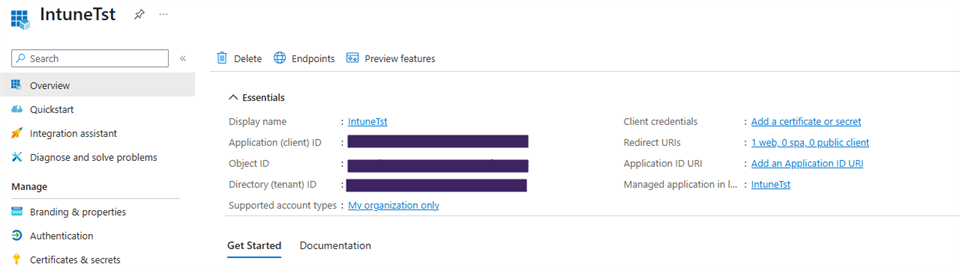
- In the Redirect URIs section, select Add URI.
-
Go back to the IdP Settings template and copy the Mobile SSO URL from the Service Provider Information section.
- Paste the Mobile SSO URL in the new Entra URI field.
- Scroll down to the Implicit grant and hybrid flows section, select the Access tokens (used for implicit flows) option.
- Select Save.
4. Configure IdP Settings
- Select Overview from the app's left-side menu.
-
Select the Endpoints option.

- In the Endpoints modal, copy the OpenID Connect metadata document.
- Paste it into the IdP Settings Discovery Endpoint field.
- Close the Endpoints modal.
-
Copy the Application (client) ID from the Entra app's Essentials section and paste it into both the Client Id for Clients and the Client Id for Server fields.
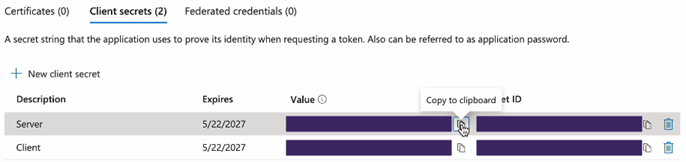
- Select Certificates and secrets in the app's left-side menu.
- Select + New client secret.
- Enter Server in the Description field.
- Adjust the Expires value as needed.
- Select Add.
-
Copy the Value for the Server secret and paste it into the IdP Settings Client Secret for Server field.
Copy the Value, not the Secret ID. - Select + New client secret again.
- Enter Client in the Description field.
- Adjust the Expires value as needed.
- Select Add.
-
Copy the Value for the Client secret and paste it into the IdP Settings Client Secret for Clients field.
- Select Apply in the IdP Settings modal.
- Select Save in Vasion Print.
5. Configure SCIM Provisioning
The following sections guide you through creating the Entra Provisioning app, adding the Microsoft Intune users and groups, and applying the SCIM token.
Create Provisioning App
- Navigate to the Microsoft Entra admin center.
-
In the left-side menu expand Entra ID, then select Enterprise apps.
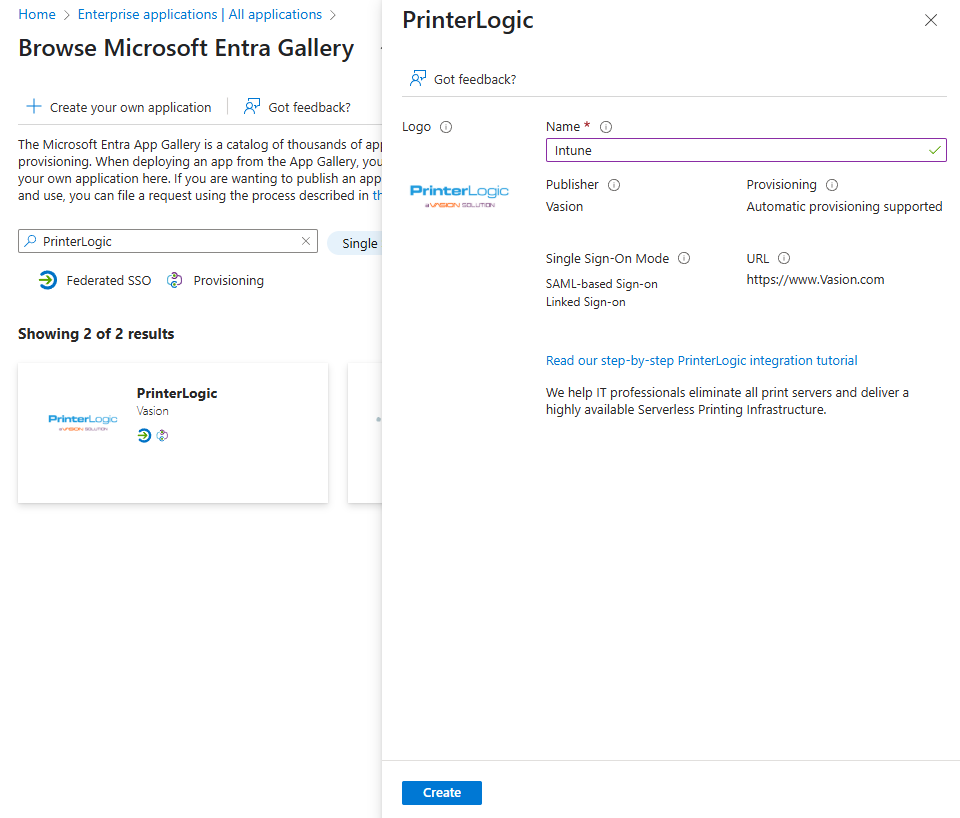
- Select + New Application in the upper-left.
- In the Browse Microsoft Entra Gallery window, use the search bar to search for and select PrinterLogic.
-
In the new app modal, enter a unique Name, then select Create.
Add Users and Groups
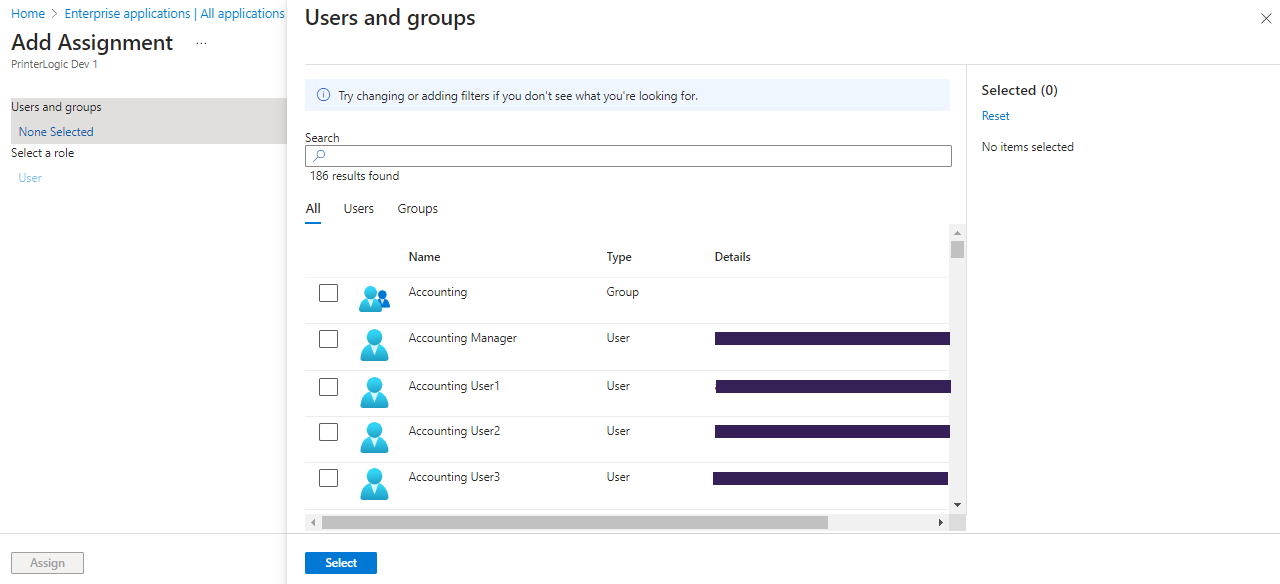
- On the app's Overview page, and select 1. Assign Users and Groups.
- Select the + Add User/Group option.
- In the Users and Groups section of the Add Assignments page, select None Selected.
- Add the Microsoft Intune users and groups you want to provision over.
- Assign the Users role for end users.
- Select the Select button.
- Select Assign.
Enable Provisioning
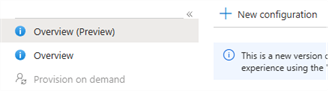
- On the app's Overview page, select Provisioning from the left-side Manage menu.
-
On the Overview (Preview) page, select + New configuration.
-
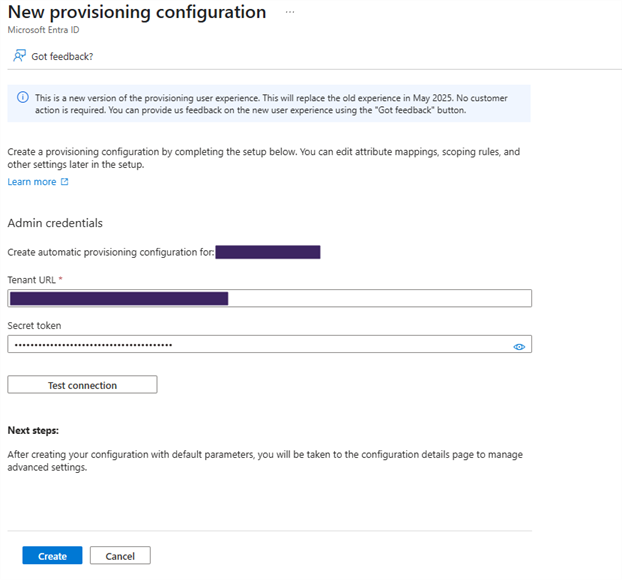
In Vasion Print, select the your separate Entra ID configuration and then select Modify.
This is the SCIM Tenant URL from your existing Entra ID (Azure AD) configuration, not the new Custom OIDC configuration.
- Copy the SCIM Tenant URL from the Service Provider Information section and paste the URL into the Entra Tenant URL field.
- Close out of the Admin Console IdP Settings window.
4. Generate and Apply SCIM Token
- In the Vasion PrintGeneral settings, select the SCIM option in the Identity Provider Settings section.
- Select your Microsoft Intune configuration in the dropdown menu.
-
Select Generate SCIM Token.

Generating a SCIM token invalidates any previous tokens for that IdP.
- Select Proceed.
- Copy the token, close the modal, and select Save at the top-right corner of the General Settings window.
- In the Entra New provisioning configuration panel, paste the SCIM token into the Secret Token field.
- Select Test Connection.
- Select Create.
The initial provisioning can take up to 45 minutes to "Automatically" provision after changes are made. Select the Start Provisioning option on the Provisioning tab to start the process sooner. Use Provision on Demand to provision specific users for testing purposes.
6. Enable Microsoft Intune Login
- Go to Tools
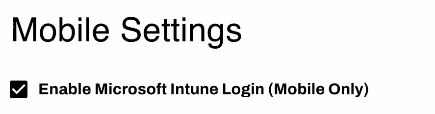
 Settings Mobile in the Admin Console.
 -
In the Intune Settings section, select Enable Microsoft Intune Login.
-
Select the IdP you wish to use for Microsoft Intune authentication from the dropdown.
- Select Save in the upper-right corner.