Print Server Management
Last Updated: September 22, 2026
Follow the steps below when you want PrinterLogic to manage driver deployment to the print server, and printer installation to the workstations while the print server manages the print queue.
Import Printers
Use these steps to import printers into PrinterLogic.
- In the Admin Console, navigate to Tools
 Import / Export.
 - Select Import Microsoft printers into PrinterLogic as Direct IP printers.
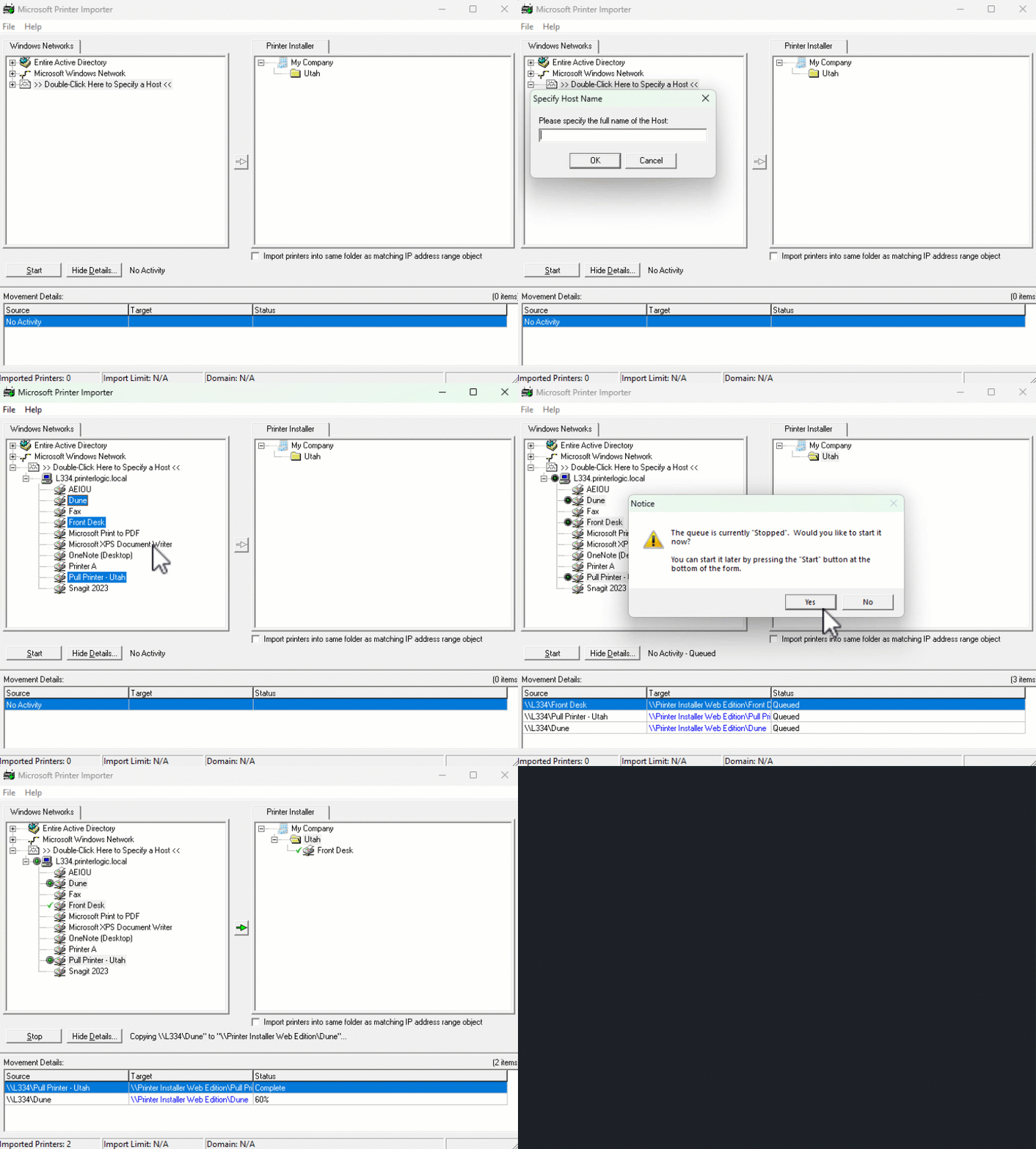
- In the Microsoft Printer Importer screen, select one of the following on the left side:
- Entire Active Directory.
- Microsoft Windows Network.
- Double-Click Here to Specify a Host. For this option, enter the IP address or hostname.
- Expand the server in which the printers are installed.
- Select the printers that you want to import. You can select more than one printer by holding Ctrl and selecting the printers.
- In the Printer Installer section, select the folder in which you want to import the printers.
- When the arrow button turns green, select it to import the printers into PrinterLogic.
- If the queue is not running, you receive a message. Select Yes to start the queue.
- After the printer import finishes and the queue is clear, close the Microsoft Printer Importer.
Install the Agent
Install the Agent on the Print Server. For complete details on installing the Agent, see Install the Agent & Web Extension.
Deploy to Server
To set up printer deployments to your print server:
- In the Admin Console, open the folder where you imported the printers(s) and select the printer object associated to the printer.
- Select the Deploy tab, and select Add.
- Select Active Directory User, Computer, or Group or Container, or OU.
-
In the Enter the object names to select field, type the name of the server from which the printers were imported.
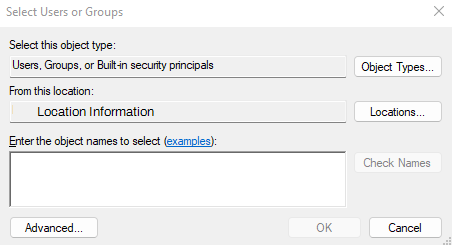
- Select OK.
-
When the server appears as a line item in the Deploy tab, select Share.

- Select Save
- Repeat these steps for each printer you imported from the server.
Set up a Connection
- Navigate to the TCP / IP Printer Settings section on Tools Settings Client.
- Check the box for Create connections to shared TCP/IP printers.
- (Optional) Only apply in terminal services sessions.
- (Optional) Allow direct IP printers to be installed from the portal.
- Select Save

Printers deploy out to workstations during the next Agent check-in. Either at a timed interval (configured in Tools Settings Client under the Client Check-in section), during a system startup / logon, or by manually starting the Agent check-in from the system tray icon. For more information, see Agent Refresh.
In this topic: