Infor Coach
Last Updated: October 23, 2026
Set Up Infor Integration
Complete each section in order. The next section unlocks once you finish the one before it.
Before You Begin
Review the following requirements for the Infor Integration.
- Vasion licensing for both PrinterLogic Output, which includes Off-Network Print.
- Access to the PrinterLogicAdmin Console.
- At least one or more printers created in the Admin Console. For more details refer to Add & Manage Printers.
- Printers configured for Off-Network Printing.
- At least one Service Agent configured as the Internal Routing Service (IRS). For more details refer to Service Agent Setup.
- Your Service Agent must be able to access the following service URLs adjusted for your region.
- ofn.app.printercloud.com.
- ofn-gw-app.printercloud.com
- API Cloud Link enabled for the instance.
- The IDM Administrator role.
- The ENABLE_PRINT_SERVICE_VASION feature flag enabled for your IDM tenant
We'll cover configuring Off-Network Print and the Internal Routing Service (IRS) Service Agent configurations in this coach.
Review the following requirements:
- Printers using ONP cannot have the SNMP Status option selected on the printer's Port tab. This option is different from Simple Network Management Protocol (SNMP) monitoring.
- ONP printing occurs over TCP port 443 from the device to the external gateway and from the external gateway to the IRS.
- Ensure that the following allow list URLs are open
ofn.app.printercloud.com.ofn-gw.app.printercloud.com.
- Customer-hosted gateways require a Secure Sockets Layer (SSL) certificate and key from a trusted Certificate Authority (CA).
- The certificate must be an unencrypted Base64 Privacy Enhanced Mail (PEM) file that contains the full certificate chain.
- The key must be in unencrypted Public-Key Cryptography Standards (PKCS) #8 format, and it must correspond to the PEM certificate.
- The certificate must match the external Domain Name System (DNS) or IP address of the external gateway.
ONP uses a Service Agent running the Internal Routing Service (IRS) to route print jobs from the external gateway to the printer. The IRS Service Agent requires the following:
- All devices must access the Domain Name System (DNS) server to resolve names.
- For redundancy, you can add multiple Service Agents.
- Routing from the IRS to the printer occurs over Transmission Control Protocol (TCP) port 9100 or port 631 for Internet Printing Protocol Secure (IPPS).
For Windows Service Agents, install the Visual C++ Redistributable for Visual Studio 2015-2022 package or later. You must install both the x86 and x64 redistributable packages. You can download these packages from the Windows Download Center.
For more details refer to Service Agent Setup.
Vasion-Hosted Gateways
Vasion external gateways are hosted in AWS and include the following:
-
PrinterLogic U.S.-NOW Gateway: printercloudnow.
Note that the PrinterLogic U.S.-NOW Gateway is for Vasion Now instances only. U.S.-based Scheduled Release SaaS (SRS) customers must use the PrinterLogic U.S. Gateway.
- PrinterLogic U.S. Gateway: printercloud.
- PrinterLogic EMEA Gateway: printercloud5.
- PrinterLogic ASIAPAC Gateway: printercloud10.
- PrinterLogic SE-ASIAPAC Gateway (Singapore): printercloud20.
- PrinterLogic CANADA Gateway: printercloud15.
Configure ONP
Follow these steps to allow Off-Network Print:
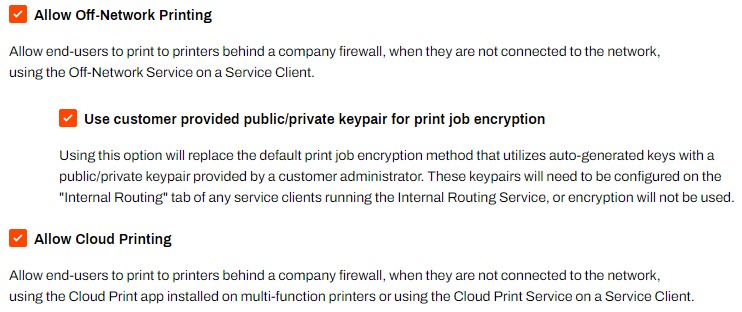
- In the Admin Console, go to Tools
 Settings General, and scroll down to the Off-Network Printing section.
 - Select the checkbox for Allow Off-Network Printing.
- (Optional) Select Use customer-provided public / private key pair for print job encryption. For more details refer to Asymmetric Key Pair Configuration.
- Select Save in the upper-right corner.
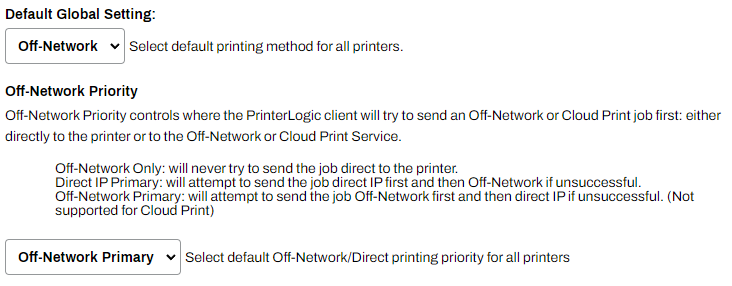
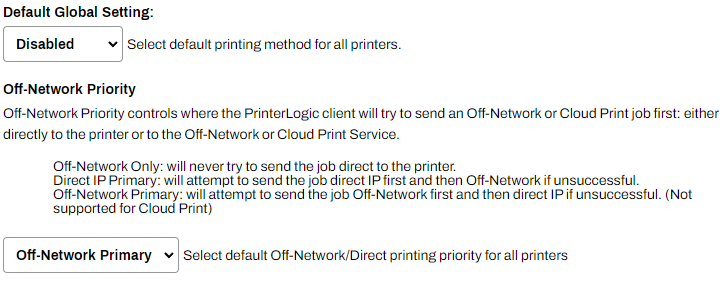
The following steps guide you through configuring ONP as the default for all printers or for specific printers. Turning on the global settings makes all printers off-network printers which forces all print jobs to follow the flow of ONP, regardless of whether you are on the network. If you want to turn on ONP only for specific printers, follow the steps in the Configure for Specific Printers dropdown.
Configure Globally
Follow these steps:
- From the Default Global Setting menu, select Off-Network.
- In the Off-Network Priority section, select the default print priority:
- Off-Network Only.
- Direct IP Primary.
- Off-Network Primary.
- Select Save.
The Off-Network Priority section applies only to computers and not to mobile devices.
Configure for Specific Printers
Follow these steps:
- From the Default Global Setting menu, select Disabled.
- In the Off-Network Priority section, select the default print priority:
- Off-Network Only.
- Direct IP Primary.
- Off-Network Primary.
- Select Save.
The Off-Network Priority section applies only to computers and not to mobile devices.
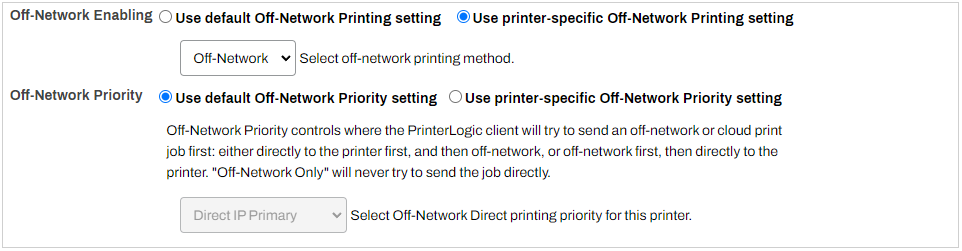
For the printer-specific configuration, complete the following steps on each printer object to turn on ONP:
- Go to the printer object's Off-Network tab.
- For the Off-Network Enabling setting, select Use printer-specific Off-Network Printing setting.
- From the Select off-network printing method dropdown menu, select Off-Network.
- (Optional) Use the default Off-Network Priority setting, or select Use printer-specific Off-Network Printing setting, and select one of the following:
- Off-Network Only.
- Direct IP Primary.
- Off-Network Primary.
- Select Save.
- Repeat these steps for any other printer objects.
Configure your Service Agent
This section covers configuring a Service Agent which installs Vasion apps and runs services for advanced features.
If you already have a configured Service Agent, it is still recommended to review the requirements and steps below before continuing to the next sections.
Review the device requirements:
- Device:
- Windows 10 or 11 and Server 2016, 2019, 2022, or 2025.
- Visual C++ Redistributable for Visual Studio 2015-2022 package or later.
- You must install both the x86 and x64 redistributable packages. You can download these packages from the Windows Download Center.
- The Service Agent cannot be a Windows device using an ARM processor.
- Visual C++ Redistributable for Visual Studio 2015-2022 package or later.
- macOS with an Intel processor.
- Ubuntu Long Term Support (LTS) 22.04, 24.04, or 26.04.
- Windows 10 or 11 and Server 2016, 2019, 2022, or 2025.
- Dual-core processor.
- 20 GB of available hard drive space.
- 8 GB of RAM.
- PrinterLogic Agent installed and authorized.
- The device, such as a server, a virtual machine, or a workstation, must have network access to target printers.
- The device must remain powered on because shutting it down stops all services.
Install and authorize the Agent on the device that will act as your Service Agent before you define it in the Admin Console.
If the Agent is already installed and authorized on this machine, you can mark this step complete and move on.
Follow these steps to create a new Service Agent:
- Sign in to the Admin Console.
- Select the folder in which you want to place the Service Agent.
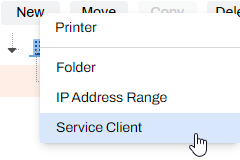
-
Select the New button at the top of the tree structure.
-
Alternatively, you can right-click the folder and select New
Service Agent.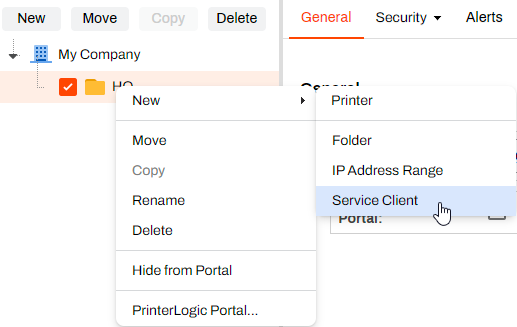
-
- In the Name field, give the Service Agent object an identifiable name.
- In the IP Address or Hostname field, enter the IP address or Fully Qualified Domain Name (FQDN) The complete domain name for a specific device or host on a network, consisting of the hostname, the domain name, and the top-level domain. of the device that hosts the Service Agent.
-
Select Add Service Client.
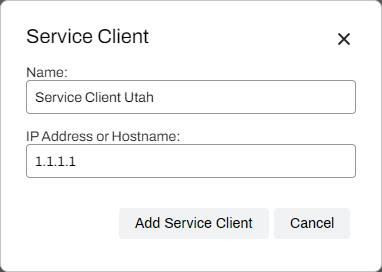
The name can be anything descriptive. If using a hostname, use the Fully Qualified Domain Name (FQDN), for example printserver01.example.com.
The IRS Service Agent is a designated device on the printer network that monitors the external gateway, immediately retrieves print jobs, and routes them to the correct printer. Follow these steps to turn on the IRS:
- Go to the Service Agent object in the tree structure.
- Select the Internal Routing tab.
-
Select Enable Internal Routing Service.

- Select Save.
- On the device designated as the IRS Service Agent, use the PrinterLogic icon in the system tray or the Start menu to refresh configurations.
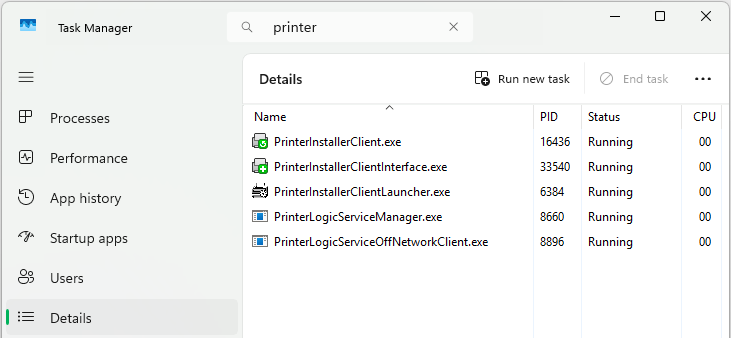
- Open the Task Manager, and select the Details tab.
- Search for printer to locate the Agent services.
- Confirm that the following services are running:
- Agent services, which include VasionClient.exe, PrinterInstallerClient.exe, PrinterInstallerClientInterface.exe, and PrinterInstallerClientLauncher.exe.
- PrinterLogicServiceManager.exe.
- PrinterLogicServiceInternalRouter.exe.
- PrinterLogicServiceOffNetworkClient.exe.
Other active services on the Service Agent also appear.
Assign External Gateway and IRS Service Agent
The IRS Service Agent provides high availability and built-in redundancy at the root, folder, and printer levels. Configuring all levels is optional. The IRS Service Agent must be on the same network and able to reach assigned printers. In environments with printers on multiple networks, an IRS Service Agent needs to reach printers in each network.
In most environments, configure the assignment at the folder or printer level first before configuring at a higher level. If all printers use the same assignment, add it to the root level. Folders and printers inherit higher-level assignments, but lower-level ones take priority.
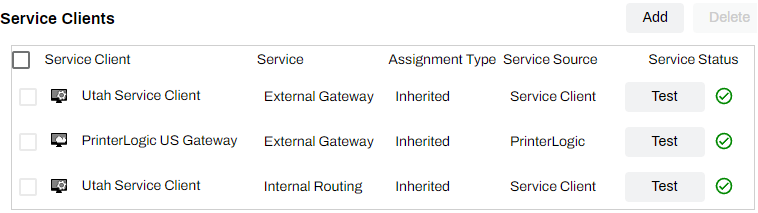
If a printer or folder has a root assignment and a folder or printer assignment, the service prioritizes the folder or printer assignment and uses the root assignment as a backup. The priority order appears in the folder's Services tab and on the printer's Off-Network tab.
Configure the settings based on your organization's needs.
Customer-hosted gateways display as options once configured. See previous section for details.
Folder Level
Do the following to add an external gateway and IRS assignment at the folder level:
- Select the folder in the tree structure.
- Select the Services tab.
- Select the Add button.
-
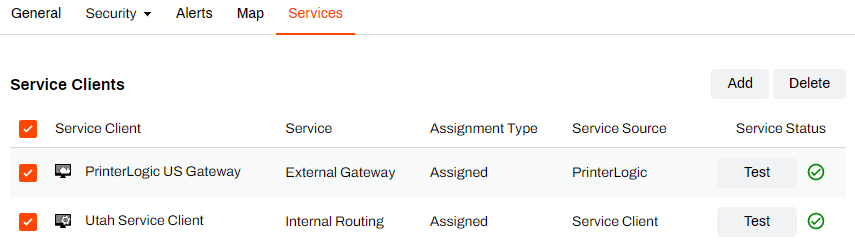
In the Add Service modal:
- Select the regional, self-hosted external gateway, or both for hybrid configurations.
- Select the IRS Service Agent.
- Select OK.
- Use the Test button in the Service Status column to confirm connectivity.
Lower-level folders and printers inherit the external gateway and IRS assignment, including any set at the root level or a higher-level folder.
Printer Level
Do the following to add an external gateway and IRS assignment at the printer level:
- Select the printer object in the tree structure.
- Select the Off-Network tab.
- Select the Add button.
-
In the Add Service modal:
- Select the regional, self-hosted external gateway, or both for hybrid configurations.
- Select the IRS Service Agent.
- Select OK.
- Use the Test button in the Service Status column to confirm connectivity.
These steps set the external gateway and IRS assignment for the printer object, including any assignments set at the root level or a higher-level folder.
Root Level
Do the following to add an external gateway and IRS assignment at the root level:
- Select the organization icon
 at the top of the tree structure.
 - Select the Services tab.
- Select the Add button.
-
In the Add Service modal:
- Select the regional, self-hosted external gateway, or both for hybrid configurations.
- Select the IRS Service Agent.
- Select OK.
- Use the Test button in the Service Status column to confirm connectivity.
Lower-level folders and printers inherit the external gateway and IRS assignment.
Configure API Cloud Link & OAuth
Follow these steps to turn on API Cloud Link:
- In the Admin Console, go to the API Cloud Link section on Tools Settings Output.
- Select API Cloud Link Enabled.
- Select Save in the upper-right corner.

Follow these steps to create the Client ID and Client Secret.
- Go to Tools Tokens API Keys.
- Select the OAuth 2.0 tab.
- Select the Register Client button in the upper-right.
- Enter a Display Name and Integration Purpose (Description).
-
Use the dropdown to select the Client Secret Expiration.
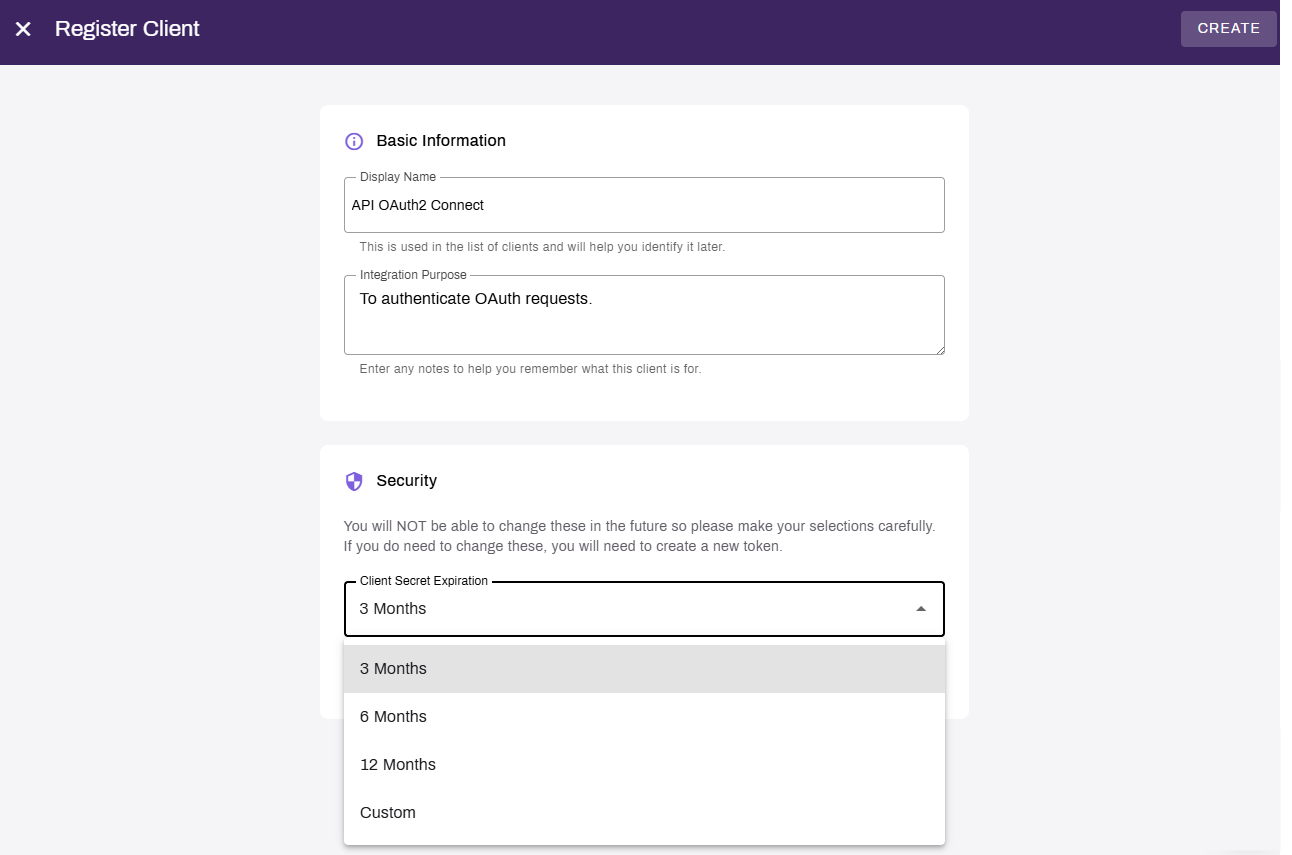
- Select Create.
-
On the Register Client modal, copy the Client ID and Client Secret or download / copy the JSON format.
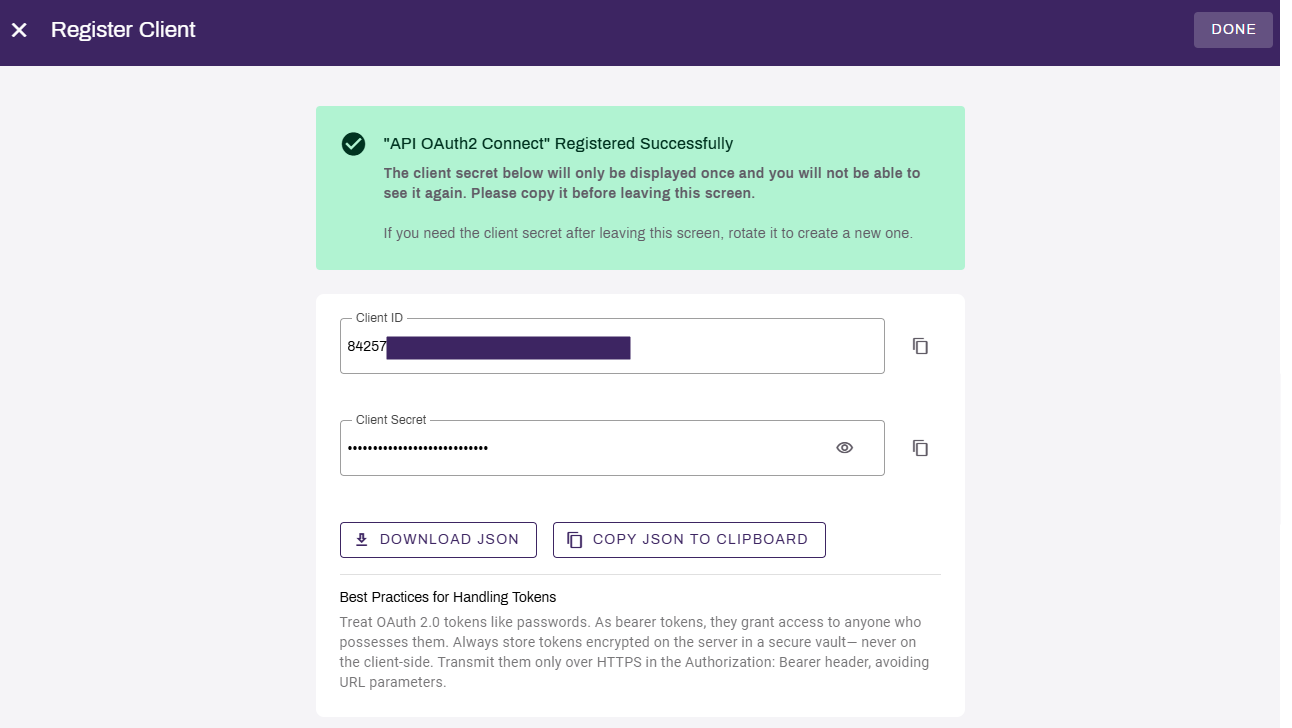
Leave this page open for now. The Client Secret will be displayed only once and will not be visible again. If you lose the secret, you will need to either rotate the existing secret or create a new one.
Configure Infor
To add the site:
-
From the Infor navigation menu, search for or go to OS
Document Management.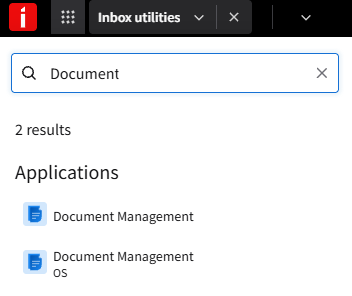
-
Select the Print option in the Document Output tile.
- Select Manage Service under the Vasion Print Service option.
- Select + Add Site.
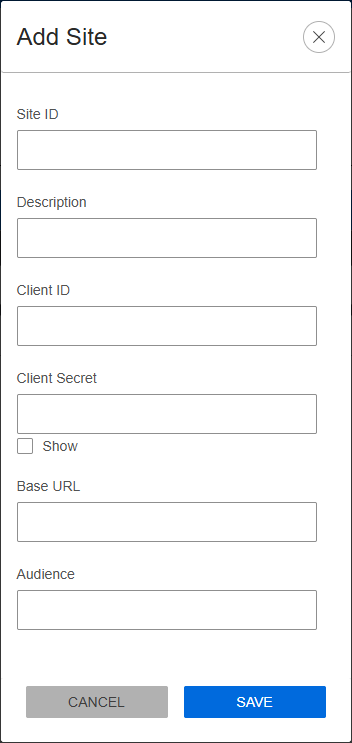
- Enter the following:
- Site ID: First part of your instance URL (e.g., output.printcloud.com, the site ID is output).
- Description: Unique description of the site.
- Client ID: Client ID pasted from the Admin Console.
- Client Secret: Client secret pasted from the Admin Console.
- Base URL: Enter the Base URL for the external gateway
- Copy Code
https://external-api.app.printercloud.com - Audience: Add an audience description.
- Select Save to validate and test the connection.
- Select Done in the PrinterLogic Admin Console.
To add printers:
- On the same Print page, select the Printers tab.
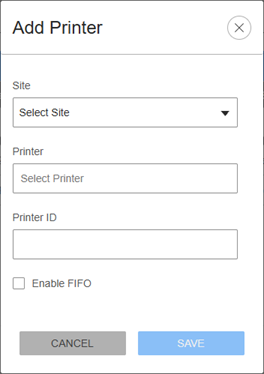
- Select + Add, and:
- Select your site from the Site dropdown.
- Select in the Printer box to trigger a printer list call.
- Select the desired printer.
- Leave Printer ID blank.
- Optional, select Enable FIFO (used in batch printing).
- Select Save.
- Repeat as needed for additional printers.
Optional Configure Printer Settings
To configure printer settings:
- Select the printer ID in the ID column on the Print tab.
-
Adjust print settings as needed.
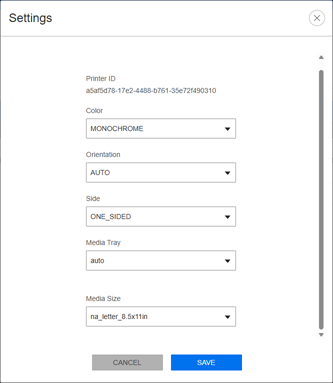
- Select Save when finished.
Test the Integration
To test this feature:
- Wait a moment for the configuration settings update.
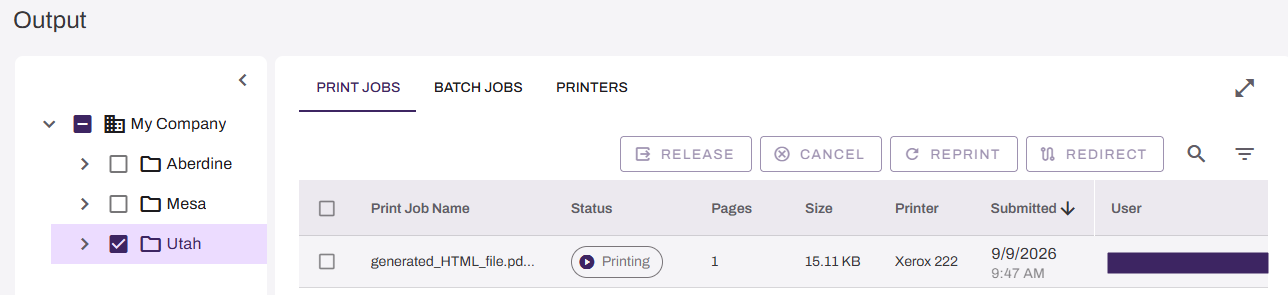
- Open your PrinterLogic Output Console to monitor incoming jobs.
- In Infor, select Print in the Test Print column, and Yes in the prompt.
-
Confirm that the print job is received and printed successfully in the Output Console and at the printer.