Configure LPD Service
Last Updated: September 23, 2026
PrinterLogic's Line Printer Daemon (LPD) setting allows connection to various Electronic Medical Record (EMR) or Enterprise Resource Planning (ERP) systems such as Cerner or SAP to provide Pull / Secure Release Print and reporting.
Requirements
- You must have a functional Service Agent that meets the minimum required specifications. For more details refer to Service Agents.
- Your Service Agent must be able to access the following service URLs adjusted for your region.
https://agent-api.app.printercloud.com.https://agent-api-grpc.app.printercloud.com.ofn.app.printercloud.com.ofn-gw.app.printercloud.com.
- Source application must be able to reach the Service Agent over port 515.
SAP Configuration
PrinterLogic Output supports connections to SAP's on-premises and private cloud version editions.
Here are some additional details about configuring PrinterLogic Output with SAP.
- The SAP Spool Server connects to the Service Agent through port 515. If you change the port number, you also need to update SAP.
Ubuntu Service Agent
Customers with an Ubuntu (LTS) 22.04 Service Agent must run an additional command on the Service Agent after configuring the steps below. The command initializes the service.
sudo ln -s "$(cat /etc/pl_dir)/service_client/service-output-management/bin/libmako-adapter-lib.so" "$(cat /etc/pl_dir)/service_interface/lib/libmako-adapter-lib.so" The following steps show how to configure LPD in the PrinterLogic Admin Console. You may need additional settings configured within the EMR / ERP. Use the assistance of a Product Support Engineer or an assigned System Engineer for proper configuration.
Turn On the LPD Service
- In the Admin Console, select the Service Agent where you want to configure LPD Service.
- Select the Output Automation tab.
-
Enter the Domain Name of the Service Agent machine.
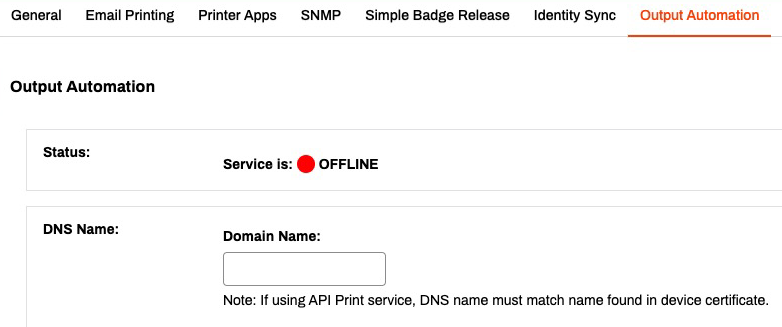
This Domain Name must match the device certificate name and the Service Agent must map this Domain Name to its local IP address. If this field is empty, the service will fail to start, and adds a "Failed to get host address" to the log.
-
Scroll to the LPD service section and select the Enable LPD Service option.
-
Enter the port number for LPD Service Agent. The default is port 515.

-
- Select Save in the upper-right corner.
The Status section shows a green circle and indicates the service is Online when everything is configured correctly.

API Print Service
For details on the API Services and print options, refer to API Print Service.
Optional Next Steps
SAP Connections
If you want to connect PrinterLogic Output with SAP, refer to the following:
- If you plan to set up high availability and redundancy, configure it first.
- Refer to SAP Configuration to verify the necessary settings in SAP Business Client.
Troubleshooting Help
In some setups, external applications may need to reach the PrinterLogic Output Service Agent using a DNS name that resolves to an external IP address. However, this can cause issues the following issues:
- The Service Agent cannot resolve the DNS name to its internal IP address.
- External DNS resolution conflicts with internal requirements.
Check if the Service Agent can resolve the DNS name to its internal IP address. If the DNS name does not resolve correctly, you may need to modify the hosts file. Refer to Troubleshoot DNS Resolution for Output Automation Service Client
Ensure that the DNS name in the UI matches the one in the certificate used by the Service Agent.
In this topic: