Configure Infor Integration
Last Updated: October 23, 2026
Use this topic to connect PrinterLogic Output to Infor Document Management (IDM), and validate that print jobs complete successfully.
Requirements
Review the Requirements before configuring this feature.
Process Overview
- Turn On API Cloud Link.
- Create Client ID & Secret.
- Add the Site in Infor.
- Add Printers to Infor.
- Optional Configure Printer Settings.
- Test Configuration.
1. Turn On API Cloud Link
Follow these steps to turn on API Cloud Link:
- In the Admin Console, go to the API Cloud Link section on Tools
 Settings Output.
 - Select API Cloud Link Enabled.
- Select Save in the upper-right corner.

2. Create Client ID & Secret
Follow these steps to create the Client ID and Client Secret.
- Go to Tools Tokens API Keys.
- Select the OAuth 2.0 tab.
- Select the Register Client button in the upper-right.
- Enter a Display Name and Integration Purpose (Description).
-
Use the dropdown to select the Client Secret Expiration.
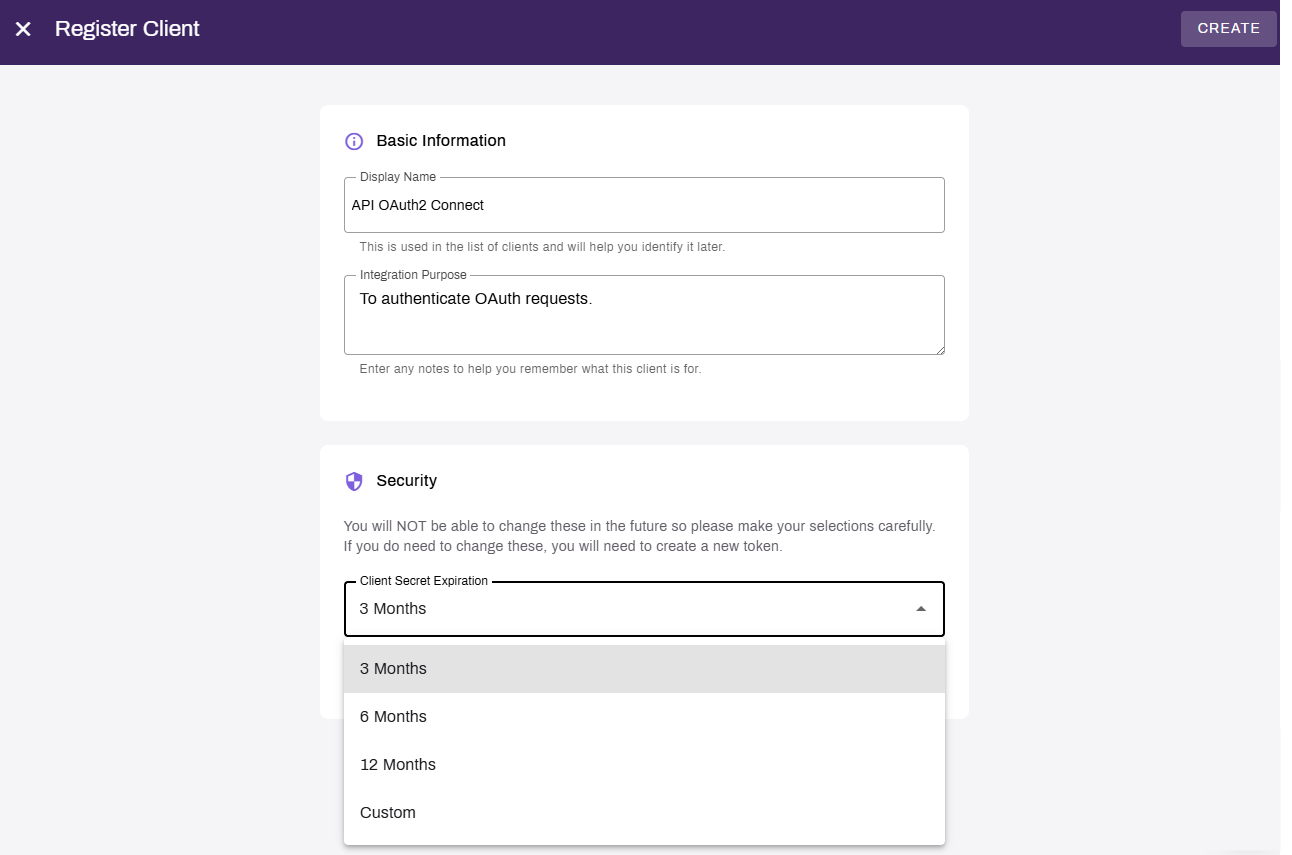
- Select Create.
-
On the Register Client modal, copy the Client ID and Client Secret or download / copy the JSON format.
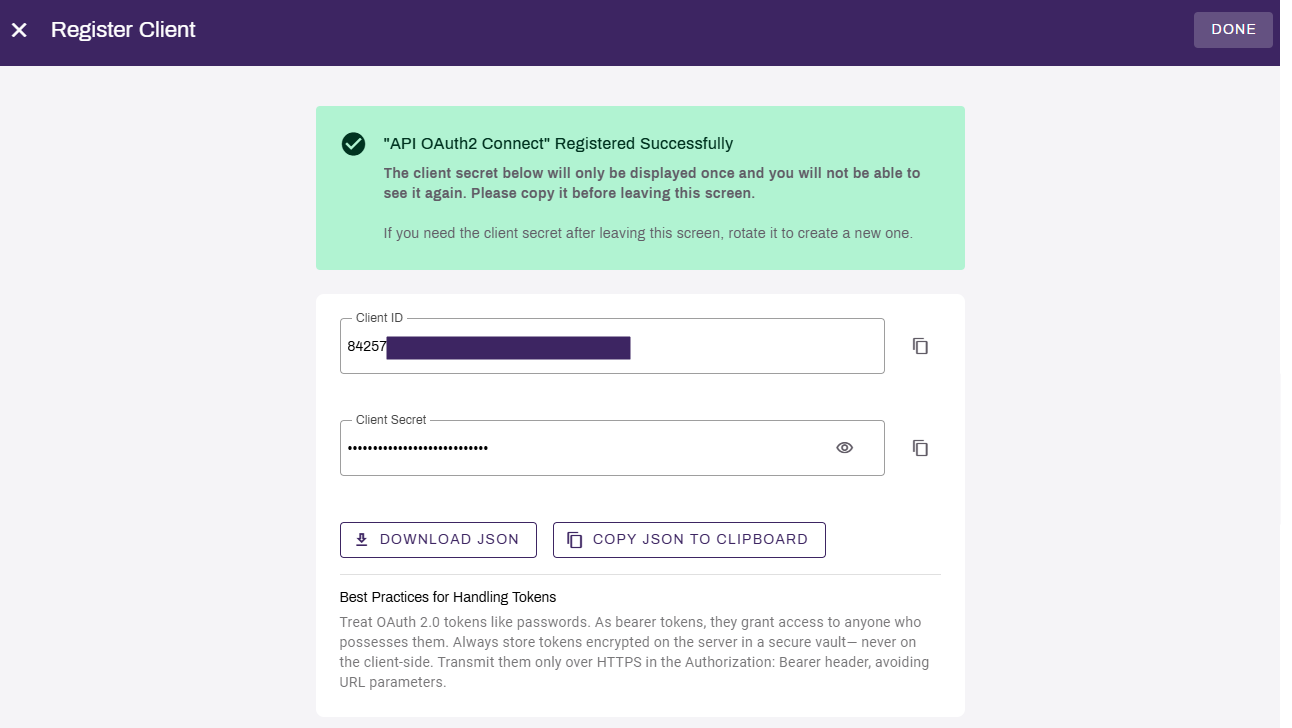
Leave this page open for now. The Client Secret will be displayed only once and will not be visible again. If you lose the secret, you will need to either rotate the existing secret or create a new one.
3. Add the Site to Infor
To add the site:
-
From the Infor navigation menu, search for or go to OS
Document Management.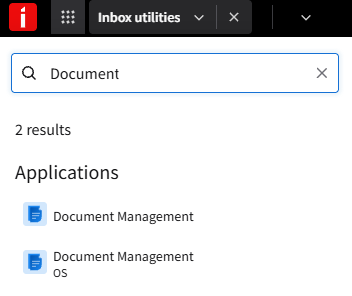
-
Select the Print option in the Document Output tile.
- Select Manage Service under the Vasion Print Service option.
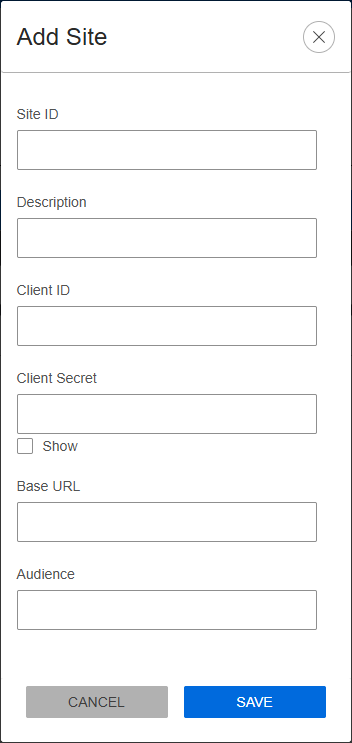
- Select + Add Site.
- Enter the following:
- Site ID: First part of your instance URL (e.g., output.printcloud.com, the site ID is output).
- Description: Unique description of the site.
- Client ID: Client ID pasted from the Admin Console.
- Client Secret: Client secret pasted from the Admin Console.
- Base URL: Enter the Base URL for the external gateway
- Copy Code
https://external-api.app.printercloud.com - Audience: Add an audience description.
- Select Save to validate and test the connection.
- Select Done in the PrinterLogic Admin Console.
4. Add Printers to Infor
To add printers:
- On the same Print page, select the Printers tab.
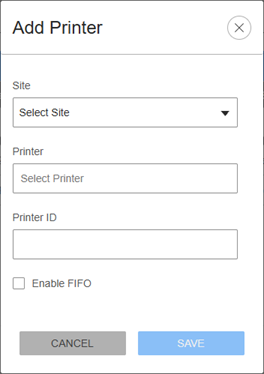
- Select + Add, and:
- Select your site from the Site dropdown.
- Select in the Printer box to trigger a printer list call.
- Select the desired printer.
- Leave Printer ID blank.
- Optional, select Enable FIFO (used in batch printing).
- Select Save.
- Repeat as needed for additional printers.
Optional Configure Printer Settings
To configure printer settings:
- Select the printer ID in the ID column on the Print tab.
-
Adjust print settings as needed.
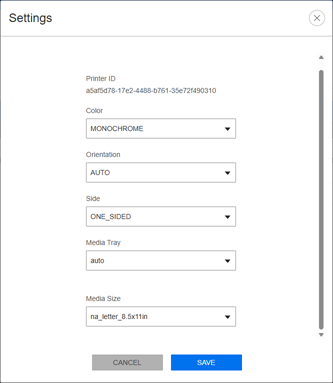
- Select Save when finished.
5. Test Configuration
- Wait a moment for the configuration settings update.
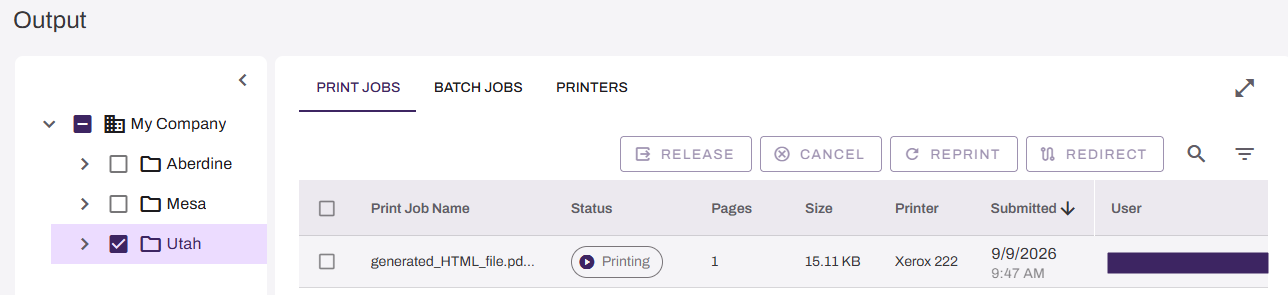
- Open your PrinterLogic Output Console to monitor incoming jobs.
- In Infor, select Print in the Test Print column, and Yes in the prompt.
-
Confirm that the print job is received and printed successfully in the Output Console and at the printer.
In this topic: