Quick Config Tool
Last Updated: September 08, 2026
The Quick Config tool is an in-app feature designed to simplify and accelerate the process of making mass printer updates. Currently focused on PrinterLogic Output features, it is a lightweight alternative to the Data Manager for targeted, large-scale edits. Current targeting capabilities are based on Custom Printer Fields. Future improvements may include support for tags and labels to simplify printer selection.
Key Points
- Works specifically with PrinterLogic Output features.
- In-app alternative to the Data Manager. No data exports / imports required.
- Filtering happens using Custom Printer Fields.
- To bulk populate Custom Printer Fields values, you can use the Data Manager.
Requirements
- PrinterLogic Output licensing.
- Custom Printer Fields created and applied to the desired printer objects. For more details refer to Custom Printer Fields.
Use the Quick Config Tool
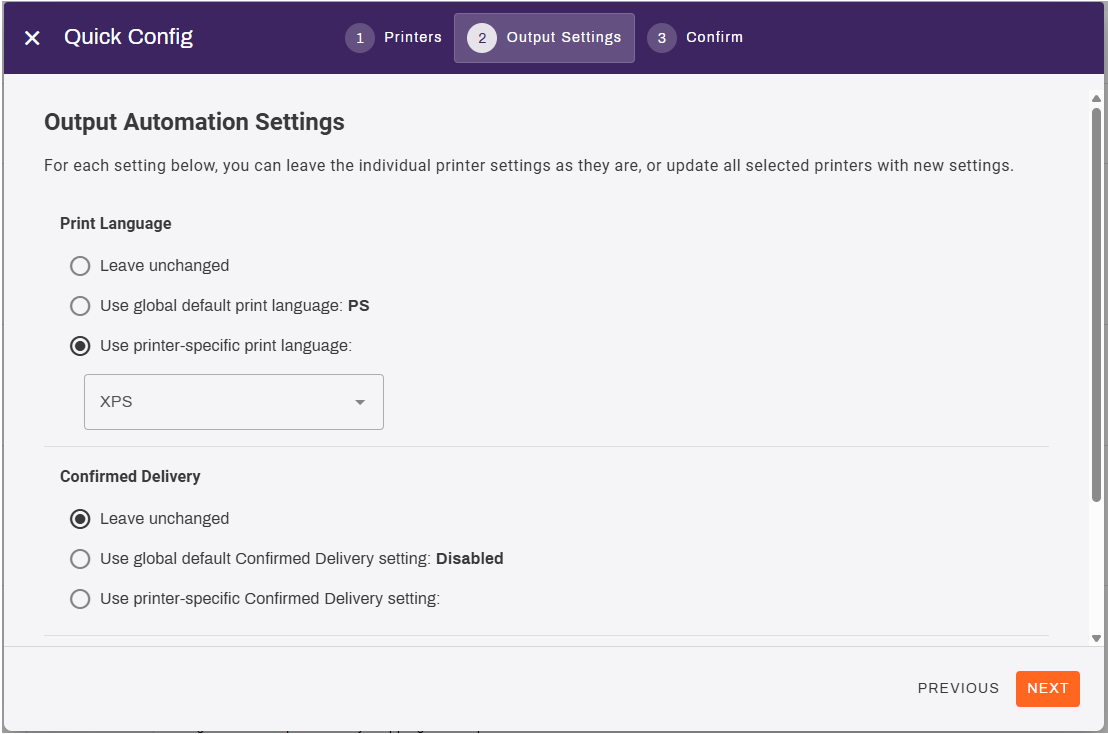
The options are:
- Leave unchanged: No impact or change for this setting.
- Use global default: Changes selected printer settings to the global default.
- Use printer-specific: Displays additional fields to add printer-specific settings.
- In the Admin Console, go to Tools
 Settings Output.
 -
In the Quick Config section, select the Quick Config button.

- Complete the following:
- For the Field value, select Custom Field.
- For the Custom Field, select the field to filter by.
- For the Custom Field Value, select the value to filter by.
-
Verify the printers selected are accurate and adjust filters as needed.
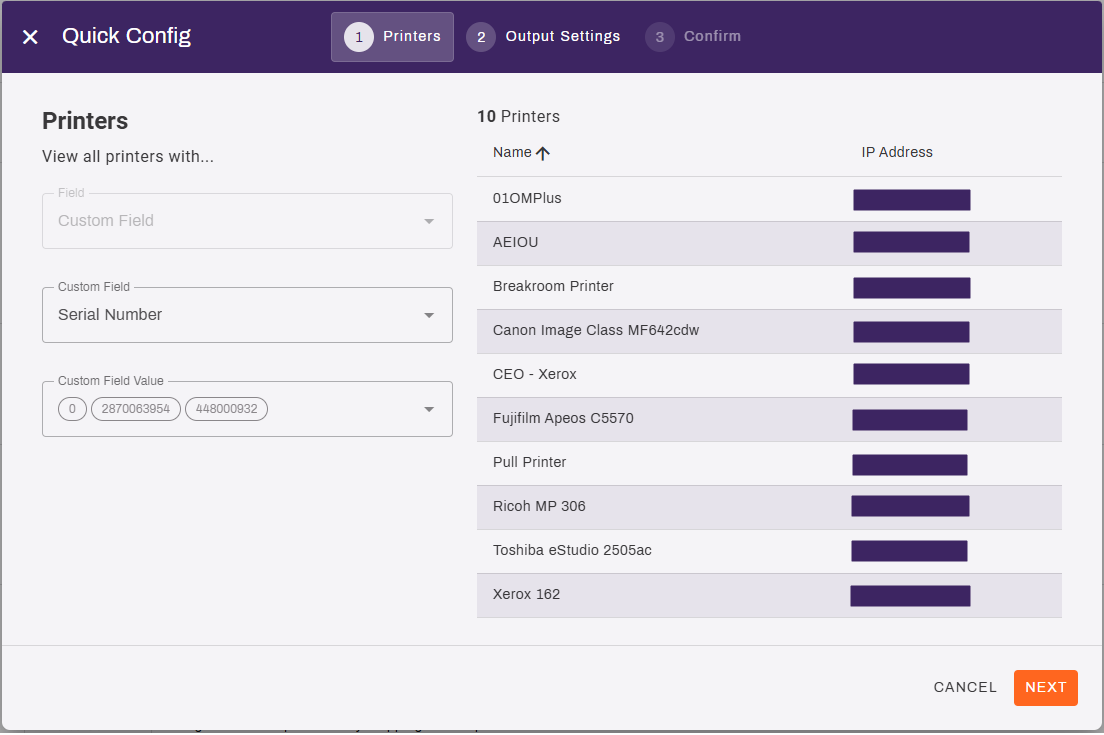
- Select Next.
- On the Output Automation Settings tab, adjust the desired settings.
- Print Language.
- Confirmed Delivery.
- Epic / API Tray Mappings.
- Select Next.
- Confirm the changes are correct, then select Yes, Apply Changes.
- Select Close in the modal.
Selecting Close closes out the modal but does not impact the update processes, which continue running in the background until completion.
In this topic:
PrinterLogic Output modernizes traditional output management by automating critical document and print workflows, bridging back-end systems and end-user printing, and connecting seamlessly with existing EMR, EHR, and ERP systems. PrinterLogic Output automates document routing, conversion, and delivery, reducing manual effort and streamlining operations
- EMR/EHR/ERP Connectors
- API Service
- Output Rules
- Batch Printing
- Output Console
- Print Job Regionalization
- Document Conversions & Driverless Printing
- Confirmed Delivery
- Quick Configuration
- API Cloud Link
Check out our Solution Brief. for more about these features.
Yes, PrinterLogic Output easily connects your systems with Vasion to route and deliver documents to your desired destinations while offering you more granular control and visibility.
It seamlessly connects with ERP/EMR/CRM systems and other business-critical applications, enhancing your current document management without needing a complete overhaul. The API Service also supports on-prem and cloud-based systems, expanding your integration capabilities with ease and flexibility.
The Output Console offers complete control and oversight over your printing and document environment. This unified interface offers the ability to view printers, filter and sort print jobs, track processed jobs, redirect failed print jobs, and cancel or reprint past jobs. With robust reporting capabilities, you gain enhanced insights into queue statuses and printer performance, ensuring efficient, transparent print operations. Reduce downtime by quickly identifying and troubleshooting issues to protect your critical business processes.
PrinterLogic Output is easy to implement. Tools like Network Scanner, the Data Manager, and Quick Config tool help you migrate queues and apply settings in bulk. You can also configure zones to route jobs by region and use the Output Console for real-time monitoring, job health, and automatic redirection.
PrinterLogic Output is licensed per print queue. You will need additional licensing to access additional features like Secure Release and Off-Network Printing.
As a PrinterLogic Output customer, you will already have a functional Service Agent and printer configured. From there, you must secure a digital certificate issued by a reputable Certificate Authority (CA), recognized and trusted by the system or application you are connecting to the Output Service.
For additional information on API Print Service prerequisites, refer to API Print Service.
The API Print Service runs on the PrinterLogic Output Service on a Windows or Debian Linux server either on-premise or in your cloud instance. This allows the API Print Service to reach your source application and printers unless Off-Network Print is utilized. This back-end configuration is flexible to your environment's requirements to function seamlessly with your existing systems and processes.